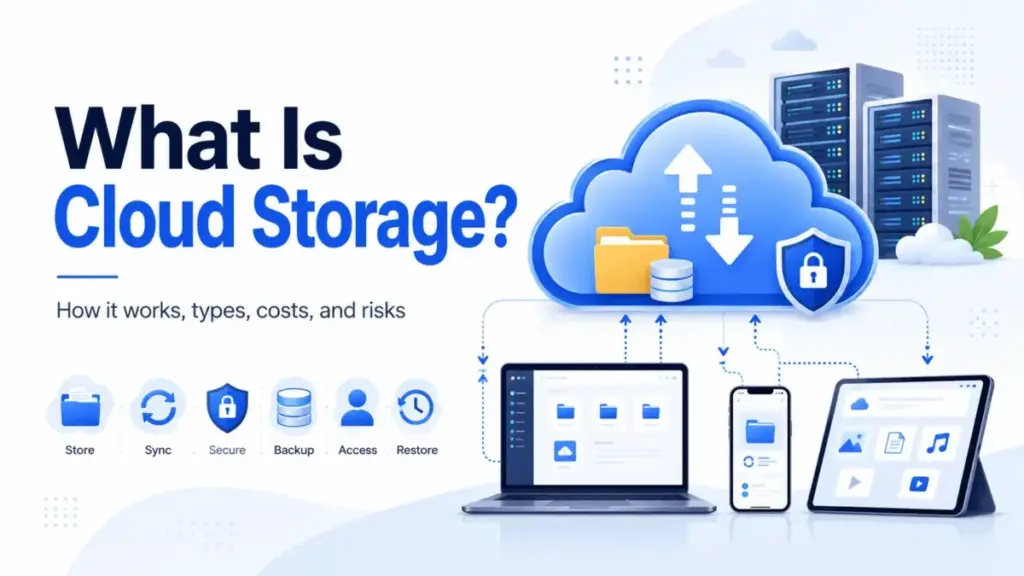
Most teams treat cloud storage like a bottomless hard drive. Upload files, share a link, move on. That simplicity hides a set of decisions that shape how your data is protected, how much you actually pay, and whether you can recover anything when something goes wrong.
Cloud storage is a cloud computing model for storing data on remote, provider-managed servers accessed through the internet or a private network. Google Cloud and AWS define it the same way: your files live off-site, maintained and secured by a third party.
This guide explains how cloud storage works at a technical level, breaks down the types most teams confuse, covers the cost traps that definition articles skip, and walks through a practical implementation checklist. If your team uses collaboration tools like Google Drive, OneDrive, or Dropbox, you are already using cloud storage. The question is whether you are using it well.
Quick Answer: Cloud storage is a model where data is stored on remote servers managed by a third-party provider, accessed via the internet or private connections. It differs from local storage by offering elastic capacity, off-site redundancy, and collaboration features, but introduces internet dependency, shared-responsibility security, and fee complexity that teams need to manage actively.
The 60-Second Explanation of Cloud Storage
Simple definition: Cloud storage keeps your files on someone else’s servers instead of your own hard drive or office server. You access them through the internet.
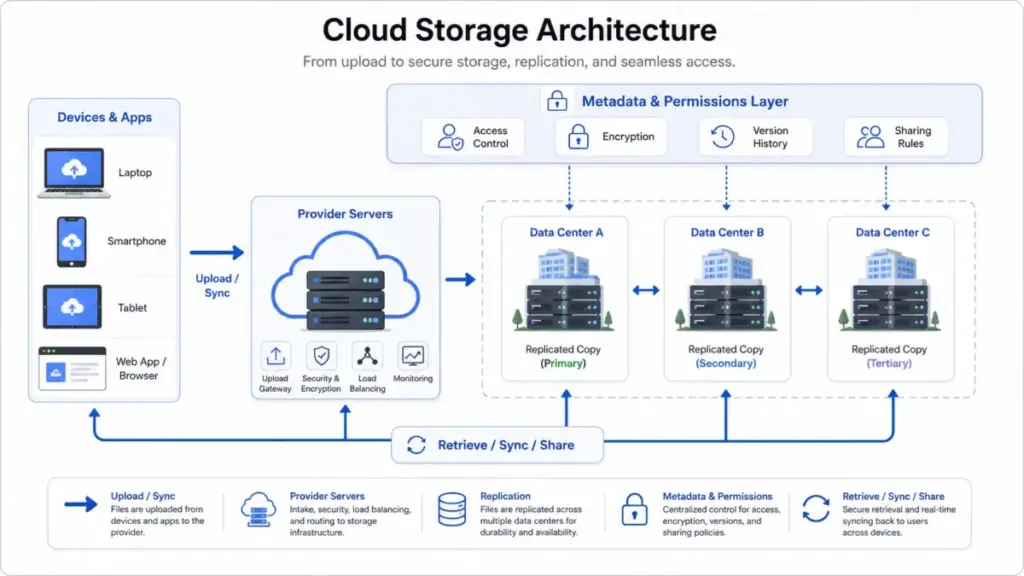
Technical definition: Cloud storage distributes data across provider-managed infrastructure, often replicating it across multiple servers, availability zones, or geographic regions for durability and availability. Metadata layers handle permissions, encryption, version history, lifecycle policies, and retrieval rules. Access paths include browser portals, desktop sync clients, mobile apps, APIs, and private network connections.
Business definition: Cloud storage replaces upfront hardware purchases with subscription or usage-based pricing. It enables remote access, real-time collaboration, automated backups, regulatory archiving, and integration with SaaS workflows, analytics pipelines, and AI data infrastructure. For most teams in 2026, it is the default storage layer.
One thing that gets lost in definitions: cloud storage is not one thing. Google Drive and Amazon S3 both qualify as cloud storage, but they serve completely different jobs. Drive is a file collaboration layer. S3 is an object storage service for applications, data lakes, and archives. Treating them as interchangeable is where teams run into trouble.
How Cloud Storage Actually Works
The mechanism is straightforward in concept and complicated in practice.
Users or applications upload files, objects, backups, media, or datasets over the internet, through desktop sync clients, web portals, or APIs. Providers store that data across remote infrastructure, replicating it across multiple servers or availability zones for durability.
Here is the pipeline:
- Upload. A user saves a file through a sync client, browser, or API call. The file travels encrypted in transit (typically TLS) to the provider’s nearest data center.
- Storage and replication. The provider writes the data to disk and replicates it. Amazon S3, for example, stores objects across a minimum of three availability zones for several storage classes.
- Metadata and permissions. The provider applies access controls, encryption at rest, version history, and lifecycle rules. These determine who can access the file, how long versions are retained, and when data moves to cheaper archive tiers.
- Retrieval. Users access files through sync clients, browsers, mobile apps, or API calls. Retrieval speed and cost vary by storage class: hot storage is fast and expensive, cold/archive storage is slow and cheap.
- Billing. Costs accumulate across storage capacity, API requests, data egress (downloads), retrieval charges, and add-on features. This is where the “simple” model gets complicated.
Where things go wrong: The most common failure is assuming that synced files are backed up. If a user deletes a synced file or ransomware encrypts it, those changes can propagate across all connected devices unless versioning, retention windows, or immutable backups are configured. I will come back to this in the misconceptions section because it catches teams constantly.
Cloud Storage vs Cloud Backup
This is the distinction that most definition articles blur, and it costs teams real data.
| Function | What it does | Recovery capability | Example |
|---|---|---|---|
| File sync | Keeps files identical across devices in near real-time | Limited: synced deletions propagate unless versioning is enabled | Google Drive for desktop, OneDrive sync |
| File sharing | Distributes access to files via links or permissions | None: sharing is access, not protection | Dropbox shared folders, Box shared links |
| Cloud backup | Creates scheduled, often immutable copies of data for recovery | Strong: point-in-time restore, retention policies, ransomware protection | Veeam, Duplicati, OneDrive folder backup |
| Cloud archive | Stores infrequently accessed data at low cost with retrieval delays | Variable: depends on storage class and retrieval configuration | Amazon S3 Glacier, lifecycle-tiered object storage |
The practical difference: OneDrive’s folder backup feature syncs selected desktop folders to the cloud. Microsoft’s support documentation confirms backed-up folders can be accessed from anywhere after syncing. But if you stop backup, files already in OneDrive stay there. That is sync with a backup label, not a full disaster recovery solution with immutable snapshots and configurable retention.
Dropbox Business Standard includes 180 days to restore deleted files. Advanced extends that to one year. Those windows matter. If your team discovers a deletion or corruption after the restore window closes, the data is gone.
The rule I follow: if your cloud collaboration platform is your only copy, you do not have a backup. You have convenient access to files that are one sync error away from disappearing.
Types of Cloud Storage
Teams confuse these categories constantly because the marketing pages make them all sound the same.
| Storage type | Plain-English analogy | Best for | Avoid when | Example tools | Cost caveat |
|---|---|---|---|---|---|
| Object storage | A warehouse where every box has a barcode and metadata tag | Unstructured data, backups, data lakes, media, AI datasets, archives | You need file paths or low-latency database access | Amazon S3, Google Cloud Storage, Backblaze B2 | Egress and retrieval fees can spike costs |
| File storage | A shared filing cabinet with folders and permissions | Team documents, collaboration, shared drives, content management | You need API-level programmatic access to millions of objects | Google Drive, OneDrive, Dropbox, Box | Per-user pricing scales with headcount |
| Block storage | A hard drive sliced into chunks for applications | Databases, virtual machines, transactional systems needing low latency | You need human-readable file sharing or collaboration | AWS EBS, Azure Managed Disks | Provisioned capacity billed whether used or not |
Beyond the technical categories, deployment models shape governance:
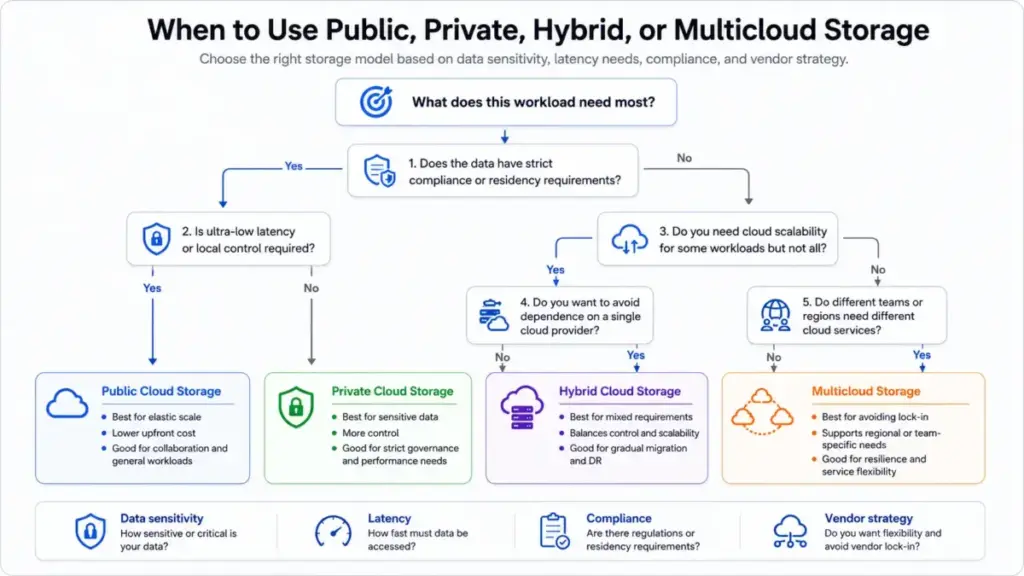
- Public cloud storage. Provider-operated shared infrastructure with elastic capacity. Pay-as-you-go or subscription. Most SaaS file storage fits here.
- Private cloud storage. Dedicated infrastructure for one organization. Used for compliance, performance, or control requirements.
- Hybrid cloud storage. Combines on-premises and public cloud. HPE describes this model as balancing performance, cost, control, and compliance. Flexera’s 2026 State of the Cloud report found that 73% of organizations operate hybrid estates.
- Multicloud storage. Uses more than one cloud provider for redundancy, geographic coverage, or to avoid vendor lock-in.
The hybrid complexity is real. HPE notes the disadvantages include increased management across multiple suppliers and tools, higher latency for cloud-to-cloud communication, and operational overhead. Not every team needs hybrid. But if your data has residency requirements or latency sensitivity, public cloud alone will not cover it.
Step-by-Step Implementation
Here is the checklist I recommend for teams moving to cloud storage or auditing their current setup. Each step maps to a real failure mode I have seen teams hit.
Step 1: Classify your data
Separate collaboration files from application objects, backups, archives, regulated records, media, and AI datasets. Each type has different access, retention, and compliance needs.
Step 2: Choose the storage type
File storage for team documents. Object storage for unstructured application data and archives. Block storage for low-latency app workloads. Do not use Google Workspace shared drives as your archive layer.
Step 3: Define access paths
Browser, desktop sync client, mobile app, API, private network, SSO, shared drives, or service accounts. Map each user group to its access method.
Step 4: Set security controls
MFA, least-privilege permissions, link sharing rules, encryption, DLP, audit logs, device controls, and admin ownership. Providers handle encryption at rest and in transit. Customers handle identity hygiene and permissions review.
Step 5: Design recovery
Version history, deleted-file retention, immutable backups, snapshots, object lock, replication, and disaster recovery objectives. Define your recovery time objective (RTO) and recovery point objective (RPO) before you need them.
Step 6: Model costs before migration
Subscription seats, storage pools, bandwidth, egress, API calls, retrieval charges, minimum storage duration, add-ons, and support tiers. The Wasabi 2026 Cloud Storage Index reports that roughly half of public cloud storage spending goes toward fees rather than storage capacity. Model the full cost, not just per-GB rates.
Step 7: Create lifecycle rules
Hot data stays accessible. Warm data moves to cheaper tiers after a defined period. Cold archives get retention and legal hold policies. Automate transitions where possible.
Step 8: Pilot with real workflows
Sync large folders. Share externally. Restore deleted files. Test access controls. Validate mobile and desktop behavior. Simulate a recovery event.
Step 9: Train users on what cloud storage is not
It is not a universal backup unless backup workflows and retention rules are configured. This is the single most important training message.
Step 10: Monitor continuously
Track storage growth, inactive data, sharing exposure, failed sync events, recovery success rates, permissions drift, budget variance, and usage anomalies.
The Mistakes That Waste Your First Month
These are the errors I see most often, and most of them stem from treating cloud storage as simpler than it is.
- Assuming sync equals backup. Synced deletions and ransomware-encrypted files propagate across devices unless versioning, retention, or immutable recovery is configured.
- Leaving public links unmanaged. Shared links accumulate. Without periodic audits, sensitive documents stay accessible long after the collaboration ends.
- Ignoring deleted-file retention windows. Dropbox Business Standard gives you 180 days. After that, deleted files are unrecoverable.
- Storing regulated data without residency controls. Compliance requirements (GDPR, HIPAA, FedRAMP) often dictate where data can physically reside. Not every provider or plan supports data regions.
- Using object storage like a team drive. Amazon S3 is built for applications and APIs. Asking a marketing team to browse S3 buckets for daily file sharing is a workflow mismatch.
- Choosing cold storage for frequently accessed data. Archive tiers charge retrieval fees and impose minimum storage durations. Accessing cold data frequently defeats the cost savings.
- Ignoring egress fees. Downloading data from most cloud providers costs money. Flexera’s 2026 report found estimated wasted cloud spend rose to 29%, reversing a five-year downward trend. Egress and retrieval fees contribute to that waste.
- Failing to test restores. A backup you have never tested is a backup that does not exist. Schedule quarterly restore tests.
- Not setting ownership for shared folders. When the folder creator leaves the organization, unowned shared folders become governance problems.
- Letting AI datasets and duplicate media grow without lifecycle rules. Gartner forecasts worldwide AI spending to total $2.52 trillion in 2026. That investment generates massive data volumes. Without lifecycle policies, storage costs grow unpredictably.
Common Misconceptions
Misconception: Cloud storage is the same as cloud backup.
Reality: Sync storage keeps files accessible and synchronized. It does not automatically provide long retention, point-in-time restore, or immutable recovery unless specifically configured.
Misconception: Unlimited storage means unlimited practical use.
Business plans can include fair-use bandwidth limits, file upload caps, version history restrictions, and API rate limits. Box’s pricing page lists bandwidth limits: 1 TB per user per month for upload/download on both Individual and Business plans. “Unlimited” still has boundaries.
Misconception: Cloud storage automatically solves security.
Providers offer encryption, access controls, and redundancy. Customers still need identity hygiene, permissions review, backup strategy, lifecycle policies, and compliance governance. Google Workspace Enterprise includes DLP, context-aware access, enterprise data regions, and AI classification for Drive, but these controls require configuration.
Misconception: The cheapest per-GB storage is always cheapest overall.
Total cost changes once egress, retrieval, API operations, minimum storage duration, support, and add-ons are included. AWS S3 charges separately for PUT and GET requests, and retrieval fees apply for infrequent access and Glacier storage classes.
Misconception: All cloud storage works the same way.
Google Drive, OneDrive, Dropbox, and Box are file-sync and collaboration platforms. Amazon S3 is object storage for applications, archives, and developer workflows. They serve fundamentally different jobs.
When to Use and When to Avoid Cloud Storage
Use cloud storage when:
- Teams need remote access and real-time collaboration
- You need elastic capacity that scales without hardware purchases
- Off-site redundancy and disaster recovery are requirements
- SaaS workflows, analytics, AI pipelines, or backup targets need storage integration
- You want provider-managed infrastructure with encryption, patching, and uptime SLAs
Avoid or supplement with private/hybrid storage when:
- Workloads require ultra-low latency that internet roundtrips cannot deliver
- Strict data residency laws require on-premises control
- Offline-first operation is essential (field teams, air-gapped environments)
- Predictable, fixed-cost budgets cannot absorb variable egress and retrieval fees
- Full air-gapped recovery is a regulatory requirement
What Good Cloud Storage Looks Like
Here is what separates well-managed cloud storage from the default “upload and hope” approach.
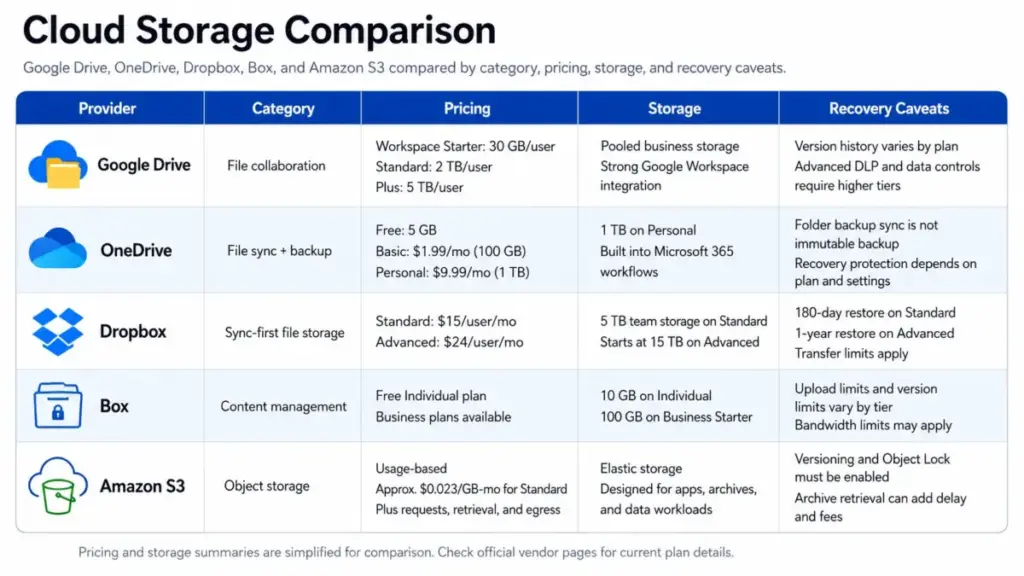
| Cloud storage example | Category | Starting price/status | Storage | Recovery/version caveat | Best fit |
|---|---|---|---|---|---|
| Google Drive / Google Workspace | File collaboration | Workspace Starter: pooled 30 GB/user | 2 TB/user on Standard, 5 TB/user on Plus | Version history varies by plan; DLP and AI classification require Enterprise | Teams using Google Docs, Sheets, Gmail |
| Microsoft OneDrive / Microsoft 365 | File sync and backup | Free: 5 GB; Basic: $1.99/mo (100 GB); Personal: $9.99/mo (1 TB) | 1 TB on Personal | Folder backup syncs but is not immutable; ransomware recovery requires paid plans | Microsoft 365 users needing device sync |
| Dropbox Business | Sync-first file storage | Standard: $15/user/mo (3+ users, 5 TB team) | Advanced: starts at 15 TB team | 180-day restore on Standard; 1-year on Advanced; transfer limits of 100 GB per transfer | Teams prioritizing sync speed and restore windows |
| Box | Business content management | Individual: free (10 GB, 250 MB upload limit) | Business Starter: 100 GB, 2 GB upload limit | 25 file versions on Starter; 50-100+ on higher tiers; bandwidth limits apply | Regulated industries needing SOC 2, HIPAA, FedRAMP |
| Amazon S3 | Object storage | Pay-per-use (~$0.023/GB for first 50 TB Standard) | Elastic, usage-based | Versioning and Object Lock available but must be enabled; retrieval fees for archive classes | Developers, data teams, backup targets, AI datasets |
Pricing verified against official pages as of May 2026. Check each provider’s current pricing for your region.
How to Measure Success
| Metric | What it tells you | Why it matters |
|---|---|---|
| Storage growth rate | How fast data accumulates | Budget forecasting and lifecycle planning |
| Active vs inactive data ratio | How much stored data is actually used | Identifies candidates for archiving or deletion |
| Sync error rate | How often file sync fails | Signals configuration or network problems |
| Restore success rate | Whether backups actually work when tested | The only metric that validates your recovery plan |
| Recovery time objective (RTO) | How fast you can restore operations | Determines disaster recovery readiness |
| External sharing exposure | How many files are shared outside the organization | Security and compliance risk indicator |
| Cost per TB | Actual total cost including fees | Reveals hidden cost beyond per-GB rates |
| Percentage of data under lifecycle policy | How much data has automated retention rules | Governance maturity indicator |
Tools That Support Cloud Storage Workflows
If you are evaluating cloud storage platforms, start with the comparison above and work through the implementation checklist. For teams already using video conferencing and messaging tools, cloud storage is the natural next layer.
Related resources for deeper evaluation:
- For team messaging context: Slack review
- For understanding SaaS models: what is SaaS
- For workflow automation context: what is workflow automation
FAQ
What is cloud storage in simple terms?
Cloud storage keeps your files on remote servers managed by a provider like Google, Microsoft, or Amazon instead of on your local hard drive. You access them through the internet from any device with proper credentials.
Is cloud storage the same as cloud backup?
No. Cloud storage provides access and collaboration. Cloud backup creates scheduled, often immutable copies designed for recovery. Syncing files to Google Drive does not protect against accidental deletion or ransomware unless versioning and retention are specifically configured.
What are the three main types of cloud storage?
The three technical types are object storage (data stored as objects with metadata, best for unstructured data), file storage (data in folder hierarchies, best for collaboration), and block storage (data split into blocks, best for databases and VMs). Deployment models add public, private, hybrid, and multicloud as separate categories.
Is cloud storage safe for business files?
Provider infrastructure includes encryption at rest, encryption in transit, redundancy, and compliance certifications. Customer responsibility includes MFA, permissions management, link sharing policies, DLP configuration, and backup testing. Security is shared, not automatic.
How much does cloud storage cost?
Costs vary by model. Google Workspace starts at pooled 30 GB per user on Starter plans. Microsoft 365 Personal offers 1 TB for $9.99/month. Amazon S3 charges approximately $0.023/GB/month for Standard storage plus separate fees for requests, retrieval, and egress. Total cost depends on usage patterns, not just per-GB rates.
Why do cloud storage bills surprise teams?
Because per-GB storage is only part of the cost. Egress fees (downloading data), retrieval charges (accessing archived data), API request fees, minimum storage durations, bandwidth limits, and add-on features all contribute. The Wasabi 2026 Cloud Storage Index found that roughly half of public cloud storage spending goes toward fees rather than capacity.
What is the difference between Google Drive and Amazon S3?
Google Drive is a file collaboration platform for teams working with documents, spreadsheets, and shared folders. Amazon S3 is object storage for applications, data lakes, backups, and developer workflows accessed through APIs. They serve different jobs and should not be treated as alternatives to each other.
Can cloud storage replace a local file server?
For most collaboration and document workflows, yes. For workloads requiring ultra-low latency, offline access, or air-gapped security, a local server or hybrid approach is still necessary. The decision depends on latency tolerance, compliance requirements, and internet reliability.
Do I still need backup if my files are in Google Drive?
Yes. Google Drive syncs files across devices, but synced deletions propagate. If a file is deleted or corrupted and the change syncs before you notice, recovery depends on version history and trash retention windows. A separate backup with longer retention and immutable storage provides stronger protection.
How do I choose cloud storage for my business?
Start by classifying your data (collaboration files vs application data vs backups). Match each category to a storage type. Model total cost including egress and retrieval fees, not just per-GB rates. Define recovery requirements before selecting a provider. Pilot with real workflows and test a restore before committing.