Every team has that one process: the lead that sits in a spreadsheet for two days, the invoice that bounces between three inboxes, the onboarding checklist that lives in someone’s head. These are the handoffs where work stalls, and they cost more than most operators realize.
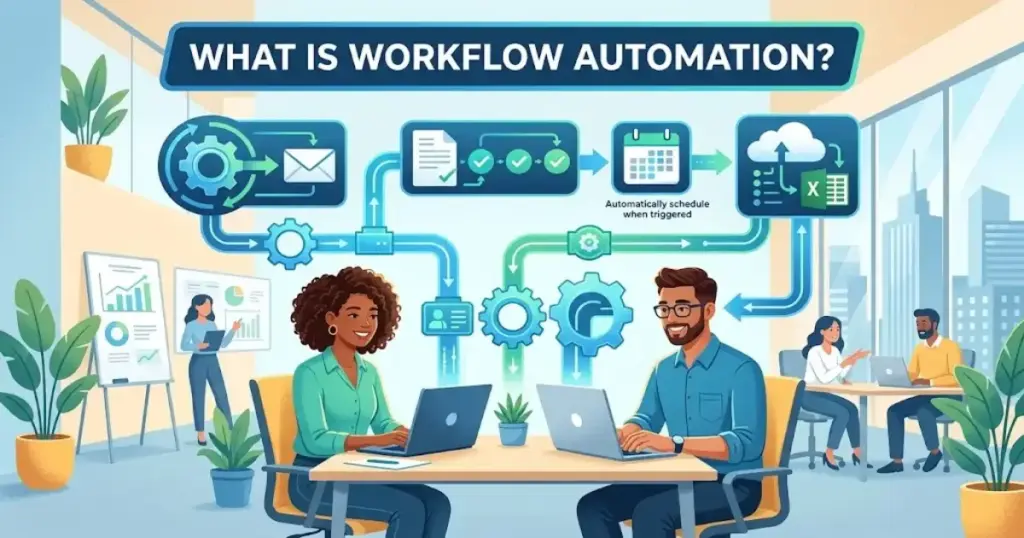
Workflow automation is the practice of using software to execute repeatable steps in a business process, replacing manual triggers, copy-paste data moves, and email-based approvals with rules that run without waiting for a person. Modern workflow automation often depends on an API to move data between tools, a trigger to start the sequence, and defined rules to decide what happens next. This guide breaks down how automated workflows actually work, when they help, when they fail, and which tools fit which team.
What Is Workflow Automation?
Workflow automation uses software to route tasks, data, and decisions through a defined sequence without manual intervention at every step. Instead of relying on a person to copy a form submission into a CRM, notify a sales rep on Slack, and create a follow-up task in a project board, an automated workflow handles each handoff based on pre-set rules.
The term covers a wide range of systems. At one end, a simple Zap in Zapier moves a new lead from a web form to a Google Sheet. At the other end, an enterprise orchestration platform routes purchase orders through multi-level approvals, compliance checks, and ERP updates. What connects them is structure: every automated workflow has a trigger, one or more actions, rules that govern routing, and an owner responsible for keeping it accurate.
IBM defines the concept this way: “Workflow automation optimizes processes by replacing manual tasks with software that executes all or part of a process” (IBM Think). The key phrase is “all or part.” Most teams do not automate entire departments on day one. They automate the boring, repeatable handoff that slows everything else down.
Anatomy of an Automated Workflow
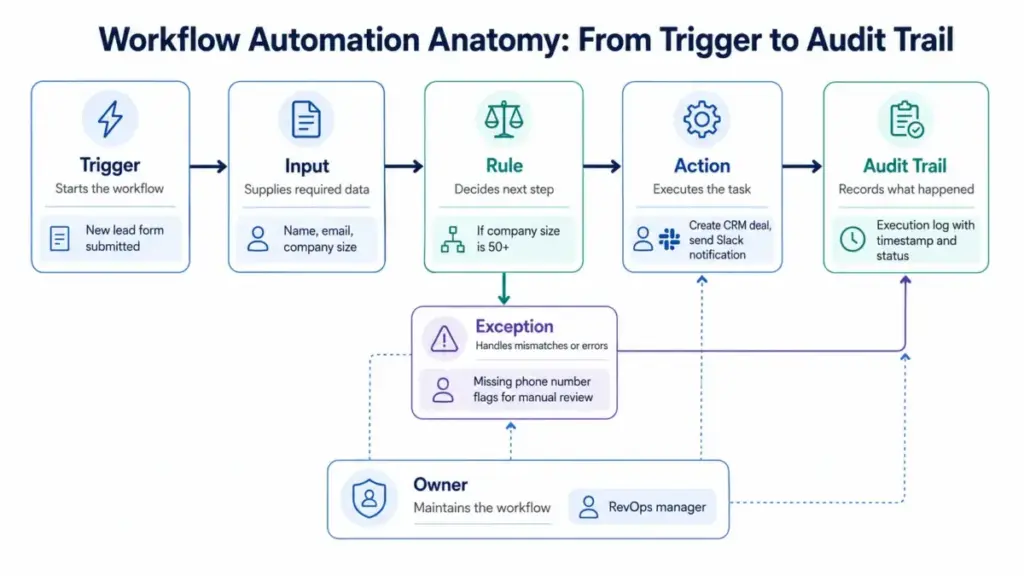
Before automating anything, you need to see the parts. This table breaks a single workflow into its components.
| Workflow Part | What It Does | Example |
|---|---|---|
| Trigger | Starts the workflow | New lead form submitted |
| Input | Supplies required data | Name, email, company size |
| Rule | Decides next step | If company size is 50+, route to enterprise rep |
| Action | Executes the task | Create CRM deal, send Slack notification |
| Exception | Handles mismatches or errors | Missing phone number flags for manual review |
| Owner | Maintains the workflow | RevOps manager |
| Audit Trail | Records what happened | Execution log with timestamp and status |
Every workflow automation tool, from Zapier to n8n to HubSpot’s built-in sequences, maps to this structure. If you cannot fill out each row for your process, the process is not ready to automate.
How Does Workflow Automation Work?
An automated workflow starts when a trigger fires, evaluates data against a rule, and then executes one or more actions across connected apps. The most common trigger types are form submissions, status changes, scheduled times, incoming emails, and webhook calls from external systems.
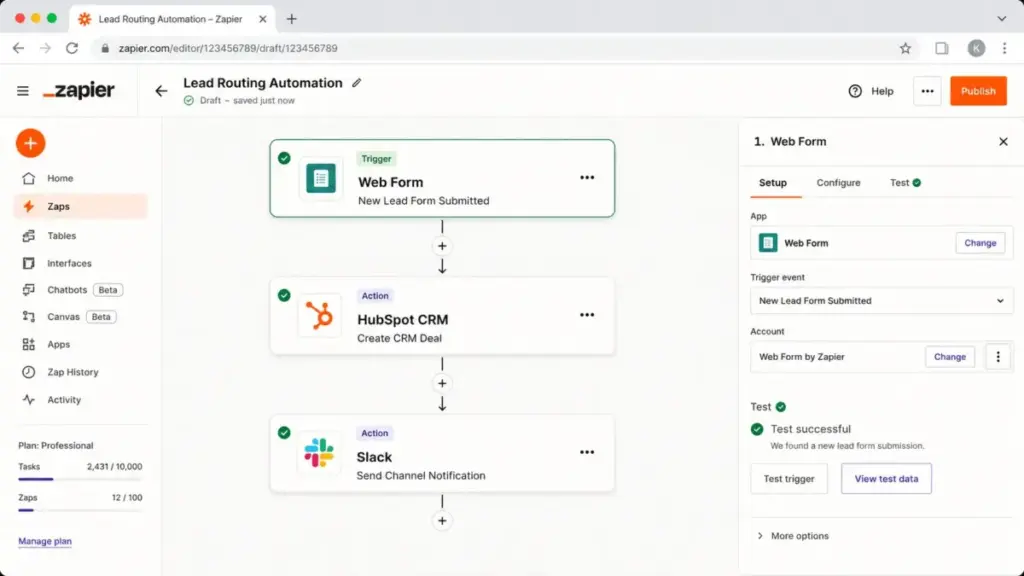
Here is a practical example. A visitor fills out a demo request form on your website. The form submission fires a webhook to Zapier. Zapier checks the company size field. If the company has 50 or more employees, it creates a deal in HubSpot CRM (read our HubSpot CRM review), assigns it to the enterprise sales rep, sends a notification to a dedicated channel in Slack (see our Slack review), and creates a follow-up task in Asana due in 48 hours. If the company has fewer than 50 employees, the lead gets a different routing path: added to a nurture email sequence instead of a direct sales touch.
The Role of APIs and Webhooks
APIs (application programming interfaces) are the connection layer. When Zapier sends lead data to HubSpot, it calls HubSpot’s API. When Make receives a new row from a Google Sheet, it reads the Google Sheets API. Without APIs, tools cannot talk to each other.
Webhooks work the other way: instead of your automation checking for new data on a schedule (polling), the source app pushes data to your automation the moment something changes. Webhooks are faster and use fewer resources, but they require the source app to support them.
In SaaS environments, most workflow automation runs on top of cloud APIs. But that dependency creates maintenance risks. OAuth tokens expire. API rate limits throttle high-volume workflows. Credentials become stale when employees leave. Permission drift, where a user’s access level changes but the automation still runs under old permissions, is one of the most under-discussed failure modes in production workflows.
Types of Workflow Automation
Not all automation is the same, and choosing the wrong type wastes more time than doing things manually. Here are six categories that cover the full spectrum.
Rule-Based Workflow Automation
The simplest form. If X happens, do Y. No machine learning, no language model. Examples: if a support ticket contains the word “billing,” assign it to the billing team. If an invoice is overdue by 7 days, send a reminder email. Rule-based automation covers the majority of production workflows in 2026. As IBM notes, AI is useful but not required for workflow automation (IBM Think).
No-Code App Automation
Platforms like Zapier and Make let non-technical users connect apps and create multi-step workflows through visual interfaces. No scripting. No API documentation. You pick a trigger app, define conditions, and select actions. This is where most SMB teams start.
AI Workflow Automation
AI adds a layer of interpretation. Instead of fixed rules, an AI model classifies inputs, generates content, or makes routing decisions based on patterns. Example: an AI step in a support workflow reads an incoming ticket, classifies the sentiment, and routes angry customers to a senior agent. AI workflow automation is growing fast, but it introduces new costs: token usage, model drift, and output unpredictability.
Approval Workflow Automation
Common in finance, HR, and procurement. A request enters the system, the automation routes it to the right approver based on rules (amount, department, seniority), and the approver gets a notification to accept or reject. The workflow records the decision, timestamps it, and moves to the next step.
Integration Workflow Automation
Focuses on syncing data between two or more systems. Example: every time a deal closes in your CRM, the automation creates an invoice in QuickBooks (read our QuickBooks Online review), updates the project in Asana, and logs the revenue in a reporting dashboard. The goal is eliminating duplicate data entry.
Enterprise Workflow Orchestration
Platforms like ServiceNow and Microsoft Power Automate handle complex, multi-department processes with governance layers: role-based access, audit logs, compliance checks, and SLA monitoring. These systems go beyond connecting two apps. They model entire business processes using standards like BPMN, which provides a graphical notation for specifying business processes (Object Management Group).
Workflow Automation Examples
Real workflow automation is specific, not generic. Here are six examples tied to departments, each with a trigger, action, and tool reference.
Sales Lead Routing
Trigger: New form submission. Action: Score lead, route to rep by territory, create CRM deal, notify via Slack, schedule follow-up. Tools: Zapier or Make connected to HubSpot, Slack, Asana. For teams evaluating CRM platforms, see our CRM software guide.
Invoice Approval
Trigger: Invoice uploaded to shared drive. Action: Extract amount, route to department manager if under $5,000 or to VP if above, record approval, push to accounting software. Tools: Make scenario with conditional branching, connected to QuickBooks.
Employee Onboarding
Trigger: New employee record created in HRIS. Action: Create accounts (email, Slack, project board), assign onboarding checklist, notify manager, schedule 30-day check-in. Tools: n8n workflow with multiple API calls, Slack webhook.
Customer Support Triage
Trigger: New support ticket created. Action: Read subject and body, classify priority, assign to team (billing, technical, account management), send auto-acknowledgment, escalate if unresponded after 4 hours. Tools: Zendesk automation rules or Zapier connected to Zendesk (see our Zendesk review).
Marketing Campaign Handoffs
Trigger: Campaign goes live in email platform. Action: Notify sales team in Slack with campaign details, create segmented lead list in CRM, update project status in ClickUp. Tools: Zapier multi-step Zap connecting Mailchimp, Slack, and HubSpot.
Project Status Updates
Trigger: Task status changes to “Done.” Action: Update project dashboard, notify stakeholders, move to next phase, log completion time. Tools: Built-in automations in project management software like Asana or ClickUp.
Workflow Automation Benefits
Automation delivers value only when applied to the right process. Here are seven benefits, each with a condition.
- Faster handoffs between teams. When a support ticket routes to the right agent in seconds instead of sitting in a shared inbox for an hour, resolution time drops. Condition: the routing rules must be stable and agreed upon.
- Fewer data entry errors. Automation copies data exactly. No typos, no missed fields. Condition: the source data must be clean. Garbage in, garbage out applies here with force.
- Consistent process execution. Every lead gets the same follow-up sequence. Every invoice follows the same approval path. Condition: the process must be worth standardizing. If every case is unique, automation adds friction.
- Time reclaimed for judgment work. Zapier’s survey data shows 94% of SMB employees perform repetitive, time-consuming tasks, with data entry cited by 38% and document management by 34% (Zapier). Removing those tasks frees time for work that requires thinking.
- Audit trail and accountability. Every automated step is logged: who triggered it, what data moved, what rule applied, and whether it succeeded or failed. This matters for compliance, dispute resolution, and process improvement.
- Scalability without proportional headcount. Marcelo Lebre, Co-Founder and President at Remote, put it directly: “Without having automation, we would have to at least be double our size” (Zapier customer story).
- Reduced context switching. When notifications, updates, and data syncs happen automatically, team members stay in their primary tool instead of jumping between five tabs.
What Are the Limits of Workflow Automation?
Automation does not eliminate problems. It runs them faster. Before scaling workflows across your team, understand these limits.
Hidden Costs
The sticker price on automation platforms is rarely the full cost. Zapier counts successful actions as tasks, and pricing starts at $19.99/month billed annually for 750 tasks on the Professional plan (Zapier Pricing). Make counts each module action as one credit, with Core starting at $9/month for 10,000 credits (Make Pricing). n8n prices by workflow executions, with Starter at 20€/month for 2,500 executions (n8n Pricing). A five-step workflow that runs 100 times per day can consume task or credit allocations faster than most teams expect. If you need alternatives, check our Zapier alternatives list.
Failed Runs and Silent Breakage
A workflow can fail because an API returns an unexpected format, a field is empty, or a third-party app changes its API version. The worst failures are silent: the workflow runs, but the data it moves is wrong. Without monitoring and alerting, no one notices until a customer complains or a report looks off.
API Rate Limits and Webhook Failures
Every API has rate limits. Hit them, and your workflow queues, retries, or fails. Webhooks can be dropped if the receiving server is briefly unavailable. High-volume workflows need retry logic and dead-letter handling.
Permission Drift and Stale Credentials
Automation runs under a specific user’s credentials. When that person leaves or changes roles, the workflow may lose access to the connected app. OAuth tokens expire. Service accounts with overly broad permissions create security risks.
Data Quality
Workflow automation cannot fix bad data. If your lead form allows free-text company names, your routing rule for “enterprise” accounts will misfire on every abbreviation, misspelling, and blank field. Clean data is a prerequisite, not a result of automation.
Compliance Risk
In regulated industries (finance, healthcare, legal), certain approvals require a human signature with documented authority. Automating these steps without compliance review creates liability.
Workflow Automation vs RPA vs AI Agents
These three terms overlap, but they solve different problems. Confusing them leads to choosing the wrong tool.
| Category | What It Does | Best For | Limitations |
|---|---|---|---|
| Workflow Automation | Connects apps and routes tasks through defined rules using APIs | Multi-app handoffs, approvals, notifications, data sync | Cannot interact with apps that lack APIs |
| RPA (Robotic Process Automation) | Mimics human actions on screen: clicking, typing, copying between apps | Legacy systems without APIs, screen scraping, ERP data entry | Breaks when UI changes, high maintenance |
| AI Agents | Interpret context, choose actions, and adapt based on inputs | Unstructured data, content generation, classification, dynamic routing | Unpredictable outputs, token costs, governance challenges |
| BPM (Business Process Management) | Models, governs, and optimizes entire business processes | Enterprise process governance, compliance, cross-department workflows | Heavy setup, requires process maturity |
ServiceNow draws the distinction clearly: workflow automation coordinates full processes while RPA mimics human actions in apps (ServiceNow). AI agents add another layer by interpreting inputs instead of following fixed rules, but they require guardrails, monitoring, and fallback paths.
For most SMB teams, workflow automation is the right starting point. RPA is relevant when you need to work with legacy software that has no API. AI agents become useful when the input is unstructured (free-text emails, images, voice) and rules alone cannot classify it.
When Workflow Automation Does Not Work
Automation applied to a broken process gives you a faster broken process. Here are six red flags that signal a workflow should not be automated yet.
- No stable process owner. If nobody owns the process today, nobody will maintain the automation tomorrow. Ownership is the first requirement.
- Rules change every week. Automation encodes rules. If your approval threshold, routing logic, or escalation criteria change constantly, you will spend more time editing the workflow than the workflow saves.
- Human judgment is the main value. A lawyer reviewing contract risk, a designer evaluating creative quality, or a recruiter assessing culture fit: these tasks depend on context and experience. Automating them strips the value.
- Data fields are inconsistent. If your CRM has “company name” entered as free text with no validation, and your workflow routes by company name, it will fail on every variation. Standardize the data before automating.
- The task happens too rarely. Automating a process that runs twice a month rarely justifies the setup, testing, and maintenance. The threshold is not fixed, but a useful rule: if the total time saved per month is less than two hours, consider leaving it manual.
- Compliance requires human approval with documented authority. Certain regulatory and legal decisions cannot be delegated to software, regardless of how good the workflow is.
Daniel Rivera’s Quick Take
Automate the handoff, not the confusion.
The best first automation is boring. Lead routing. Invoice reminders. Support ticket triage. Status update notifications. These are the processes where the rules are clear, the data is structured, and the value of speed is obvious. They are also the ones nobody wants to do by hand.
The mistake I see most often is teams trying to automate a process that five people describe five different ways. If your sales team cannot agree on what qualifies as a “hot lead,” automating lead scoring will not resolve the disagreement. It will encode one person’s opinion into software and make everyone else’s experience worse.
Before you open Zapier, Make, or n8n, spend 30 minutes mapping the workflow on paper. Write down the trigger, the rule, the action, the exception, and the owner. If you cannot fill in all five, simplify the process first.
McKinsey reported that activities accounting for up to 30% of current US work hours could be automated by 2030 (McKinsey). That is a large number, but it does not mean every task should be automated. The 30% that should be automated is the structured, repeatable, rule-governed work. The other 70% is where humans add value.
Best Workflow Automation Tools
No single tool fits every team. The right choice depends on your technical capacity, workflow complexity, budget model, and governance needs.
| Team Type | Best Fit | Main Strength | Main Limitation | Pricing Unit |
|---|---|---|---|---|
| Non-technical SMB | Zapier | Thousands of app connections, fast setup | Task-based pricing adds up at scale | Successful actions (tasks) |
| Visual workflow builders | Make | Branching logic, visual scenario builder | Credit system needs monitoring | Module actions (credits) |
| Technical/DevOps teams | n8n | Self-hosting option, execution-based pricing, full workflow control | Steeper learning curve | Workflow executions |
| Sales-led teams | HubSpot | CRM-native workflows, no separate tool needed | Limited to HubSpot ecosystem | Included in CRM plan |
| Support teams | Zendesk | Built-in ticket routing and escalation | Automation tied to Zendesk tickets only | Included in support plan |
| Finance/Accounting | QuickBooks | Invoice and payment automation | Narrow workflow scope outside accounting | Included in subscription |
For detailed evaluations, see our Zapier review, Make review, and n8n review.
How to Start Automating Workflows
Start with one workflow, not a platform rollout. Here is a seven-step checklist.
- Pick one repetitive workflow. Choose something that runs at least a few times per week, has clear rules, and involves two or more tools. Good candidates: lead routing, invoice reminders, support triage, or status notifications.
- Map the trigger and final outcome. Write down what starts the process and what the finished state looks like. If you cannot describe the end state in one sentence, the workflow is too vague.
- Remove unnecessary steps. Most manual processes include steps that exist because “we’ve always done it that way.” Cut anything that does not change the outcome.
- Define rules and exceptions. Document every “if-then” decision. What happens when a required field is missing? What happens when the workflow encounters an edge case?
- Choose the simplest tool. If your CRM or project management tool has built-in automation, try that first. Use Zapier, Make, or n8n when you need to connect apps that do not have native integrations.
- Test with 10 to 20 real cases. Do not test with fake data. Run the automation against real inputs and verify every output. Check for edge cases: empty fields, duplicate entries, unexpected formats.
- Assign an owner and review monthly. Every automation needs a person responsible for monitoring failures, updating rules when processes change, and decommissioning workflows that are no longer needed.
Workflow Automation FAQ
Here are answers to the most common questions about workflow automation.
What is workflow automation?
Workflow automation is the use of software to execute repeatable steps in a business process based on defined triggers, rules, and actions. It replaces manual handoffs between people and systems.
What is an example of workflow automation?
A support ticket arrives in Zendesk, the automation reads the subject line, classifies it as “billing” or “technical,” assigns it to the correct team, and sends the customer an acknowledgment email within seconds.
How does workflow automation work?
A trigger fires (form submitted, status changed, time reached), the automation evaluates the data against defined rules, and then executes actions: creating records, sending notifications, updating fields, or routing tasks to the right person.
What is the difference between workflow automation and process automation?
Workflow automation focuses on automating specific task sequences and handoffs. Process automation (or BPM) covers the full lifecycle of a business process, including modeling, governance, compliance, and optimization across departments.
What is the difference between workflow automation and RPA?
Workflow automation connects apps through APIs and routes data using rules. RPA mimics human actions on screen, clicking buttons, copying fields, and navigating interfaces, typically in legacy systems without APIs.
Can workflow automation work without AI?
Yes. The majority of production workflows in 2026 are rule-based, using if-then logic without any machine learning. AI adds value for classification, content generation, and dynamic routing, but it is optional and adds complexity.
What tools are used for workflow automation?
Common tools include Zapier, Make, n8n, Microsoft Power Automate, HubSpot (for CRM workflows), Zendesk (for support workflows), and native automation features in project management and accounting software.
What workflows should be automated first?
Start with high-frequency, low-judgment processes: lead routing, invoice reminders, support ticket triage, status update notifications, and data sync between two systems. These have clear rules and measurable time savings.
When should you not automate a workflow?
Do not automate when the process has no stable owner, the rules change constantly, the task requires human judgment, data quality is poor, the task runs too rarely to justify setup, or compliance requires documented human approval.
How do APIs support workflow automation?
APIs are the connection layer between apps. When an automation tool sends data from one app to another (for example, creating a CRM record from a form submission), it calls the receiving app’s API to read, create, update, or delete data.
Key Takeaways
- Workflow automation replaces manual handoffs with software-driven rules, triggers, and actions. It works best on repeatable, structured processes with clear ownership.
- Every automated workflow has an anatomy: trigger, input, rule, action, exception, owner, and audit trail. If you cannot define each part, simplify the process before automating.
- Workflow automation is not the same as RPA or AI agents. Automation coordinates work between apps via APIs. RPA mimics screen actions. AI agents interpret unstructured inputs. Most SMB teams need workflow automation first.
- Hidden costs are real. Task limits, credit consumption, failed runs, API rate limits, and stale credentials all add up. Monitor usage and budget for growth.
- The best first automation is boring. Lead routing, invoice reminders, support triage, and status notifications are safe starting points with fast payback.
- Workflow automation tools fit different teams. Zapier covers broad app connections for non-technical users, Make offers visual branching for scenario builders, and n8n gives technical teams execution-based pricing and self-hosting control.
- Automate the handoff, not the confusion. A process that five people describe differently will not improve by running it through software. Agree on the rules first, then automate.