Dropbox Review 2026 starts with one uncomfortable question: why pay for Dropbox when Google and Microsoft already bundle storage into their suites? After evaluating Dropbox across file sync, sharing, recovery, security gates, and team workflows, I found that Dropbox still earns its place for file-heavy teams, but not for every buyer.
Dropbox is a cloud storage and file sharing SaaS software built around one job: moving files between people, devices, and clients with minimal friction. If your team lives inside shared folders and exchanges large assets daily, Dropbox delivers.
If your team needs real-time document editing, email, and meetings in one bundle, other options cost less. This Dropbox review breaks down features, pricing, security, limitations, and alternatives so you can decide before checkout.
Quick Verdict: Is Dropbox Worth It?
Dropbox earns an 8.2 out of 10 in 2026. It remains one of the strongest file sync and sharing platforms available, but its value depends on your team’s actual workflow, not on brand recognition alone.
Is Dropbox worth it in 2026? Yes, if your primary need is reliable file storage, shared folders, large-file delivery, and version recovery. No, if you already pay for Google Workspace or Microsoft 365 and only need basic storage on top.
| Category | Verdict | Notes |
|---|---|---|
| Overall Score | 8.2/10 | Strong file sync, weaker collaboration value |
| Best For | Creative teams, agencies, freelancers, remote teams exchanging large files | File delivery and shared folder model are Dropbox’s strongest edges |
| Not Best For | Teams needing native doc collaboration, privacy-first teams on lower plans, teams on Google or Microsoft | Bundled suites offer more at lower effective cost for many teams |
| Pricing Value | Moderate | Competitive for storage-first buyers, expensive against bundled suites |
| Security | Strong on higher plans | E2EE gated to Advanced and above, metadata remains visible |
| Free Plan | Limited | Only 2 GB, lowest among major competitors |
This review is based on extensive hands-on evaluation using official documentation, real user workflows, and competitive testing scenarios. I evaluated Dropbox across official documentation, workflow simulations, user feedback, and pricing data. For full details on how SaaSZap scores products, see our review methodology.
What Is Dropbox?
Dropbox is a cloud storage, file sync, and file sharing platform used by over 18 million paying users worldwide. It started as a simple folder sync tool and has expanded into a product suite covering storage, delivery, media review, electronic signatures, AI search, and team administration.
The current Dropbox product line includes Dropbox Basic (free), Dropbox Plus (personal), Dropbox Family (household), Dropbox Standard (small teams), Dropbox Advanced (security-focused teams), and Dropbox Enterprise (custom).
Beyond core storage, Dropbox offers Dropbox Transfer for large file delivery, Dropbox Replay for video and media review, Dropbox Sign for electronic signatures, Dropbox Paper for lightweight document collaboration, and Dropbox Dash for AI-powered universal search across connected apps. Each product targets a different workflow, and most are gated to specific plans.
For file-heavy teams, Dropbox is part of the productivity stack, not the whole stack.
Dropbox Features I Tested
Dropbox’s feature set is wider than most buyers expect. In my workflow testing, I focused on shared folders, file delivery, recovery, permissions, and collaboration handoff. The sections below cover each major feature, who it helps, and where plan gates limit access.
Dropbox File Sync and Shared Folders
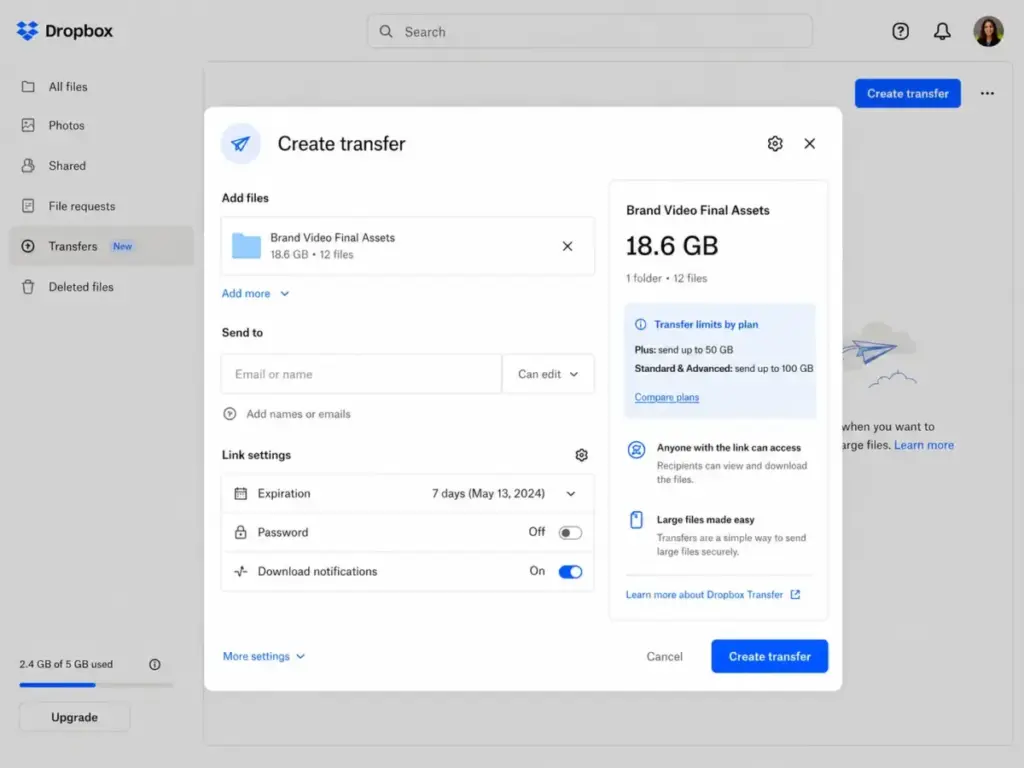
File sync is Dropbox’s core product. Install the desktop app, and files sync automatically across your computers, phones, and the web. Shared folders let team members and external collaborators access the same files with view or edit permissions.
Version history tracks changes, and deleted file recovery lets you restore accidentally removed work. Recovery windows range from 30 days on Plus to 180 days on Standard and one full year on Advanced. For freelancers sending project files to clients or agencies managing assets across accounts, this model is fast and familiar.
The key limitation: Dropbox desktop app performance can start to decline after syncing about 300,000 files, and Dropbox strongly recommends not exceeding 1 million files on a single computer.
Dropbox Transfer and Large File Delivery
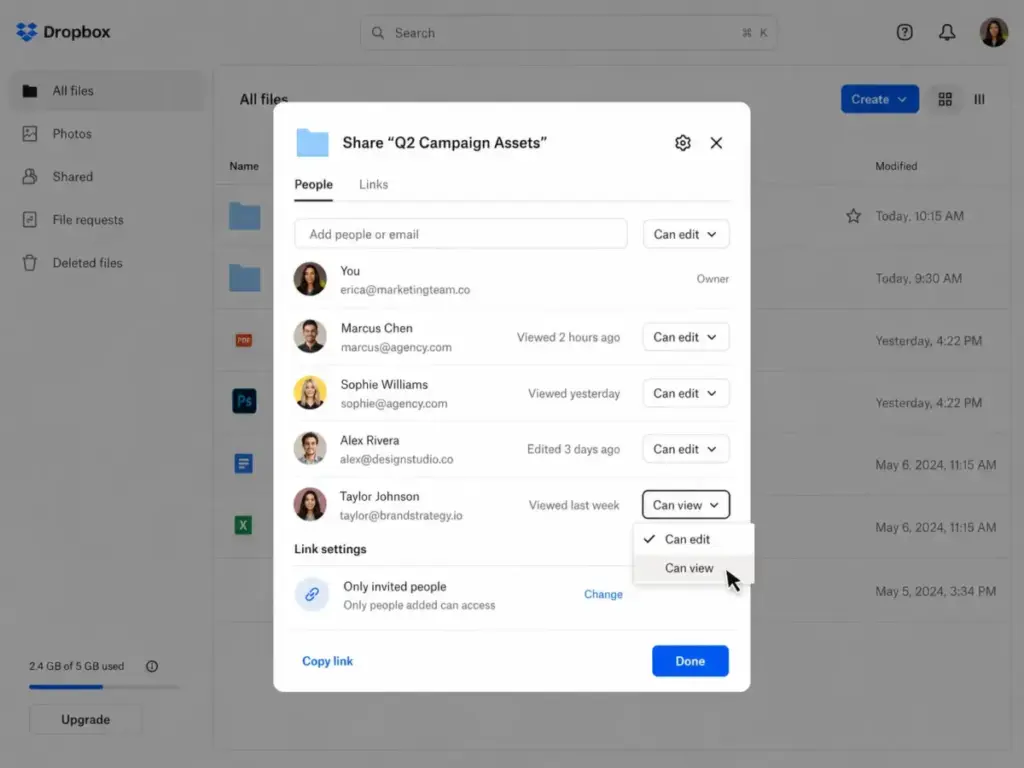
Dropbox Transfer lets you send large files to anyone without requiring them to have a Dropbox account. Plus users can send files up to 50 GB per transfer. Standard and Advanced users get a 100 GB transfer limit.
This is useful for agencies sending video edits, designers delivering assets, or consultants sharing reports with clients. Transfer includes download tracking, expiration dates, and optional password protection on higher plans. Compared to emailing ZIP files or using WeTransfer, Dropbox Transfer integrates directly into your existing Dropbox storage.
Dropbox Replay for Creative Reviews
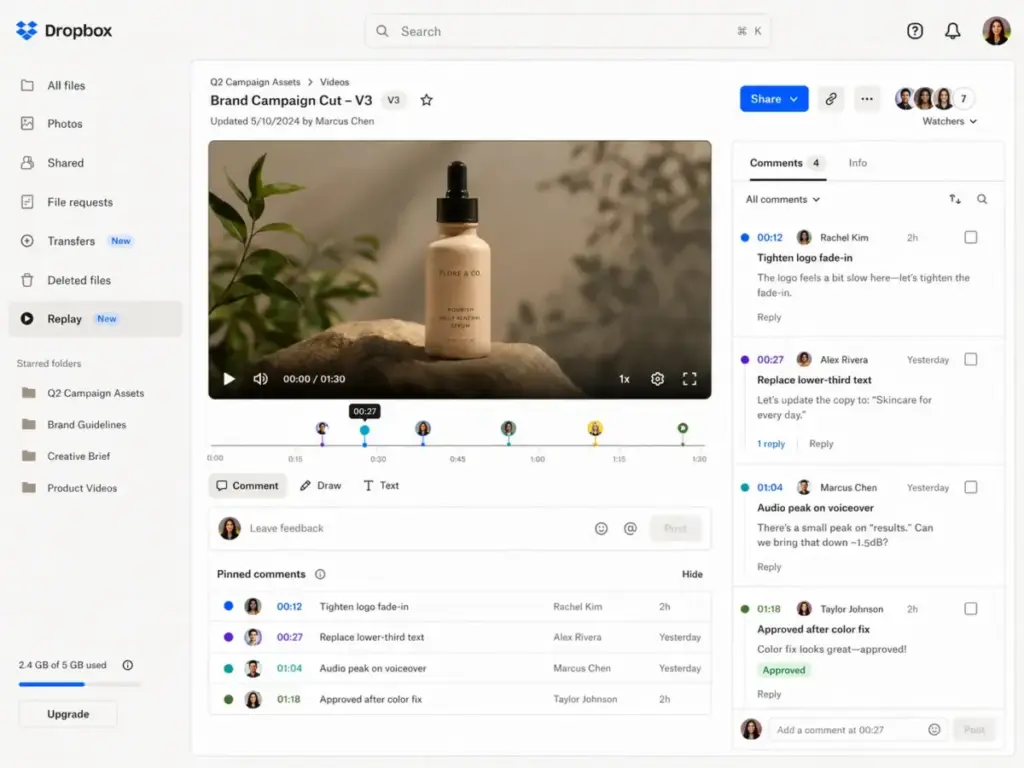
Dropbox Replay is a media review and approval tool for video, image, and audio projects. It supports browser-based reviews, live review sessions, time-stamped comments, and version tracking.
Creative teams working on video edits or design assets can collect feedback directly on the file without switching to a separate review tool. For teams already using tools like Figma for design or Loom for async video, Replay fills a specific gap: frame-accurate feedback on rendered media files stored in Dropbox.
Dropbox Sign and PDF Workflows
Dropbox Sign provides electronic signature capability. The free tier includes 3 free signature requests per month and unlimited self-signing. Paid plans add templates, team management, and audit trails. Standard and above also include PDF editing and branded sharing.
For teams that regularly send contracts, NDAs, or approvals, having Sign inside the same platform as your file storage removes one extra subscription. It is not a full contract lifecycle tool like DocuSign, but it covers basic to moderate eSignature needs.
Dropbox Dash and AI Search
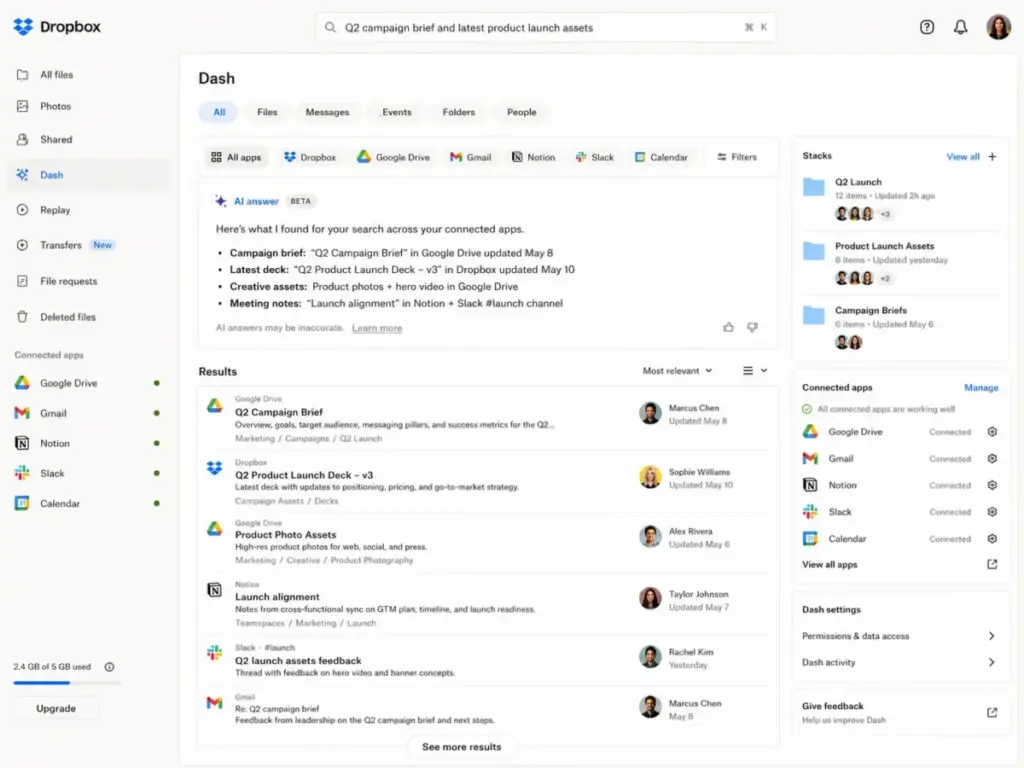
Dropbox Dash is an AI-powered universal search tool that searches across connected apps such as OneDrive, Notion, and Gmail. Dash includes AI answers, Stacks for organizing links, a customizable start page, surfaces, admin console controls, Protect & Control features, and connected app support.
The promise is clear: find anything across your scattered tools from one search bar. In practice, Dash is still developing. Treat it as a promising add-on rather than the primary reason to buy Dropbox. Adoption depends on how many apps your team connects and how much you trust AI-generated answers for daily search.
Dropbox Admin Controls and Security
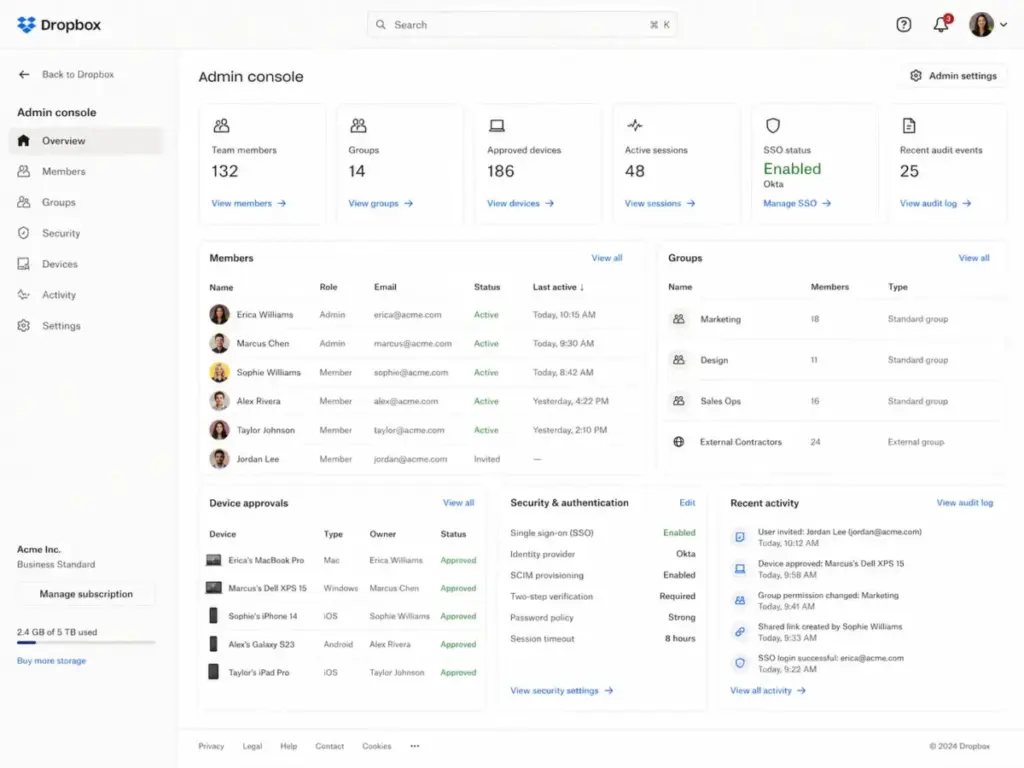
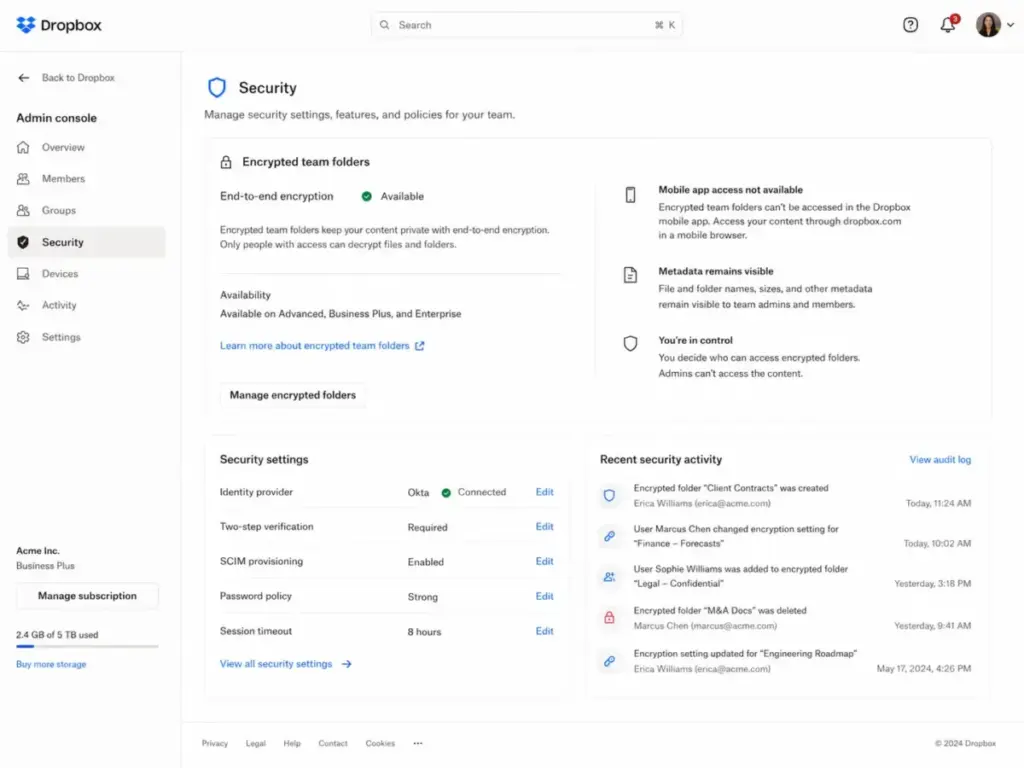
On Standard and above, Dropbox provides an admin console with user management, group controls, device approvals, and audit logs. Advanced adds tiered admin management, SSO, advanced key management, end-to-end encryption for team folders, compliance tracking, and ransomware detection. Enterprise extends this with dedicated support and integrations with security tools.
For IT admins managing permissions, the admin console covers the essentials. For regulated industries, you will likely need Advanced or Enterprise to meet compliance requirements. The Dropbox App Center includes integrations with Slack, Microsoft 365, Google Workspace, Adobe, Microsoft Teams, Asana, Canva, and Greenhouse.
Dropbox User Experience
Dropbox’s interface is one of its lasting strengths, but permission friction grows with team size. The web app is clean and fast for browsing, sharing, and previewing files. The desktop app provides native folder sync that feels invisible when working well.
The mobile app handles viewing and sharing, though encrypted team folders are not currently accessible through the mobile app and require the Dropbox website via a mobile browser. Search works across file names and content, and Dropbox Dash extends this to connected apps.
Shared folder workflows are straightforward for small teams. You create a folder, invite collaborators with view or edit access, and files sync instantly. External client handoff works well through shared links and Dropbox Transfer. However, as folder depth increases and team sizes grow, permissions can become complex. One Capterra reviewer described this friction clearly:
“There are times when the site is clunky. If someone doesn’t have full permissions, it can be annoying to add people to the system as it can be tricky.” – Holly S., Designer, Real Estate, Capterra, January 3, 2026
On the positive side, sync reliability remains a consistent strength. Another reviewer confirmed:
“My experience with Dropbox business has been a 10 out of 10. Everything works the way it intended and we have never experienced delays or lagging while waiting for files to come through.” – Carlos B., Owner, Telecommunications, Capterra, January 13, 2026
For teams syncing large file libraries locally, keep the 300,000-file performance threshold in mind. If your team works with hundreds of thousands of photos, video clips, or CAD files, test desktop sync performance before committing.
Dropbox Pricing and Plans
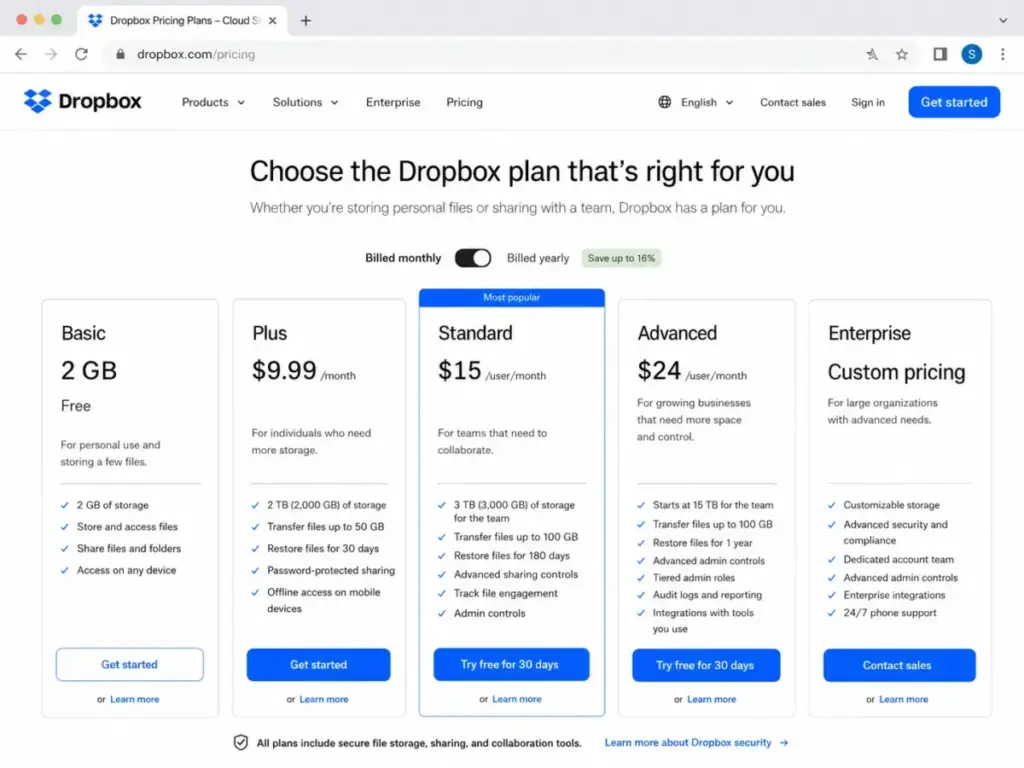
Dropbox pricing is competitive for storage-first buyers but looks expensive when compared to bundled productivity suites. The table below reflects verified pricing from the Dropbox pricing page as of May 10, 2026.
| Plan | Starting Price | Users | Storage | Recovery History | Best For |
|---|---|---|---|---|---|
| Basic | Free | 1 | 2 GB | Limited | Testing the platform |
| Plus | $9.99/month | 1 | 2 TB | 30 days | Solo freelancers and personal use |
| Family | $16.99/month | Up to 6 | 2 TB shared | 30 days | Households sharing one storage pool |
| Standard | $15/user/month | 1+ | Starts at 3 TB for team | 180 days | Small teams needing shared folders |
| Advanced | $24/user/month | 3+ | Starts at 15 TB for team | 1 year | Security-focused and compliance teams |
| Enterprise | Custom | Custom | Custom | Custom | Large organizations with dedicated needs |
Buyer math by team size:
- Solo user: Dropbox Plus at $9.99/month gives you 2 TB. This is simple and competitive for personal or freelance use.
- Family: $16.99/month covers up to 6 users sharing 2 TB. Good value for households but limited for professional teams.
- 5-person team: Standard at $15/user/month equals $75/month before taxes and add-ons.
- 20-person team: Standard equals $300/month. Advanced equals $480/month before taxes and add-ons.
- Security-heavy 3-person team: Advanced has a 3-license minimum at $24/user/month, so the entry point is $72/month before taxes and add-ons.
Important storage note: The Dropbox pricing page states Standard starts at 3 TB for the team. However, the Dropbox storage help page states Standard has 5 TB total storage shared across the team. The Advanced help page confirms 15 TB total storage shared among the team, with 5 TB per actively used license, a 3-license minimum, and up to 1,000 TB maximum purchasable storage. I recommend verifying your exact storage allocation at checkout because plan names and regional packaging can vary.
Dropbox Pros and Cons
Dropbox delivers clear strengths in file sync and delivery but carries specific limitations that buyers should evaluate before committing. Below are the pros and cons based on my evaluation.
- Reliable file sync with a familiar desktop folder model that requires almost no learning curve.
- Strong external file sharing and delivery through shared links and Dropbox Transfer (up to 100 GB on business plans).
- Useful plan depth from solo users (Plus at $9.99/month) through enterprise with custom packaging.
- Replay and Sign add practical value for creative reviews and client-facing signature workflows.
- Broad integrations through the Dropbox App Center, connecting to Slack, Microsoft 365, Google Workspace, Adobe, and more.
- Advanced admin controls and security tools on higher plans, including SSO, audit logs, and tiered admin management.
- Free plan includes only 2 GB, the lowest among major cloud storage competitors.
- Paid plans can look expensive against bundled Google Workspace or Microsoft 365 suites that include email, docs, and meetings.
- Real-time document collaboration is weaker than Google Docs and Microsoft 365 co-authoring. As one reviewer noted: “Dropbox is great if you need to store a lot of documents within a large organisation or an agency-type setting but awful for collaboration.” – Jerry L., Lead Project Manager, Computer Software, Capterra, October 15, 2025
- End-to-end encryption is gated to Business Plus, Advanced, and Enterprise plans.
- Encrypted team folder metadata remains visible in plain text.
- End-to-end encryption is not available in the Dropbox mobile app. Users must access encrypted files through the Dropbox website via a mobile browser.
- Desktop app performance can decline after syncing about 300,000 files. Dropbox strongly recommends not exceeding 1 million files on a single computer.
- Permissions can get complex as folder depth and team size increase, especially without clear governance instructions.
Dropbox Security and Compliance
Dropbox security is strong for mainstream teams, but privacy-focused buyers must inspect plan gates carefully. Dropbox applies 256-bit AES encryption for files at rest and SSL/TLS for files in transit across all plans. Multi-factor authentication (MFA) is available on every plan. Remote wipe capability lets admins remove Dropbox data from lost or stolen devices.
The admin console on Standard and above provides user management, group controls, and device approvals. Audit logs track file activity across the team. SSO is available on higher tiers. Advanced key management, available to Advanced, Business Plus, and Enterprise customers, gives teams more control over encryption keys. Team encryption keys rotate every 12 months.
End-to-end encrypted team folders represent the highest level of Dropbox data protection. They are available on Business Plus, Advanced, and Enterprise plans. However, two limitations matter. First, encrypted team folder metadata remains visible in plain text, meaning file names, folder names, and modification dates are not encrypted. Second, end-to-end encryption is not currently available in the Dropbox mobile app. Users must use the Dropbox website through a mobile browser to access encrypted files.
The Dropbox Trust Center lists SOC 1, SOC 2, SOC 3, ISO 27001, ISO 27017, ISO 27018, ISO 27701, and ISO 22301 reports and certificates. Dropbox Sign and Dropbox DocSend also carry their own SOC 2 and SOC 3 reports. Dropbox Dash has a separate SOC 2 report.
Teams that need compliance documentation, SSO, advanced key management, or end-to-end encryption will need Advanced or Enterprise. Standard covers basic admin controls but lacks these security gates.
The Dropbox API lets developers build on top of Dropbox for files, full-text search, thumbnails, sharing, and team administration.
Dropbox Alternatives
Dropbox is not the only option, and in several scenarios, a competitor fits better. The right choice depends on whether you prioritize file sync, document collaboration, storage value, privacy, or enterprise governance. Below is a decision table followed by detailed comparisons.
| Scenario | Best Choice | Why |
|---|---|---|
| Need real-time doc editing + storage | Google Workspace | Docs, Sheets, Slides, Meet, and Drive bundled together |
| Microsoft 365 standardized org | OneDrive | 1 TB per user included, deep Office integration |
| Enterprise content governance | Box | Unlimited storage, DLP, watermarking, 1,500+ integrations |
| Privacy-first with zero-knowledge | Sync.com | End-to-end encryption by default on all plans |
| Personal lifetime storage | pCloud | One-time payment for lifetime plans |
| File sync + large file delivery | Dropbox | Transfer, Replay, Sign, and familiar folder model |
Dropbox vs Google Drive
Google Workspace bundles Google Drive storage with Gmail, Google Docs, Sheets, Slides, and Meet. Business Starter costs $7/user/month (annual) with 30 GB per user. Business Standard costs $14/user/month with 2 TB pooled per user. For teams that primarily need document co-authoring and communication, Google Workspace delivers more value per dollar.
Choose Dropbox if your team moves large media files between people and devices, needs Dropbox Transfer or Replay, or prefers the desktop folder sync model. Choose Google if real-time document editing and email are your main workflows. For a deeper comparison, see our Google Workspace review.
Dropbox vs OneDrive
Microsoft OneDrive for Business Plan 1 costs $5/user/month with 1 TB per user. Microsoft 365 Business Standard costs $12.50/user/month with 1 TB per user plus desktop Office apps. If your team already uses Outlook, Word, Excel, and Teams, adding OneDrive storage costs less than Dropbox and avoids a separate subscription.
Choose Dropbox if you need higher per-transfer limits, Replay for media reviews, or you work outside the Microsoft ecosystem. Choose OneDrive if your organization is standardized on Microsoft 365.
Dropbox vs Box
Box business plans advertise unlimited storage, unlimited external collaborators, unlimited web-based e-signatures, 1,500+ enterprise app integrations, admin console, DLP, custom branding, and watermarking. Box also lists fair-use bandwidth limits: 2 TB per user per month for shared-link downloads and 1 TB per user per month for upload and download traffic.
Choose Box if your team needs enterprise content governance, DLP, or compliance features as a primary requirement. Choose Dropbox if your workflow centers on desktop file sync, large-file delivery, and creative review tools like Replay.
Dropbox vs Sync.com
Sync.com Teams plans start at $6/user/month (annual) for 1 TB per user, with a 3-user minimum. The 2 TB tier costs $9/user/month. Sync.com provides end-to-end encryption by default on all plans, not just higher tiers. Choose Sync.com if your team requires zero-knowledge encryption as a baseline and does not need Dropbox’s broader product suite (Transfer, Replay, Sign, Dash).
Choose Dropbox if you need the wider feature set and integrations, and your encryption needs are met by Advanced or Enterprise.
Dropbox vs pCloud
pCloud offers lifetime personal storage plans with a one-time payment, making it attractive for individual users who want to avoid recurring subscriptions. However, pCloud lacks team collaboration features, admin controls, and business-grade compliance certifications. Choose pCloud for long-term personal storage. Choose Dropbox for any team, agency, or business use case.
Who Should Use Dropbox?
Dropbox fits buyers who value file sync quality, external file delivery, and a broad product suite over all-in-one document editing. The following profiles match Dropbox’s strengths well.
- Freelancers sending project files, deliverables, and assets to clients through shared links and Dropbox Transfer.
- Agencies with many external collaborators who need shared folders without requiring everyone to have a paid account.
- Creative teams working on video, image, and design assets who benefit from Replay for feedback and version tracking.
- Remote teams needing shared folders, version recovery, and sync across desktop, web, and mobile devices.
- IT teams needing admin controls, SSO, audit logs, and device management on Advanced or Enterprise plans.
- Teams that value sync quality more than native document editing and are willing to integrate with tools like Miro or Google Docs for real-time collaboration.
These are the same teams that often appear in our broader roundup of team collaboration tools.
Who Should Not Use Dropbox?
Dropbox is not the best fit for every team, and recognizing that early saves money. The following profiles should consider alternatives first.
- Teams already paying for Google Workspace or Microsoft 365 who only need basic storage. Adding Dropbox creates duplicate cost for overlapping functionality.
- Privacy-first teams that need zero-knowledge encryption by default. Dropbox’s end-to-end encryption is plan-gated and carries metadata visibility limitations.
- Teams needing live document collaboration as the primary daily workflow. Google Docs and Microsoft 365 co-authoring are stronger for this job.
- Data-heavy users syncing hundreds of thousands of files locally. Desktop sync performance can decline after about 300,000 files, and Dropbox recommends not exceeding 1 million files per computer.
- Price-sensitive solo users needing less than 2 TB. The free plan is only 2 GB, and some competitors offer more free storage.
Final Verdict
Dropbox earns 8.2 out of 10 in 2026. It remains one of the best file sync and sharing tools for teams that move assets between people and devices. It is less convincing as an all-in-one collaboration suite because Google Workspace and Microsoft 365 bundle document editing, email, meetings, and storage at lower effective cost for many teams.
Dropbox’s strengths are clear: reliable sync, strong file delivery through Transfer, creative review through Replay, eSignature through Sign, and a growing AI search layer through Dash. Its weaknesses are equally clear: a 2 GB free plan, higher pricing than bundled suites for some teams, plan-gated encryption, and collaboration that does not match Google or Microsoft’s native editing tools.
James Carter’s Quick Take:
I keep coming back to one question when evaluating Dropbox: what is the primary job your team hires a cloud tool to do? If the answer is “move files between people and devices reliably,” Dropbox is still one of the best at that job in 2026. If the answer is “edit documents together in real time,” you are better served by Google Workspace or Microsoft 365. Dropbox is a storage-and-delivery platform with collaboration features, not a collaboration platform with storage. That distinction matters for your budget and your team’s daily experience.
Dropbox FAQ
Is Dropbox worth it in 2026?
Yes, Dropbox is worth it in 2026 for teams whose primary workflow is file sync, shared folders, and large-file delivery. It earns 8.2/10 in this Dropbox review. The value decreases for teams that already pay for Google Workspace or Microsoft 365 and only need basic storage on top of those suites.
How much does Dropbox cost?
Dropbox Plus costs $9.99/month for 1 user with 2 TB. Standard costs $15/user/month. Advanced costs $24/user/month with a 3-license minimum. Enterprise uses custom pricing. Family costs $16.99/month for up to 6 users sharing 2 TB. All prices verified as of May 10, 2026.
What is the Dropbox free plan limit?
Dropbox Basic includes 2 GB of free storage. This is the lowest free tier among major cloud storage providers. Google Drive offers 15 GB free, and OneDrive offers 5 GB free.
Is Dropbox better than Google Drive?
Dropbox is better than Google Drive for file sync, large-file delivery, and media review workflows. Google Drive is better for teams that need real-time document collaboration, email, and video meetings bundled together at a lower per-user cost. The right choice depends on whether you prioritize storage and delivery or document editing and communication.
Is Dropbox better than OneDrive?
Dropbox is better than OneDrive for cross-platform file sync, external file sharing via Transfer, and creative review through Replay. OneDrive is better for organizations already standardized on Microsoft 365, where 1 TB per user is included with Office apps at $5 to $12.50/user/month.
Does Dropbox have end-to-end encryption?
Yes, Dropbox offers end-to-end encryption for team folders on Business Plus, Advanced, and Enterprise plans. However, encrypted folder metadata (file names, folder names, modification dates) remains visible. End-to-end encryption is also not available in the Dropbox mobile app; users must access encrypted files through the Dropbox website via a mobile browser.
Is Dropbox good for business?
Dropbox is good for business teams that need shared folders, file delivery, version recovery, and admin controls. Standard provides basic team features starting at $15/user/month. Advanced adds security features like SSO, end-to-end encryption, and compliance tracking at $24/user/month with a 3-license minimum.
What are Dropbox's biggest disadvantages?
Dropbox’s biggest disadvantages include a 2 GB free plan limit, higher pricing compared to bundled suites, weaker real-time document collaboration than Google Docs or Microsoft 365, end-to-end encryption gated to higher plans, encrypted folder metadata remaining visible, no mobile app access for encrypted folders, and desktop sync performance declining at high file counts (300,000+ files).
What is the best Dropbox alternative?
The best Dropbox alternative depends on your priority. Google Workspace is best for teams needing real-time doc editing. Microsoft OneDrive fits organizations on Microsoft 365. Box suits enterprise governance needs. Sync.com wins for privacy-first teams needing default zero-knowledge encryption. pCloud works for personal lifetime storage.
Is Dropbox good for creative teams?
Yes, Dropbox is well-suited for creative teams working on video, image, and design assets. Dropbox Replay provides browser-based media review with time-stamped comments and version tracking. Dropbox Transfer supports sending files up to 100 GB on business plans. These features make Dropbox practical for agencies and creative studios that exchange large media files with clients regularly.