Most explanations of video conferencing stop at “real-time video calls over the internet.” That definition is technically correct and practically useless. In 2026, the question buyers need to answer is not what video conferencing means.
It is whether their current meeting setup handles recordings, AI-generated summaries, free-plan time limits, guest access, room hardware, security controls, and post-meeting workflow handoffs without creating more problems than it solves. This guide covers how video conferencing actually works, where it helps, where it creates friction, which team collaboration platforms support it, and how to decide when a video call is the right choice versus an asynchronous update.
Quick Answer
| What it is | A real-time audiovisual communication method that lets two or more participants in separate locations see and hear each other over a network |
| How it works | Camera and microphone capture media, the application encodes and compresses it, signaling services negotiate the session, packets travel across the network, and the receiving device decodes the stream |
| Common types | Point-to-point calls, multipoint team meetings, room-based systems, browser-based WebRTC meetings, webinars, embedded API video |
| Key benefit | Combines voice, facial cues, screen sharing, and documents in a single session for faster alignment |
| Key limitation | Quality depends on bandwidth, device, and room setup; more meetings do not always mean better communication |
| Examples | Zoom Workplace, Microsoft Teams, Google Meet, Cisco Webex, GoTo Meeting |
The 60-Second Explanation of Video Conferencing
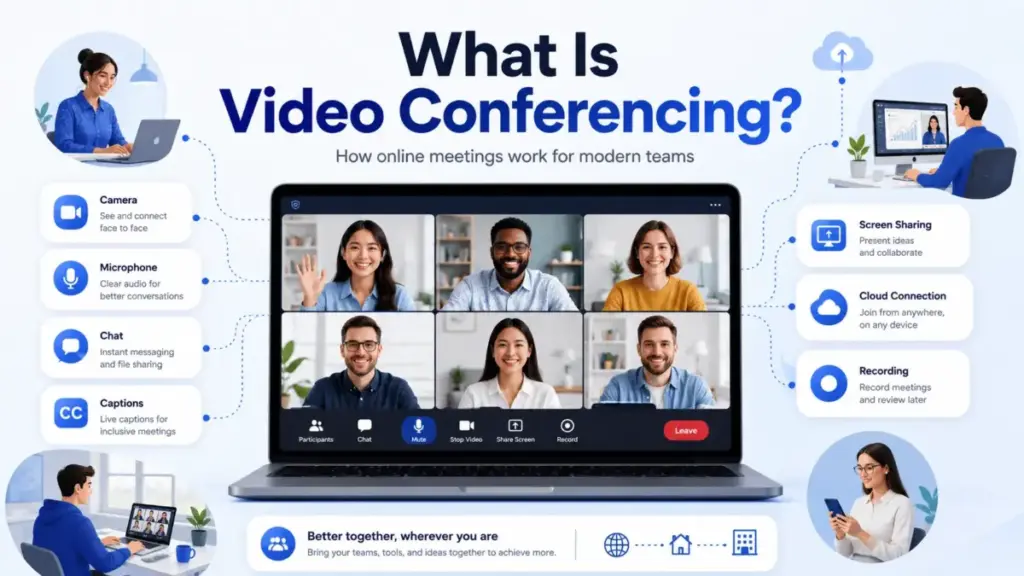
Video conferencing is a real-time audiovisual communication method that lets two or more people in different locations see and hear each other over an internet or communications network. The ITU-T Recommendation F.730 defines it as an audiovisual conversational service with “bidirectional real time transfer of voice and moving colour pictures” between groups in separate locations (ITU-T F.730).
In practice, that means a Zoom call, a Microsoft Teams meeting, a Google Meet session, or a Webex conference. The technology captures what your camera sees and your microphone hears, compresses it, sends it across the network, and reconstructs it on the other side.
For SaaS buyers, the definition matters less than the operational reality: video conferencing in 2026 is not just the call itself. It is the scheduling, the calendar integration, the recording, the transcript, the AI summary, the guest-access policy, the admin controls, and the storage that happens around the call. Stanford SIEPR research confirms that work-from-home levels stabilized after the 2022 to 2023 decline (Stanford SIEPR), which means hybrid meeting infrastructure is a permanent operational requirement, not a temporary patch.
How Video Conferencing Actually Works
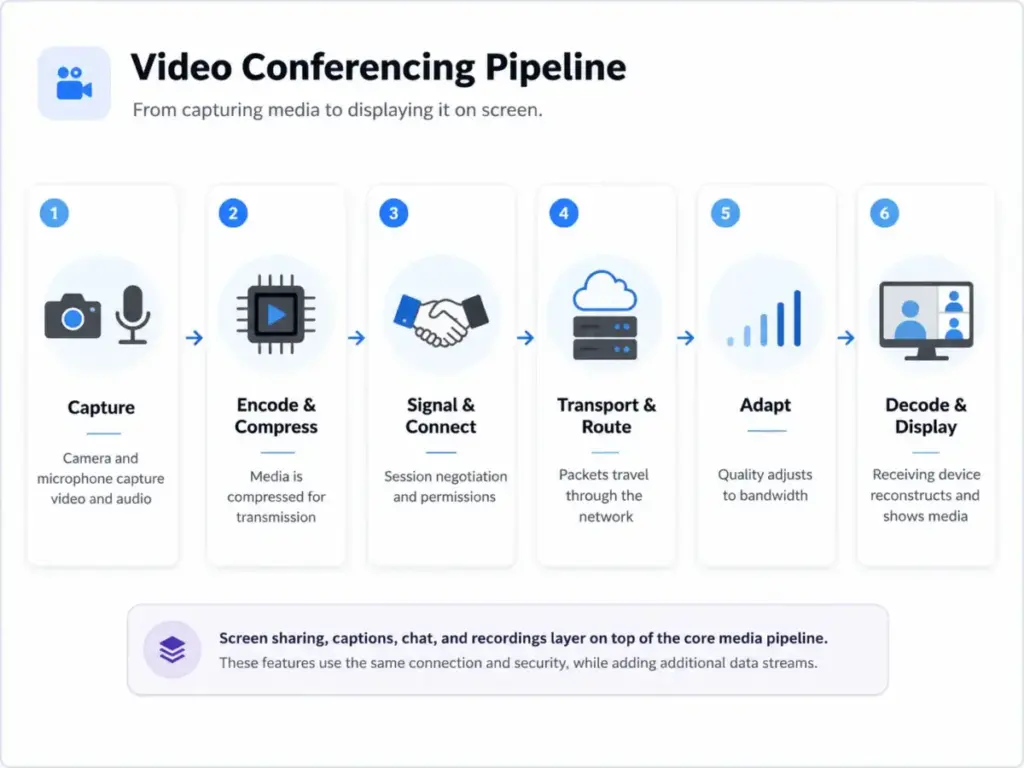
Every video conference follows the same pipeline, regardless of platform. Understanding the stages helps explain why some meetings feel smooth and others drop, stutter, or echo.
Stage 1: Capture
Your device’s camera captures video frames and the microphone captures audio. Quality starts here. A laptop webcam in a dark room with a built-in microphone produces different results than a conference-room camera with a dedicated mic array.
Stage 2: Encode and Compress
The application converts raw audio and video into compressed formats using codecs like H.264, VP9, or AV1 for video and Opus for audio. Compression reduces the data volume so it can travel over a standard internet connection without requiring dedicated fiber.
Stage 3: Signal and Connect
Before media flows, the devices negotiate the session. This includes identity verification, permission checks, and determining the connection path. Modern platforms use WebRTC for browser-based sessions or proprietary signaling for their desktop clients.
Stage 4: Transport and Route
Media packets travel from sender to platform servers and then to each participant. For calls with three or more people, the platform typically uses a Selective Forwarding Unit (SFU) that routes video streams without re-encoding them, or a Multipoint Control Unit (MCU) that mixes streams centrally. The choice affects latency, quality, and server cost.
Stage 5: Adapt
This is the stage most users notice but never think about. When bandwidth drops, the platform reduces video resolution, adjusts frame rate, or switches to audio-only. Poor adaptation is why some platforms feel choppy while others simply lower resolution quietly.
Stage 6: Decode and Display
The receiving device decompresses the streams and renders them. Screen sharing, captions, chat, reactions, and breakout rooms all layer on top of this core media pipeline.
The failure point most people miss: better software cannot fully fix poor bandwidth or a bad microphone. If you are troubleshooting call quality, start with the physical setup before blaming the platform.
Video Conferencing vs Related Communication Methods
One of the most common sources of confusion is treating every online communication method as the same thing. They are not. Each format serves a different workflow automation purpose.
| Method | Format | Direction | Best for | Key difference |
|---|---|---|---|---|
| Video conferencing | Real-time audio + video | Two-way or multi-way | Team meetings, client calls, interviews, demos | Full audiovisual interaction with screen sharing and collaboration features |
| Webinar | Structured one-to-many | Mostly one-way with moderated Q&A | Training, product launches, public events | Audience controls, registration, polling, larger attendee limits |
| VoIP calling | Audio only | Two-way | Quick phone calls, support lines | No video, lower bandwidth, simpler setup |
| Screen sharing | Visual only, often with audio | One-way or two-way | Troubleshooting, walkthroughs, pair work | No camera video of participants |
| Async video (e.g., Loom) | Recorded video | One-way, on-demand | Status updates, explanations, tutorials | No real-time interaction, viewer watches later |
| Team chat | Text-based | Multi-way, async or real-time | Quick questions, links, status updates | No audiovisual component |
What this means: If your team is using a video call for a status update that could be a 2-minute Loom recording or a chat message, you are using the wrong format. I have seen teams where 40% of scheduled meetings could be replaced by a recorded update or a thread in their messaging platform.
Types of Video Conferencing
Not every video meeting is the same kind of meeting. Breaking the category into types makes it easier to match the right tool and plan to the right job.
| Type | Description | Typical use case | Buyer concern |
|---|---|---|---|
| Point-to-point | Direct meeting between two participants or locations | One-on-one sales calls, coaching, interviews | Simple, low bandwidth, most free plans handle this |
| Multipoint team meetings | Three or more participants with shared controls | Daily standups, project reviews, department meetings | Participant limits, recording, admin controls matter at scale |
| Room-based and telepresence | Dedicated hardware (cameras, microphones, displays, controllers) in a conference room | Hybrid meetings with in-room and remote participants | Hardware cost, platform compatibility, calendar integration |
| Browser-based WebRTC | Meetings that run inside a browser without a full desktop client | Quick external meetings, customer calls, embedded support | Guest access, no install requirement, limited advanced features |
| Webinars and virtual events | One-to-many format with registration, moderated Q&A, attendee controls | Training, product launches, public events, large audiences | Attendee capacity, registration, polling, often a separate product or add-on |
| Embedded and API-based | Video built into another SaaS product | Telehealth, online learning, customer onboarding, live support | Integration complexity, compliance, custom UI, API pricing |
One thing I learned from evaluating video conferencing tools: most teams need multipoint meetings as the baseline, but they often also need webinar capability or room hardware, and those are frequently separate products or paid add-ons. Ask about this before committing to a platform.
Step-by-Step Implementation
Step 1: Map Your Meeting Jobs
List every type of meeting your team runs: internal standups, customer demos, interviews, training sessions, executive reviews, support calls, hybrid room meetings, and public webinars. Each one has different requirements for participant count, recording, guest access, and security.
Step 2: Separate by Risk Level
Casual internal calls have different governance needs than confidential leadership reviews or recorded customer sessions. Group your meeting types by sensitivity: low (internal syncs), medium (customer calls with recordings), high (board meetings, regulated sessions, HR discussions).
Step 3: Choose the Delivery Model
Decide whether each meeting type works best as an app-based meeting, a browser-based guest session, a conference-room system, a webinar, or an embedded video workflow. Most organizations need at least two of these.
Step 4: Validate Core Requirements
Check each platform against the non-negotiable requirements: participant limits, meeting duration, recording and transcription, captions, calendar integration, guest access without app install, mobile access, admin controls, and cloud storage.
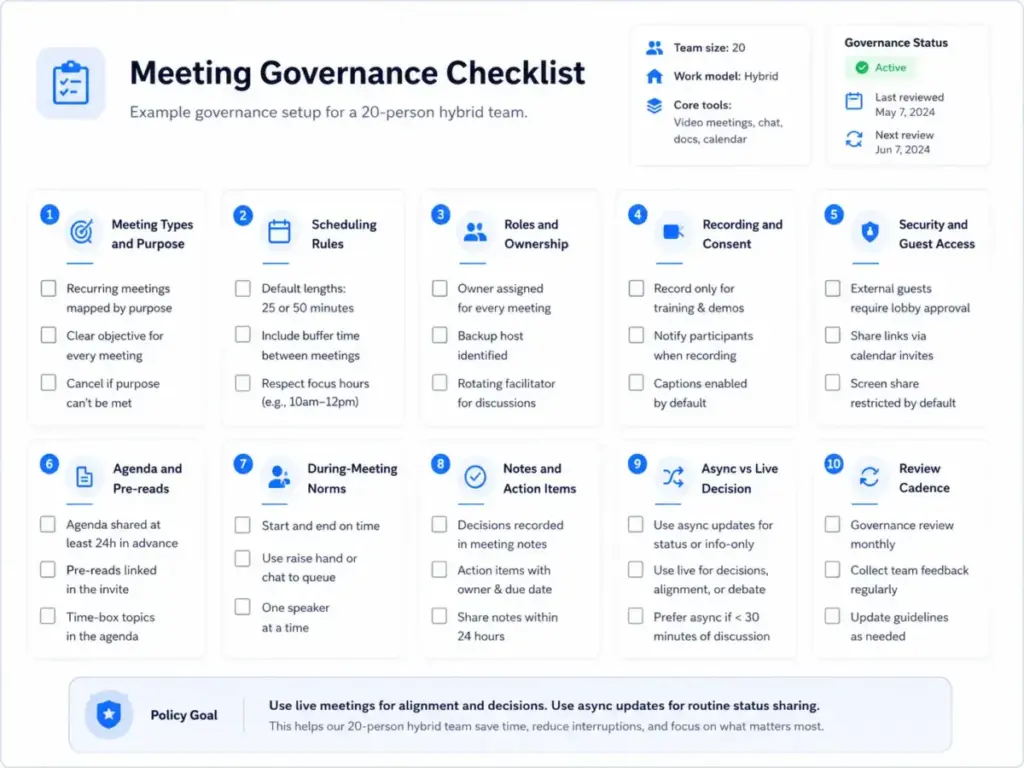
Step 5: Set Governance Defaults
Configure waiting rooms or lobbies, meeting passwords, host controls, recording permissions, transcript retention policies, AI summary rules, external guest policies, and data-sharing controls. These defaults prevent problems you do not want to debug after a sensitive meeting gets recorded without consent.
Step 6: Pilot With Real Workflows
Test with four real scenarios: one internal recurring meeting, one external customer meeting, one hybrid room meeting (if applicable), and one recorded training or knowledge-sharing session. One week of real use reveals friction that no feature checklist can predict.
Step 7: Measure Adoption and Quality
Track join success rates, audio or video complaints, average meeting duration, recording and caption usage, action-item follow-through, and support tickets related to meetings. If join failure rates are above 5%, you have a setup or compatibility problem.
Step 8: Document Team Norms
Write down when to use video, when to use chat, when to record, who sends agendas, how action items are captured, and when asynchronous updates replace a meeting. This step sounds simple. Most teams skip it and end up with 30% more meetings than they need.
The Mistakes That Waste Your First Month
- Choosing based only on video resolution. Audio quality, reliability, calendar integration, guest access, and room hardware compatibility matter more than 1080p versus 720p for most business meetings.
- Ignoring free-plan limits until they break a meeting. Zoom’s free Basic plan caps meetings at 40 minutes with up to 100 participants. Google Meet’s no-cost plan limits group meetings to 60 minutes and 100 participants. Hitting a time limit during a client demo is the kind of problem you remember.
- Recording everything without retention rules. Recordings contain confidential information. Without a policy for who can access recordings, how long they are stored, and when they are deleted, you create a compliance risk that grows with every meeting.
- Buying room hardware before testing workflows. A conference-room camera setup costs anywhere from $500 to $5,000+. Test the meeting platform with a laptop in the room first. Confirm the workflow works before investing in hardware.
- Assuming all AI features are included on all plans. AI-generated meeting summaries, transcripts, and action items are plan-gated on most platforms. Zoom’s AI Companion availability depends on eligible paid plans and account settings. Webex and Teams gate AI features similarly.
- Treating webinars and team meetings as the same use case. Webinar tools have registration, attendee controls, and one-to-many broadcasting. Team meeting tools have two-way audio and video. Using a team meeting tool for a 500-person event creates problems. So does using a webinar tool for a 5-person project sync.
- Using video for every status update. Not every update needs a meeting. If participants do not need real-time interaction, a recorded video, a chat message, or a shared document update is faster and creates less meeting fatigue.
Common Misconceptions
“Video conferencing is the same as a webinar.” A webinar is a structured one-to-many event format with registration and moderated Q&A. Video conferencing includes two-way meetings, team calls, rooms, interviews, demos, classes, and embedded workflows. Most platforms sell webinar capability as a separate product or add-on.
“A free plan is enough for any business meeting.” Free plans work for short casual calls. Business users regularly need longer meetings, cloud recordings, transcripts, admin controls, larger attendance, and security configurations that only paid plans provide.
“End-to-end encryption is always enabled for every meeting.” Encryption details vary by platform, plan, meeting mode, and enabled features. Enabling certain collaboration features (like cloud recording or live transcription) may affect whether strict end-to-end encryption is available. Check your platform’s documentation for specifics.
“HD video quality is the main buying factor.” Reliability, audio quality, calendar integration, guest access, room hardware support, security controls, captions, and user adoption often matter more than resolution. I have seen teams switch platforms because of guest-access friction, not video quality.
“AI meeting notes remove the need for meeting discipline.” AI summaries help capture what was said. They do not replace agendas, decision owners, action-item review, consent rules for recording, or data-retention policies. Grand View Research reports growing demand for AI meeting assistants with “automated meeting summaries, contextual insights, and intelligent action tracking” (Grand View Research), but the governance layer is still a human responsibility.
When to Use Video Conferencing and When to Avoid It
Use video conferencing when:
- The discussion needs facial context, tone, or visual cues (negotiation, sensitive alignment, hiring decisions)
- Live screen sharing or demonstration is needed (product demos, design reviews, troubleshooting)
- Multiple stakeholders need to reach a decision in real time
- Customer trust or relationship building depends on face-to-face interaction
- Training requires live Q&A and participant engagement
Avoid or replace video conferencing when:
- The topic is a simple status update with no live decision required
- A recorded explanation or walkthrough would serve the same purpose
- The meeting is a one-way announcement that could be an email or a Loom recording
- Participants do not need real-time interaction (document review, asynchronous feedback)
- The meeting has no agenda, no owner, and no expected outcome
One rule I use with teams I advise: if the meeting could be a 3-paragraph email, send the email. If it could be a 2-minute recorded video, record the video. Reserve live video for work that genuinely requires synchronous interaction.
How to Measure Success
| Metric | What it tells you | Target |
|---|---|---|
| Meeting join failure rate | Platform reliability and user setup quality | Below 5% |
| Average time to join | Friction in the meeting-start experience | Under 30 seconds |
| Audio or video complaint rate | Device and network quality issues | Below 10% of meetings |
| Recording and transcript usage | Whether teams actually use async review features | Increasing over time |
| Caption usage | Accessibility adoption | Track for compliance |
| Action-item completion rate | Whether meetings produce outcomes, not just conversations | Above 70% |
| Meetings replaced by async updates | Whether the team is using video only when needed | Increasing over time |
What this means: If your join failure rate is high, the problem is usually compatibility or permissions, not the platform itself. If action-item completion is low, the problem is meeting discipline, not meeting software.
What Good Video Conferencing Looks Like: Five SaaS Examples
These five tools illustrate different approaches to video conferencing. Pricing data reflects official sources as of May 2026. Check each vendor’s pricing page for current rates.
Zoom Workplace and Zoom Meetings
Zoom implements video conferencing as a general-purpose meeting layer with a free Basic plan (40-minute meetings, up to 100 participants), paid tiers that remove the time limit, and a growing set of Workplace features including chat, whiteboard, docs, and clips. AI Companion is available on eligible paid plans. Zoom’s strength is broad familiarity: most external guests already know how to join a Zoom link. The free-plan time limit is the first friction point teams hit when meetings run long. (Zoom pricing)
Microsoft Teams
Teams implements video conferencing inside the Microsoft 365 collaboration stack, combining video meetings with chat, file collaboration, recordings, transcripts, live captions, and encryption. Teams Essentials starts at $4 per user per month (paid yearly). The main advantage is deep integration with Outlook, SharePoint, and OneDrive. Some advanced meeting intelligence, security, or Copilot features require paid add-ons or higher-tier Microsoft 365 plans. (Microsoft Teams pricing)
Google Meet
Google Meet connects video conferencing to Google Workspace, linking meetings with Gmail, Calendar, Docs, Sheets, and Slides. The free tier supports up to 100 participants and 60-minute group meetings. Paid Workspace plans add longer meetings, larger limits, recording, noise cancellation, and enterprise controls. The main limitation is that some advanced features and higher participant limits require paid plans. (Google Meet)
Cisco Webex Meetings
Webex targets enterprise, regulated, and security-conscious environments. The free plan offers 40-minute meetings and 100 attendees. Webex Starter is listed at $12 per month ($144 per license yearly), and Business at $17 per month ($204 yearly). Enterprise pricing requires contacting sales. Webex includes Slido for polling and Q&A, AI Assistant functions, and encryption options including end-to-end encryption. Feature and concurrent meeting limits vary by plan. (Webex pricing)
GoTo Meeting
GoTo Meeting focuses on straightforward online meetings for small and midsize teams. Professional supports 150 participants (approximately $12 per organizer per month annually), and Business supports 250 participants (approximately $16 per organizer per month annually). Features include HD video, screen sharing, cloud recording, transcription, single sign-on, and meeting locks. No permanent free plan was verified in captured pricing evidence; a 14-day trial is available. (GoTo Meeting pricing)
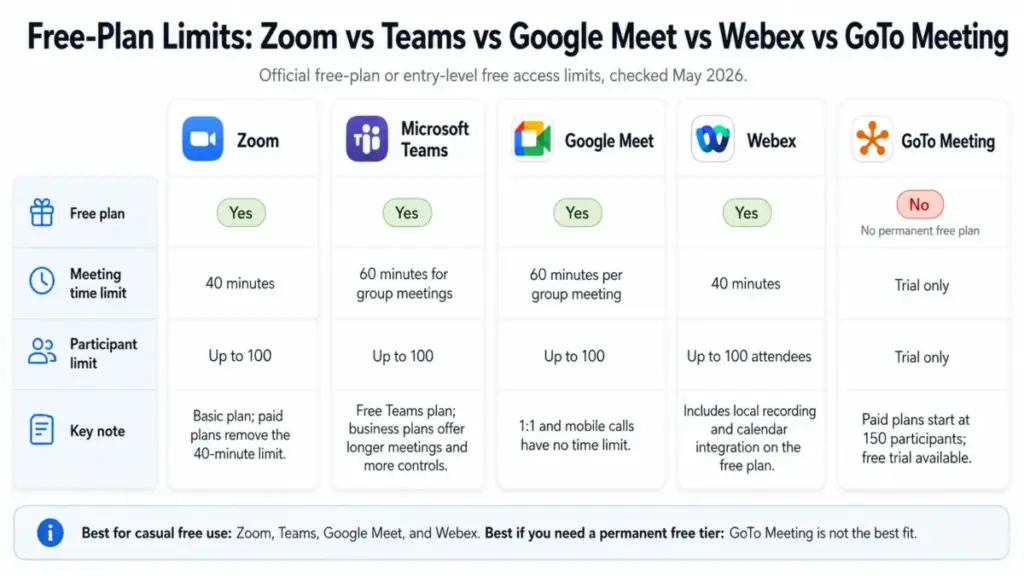
| Platform | Free plan | Free meeting limit | Free participants | Paid starting price |
|---|---|---|---|---|
| Zoom Workplace | Yes | 40 minutes | 100 | Dynamic; Pro from ~$13.33/user/month annually |
| Microsoft Teams | Limited | Up to 30 hours (Essentials) | 300 (Essentials) | $4/user/month (Essentials, yearly) |
| Google Meet | Yes | 60 minutes (group) | 100 | Workspace plans (check regional pricing) |
| Cisco Webex | Yes | 40 minutes | 100 | $12/month (Starter, yearly) |
| GoTo Meeting | Trial only | 14-day trial | 150 (Professional) | ~$12/organizer/month (Professional, yearly) |
What this means: If your team regularly runs meetings longer than 40 minutes, Zoom and Webex free plans will cut you off. Google Meet gives you 60 minutes. Microsoft Teams Essentials, while paid, offers up to 30 hours per meeting. The free plan limits are the first filter for most buyers.
Tools That Make Video Conferencing Easier
Beyond the five core meeting platforms, several tools extend or complement video conferencing workflows:
- Fireflies.ai, Otter.ai, Fathom: AI meeting transcription and summary tools that work across platforms
- Calendly: Scheduling that avoids the back-and-forth of booking meeting times
- Owl Labs, Yealink, AVer: Conference-room cameras and devices for hybrid meeting setups
- Zoom Workplace: Combines meetings with persistent chat, whiteboard, and document collaboration
- Miro: Visual collaboration boards that pair well with video conferencing for workshops and brainstorming
- Figma: Design collaboration with built-in video calling for design review sessions
If your team already uses a project management platform, check whether it integrates with your meeting tool for automatic meeting notes, task creation, or calendar sync.
Video Conferencing Buyer Checklist
- [ ] Map all meeting types your team runs (internal, external, training, hybrid room)
- [ ] Confirm participant limits match your largest recurring meeting
- [ ] Verify meeting duration limits on your current plan
- [ ] Test guest access for external participants (can they join without installing an app?)
- [ ] Check recording and transcript availability by plan
- [ ] Review AI summary and caption features by plan
- [ ] Confirm calendar integration with your existing calendar (Google, Outlook, other)
- [ ] Set recording consent and retention policies before enabling recording
- [ ] Test audio and video quality from your most common meeting locations
- [ ] Document team norms for when to use video versus async communication
FAQ
What is video conferencing in simple terms?
Video conferencing is a way for people in different locations to see and hear each other in real time using cameras, microphones, and an internet connection. Modern video conferencing platforms also include screen sharing, chat, recording, captions, and AI-generated meeting notes.
What is the difference between video conferencing and a webinar?
Video conferencing is two-way: all participants can share audio and video. Webinars are structured one-to-many events where presenters broadcast to an audience that typically interacts through moderated Q&A, polls, and chat. Most platforms sell webinar capability as a separate product or add-on.
Do I need a paid plan for recurring client calls?
It depends on meeting length and features. Zoom’s free plan cuts meetings at 40 minutes. Google Meet’s free tier caps group calls at 60 minutes. If you regularly run client meetings over 40 minutes or need recordings, transcripts, or admin controls, a paid plan is worth the cost.
Can video conferencing work well on low bandwidth?
Most platforms adapt to low bandwidth by reducing video resolution or switching to audio-only. A connection of 1.5 to 3 Mbps typically supports acceptable video quality for one-on-one calls. Multipoint meetings and screen sharing need more. If bandwidth is consistently low, audio-only or async video may produce better results than a choppy video call.
What equipment do I need for video conferencing?
For individual use: a computer or phone with a camera, microphone, speakers or headphones, and an internet connection. Built-in laptop cameras work for most calls. An external microphone or headset improves audio significantly. For conference rooms: a dedicated camera, microphone array, display, and room controller provide a better hybrid meeting experience.
Is end-to-end encryption available in normal business meetings?
It varies by platform, plan, and enabled features. Most platforms encrypt data in transit. Strict end-to-end encryption, where only participants can access the content, may not be available when cloud recording, live transcription, or certain collaboration features are enabled. Check your platform’s security documentation for specifics.
Which video conferencing tool works best for Google Workspace?
Google Meet integrates directly with Gmail, Google Calendar, Google Docs, and Google Drive. If your team already works within Google Workspace, Meet is the natural fit. Zoom and Microsoft Teams also integrate with Google Workspace through calendar connectors, but the integration is not as deep.
How do I stop video meetings from becoming too many meetings?
Set team norms. Define which updates need a live meeting and which can be an async message, recorded video, or document comment. Track meeting hours per week. If meetings consume more than 30% of the workweek, audit which ones produce decisions and which ones produce only attendance.
Are AI meeting summaries safe for confidential calls?
AI summaries process meeting audio and content through the platform’s servers or third-party services. For confidential calls, review the platform’s data processing agreement, where transcripts are stored, who has access, and how long they are retained. Some organizations disable AI features for sensitive meetings and rely on manual notes instead.
Should training sessions be video meetings or webinars?
If the training requires two-way interaction, live exercises, or breakout rooms, use a video meeting. If the training is a one-to-many presentation with Q&A at the end, a webinar tool handles larger audiences with better attendee controls. For self-paced training, a recorded video with a knowledge base article is often more effective than either live format.