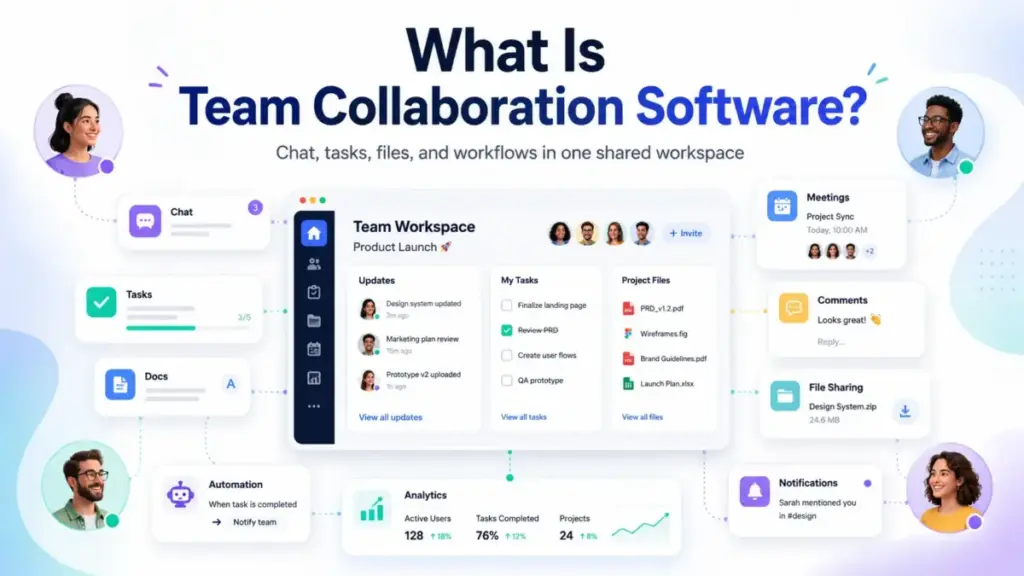
Most teams do not have a communication problem. They have a coordination problem disguised as communication. Updates live in Slack threads nobody re-reads. Decisions happen in meetings nobody documents. Tasks sit inside spreadsheets nobody updates.
Team collaboration tools is the system that either fixes this or, if set up badly, creates another layer of noise on top of it. This guide explains what team collaboration software actually does, how the category differs from project management and simple chat tools, which types exist, where major platforms fit, what limits to watch on free plans, and how to implement the right tool without drowning your team in apps.
Quick Answer: Team collaboration software is a cloud-based digital workspace that combines communication, task coordination, file sharing, and decision capture into one system so teams can work together regardless of location. It differs from standalone chat or project management tools because it ties conversations directly to work objects: tasks, documents, approvals, and workflows. The value depends on governance, plan limits, and how well your team defines where decisions live.
The 60-Second Explanation of Team Collaboration Software
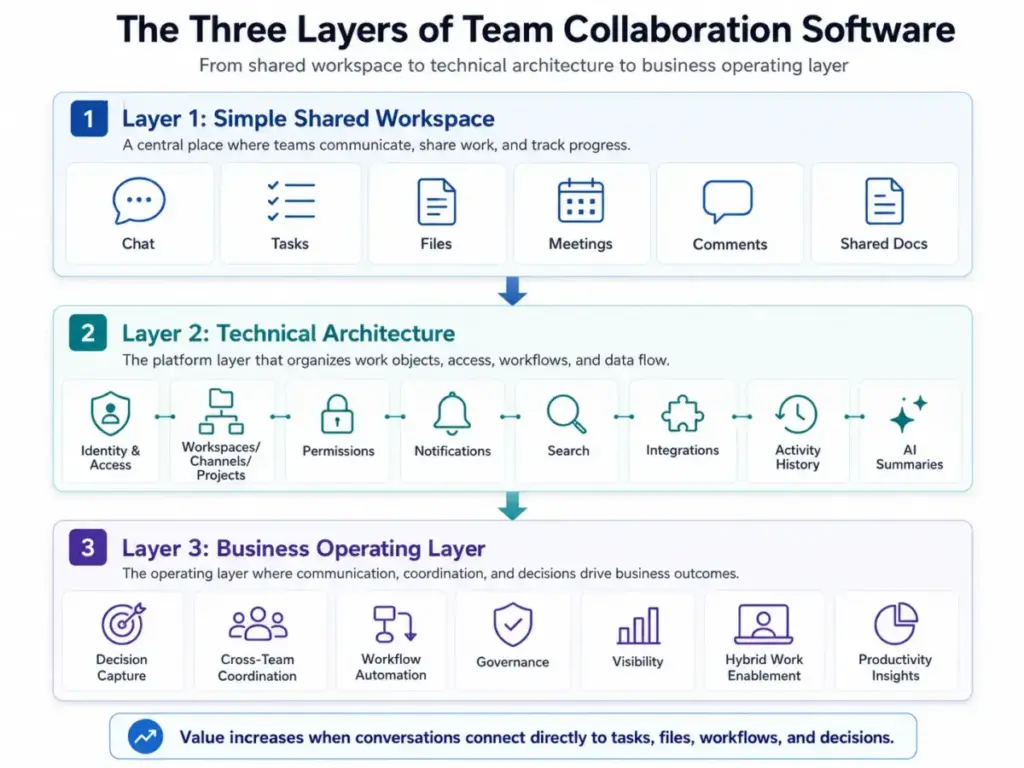
Team collaboration software operates at three layers, and understanding each one determines whether the tool helps or just adds noise.
Layer 1 (Simple): It is a shared digital workspace where your team communicates, assigns work, shares files, and tracks progress in one place instead of toggling between email, chat, and spreadsheets.
Layer 2 (Technical): Most platforms use a shared workspace model. Users sign in through an identity layer, join teams or channels, and interact with work objects: messages, tasks, files, comments, whiteboards, meetings, approvals, and automations. The platform then applies permissions, notifications, search, integrations, activity history, and analytics. Advanced tools layer in AI summaries, workflow automation, enterprise search, audit logs, SSO, SCIM, and guest controls.
Layer 3 (Business): Collaboration software is the operating layer where communication, work coordination, shared content, permissions, and decisions come together. In 2026, hybrid work, AI-assisted productivity, and distributed decision-making make this layer a core business system. Gartner highlights AI-powered automation, contextual collaboration, and real-time insights as important collaborative work management trends. Microsoft WorkLab frames 2026 work around AI agents expanding human agency, meaning collaboration tools increasingly coordinate people, documents, tasks, and AI-generated outputs.
How Team Collaboration Software Actually Works
The mechanism behind most collaboration platforms follows a consistent pattern. Understanding this pipeline helps you evaluate whether a tool matches your team’s actual workflow.
Step 1: Identity and access. Users authenticate through email, SSO, or SCIM provisioning. The platform creates user profiles with roles and permissions. Most enterprise plans add admin controls, guest access, and domain-level governance.
Step 2: Workspace organization. Teams create channels (Slack, Teams), projects (Asana, ClickUp), boards (monday.com), or workspaces that group related communication and work. The taxonomy you design here, naming rules, archive rules, private spaces, and guest spaces, determines whether your team can find information six months later.
Step 3: Work object interaction. Users create and interact with work objects: messages, tasks, files, comments, updates, approvals, and automations. Each object carries metadata: owner, due date, status, custom fields, and activity history.
Step 4: Notifications and context flow. The platform routes notifications based on mentions, assignments, due dates, and subscription rules. The difference between a useful tool and a noisy one often comes down to how well this notification layer is configured.
Step 5: Integration and data flow. Collaboration tools connect to calendars, email, file storage, CRM, developer tools, and BI systems. Integrations range from native (Microsoft Teams with SharePoint) to third-party (Slack with Zapier).
Step 6: Search, analytics, and AI. Paid plans typically unlock full message search, usage analytics, and, increasingly in 2026, AI-generated summaries and contextual insights. Free plans often cap searchable history, which becomes a blocker as teams grow.
Where it breaks: The pipeline fails when teams skip Step 2 (workspace taxonomy), ignore Step 4 (notification governance), or treat Step 3 as optional (keeping decisions in chat instead of tasks or documents). The tool works. The configuration determines the outcome.
Team Collaboration Software vs Related Concepts
Most confusion in this category comes from overlapping vendor marketing. Here is how collaboration software relates to adjacent concepts.
| Concept | When to use | Key difference from collaboration software |
|---|---|---|
| Project management software | When work needs task ownership, dependencies, timelines, and structured views | Focuses on task execution and project delivery, not communication |
| Team messaging / chat tools | When fast communication is the primary need | Handles conversations but not task assignment, file governance, or project views |
| Document collaboration tools | When co-authoring, knowledge capture, and decision documentation are priorities | Centers on content creation, not task coordination or real-time messaging |
| Unified communications (UC) | When voice, video, and meeting infrastructure are the main requirements | Focuses on synchronous communication, not asynchronous coordination |
| Digital workplace platforms | When organizations need employee portals, intranets, and broad governance | Broader scope including HR, IT, and company-wide information architecture |
| Workflow automation tools | When processes need conditional triggers, approval chains, and cross-app data flows | Focuses on automated task routing, not human collaboration and communication |
One thing I have learned from deploying these tools across teams: the real question is not “which category do I need?” It is “where do my team’s decisions currently get lost?” If they get lost in chat, you need a task tool. If they get lost in email, you need a shared workspace. If they get lost in meetings nobody documents, you need async collaboration with decision capture.
Step-by-Step Implementation Guide
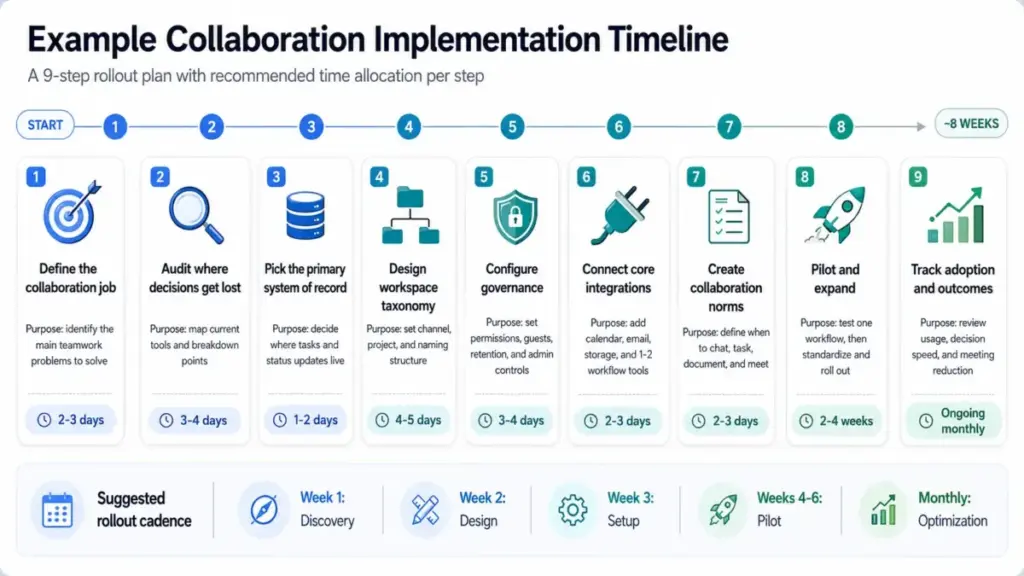
Implementing collaboration software is less about the tool and more about the workflow design. I have watched teams buy Slack or Microsoft Teams and end up with 200 channels nobody maintains. Here is the sequence that actually works.
Step 1: Define the collaboration job before comparing tools
Collaboration is not one problem. It splits into at least six: real-time communication, task coordination, file collaboration, project visibility, knowledge capture, and external collaboration. Name the top two or three jobs that your current stack fails at. That narrows the category.
Step 2: Audit where decisions get lost
Map your current work stack: email, chat, project tools, file storage, meetings, shared docs, approval flows. For each, ask: “When a decision is made here, can a new team member find it three months later?” If the answer is no, that system is a candidate for replacement.
Step 3: Pick the primary system of record
One tool must own the authoritative version of work status. If you use Slack for communication and Asana for project management, then Asana is the system of record for tasks. Slack is the conversation layer. Mixing these roles creates duplicate updates and conflicting statuses.
Step 4: Design workspace taxonomy
Before inviting anyone, define your teams, channels, projects, naming conventions, archive rules, guest spaces, private spaces, and decision-log locations. I recommend keeping channel or project names under 30 characters, using a consistent prefix system (e.g., proj-, dept-, client-), and archiving anything inactive for 60+ days.
Step 5: Configure governance before rollout
Set up identity (SSO if available), permissions, external sharing policies, data retention rules, file storage defaults, and admin ownership. On most platforms, these settings live behind paid plans. If your team needs guest access or data retention controls, verify the plan tier before purchasing.
Step 6: Connect core integrations only
Link your calendar, email, file storage, and one or two critical workflow tools (CRM, help desk, developer tools). Do not add every possible app at launch. Each integration creates a notification surface, and too many integrations on day one produce the same noise you were trying to eliminate.
Step 7: Create collaboration norms
Document when to use chat, when to create a task, when to write a document, when to meet, and how final decisions are recorded. Without norms, your team will default to whatever feels fastest (usually chat), and decisions will get buried again.
Step 8: Pilot and expand
Start with one cross-functional workflow. Run it for two to four weeks. Measure friction: How many handoffs failed? How many decisions were hard to find? Then standardize templates and expand to other teams.
Step 9: Track adoption and outcomes monthly
Useful metrics include weekly active users, active channels or projects, task completion rate, overdue task aging, decision cycle time, meeting hours per team, search success rate, and duplicated work incidents. Track outcomes, not just logins.
The Mistakes That Waste Your First Month
I have seen the same implementation mistakes across dozens of team rollouts. These are the patterns that waste time and budget.
Choosing the tool before defining the workflow. Vendors demo features. You should be testing workflows. If your team primarily needs async updates and task tracking, a chat-first tool solves the wrong problem.
Treating chat as a task system. Chat threads are not tasks. If someone asks for something in Slack and nobody moves it to a project or doc, the request dies in the scroll. This is the most common collaboration failure I see.
Leaving decisions buried in threads. A channel discussion with 47 replies is not a decision record. If the conclusion does not land in a task, document, or status update, it does not exist for anyone who was not in the thread.
Creating too many channels or boards without naming rules. Within 90 days, ungoverned workspaces accumulate abandoned channels, duplicate boards, and orphan projects. Archive rules and naming conventions prevent this.
Ignoring plan limits until they bite. Free tiers carry meaningful constraints: message history caps, user limits, storage ceilings, board count limits, and restricted governance features. Evaluating only the free experience creates a false impression of what the tool delivers at scale.
Rolling out external sharing without governance. Guest access, shared channels, and external collaboration features introduce data exposure risks. Configure guest policies before your team starts inviting clients or contractors.
Measuring adoption but not work outcomes. “500 messages sent this week” means nothing if task completion dropped. Track whether work moved forward, not whether people used the tool.
Common Misconceptions About Collaboration Software
Misconception: Team collaboration software means team chat.
Reality: Chat is one collaboration mode. A complete collaboration stack may also include tasks, files, docs, project views, whiteboards, meetings, search, permissions, and automations. Slack is collaboration. So is ClickUp. They solve different problems.
Misconception: Buying one collaboration tool automatically improves productivity.
Reality: The rollout only works if teams define where decisions live, which channels or projects to use, who owns updates, and when work moves from chat into a task or document. The tool is infrastructure. The workflow design is the product.
Misconception: All-in-one collaboration software is always cheaper.
Reality: All-in-one platforms reduce app switching, but the real cost depends on seats, plan limits, add-ons, AI credits, automations, storage, and admin requirements. A targeted stack (Slack plus Asana) can cost less than a loaded all-in-one plan from monday.com or ClickUp.
Misconception: Async collaboration means no meetings.
Reality: Async collaboration reduces unnecessary meetings by documenting updates and decisions. Synchronous meetings, huddles, and workshops still matter for ambiguity, conflict, and complex decisions. The goal is fewer meetings, not zero meetings.
Misconception: Free plans are safe long-term for growing teams.
Reality: Free tiers work for pilots, but plan limits (message history caps, user count limits, storage constraints, board count limits, restricted admin controls) become blockers. Teams that evaluate only the free plan often underestimate what the tool costs at 15 or 50 users.
When to Use and When to Avoid Collaboration Software
Use team collaboration software when:
- Work requires multiple people with shared files, repeatable updates, and cross-functional handoffs
- Remote or hybrid participation demands async communication and searchable decisions
- Email threads are losing decisions and creating duplicate work
- Task ownership needs clear assignment, due dates, and status tracking beyond chat
- External collaboration (clients, contractors, partners) requires governed guest access
- The team has outgrown spreadsheets and shared folders for project coordination
Avoid or delay new collaboration software when:
- The team is very small (under 5) and already has a clear, simple system that works
- The organization cannot define ownership, naming rules, or governance for a new tool
- Security requirements are not yet understood (especially for regulated industries)
- Another platform already covers the workflow well enough, and adding a new tool would create app sprawl
- Nobody has time to design the workspace taxonomy and collaboration norms before launch
I will be direct here: if your team is under 5 people and everyone sits in the same room, a shared spreadsheet and a group chat might genuinely be enough. Collaboration software starts paying for itself when coordination breaks, meaning when decisions get lost, handoffs fail, or status updates require chasing people.
What Good Collaboration Looks Like: Real-World Examples
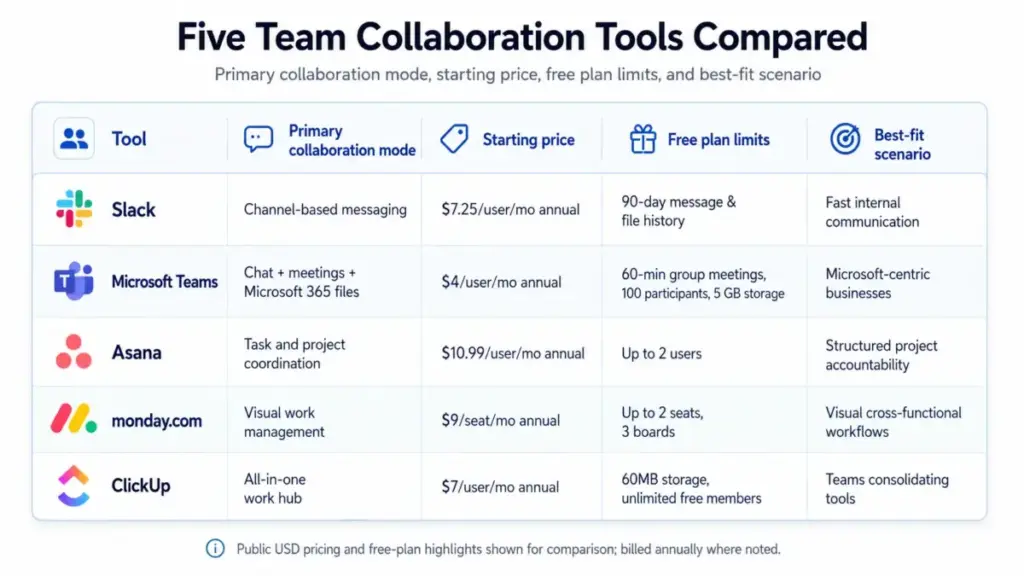
Here is how five widely used platforms implement team collaboration differently. Each serves a different “collaboration job,” which is why comparing them feature-by-feature misses the point.
Slack: Collaboration as real-time communication
Slack implements team collaboration through channels, direct messages, huddles, file sharing, app integrations, and searchable message history on paid plans. Its strength is fast, channel-based coordination. The limitation: Slack’s free plan restricts searchable message history to the most recent 90 days, which means older decisions and context become invisible unless you upgrade to the Pro plan at $8.75/user/month (as of May 2026). For teams that treat Slack as the system of record for decisions, that history cap is a governance risk.
Microsoft Teams: Collaboration as a Microsoft 365 layer
Microsoft Teams implements collaboration through chat, channels, meetings, file sharing, Loop and OneNote integration, and files backed by SharePoint and OneDrive. Its strength is deep integration with the Microsoft 365 suite. Teams already standardized on Word, Excel, and Outlook get a collaboration layer that does not require learning a new file ecosystem. The friction point: file sharing in Teams routes through SharePoint, which adds a governance layer that small teams find confusing. And Teams’ free tier limits the meeting experience and admin controls compared to paid Microsoft 365 Business plans starting at $6/user/month for Teams Essentials (as of May 2026).
Asana: Collaboration as work accountability
Asana implements collaboration through projects, tasks, owners, due dates, project views (list, board, timeline, calendar), custom fields, rules, forms, status updates, portfolios, goals, and dashboards. Its strength is accountability beyond conversations. Every work item has an owner and a due date. The limitation: Asana’s free tier now supports only 2 users (as of May 2026), down from previous free limits, which makes it impractical for growing teams without moving to Starter at $13.49/user/month billed monthly. Reporting and advanced integrations live on the Business plan at $30.49/user/month.
monday.com: Collaboration as visual work management
monday.com implements collaboration through visual boards, Docs, templates, automations, integrations, board views, guest access, and private boards on higher plans. The Work OS approach lets teams configure boards for different workflows: project tracking, CRM, marketing calendars, and sprint management. The friction: monday.com uses bucket pricing with a 3-seat minimum on paid plans. The Basic plan starts at $12/seat/month (billed annually, as of May 2026), but automations and integrations require the Standard plan at $14/seat/month. Board and automation limits scale with plan tier, and private boards require Pro or higher.
ClickUp: Collaboration as an all-in-one workspace
ClickUp implements collaboration through tasks, Docs, Kanban boards, chat, whiteboards, dashboards, collaborative editing, live collaboration detection, automations, integrations, and enterprise admin options. The promise is a single system replacing Slack, Asana, and Google Docs. The reality: setup complexity is the tradeoff. ClickUp’s free plan supports unlimited users but limits storage to 100MB and restricts several features. The Unlimited plan at $10/user/month (billed monthly, as of May 2026) unlocks more storage and integrations, while Business at $19/user/month adds advanced automations and time tracking.
How to Measure Collaboration Software Success
Tracking usage is not enough. Active users tell you who logged in, not whether work moved forward. Here are metrics that connect collaboration software to actual business outcomes.
| Metric | What it measures | Why it matters |
|---|---|---|
| Weekly active users | Adoption baseline | Low WAU signals onboarding friction or tool rejection |
| Active channels or projects | Workspace utilization | Rising inactive channels signal governance problems |
| Task completion rate | Work throughput | Distinguishes “busy” from “productive” |
| Overdue task aging | Accountability gaps | Aging overdue tasks mean the tool is not enforcing ownership |
| Decision cycle time | Speed from discussion to decision | The core measure of whether collaboration reduces friction |
| Meeting hours per team per week | Async effectiveness | If meetings stay high post-deployment, async adoption failed |
| Search success rate | Knowledge retrievability | Tests whether past decisions and context are findable |
| Duplicated work incidents | Information silos | Duplicate tasks or conflicting updates signal coordination failure |
| Guest access exceptions | External governance | Tracks uncontrolled external sharing |
One metric I pay special attention to: decision cycle time. If your team took 5 days to go from proposal to approved decision before the tool, and it still takes 5 days after, the tool is not reducing coordination friction. Either the workflow design missed the bottleneck, or the team is using the tool as a communication layer without changing how decisions get captured.
Tools That Support Team Collaboration
If this article has helped you understand the category, the next step depends on your team’s primary collaboration need.
For teams evaluating collaboration tools across multiple categories, our ranked comparison covers pricing, plan limits, and feature gates for every major platform.
For teams focused on video conferencing platforms as the primary collaboration mode, the best-of list covers meeting quality, recording, capacity, and pricing.
For teams considering project-focused collaboration, the best project management software guide compares task management, views, automation, and scalability.
For teams exploring knowledge-centered collaboration, our knowledge base software comparison evaluates documentation, search, and team knowledge capture tools.
Collaboration Software Starter Checklist
Use this checklist before selecting or rolling out any team collaboration tool:
- [ ] Identified the top 2-3 collaboration problems the current stack fails at
- [ ] Audited where decisions currently get lost (email, chat, meetings, spreadsheets)
- [ ] Defined the primary system of record for tasks and status updates
- [ ] Established workspace naming conventions and archive rules
- [ ] Reviewed plan limits for free and paid tiers (message history, users, storage, boards, automations)
- [ ] Configured SSO, guest access policies, and data retention before rollout
- [ ] Connected only core integrations (calendar, email, file storage, 1-2 workflow tools)
- [ ] Documented collaboration norms (when to chat, when to task, when to meet, how to record decisions)
- [ ] Piloted with one cross-functional workflow for 2-4 weeks
- [ ] Set up monthly tracking for decision cycle time, task completion, and meeting hours
FAQ
What does team collaboration software actually do?
Team collaboration software combines communication (chat, meetings, huddles), work coordination (tasks, projects, boards), file sharing, and decision capture into a single platform. It replaces the pattern of toggling between email, chat apps, spreadsheets, and shared drives by centralizing these activities in one system with shared permissions and searchable history.
How is team collaboration software different from project management software?
Project management software focuses on structured task execution: assignments, dependencies, timelines, and reporting views. Team collaboration software is broader, combining communication, file sharing, and coordination alongside task management. Some tools (like ClickUp and monday.com) merge both categories. Others (like Slack) focus on the communication layer and integrate with separate PM tools.
What are the main types of team collaboration software?
The six main types are: team messaging and unified communication (Slack, Microsoft Teams), collaborative work management (Asana, monday.com, ClickUp), document and knowledge collaboration (Notion, Confluence, Google Workspace), visual collaboration and whiteboarding (Miro, Mural), digital workplace and intranet platforms, and all-in-one productivity suites that bundle multiple collaboration modes into one system.
Do we need Slack if we already use Asana?
It depends on the gap. Asana handles task ownership, project views, and accountability. Slack handles fast communication, informal coordination, and real-time updates. If your team uses Asana comments effectively and does not need real-time chat, Slack adds noise without solving a problem. If your team needs a fast communication layer alongside structured project work, the two tools complement each other.
What limits should teams watch on free collaboration plans?
The most impactful free-plan limits are: searchable message history (Slack caps at 90 days), user count (Asana free now limits to 2 users), storage (ClickUp free caps at 100MB), board and automation counts (monday.com), admin and governance controls (most platforms restrict SSO, guest policies, and data retention to paid tiers), and file-sharing governance. Evaluate the free plan at your expected team size, not just for a 3-person pilot.
Teams blocked by monday.com board or automation counts should compare monday.com alternatives by collaboration limits, governance gates, automation volume, file-sharing controls, and the expected team size after the pilot.
How do remote teams document decisions effectively?
Remote teams prevent decision loss by following three rules: every discussion that produces a decision gets a task or document update within 24 hours, every task has a single owner and a due date, and meeting outcomes are recorded in the project tool (not just in meeting notes nobody reads).
The tool matters less than the habit. Slack, Asana, ClickUp, and Teams all support this pattern if the team commits to the workflow. If ClickUp is being evaluated as the central collaboration workspace, compare ClickUp alternatives by decision capture, task ownership, notification control, searchability, and whether an all-in-one platform reduces or increases operational noise.
Is all-in-one collaboration software better than a targeted stack?
Not automatically. All-in-one platforms (ClickUp, monday.com) reduce context switching and consolidate search, but they carry setup complexity and plan-specific limits on automations, storage, and AI credits. A targeted stack (Slack for communication plus Asana for tasks) can be simpler to adopt and sometimes cheaper. The right answer depends on team size, technical comfort, and how many collaboration modes you actually use daily.
What collaboration metrics should managers track?
Track decision cycle time (how fast proposals become approved decisions), task completion rate, overdue task aging, meeting hours per team per week, search success rate, and duplicated work incidents. Avoid tracking only activity metrics like “messages sent” or “tasks created,” which measure tool usage but not work outcomes.
When should small teams move from chat to a collaboration platform?
Consider upgrading when: decisions regularly get lost in chat threads, more than 3 people need to track shared tasks, handoffs between team members fail because there is no single source of truth, or you spend more than 30 minutes per week asking for status updates that a project view would answer instantly. For teams under 5 people with simple workflows, chat plus a shared document might still be enough.
How do you reduce tool sprawl when adding collaboration software?
Start by auditing your current stack: count every tool your team uses for communication, tasks, files, meetings, and approvals. Remove or archive tools that duplicate a function the new collaboration platform handles. Set a rule: any new app integration must solve a workflow problem that cannot be handled natively. Review your tool count quarterly and cut anything with fewer than 5 weekly active users.