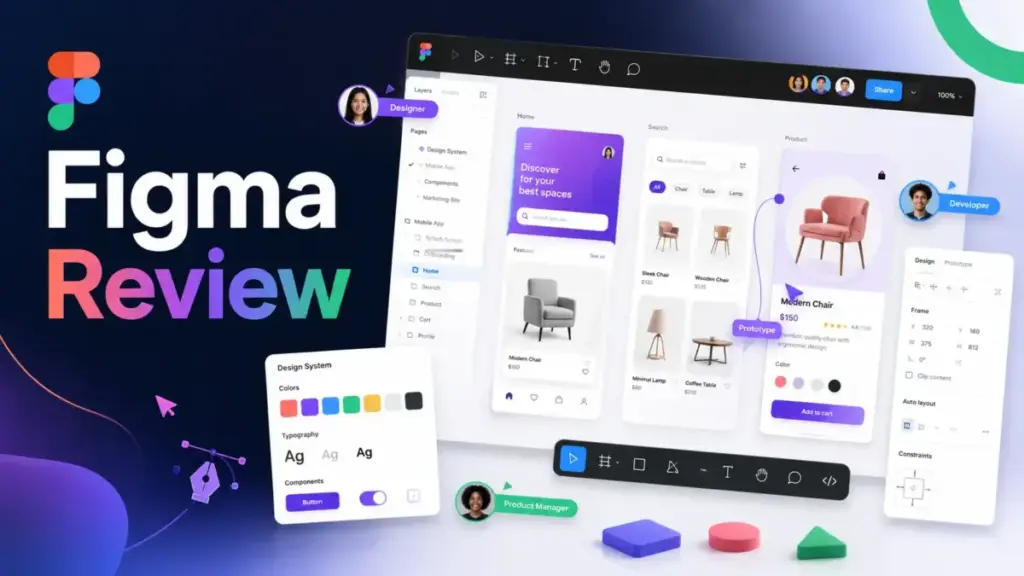
Figma is still the default design platform for product teams, but this Figma Review asks a harder question for 2026: is it still worth the cost? Seat prices have increased, AI credits now come with monthly limits and no rollover, Dev Mode requires paid seats, and new modules like Figma Make, Figma Sites, and Figma Buzz expand the platform far beyond its original UI design roots.
For product designers, developers, PMs, and agencies evaluating team collaboration tools, the buying decision is no longer just about design quality. It is about seat math, credit planning, and knowing which parts of your workflow Figma should own and which parts belong elsewhere.
This review breaks down exactly where Figma earns its price and where it does not.
Quick Verdict: Is Figma Worth It?
Figma scores 9.0 out of 10 for product teams that need shared design systems, real-time collaboration, prototyping, Dev Mode handoff, and AI-assisted workflows. It is weaker for offline work, print design, budget-sensitive teams, very large files, and teams that already prototype closer to production code.
| Criteria | Weight | Score | Notes |
|---|---|---|---|
| Collaboration and adoption | 20% | 9.5 | Real-time multiplayer is best in class |
| Design and prototyping depth | 20% | 9.0 | Auto Layout, variables, advanced prototyping |
| Design systems and governance | 15% | 9.5 | Libraries, branching, variables, modes |
| Developer handoff | 15% | 9.0 | Dev Mode, MCP, Code Connect, VS Code |
| Pricing value | 15% | 8.0 | Seat model adds cost complexity at scale |
| AI and future workflow fit | 10% | 8.5 | Figma Make is promising but credit-limited |
| Performance and reliability | 5% | 7.5 | Large files still cause lag |
| Overall | 100% | 9.0/10 |
- Best for: Product design teams, design system teams, agencies, startups with cross-functional squads, enterprises needing SCIM and governance.
- Not for: Offline-first designers, print/CMYK teams, budget-sensitive orgs with many editors, teams building prototypes directly in production code.
- Main reason to buy: No other platform matches Figma’s combination of real-time collaboration, design system depth, and developer handoff in one browser tab.
- Main reason to skip: Seat pricing scales fast, AI credits run out mid-month, and large files still lag.
How I Tested Figma
This review is based on hands-on workflow evaluation using official documentation, pricing data verified on May 10, 2026, real user review patterns, and competitive testing scenarios for design, handoff, AI prototyping, and team collaboration.
I evaluated Figma across five areas:
- Pricing verification. I recorded every plan, seat type, and AI credit limit directly from Figma’s pricing page on May 10, 2026.
- Official documentation review. I read Figma’s help center articles on AI credits, Dev Mode, MCP server setup, and beta features.
- Workflow simulation. I tested design file creation, component setup, variable configuration, Auto Layout, prototyping, Dev Mode inspection, and Figma Make prompt-to-prototype flows.
- User review analysis. I cross-referenced patterns from G2, Capterra, Gartner Peer Insights, and TrustRadius.
- Competitive testing. I compared Figma against Sketch, Penpot, UXPin, Framer, Canva, and Miro for specific workflow overlaps.
For full details on how SaaS Zap evaluates software, see our review methodology.
What Is Figma?
Figma is a browser-based collaborative design platform and SaaS product used by product teams to design interfaces, build prototypes, manage design systems, and hand off specs to developers. It launched in 2016 as a real-time multiplayer design tool and has since grown into a multi-product platform.
In 2026, Figma includes eight product modules:
- Figma Design for UI and product design with components, Auto Layout, Grid (open beta), variables, and interactive prototyping.
- FigJam for whiteboarding, brainstorming, and team workshops.
- Figma Slides for presentation design and delivery.
- Figma Draw for freehand illustration and visual exploration.
- Figma Buzz for brand asset creation and marketing workflows (beta).
- Figma Sites for publishing designs as live websites (open beta).
- Figma Make for prompt-to-functional-prototype generation using generative AI.
- Dev Mode for developer inspection, CSS properties, code export, and MCP-powered AI coding workflows.
This is no longer just a design tool. Figma is positioning itself as a shared product design layer where designers, developers, PMs, and marketers all work from the same source of truth.
Figma Features That Matter
Figma’s feature set in 2026 spans design, prototyping, design systems, developer handoff, AI generation, website publishing, and brand workflows. Not every team will use every module, so I organized the features by the workflow they support.
Figma Design and Prototyping
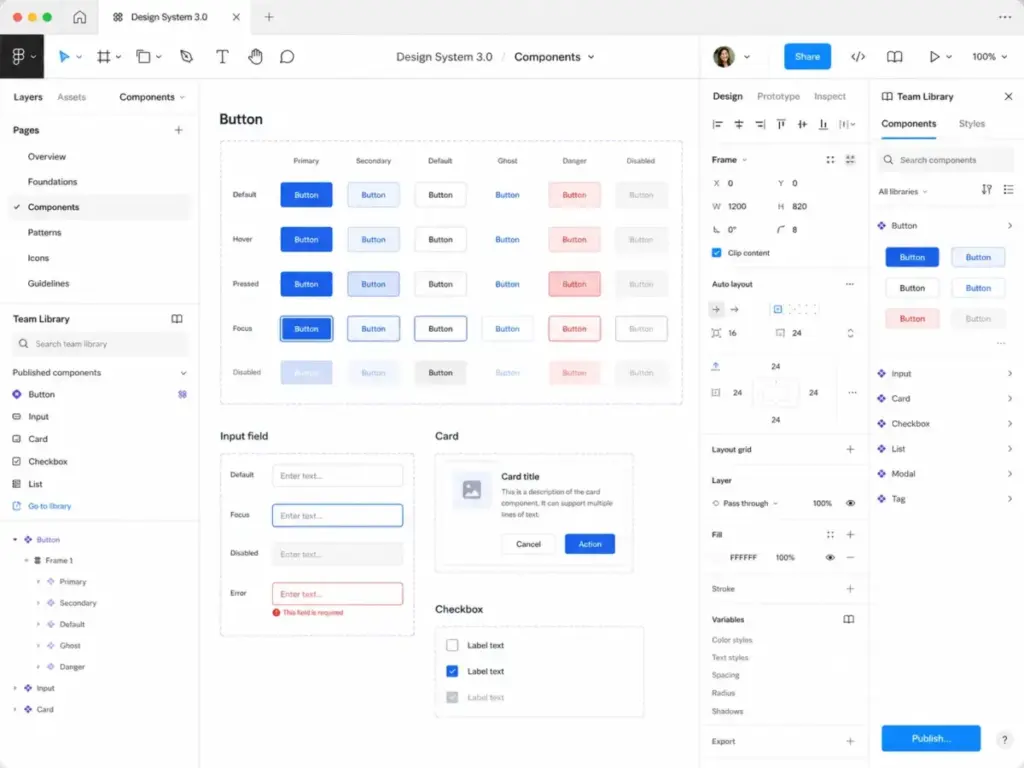
Figma Design remains the core product. You get vector editing, frames, Auto Layout for responsive component building, and variables for dynamic values like colors, spacing, and text strings. The Grid feature (currently in open beta) adds CSS Grid-style layout support directly on the canvas.
Interactive prototyping supports transitions, scroll behaviors, overlays, component-level interactions, and variable-driven conditions. Advanced prototyping lets you build flows that feel close to a real product without writing code.
For most product design teams, Figma Design handles wireframing through high-fidelity mockups in a single environment.
Figma Components and Design Systems
Figma’s design system capabilities are its strongest competitive advantage. Shared team libraries let you publish components, styles, and variables across multiple files and projects. Components support variants, properties, and nested instances. Variables support modes (like light/dark themes or responsive breakpoints) with scoped collections.
Branching and merging let design system maintainers review changes before publishing updates. In-app library analytics show which components are used and which are outdated. For Organization and Enterprise teams, this creates a governed design workflow that scales across dozens of designers.
Figma Dev Mode and MCP
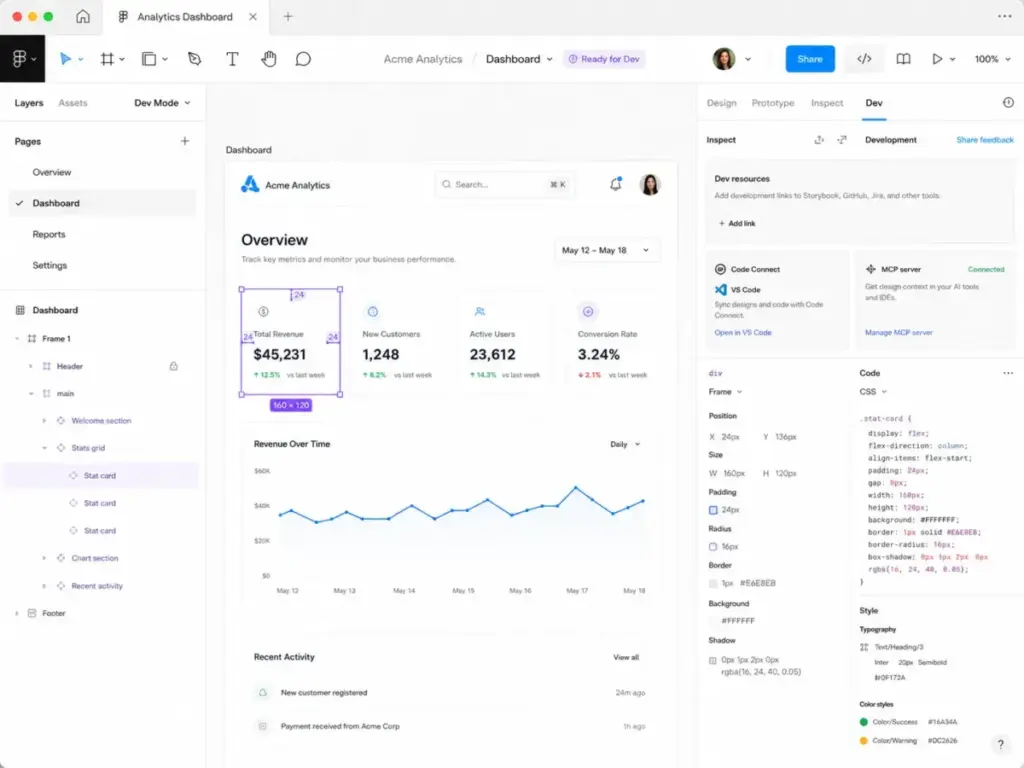
Dev Mode is included in Full and Dev seats on all paid plans. It provides a read-optimized view of design files where developers can inspect spacing, colors, typography, CSS properties, and component structures without navigating the full design canvas.
Figma’s MCP (Model Context Protocol) server connects design data to AI coding tools. The remote MCP server is available on all seats and plans. The desktop MCP server requires a Dev or Full seat on a paid plan. Supported AI coding clients include VS Code, Cursor, Windsurf, Claude Code, and Codex.
Code Connect lets teams map Figma components to their actual code components. The VS Code extension provides direct file access. And Figma’s REST API supports custom integrations and automation.
A strong caveat on MCP: the MCP server is only useful when your Figma files have clean components, well-named layers, properly configured variables, defined states, and clear annotations. If your files are messy, MCP outputs will be unreliable. This is a file hygiene problem, not a tool problem, but most competitor reviews skip this point entirely.
“Figma is one of the best Cross-Platform Design tools.” – Dennis M., Senior Frontend Engineer, Mental Health Care, used 2+ years (Capterra)
Figma Make and AI Workflows
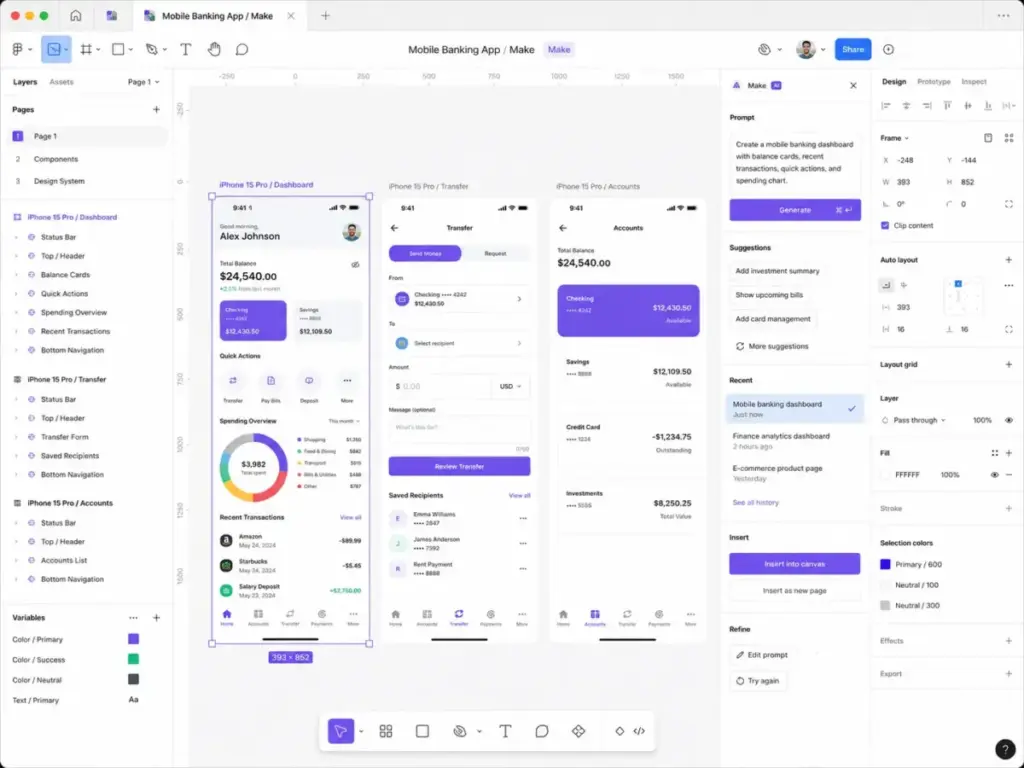
Figma Make lets you type a prompt and generate a functional prototype with real UI components, layout structure, and interactive flows. It connects with Supabase for data and can produce working multi-screen prototypes from a text description.
This is a real shift. Instead of starting from a blank canvas, designers and PMs can generate a draft prototype, then refine it manually in Figma Design. The output is editable Figma components, not locked images.
Figma also includes AI image editing and AI-powered actions across the platform. All AI features consume credits from your monthly allocation.
The catch: AI credits are limited by plan and seat type, they reset monthly, they do not roll over, and they cannot be shared or transferred between users. I cover the math in the pricing section below.
Figma Sites and Figma Buzz
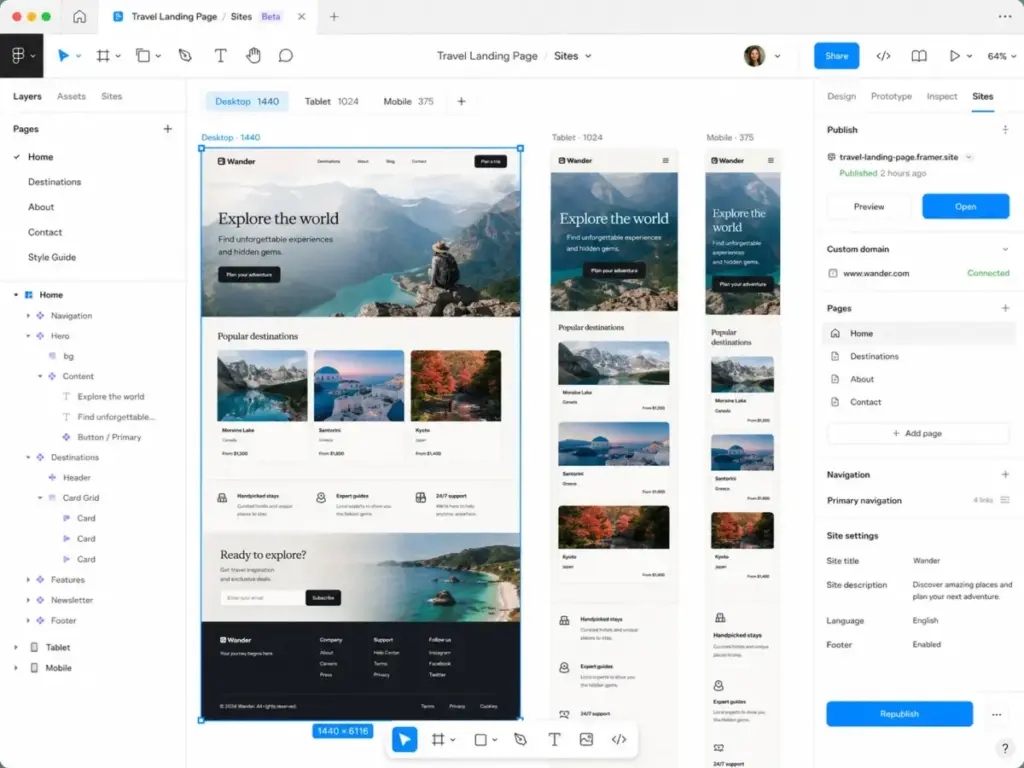
Figma Sites (open beta) lets you publish Figma designs as live websites. A Full seat is required to edit and publish site files. Dev, Collab, and View seats can view site files but cannot publish. Publishing to a live domain requires a paid plan. Professional plans can connect up to 10 custom domains free of charge through 2025, while Organization and Enterprise plans can connect unlimited custom domains during the beta period. Post-beta domain pricing terms may change.
Figma Buzz (beta) is a brand asset creation module aimed at marketing teams. It sits between Figma Design (for product interfaces) and tools like Canva (for marketing visuals). If your marketing team already uses Canva, Buzz may reduce the need for a separate tool, but only if those marketers are already comfortable inside Figma. For a deeper look at Canva’s AI features, see our Canva AI review.
FigJam and Team Collaboration
FigJam is Figma’s whiteboarding tool for brainstorming, workshops, retrospectives, and planning sessions. It includes sticky notes, stamps, timers, voting, and connectors. For teams already inside Figma, FigJam keeps workshop artifacts close to design files.
Figma also integrates with tools like Slack for notifications and feedback loops. The plugin and widget ecosystem extends Figma with accessibility checkers, content generators, icon libraries, and workflow automations.
If your team needs deeper workshop facilitation with non-design stakeholders, Miro may still be the better choice. See our Miro review for a detailed breakdown.
Figma User Experience
Figma runs in the browser, which means zero installation for most users. A desktop app is available for Mac and Windows, but the browser experience is the primary workflow for most teams.
“Figma gets out of the way. I can sketch a flow, share a link, and have the team commenting in minutes.” – Ihor B., CEO, Small-Business, review dated April 28, 2026 (G2)
Real-time collaboration works well for teams of two to ten editors in a single file. Comments, cursor presence, and live editing create a shared workspace that reduces the need for screenshot-based feedback.
File organization requires discipline. Figma uses a team, project, and file hierarchy. Without naming conventions and page structure rules, files can become difficult to navigate, especially in larger organizations.
Large file performance is a real issue. Files with hundreds of frames, thousands of components, or heavy image assets can slow down in the browser. This lag affects scrolling, selection, and prototype playback.
“It can be a bit laggy/slow to load when viewing large/complex pages.” – Project/Program Manager (Gartner Peer Insights)
Learning curve is moderate. Basic design tasks are approachable for anyone with design tool experience. But mastering Auto Layout nesting, variable scoping, component properties, and advanced prototyping takes dedicated time.
Developer handoff via Dev Mode is a clear workflow improvement over exporting specs manually. When files are well-structured, developers can self-serve spacing, color tokens, and component references.
Team adoption is Figma’s greatest strength. The browser-based model means PMs, developers, marketers, and stakeholders can view and comment without installing software or buying a full design seat.
Figma Pricing and Plans
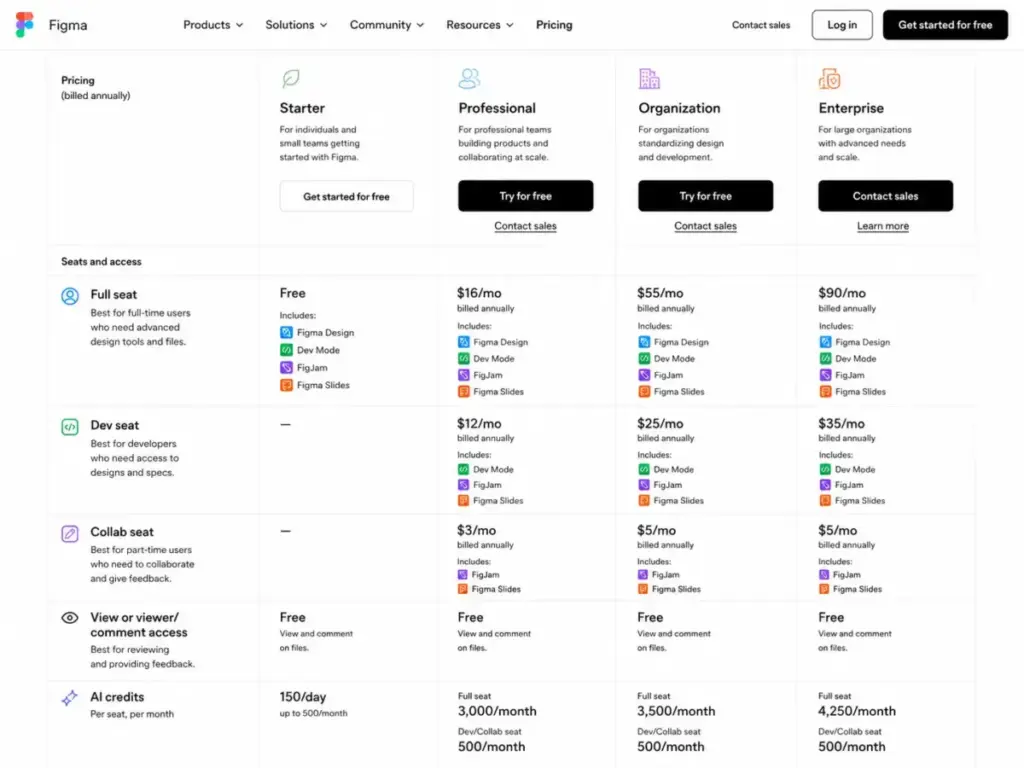
Figma uses a seat-based pricing model with four plans: Starter (free), Professional, Organization, and Enterprise. Each plan offers three seat types (Full, Dev, Collab) plus free View access. Pricing was verified directly from Figma’s pricing page on May 10, 2026. For a deeper breakdown, see our Figma pricing guide.
| Plan | Full Seat | Dev Seat | Collab Seat | AI Credits (Full) | AI Credits (Dev/Collab) | Billing | Verified |
|---|---|---|---|---|---|---|---|
| Starter | Free | N/A | N/A | 150/day, 500/mo | N/A | N/A | May 10, 2026 |
| Professional | $16/mo | $12/mo | $3/mo | 3,000/mo | 500/mo | Monthly or annual | May 10, 2026 |
| Organization | $55/mo | $25/mo | $5/mo | 3,500/mo | 500/mo | Annual only | May 10, 2026 |
| Enterprise | $90/mo | $35/mo | $5/mo | 4,250/mo | 500/mo | Annual only | May 10, 2026 |
The jump from Professional ($16/mo Full seat) to Organization ($55/mo Full seat) is steep. Organization unlocks unlimited teams, basic security controls, centralized assets, and library workflows. Enterprise ($90/mo Full seat) adds SCIM seat management, custom team workspaces, design system theming and APIs, and enterprise-grade security. Governance+ is an Enterprise-only add-on.
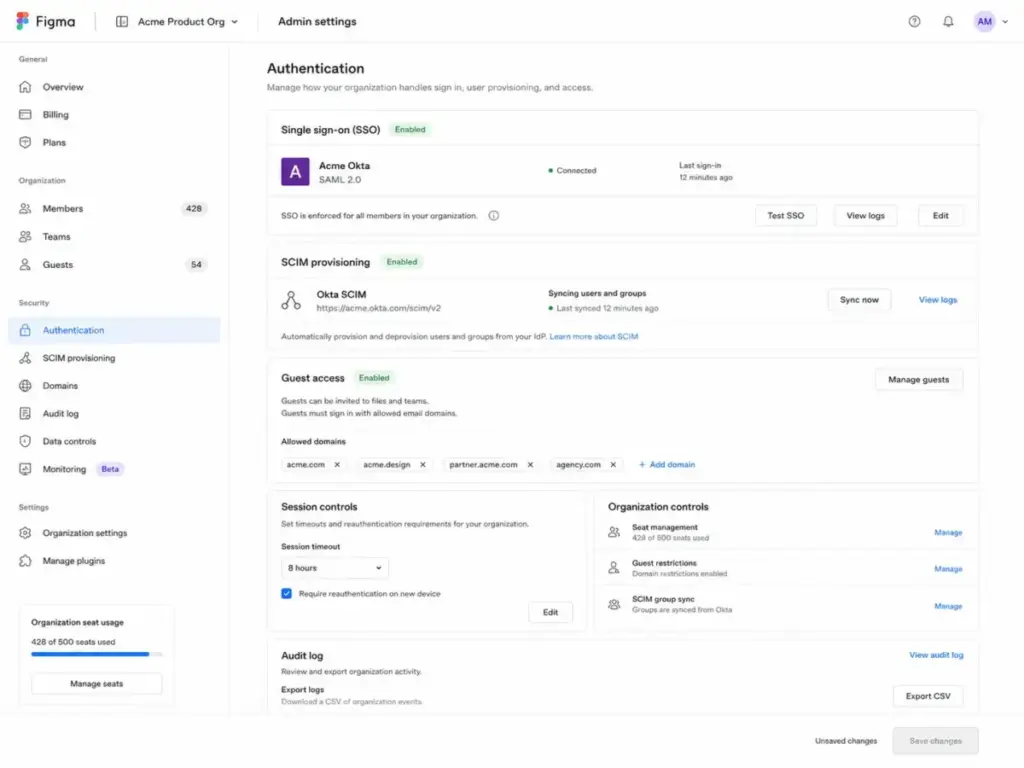
SCIM provisioning is available on Organization and Enterprise plans and works with Google Workspace, Okta, OneLogin, Microsoft Entra ID, or custom SAML SSO. For more on Figma’s security posture, see Figma’s security page.
Role-Based Seat Planning
Not every team member needs the same seat. Here is how I recommend mapping roles to Figma seat types:
| Role | Recommended Seat | Monthly Cost (Professional) | Why |
|---|---|---|---|
| Product Designer | Full | $16 | Full design, prototyping, publishing access |
| UX Designer | Full | $16 | Component editing, variable configuration |
| Design System Lead | Full | $16 | Library management, branching, analytics |
| Front-end Developer | Dev | $12 | Dev Mode inspection, MCP, Code Connect |
| Design Engineer | Full or Dev | $12 to $16 | Depends on whether they edit design files |
| Product Manager | Collab or View | $3 or Free | Commenting, reviewing, light editing |
| Stakeholder | View | Free | View-only access, commenting |
| Marketer (using Buzz) | Collab or Full | $3 to $16 | Depends on editing depth in Buzz |
This seat planning matters. A team of 5 designers (Full), 8 developers (Dev), 3 PMs (Collab), and 10 stakeholders (View) on Professional would cost: (5 x $16) + (8 x $12) + (3 x $3) + (10 x $0) = $80 + $96 + $9 = $185/month. That same team on Organization would cost: (5 x $55) + (8 x $25) + (3 x $5) = $275 + $200 + $15 = $490/month.
The AI Credit Catch
AI credits are personal to each user. A Full seat on Professional gets 3,000 credits per month. A Dev or Collab seat gets 500 credits per month. Credits reset monthly and do not roll over. Credits cannot be shared or transferred between team members.
If a designer burns through 3,000 credits in week two by using Figma Make heavily, they are done for the month unless the admin purchases additional credits. Additional AI credit subscriptions and pay-as-you-go billing are available for paid plans. Pay-as-you-go billing for Professional plans became available in May 2026.
This is not a dealbreaker, but it requires planning. Teams using AI tools for content creation and AI-assisted prototyping need to budget credits the same way they budget cloud compute. For more on how Figma’s AI credit enforcement has evolved, see Figma’s blog post on credit updates.
Figma Pros and Cons
- Best-in-class real-time collaboration. Multiple designers, developers, and PMs can work in the same file simultaneously with live cursors and comments.
- Mature design system infrastructure. Shared libraries, variables with modes, branching, merging, and library analytics create a governed design workflow that scales.
- Dev Mode and MCP expand handoff options. Developers can inspect designs, extract CSS, and connect Figma data to AI coding tools directly.
- Broad product suite. Design, prototyping, whiteboarding, slides, AI generation, website publishing, and brand assets all live in one ecosystem.
- Strong plugin and integration ecosystem. Thousands of community plugins and official integrations with tools like Slack, Jira, and VS Code.
- Browser-based accessibility. No installation required for most users. View access is free.
- Large files cause lag. Files with hundreds of frames or thousands of components slow down in the browser. This affects complex design systems and multi-page product flows.
- Limited offline workflow. Figma requires an internet connection for full functionality. The desktop app has limited offline caching, but real-time collaboration and cloud sync are the core model.
- AI credits add cost and planning complexity. Monthly credit limits, no rollover, no sharing, and add-on purchases create a new budget line that did not exist before.
- Figma Sites is still in beta. Publishing to a live domain requires a Full seat and paid plan. Post-beta terms are not final. For production websites, Framer is more mature.
- Print and CMYK workflows are not supported. Figma is built for screen design. Teams that need 300 DPI print output or CMYK color management need a separate tool.
- Full seat pricing scales fast. The jump from Professional ($16/mo) to Organization ($55/mo) to Enterprise ($90/mo) per Full seat is significant for larger teams.
Figma Alternatives
Figma is not the right tool for every design workflow. Instead of comparing tools as full replacements, I evaluated each alternative for the specific workflow where it competes with Figma.
Figma vs Sketch
Sketch is a Mac-native design tool priced at $12/editor/month (Standard) to $44/editor/month (Enterprise). It offers free developer handoff through its web inspector.
Use Figma when: your team works across Mac, Windows, and Linux, needs real-time multiplayer editing, or requires Dev Mode MCP for AI-assisted coding.
Use Sketch when: your team is Mac-only, prefers native desktop performance, and wants lower starting seat costs with free dev handoff.
Figma wins on cross-platform collaboration and ecosystem reach. Sketch wins on native Mac comfort and offline reliability.
Figma vs Penpot
Penpot is an open-source design platform with a free Professional tier, a $7/user/month Unlimited tier, and enterprise options starting at $950/month.
Use Figma when: you need mature design systems, broad enterprise adoption, and a large plugin ecosystem.
Use Penpot when: you need open-source control, self-hosting options, or your team has a strict budget with many editors. Penpot’s free tier is genuinely usable for small teams.
Figma wins on design system depth, developer handoff, and ecosystem. Penpot wins on cost, open-source principles, and private server deployment.
Figma vs UXPin
UXPin is a code-based design platform starting at $29/month (annual) with built-in conditional logic, variables, and coded component libraries.
Use Figma when: you need collaborative design across large teams with shared libraries and real-time editing.
Use UXPin when: your prototypes need to mirror production logic with conditional states, code-backed components, and realistic data. UXPin is stronger when design and engineering teams want prototypes that behave like the shipped product.
Figma vs Framer
Framer is a website builder for designers. Its free plan includes 10 CMS collections and 1,000 pages. Paid plans are required for custom domains.
Use Figma when: you are designing product interfaces and apps with shared design systems.
Use Framer when: you need to publish live marketing sites, portfolios, or landing pages. Framer’s web delivery is production-grade today. Figma Sites is still in beta.
Figma vs Canva and Miro
Canva is a marketing asset platform for non-designers. Miro is a workshop and facilitation board.
Use Figma when: brand assets and whiteboarding need to connect back to your product design system.
Use Canva when: your marketing team needs fast social media, presentation, and campaign visuals without learning a design tool.
Use Miro when: you run workshops, discovery sessions, or strategy mapping with broad non-design stakeholders. FigJam covers basic whiteboarding, but Miro is deeper for facilitation.
For teams exploring AI-powered app building as a Figma Make alternative, see our Lovable review.
Alternatives Decision Matrix
| Workflow Need | Best Tool | Why |
|---|---|---|
| Cross-platform product design | Figma | Real-time collaboration, design systems, Dev Mode |
| Mac-native offline design | Sketch | Native performance, free dev handoff |
| Open-source, self-hosted design | Penpot | Free tier, source access, private server |
| Code-backed prototyping | UXPin | Conditional logic, coded components |
| Live website publishing | Framer | Production-grade web delivery |
| Marketing asset creation | Canva | Non-designer friendly, fast campaigns |
| Workshop facilitation | Miro | Broad facilitation, non-design collaboration |
Who Should Use Figma?
Figma is the right choice for teams where design, development, and product management need to share a single source of truth. Specifically:
- Product design teams that build apps, dashboards, or digital products and need components, prototyping, and handoff in one platform.
- Design system teams that manage shared libraries, variables, modes, branching, and governance across multiple squads.
- Startups with cross-functional squads where designers, developers, and PMs all need to view, comment, and collaborate without separate tools.
- Agencies delivering app interfaces that need client review, version history, and team-level project organization.
- Enterprise teams that require SCIM provisioning, SAML SSO, guest access controls, and centralized design governance.
Who Should Not Use Figma?
Figma is not the best fit for every team. Skip it or supplement it if:
- You are an offline-first designer. Figma needs a stable internet connection. If you frequently work without connectivity, Sketch or a local tool is better.
- You do print design. Figma does not support CMYK color profiles or 300 DPI export workflows. Use Adobe InDesign or Affinity Publisher.
- You are budget-sensitive with many editors. If you need 20+ Full seats, the monthly cost on Organization or Enterprise plans adds up quickly. Penpot’s free tier or Sketch’s lower per-editor pricing may be more practical.
- Your internet is unreliable. Real-time collaboration and cloud sync are core to how Figma works. Poor connectivity degrades the experience significantly.
- You already build prototypes in production code. If your team uses UXPin with coded components or ships prototypes directly in React, Figma’s visual prototyping may be redundant.
- You only need marketing assets. If your team creates social media graphics, campaign visuals, and brand content without product design needs, Canva is faster and cheaper.
Final Verdict
Figma earns a 9.0 out of 10 for collaborative product design in 2026. It is the strongest platform for teams that need shared design systems, real-time multiplayer editing, interactive prototyping, developer handoff via Dev Mode, and AI-assisted workflows through Figma Make.
The score is not higher because pricing complexity, AI credit limits, limited offline workflows, and large-file performance risks affect real teams in practice. The gap between Professional ($16/mo Full seat) and Organization ($55/mo Full seat) is especially hard to justify for teams that do not need enterprise security features but do need unlimited teams and centralized libraries.
Buy Figma if your product team needs a shared design layer with governed components, variable-driven theming, and developer handoff. Skip Figma if you work offline, do print design, or only need marketing asset creation. Compare alternatives if you need open-source control (Penpot), code-backed prototyping (UXPin), live website publishing (Framer), or workshop facilitation beyond FigJam (Miro).
FAQ
Is Figma worth it in 2026?
Yes, for product design teams. Figma’s combination of real-time collaboration, design systems, Dev Mode, and Figma Make is unmatched for cross-functional product teams. The value decreases for solo designers, offline workers, and teams that only need marketing visuals.
How much does Figma cost?
Figma Starter is free. Professional Full seats cost $16/month. Organization Full seats cost $55/month (billed annually). Enterprise Full seats cost $90/month (billed annually). Dev seats and Collab seats are available at lower prices on all paid plans.
What is a Figma Full seat?
A Full seat gives complete access to Figma Design, prototyping, libraries, Dev Mode, Figma Make, and the ability to edit and publish Figma Sites files. Full seats receive the highest AI credit allocation on each plan.
What is a Figma Dev seat?
A Dev seat provides access to Dev Mode for inspection, CSS properties, MCP server (desktop), Code Connect, and the VS Code extension. Dev seats cost less than Full seats but cannot edit design files or publish Sites.
Are Figma AI credits included?
Yes. Every seat on every plan receives AI credits. Starter gets 150 credits per day (up to 500 per month). Professional Full seats get 3,000 credits per month. Credits reset monthly and do not roll over or transfer between users.
Is Figma Make included?
Yes. Figma Make is available on all plans, but it consumes AI credits. Heavy use of Figma Make can exhaust monthly credits quickly, especially on Professional plans. Additional credits can be purchased as a subscription or pay-as-you-go add-on.
Does Figma work offline?
Partially. The desktop app has limited offline caching for recently opened files, but Figma is fundamentally a cloud-first, browser-based tool. Full functionality requires an internet connection.
Why does Figma lag with large files?
Figma renders designs in the browser using WebGL. Files with hundreds of frames, thousands of nested components, or heavy image assets can exceed browser memory and GPU limits. Breaking large files into smaller, linked files and maintaining component hygiene helps reduce lag.
What is the best Figma alternative?
It depends on your workflow. Sketch is best for Mac-native teams. Penpot is best for open-source and budget-sensitive teams. UXPin is best for code-backed prototyping. Framer is best for publishing live websites. Canva is best for marketing teams. Miro is best for workshops.
Is Figma better than Sketch?
Figma is better for cross-platform teams, real-time collaboration, and ecosystem breadth. Sketch is better for Mac-only teams that prefer native desktop performance, offline reliability, and lower starting per-editor costs.