
Your design team is expanding, and you just received a surprise monthly invoice. A developer clicked an edit button to inspect a spacing value. A stakeholder requested edit access to leave a comment on a copy layout.
In Figma, these quick actions can automatically upgrade free viewers into paid seats.
Understanding Figma Pricing requires looking past the simple marketing numbers on the pricing page. The actual cost of using the platform depends on how you mix and match different user roles. It also depends on how you manage your admin controls, unassigned paid seats, and AI credits.
Selecting the right tool among the best team collaboration tools is hard when pricing structures get complicated. This guide breaks down the true cost of using Figma in 2026. I will analyze every plan, hidden fees, and user scenarios to help your team budget without overpaying.
| Pricing Metric | Details |
|---|---|
| Starting Price | $0 |
| Free Plan / Trial | Starter plan is free (no separate paid trial verified) |
| Best Plan for Most Teams | Professional plan |
| Plan to Avoid | Enterprise plan (unless you need SCIM provisioning) |
| Biggest Hidden Cost | Unassigned paid seats and viewer upgrade actions |
| Best Alternative | Sketch or Miro |
| Date Verified | May 26, 2026 |
| Official Pricing Source | Figma Pricing Page |
What this means:
Most teams can start using the design tool for $0, but collaborative work requires paid seats. You must manage user roles carefully to prevent viewer upgrades from inflating your bill. Let’s look at how the official plan rates translate into real monthly billing.
The Advertised Price vs The Real Price
On paper, Figma is a straightforward per-user subscription. In reality, your bill changes based on the roles you assign to your team members.
Before analyzing the plans, we must understand what team collaboration software actually does to align seats with daily workflows. Figma uses a hybrid billing model. You pay for three distinct types of paid seats, while standard viewers remain free.
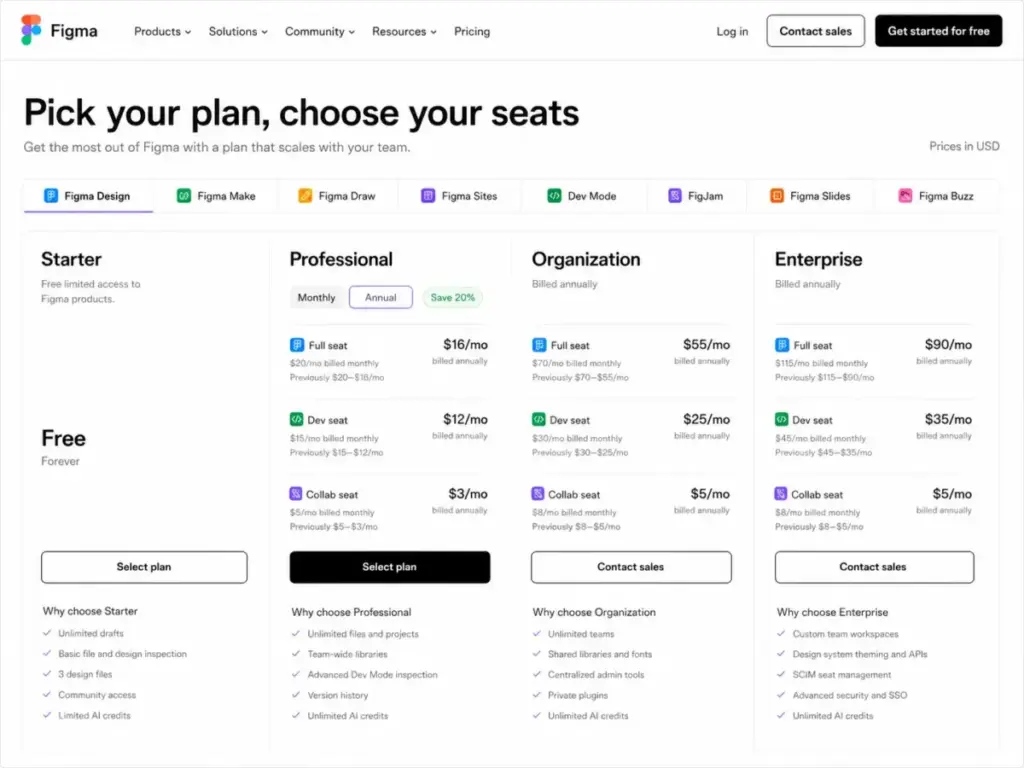
Here is the official pricing structure for each plan tier in 2026:
| Plan | Monthly Price (Per Seat) | Annual Price (Per Seat, Billed Annually) | Billing Basis | Best For | Key Limits |
|---|---|---|---|---|---|
| Starter | $0 | $0 | Free user accounts | Individual designers | 3 collaborative files |
| Professional | $20 Full / $15 Dev / $5 Collab | $16 Full / $12 Dev / $3 Collab | Billed per seat | Single design teams | Single team only |
| Organization | Not publicly listed | $55 Full / $25 Dev / $5 Collab | Billed annually | Multiple product teams | Billed annually only |
| Enterprise | Not publicly listed | $90 Full / $35 Dev / $5 Collab | Billed annually | Large companies | Negotiated contracts |
What this means:
Figma does not bill a flat rate for every user on a paid plan. A team of designers, developers, and product managers will have a mixed bill based on their individual seat types. You can optimize your design budget by placing stakeholders on lower-cost seat tiers.
Many teams assume that every user needs a Full seat. In practice, only designers who edit files require Full seats. Developers and copywriters can use cheaper specialized seats. Viewers do not need paid seats at all.
The Five Hidden Costs of Figma
The sticker price of a Figma subscription is only the first line item on your invoice. Several operational policies can lead to higher monthly or annual charges.
Understanding these gotchas helps admins control design budgets before checkout.
| Cost Category | Estimated Amount | When Billed |
|---|---|---|
| Paid Seat Mix | $3 to $90 per seat per month | Monthly or annually based on seat assignment |
| Unassigned Paid Seats | Same rate as the assigned role | Billed until the seat is manually deleted |
| Mid-Term Additions | Prorated for the remaining billing term | Charged upon admin approval of new paid seats |
| AI Credit Overage | $0.03 per credit | Pay-as-you-go after monthly credit pool is exhausted |
| Governance+ Package | Custom pricing (contact sales) | Added to Enterprise plans for security compliance |
| Taxes and VAT | Varies by region | Added to invoice based on customer billing location |
What this means:
Your design budget must account for seat management and usage pools, not just starting prices. Let’s analyze the five main areas where hidden costs occur.
The Paid Seat Mix
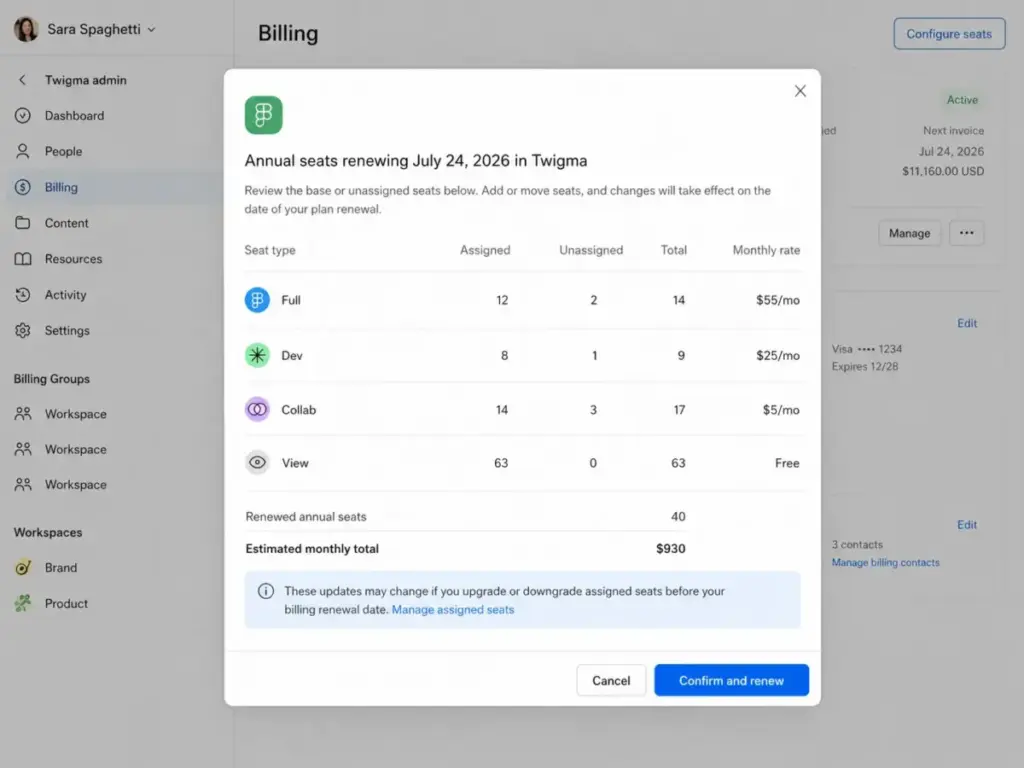
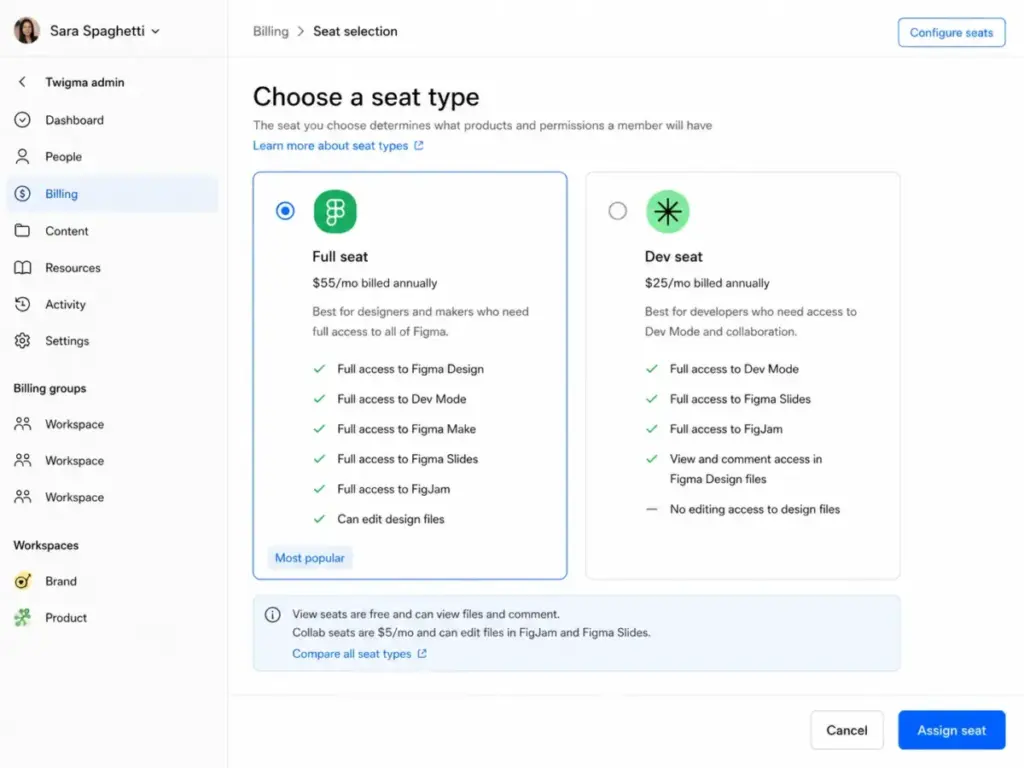
Figma uses three paid seat tiers. Full seats are for designers who build components and edit layouts. Dev seats are for developers who inspect designs and copy code tokens in Dev Mode. Collab seats are for managers and copywriters who write text or use FigJam and Slides.
If you give a developer a Full seat instead of a Dev seat, you are overpaying. Admins must audit seat roles monthly to ensure users have the lowest required tier.
Managing this seat mix requires a clear workflow policy. Make sure your developers do not request edit access on design files. (This request triggers an automatic upgrade to a Full seat).
Unassigned Paid Seats
Figma bills you for paid seats, not active users. If you remove a designer from your team, their paid seat remains vacant.
Figma will continue to bill you for that unassigned seat until you delete it from your billing console. Many admins forget this step and pay for empty slots for months.
To prevent this, you must run a seat reconciliation check before every billing cycle. If you see unassigned seats, remove them immediately to stop the charges.
This oversight often occurs after contractors finish a project. The contractor user account is deleted, but the paid seat remains on the billing page.
Mid-Term Seat Additions
Adding paid seats during an annual contract is simple, but the billing is immediate. Figma will charge you a prorated fee for the rest of your annual term.
On the Professional plan, these extra seats are billed on a separate monthly subscription. This separate charge continues until your annual renewal date.
This means you can see two separate bills from Figma. One is for your annual contract, and another is for temporary monthly seat additions.
Admins must approve these additions to keep invoices predictable. Unapproved viewer upgrades can quickly create unexpected monthly fees.
AI Credit Overages
Figma includes a set pool of AI credits with each paid seat. Figma AI features (like generating mockups or translating copy) consume these credits.
If your team exhausts the monthly pool, you must enable pay-as-you-go billing. Extra credits cost $0.03 per credit, which can add up quickly during design sprints.
Admins can disable pay-as-you-go AI credits in the console. This forces the team to wait for the next monthly credit pool reset.
Monitoring this usage is important if your team uses Figma Make or Figma Draw heavily. These features burn credits on every run.
The Governance+ Security Package
Enterprise buyers often need advanced security. Figma sells these features under the Governance+ package.
This package includes IP allowlists, network access restrictions, and encrypted key management. This security package is a custom add-on. You must contact sales to obtain a price quote.
If your enterprise has strict data compliance guidelines, budget for this add-on. The cost is negotiated on top of your base Enterprise per-seat rate.
It also includes advanced guest-user expiration settings. These controls help prevent external contractors from accessing files indefinitely.
So far: We have analyzed how unassigned seats and seat mixes inflate your invoice. Next, let’s look at which features are locked behind each plan tier.
Figma Plans and Feature Gates
Figma structures its plans to push growing teams toward higher tiers. The limits are not just about the number of designers on your team.
The differences appear in workspace management, library sharing, security controls, and design system scaling.
For a detailed analysis of Figma’s collaboration features, you can read our detailed Figma review.
| Feature Gate | Starter | Professional | Organization | Enterprise |
|---|---|---|---|---|
| Drafts | Unlimited | Unlimited | Unlimited | Unlimited |
| Shared Team Files | Max 3 files | Unlimited | Unlimited | Unlimited |
| Team Libraries | No | Yes (single team) | Org-wide | Org-wide |
| Multiple Teams | No | No | Yes | Yes |
| Custom Workspaces | No | No | No | Yes |
| Branching and Merging | No | No | Yes | Yes |
| SAML SSO & SCIM | No | No | SSO only | SSO and SCIM |
| Governance+ Add-on | No | No | No | Yes |
| Variable Modes | No | Yes (capped) | Yes (medium limit) | Yes (highest limit) |
| REST API for Variables | No | No | No | Yes |
What this means:
The Starter plan is built for solo work and basic file sharing. The Professional plan works well for single teams that need to collaborate on shared libraries. Organization and Enterprise plans are required when you need to manage multiple design teams under one billing system.
The Starter Plan
The Starter plan is $0. It is built for individual designers and small side projects.
- Best For: Solo freelancers and students learning design tools.
- What is Included: Unlimited drafts, free view-only seats, and 30-day version history.
- What is Missing: Unlimited collaborative files, team libraries, and Dev Mode.
- Mini Verdict: Excellent for personal drafts, but too limiting for active team workflows.
- Avoid If: You need more than two people to edit the same file simultaneously.
- Friction Points: The 30-day version history is a major limitation for ongoing client projects.
The Professional Plan
The Professional plan costs $16 per seat per month (billed annually) or $20 per seat per month (billed monthly) for Full editor seats.
- Best For: Independent design teams and agencies.
- What is Included: Unlimited team files, unlimited version history, team-wide libraries, and Dev Mode.
- What is Missing: Organization-wide shared fonts, branching and merging, and SSO.
- Mini Verdict: The best value tier for single teams that manage their own files.
- Avoid If: You need centralized IT provisioning or must manage multiple distinct client teams.
- Friction Points: If a developer needs to inspect layouts, they must pay for a Dev Mode seat.
The Organization Plan
The Organization plan costs $55 per seat per month (billed annually). There is no month-to-month billing option.
- Best For: Growing companies with multiple product and design teams.
- What is Included: Unlimited teams, organization-wide libraries, shared fonts, centralized admin controls, and file branching.
- What is Missing: Custom workspaces, SCIM seat management, and localized hosting controls.
- Mini Verdict: A necessary upgrade when you must share a unified design system across separate teams.
- Avoid If: You are a single team with fewer than ten users.
- Friction Points: If you hire contractors, you must pay for their seats under your annual contract.
The Enterprise Plan
The Enterprise plan costs $90 per seat per month (billed annually). There is no monthly billing option.
- Best For: Large enterprises with strict security and IT compliance rules.
- What is Included: Custom workspaces, SCIM provisioning, localized hosting, and custom renewal terms.
- What is Missing: Governance+ features are not included (they must be purchased as a custom add-on).
- Mini Verdict: The most secure plan, but expensive if you only need basic editing features.
- Avoid If: You do not have a dedicated IT team to manage SAML SSO and SCIM seat sync.
- Friction Points: Enterprise minimum seat commitments are not publicly disclosed and vary by contract.
So far: We have compared the feature gates across Starter, Professional, Organization, and Enterprise plans. Let’s examine when you must make the leap off the free tier.
When the Free Plan Stops Working
The Starter plan is a generous free tier, but it has strict limits. You will hit a wall when you try to collaborate with others.
The first trigger is the file limit. You can only create three collaborative files within one team folder. While you can keep unlimited personal drafts, you cannot invite others to edit them.
The second trigger is the lack of team libraries. On the Starter plan, you cannot publish components for others to use. You must copy and paste elements manually.
Finally, the version history expires after 30 days. If you need to roll back to a design from two months ago, the data is gone. Once your team needs a shared workflow, you must upgrade to the Professional tier.
Another friction point is the Dev Mode access. Developers cannot inspect elements on the free plan. They must use the viewer seat, which does not show CSS or spacing specs.
For teams that build design systems, the free plan becomes unusable within a week. You cannot share components across files, which forces manual replication.
Real Cost Scenarios for 5, 10, 25, 50, and 100 Users
To show how Figma billing scales, let’s look at five different team scenarios. These scenarios use realistic seat mixes, comparing annual and monthly commitments.
| Team Size | Seat Mix | Recommended Plan | Estimated Monthly Cost (Annual Billing) | Estimated Annual Cost | Admin Notes |
|---|---|---|---|---|---|
| 5 users | 3 Full, 1 Dev, 1 Collab | Professional | $63 per month | $756 per year | Professional monthly billing costs$80 per month for this mix. |
| 10 users | 6 Full, 3 Dev, 1 Collab | Professional | $135 per month | $1,620 per year | Billed as$1,620 annually (saves $420 per year over monthly rates). |
| 25 users | 15 Full, 7 Dev, 3 Collab | Organization | $1,015 per month | $12,180 per year | Driven by the need for branching and central libraries. |
| 50 users | 30 Full, 15 Dev, 5 Collab | Organization | $2,050 per month | $24,600 per year | Admins must enable seat approval settings to control costs. |
| 100 users | 60 Full, 30 Dev, 10 Collab | Organization | $4,100 per month | $49,200 per year | Enterprise upgrade is recommended if SCIM provisioning is required. |
What this means:
A 10-user team using annual Professional billing pays $1,620 per year. If you buy only Full seats for everyone, that cost rises to $1,920 per year. Aligning seat types with actual user needs saves money immediately.
Admins should audit their active user lists quarterly. If a designer changes roles or leaves, downgrade them to a View seat. This simple audit saves hundreds of dollars annually.
For larger teams, the Organization plan is the default choice. At 50 users, a typical mix costs $24,600 per year. Managing seat approvals is the most effective way to prevent this number from creeping up.
Figma Plans to Choose and Avoid
The Plan to Avoid
Avoid purchasing the Enterprise plan if your only goal is adding more seats. The Enterprise plan costs $90 per seat per month for Full editors.
Unless your IT department requires SCIM provisioning, custom workspaces, or localized data hosting, you do not need it. The Organization plan at $55 per seat per month provides the same design capabilities for less money.
If you are a mid-market team, the price jump to Enterprise is hard to justify. Stick to Organization until security compliance forces the upgrade.
The Plan to Choose
The Professional plan is the best choice for most single teams. It provides unlimited files and shared team libraries.
If you are an agency or a small startup, this plan provides all the creative tools you need. You only need to upgrade to Organization when you must manage multiple distinct teams or share fonts across the entire company.
We recommend Professional annual billing to secure the 20% discount. It is the most cost-effective way to collaborate in Figma.
Figma Pricing vs Competitors
Figma is the industry standard for UI/UX design, but its pricing is premium. Let’s compare it with other design and whiteboarding tools in the market.
| Competitor | Starting Price (Per User) | Practical Tier (Per User) | Estimated 10-User Cost | Best For |
|---|---|---|---|---|
| Figma | $0 | $16 per seat per month (Professional) | $135 to $160 per month | Collaborative product design and developer handoff |
| Sketch | $12 per editor per month | $12 per editor per month (Standard) | $120 per month | Native macOS design teams and solo developers |
| Miro | $8 per member per month | $8 per member per month (Starter) | $80 per month | Visual brainstorming and product roadmapping |
| Adobe CC Pro | $99.99 per license per month | $99.99 per license per month (Teams) | $999.90 per month | Teams using the full Adobe Creative Cloud suite |
| UXPin | $29 per user per month | $29 per user per month (Core) | $290 per month | Interactive, code-powered prototyping |
| Framer | $10 per site per month | $30 per site per month (Pro) | $300 per month (if editors are added) | Direct design-to-code website creation |
What this means:
Figma is more expensive than Sketch and Miro, but it replaces multiple tools by combining design and whiteboard features.
If you use chat tools, you might want to check the Slack pricing breakdown. For visual whiteboarding, compare these rates with the Miro pricing breakdown to see how it fits team workflows.
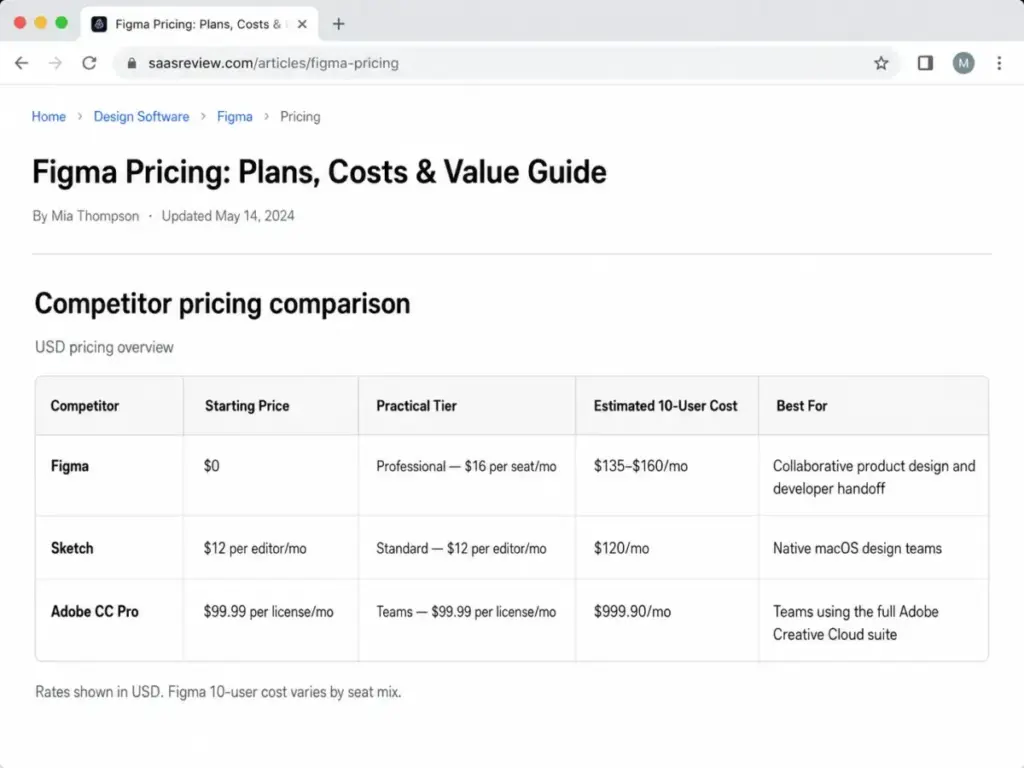
Sketch is a strong option for teams that prefer native macOS apps. Miro is much cheaper if you only need whiteboarding and project collaboration. Adobe Creative Cloud Pro for teams is extremely expensive unless you need Photoshop and Illustrator. UXPin is built for teams that require interactive code prototypes. Framer is the best fit if you want to publish designs directly to live website servers.
Figma’s hybrid billing is unique compared to these alternatives. Most competitors charge a flat rate for all editors, with no separate developer seat discounts.
Is Figma Worth the Price?
Figma is worth the price for product design teams that require collaborative, real-time editing. The platform’s strength is its design ecosystem. It combines layout design, prototyping, and developer handoff under one login.
However, Figma is not worth the price for teams that only need static assets or simple whiteboards. If you are a marketing team designing social media graphics, simpler tools are more affordable.
If Figma feels too expensive, you can read our Miro review for whiteboarding alternatives. Before choosing a design tool, evaluate the best UI/UX design tools in the market to ensure the features match your project requirements.
For solo freelancers, the free Starter tier is usually enough. Upgrade only when a client requires access to shared libraries or private team files.
How to Avoid Overpaying for Figma
Admins can use several strategies to keep Figma costs under control.
First, configure your seat approval settings. By default, Figma allows viewers to upgrade themselves to paid seats when they request edit access. You must change this setting to “Admin Approval Required” in your admin console.
Second, audit your unassigned seats before your billing renewal. If you remove team members, their paid slots remain active. Clean up these empty seats to avoid recurring charges.
Third, use the free View seat tier for stakeholders who only need to review designs. Viewers can view files, inspect values, and leave comments without consuming a paid seat.
Finally, check if you qualify for Figma Education. If you are a student, educator, or approved bootcamp participant, you can access the Professional plan for free. Normal commercial teams cannot use this discount, but it is excellent for learning the tool.
You should also audit your developers’ seat assignments. If they only inspect layouts periodically, place them on the free View tier or a Dev Mode seat. Do not pay for a Full seat unless they actively edit the canvas.
If you have users who only need to edit text in copy layouts, assign them Collab seats instead of Full seats. This saves $13 per seat per month on the Professional plan.
Figma Pricing FAQ
Is Figma free?
Yes, Figma offers a free Starter plan for individual users. It supports three collaborative files and unlimited personal drafts.
How much does Figma cost per month?
On the Professional plan, Figma costs $20 per seat per month (billed monthly) or $16 per seat per month (billed annually) for Full editor seats.
What is included in Figma Professional?
Figma Professional includes unlimited team files, team-wide libraries, custom file permissions, and access to Dev Mode.
What is the difference between Figma Professional and Organization?
Organization adds unlimited teams, organization-wide libraries, shared fonts, branching and merging, and centralized admin controls.
How much is Figma Enterprise?
Figma Enterprise costs $90 per seat per month (billed annually) for Full editors, and $35 per seat per month for Dev seats.
Does Figma charge for viewers?
No, viewer seats are completely free. Viewers can view files and leave comments without triggering a paid charge.
Is Dev Mode included in Figma?
Dev Mode requires a paid seat. It is included in Full editor seats, or can be purchased separately as a Dev seat starting at $12 per seat per month (billed annually).
Does Figma offer annual billing?
Yes, Figma offers annual billing with a 20% savings on Full and Dev seats, and a 40% lower rate on Collab seats compared to monthly billing.
Does Figma have a free trial?
No, Figma does not offer a separate free trial for paid plans. You can use the free Starter plan indefinitely to test the tool.
How do Figma AI credits work?
Figma paid seats include a monthly allocation of AI credits. Once used, admins can enable pay-as-you-go billing at $0.03 per credit.