Installing a connector between your CRM software and another app takes about five minutes. Getting the data to flow correctly, without duplicates, overwrites, or orphaned records, takes weeks. That gap between connecting and integrating is where most teams lose time, trust in their data, and money on tools that never work the way the marketing page suggested. If you are evaluating which CRM to build your stack around, start with our best CRM software comparison before planning integrations.
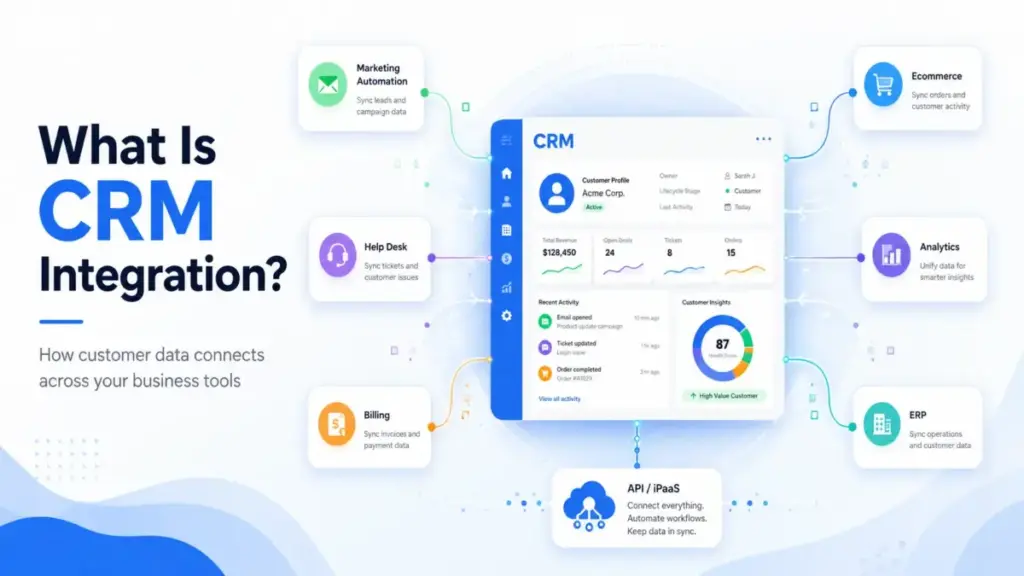
CRM integration is the connection of a customer relationship management system with other applications, platforms, databases, and data sources so customer and workflow data moves automatically between systems. IBM defines it as connecting a CRM with internal and external platforms to enable automatic data exchange. Salesforce frames it as connecting third-party cloud, legacy, on-premise, and other applications to a CRM so data can sync without manual effort.
This guide explains how CRM integration technically works, what types exist, where it fails, how to implement it without spreading bad data, and which metrics prove the integration is healthy. The research draws on official documentation from HubSpot, Salesforce, Zoho CRM, Microsoft Dynamics 365 Sales, and Pipedrive, along with the MuleSoft 2026 Connectivity Benchmark and Salesforce’s 2026 connectivity report.
I evaluated these products through official documentation, public API references, pricing pages, forum discussions, and connectivity research. No hands-on product testing or trial use was performed for this article.
Quick Answer: CRM integration connects a CRM system with marketing, sales, support, billing, and analytics applications so customer data flows automatically between tools. It works through native connectors, marketplace apps, APIs, iPaaS, or custom code. The main risk is not the connection itself, but unclear field mapping, missing ownership rules, and unmonitored sync failures.
The 60-Second Explanation of CRM Integration
Simple Definition
CRM integration means connecting your CRM to other business tools so data moves between them automatically, without copy-pasting or manual entry. When a lead fills out a form on your website, CRM integration can push that contact into your CRM, notify the sales rep, and log the source, all without anyone opening a spreadsheet.
Technical Definition
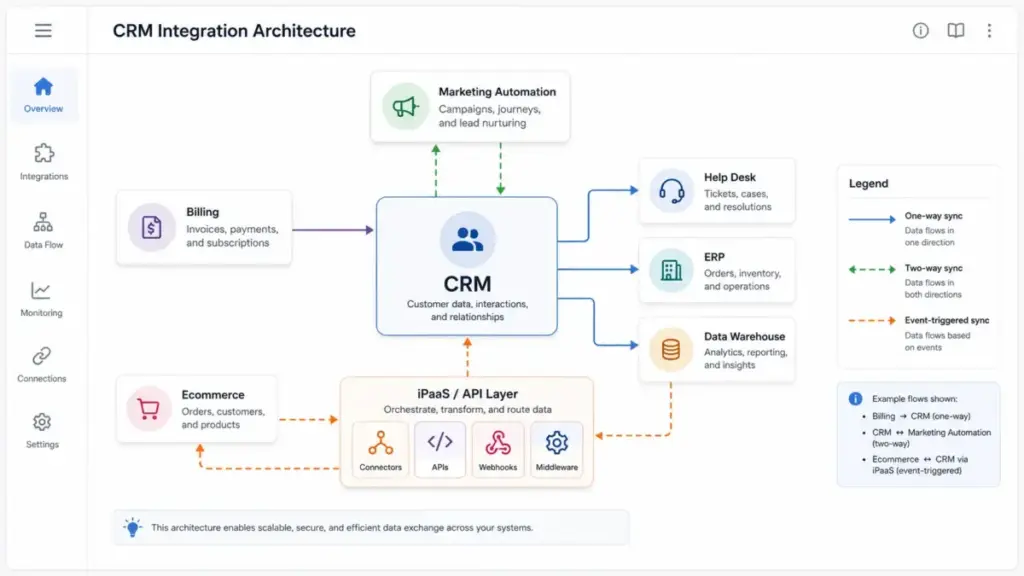
At a technical level, a CRM integration authenticates between two systems (via OAuth, API tokens, or session keys), maps fields from the source schema to the target schema, transforms data types and picklist values, writes or updates records, logs success or failure, and handles retries when rate limits or errors occur. The connection can use REST APIs, webhooks, native connectors, marketplace apps, iPaaS middleware, ETL pipelines, reverse ETL, or custom code. Sync direction (one-way, bidirectional, or event-triggered) and conflict resolution rules determine which system wins when records collide.
Business Definition
For revenue operations, customer success, and leadership teams, CRM integration is the operating layer that determines whether customer data is trusted infrastructure or another messy sync problem. When CRM integration works, sales sees marketing context, support sees deal history, billing sees closed-won data, and AI agents get the unified, permissioned customer records they need to function. When it fails, teams maintain shadow spreadsheets, duplicate records multiply, and reports pull from different versions of the truth.
How CRM Integration Actually Works
A CRM integration follows a predictable pipeline, regardless of whether you use a native connector, a marketplace app, or a custom API build. Understanding each stage helps you anticipate where failures happen.
- A trigger fires. A new lead submits a form, a deal closes, a support ticket resolves, or a scheduled job runs at midnight. The trigger tells the integration to start moving data.
- Authentication confirms access. The integration authenticates using OAuth 2.0, API tokens, or session credentials. If scopes or permissions are misconfigured, the sync fails silently or returns partial data.
- Field mapping translates the data. The source system’s field names, data types, picklist values, and required fields are mapped to the target system’s schema. A “Company” field in one tool becomes an “Account” in another. A dropdown with 12 values maps to a dropdown with 8. This is where most integration problems start.
- Data transforms and validates. The integration reformats dates, normalizes phone numbers, converts currencies, and checks required fields. Records missing required values get rejected or queued.
- Records write or update. The integration creates new records or updates existing ones. Without deduplication rules, a contact who exists in both systems becomes two contacts, each with half the context.
- Success or failure logs. The integration logs which records synced, which failed, and why. Mature integrations include retry logic, error queues, and admin notifications.
- Conflict resolution applies. In bidirectional sync, if both systems updated the same record, conflict rules determine which version wins. Without these rules, the last write overwrites the best data.
A connector is only the starting point
Most SERP-ranking articles imply that installing a connector solves the integration problem. It does not. Installing a connector creates a technical connection. CRM integration also requires field mapping decisions, sync direction rules, ownership definitions, deduplication logic, rate-limit planning, permission scoping, monitoring, and documentation. Forum discussions consistently describe teams that activated a connector, then spent months fixing duplicate records and mismatched lead-source values because no one defined those rules upfront.
CRM Integration vs Related Concepts
| Concept | What it does | When to use it | Key difference from CRM integration |
|---|---|---|---|
| CRM software | Stores and manages customer records, deals, and activities | When you need a system of record for customer relationships | CRM integration connects the CRM to other systems; CRM software is the system itself |
| Marketing automation | Automates campaigns, lead scoring, and nurture sequences | When marketing needs to send triggered communications at scale | Marketing automation is one system CRM integration connects to |
| iPaaS (Integration Platform as a Service) | Middleware that connects multiple applications | When native connectors are insufficient or workflows span 3+ systems | iPaaS is one method of performing CRM integration, not the concept itself |
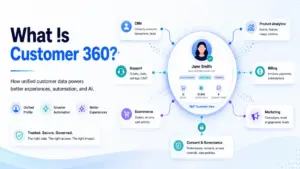
| Customer 360 | Unified view of a customer across all touchpoints | When leadership, sales, and support need a single profile | Customer 360 is the outcome; CRM integration is one input that makes it possible |
| ETL / Reverse ETL | Extracts, transforms, and loads data between systems and warehouses | When analytics or BI teams need CRM data in a data warehouse | ETL moves data in batch; CRM integration can also include real-time and event-driven sync |
| API management | Governs, monitors, and secures API endpoints | When development teams need to control how APIs are consumed | API management secures the pipes; CRM integration defines what flows through them |
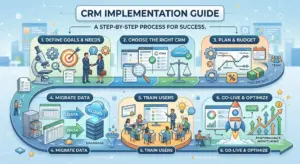
Step-by-Step Implementation
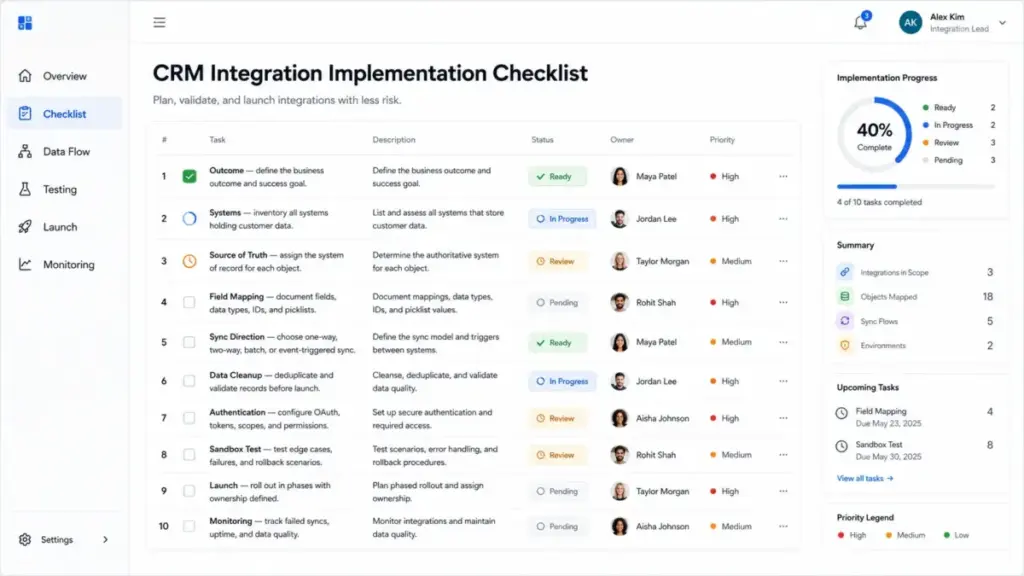
Step 1: Define the business outcome first
CRM integration fails when teams start with “connect Tool A to Tool B” instead of “reduce lead routing time from 4 hours to 15 minutes.” The outcome drives every decision that follows: which systems connect, which objects sync, and which direction data flows.
Step 2: Inventory the systems that hold customer data
Map every application that stores contact, account, deal, ticket, subscription, invoice, campaign, and product-usage data. Most teams discover 8 to 15 systems. I suspect teams with fewer than 5 rarely need a formal CRM implementation plan, but they still need ownership rules.
Step 3: Choose the source of truth for each object
This step prevents the most common integration disasters. For each data object (contact, company, deal, ticket, invoice, custom object), decide which system owns the golden record. The CRM typically owns contacts and deals. The billing system typically owns invoices. Marketing automation may own campaign engagement data. Ownership determines sync direction.
| Object | Likely source of truth | Sync direction | Common conflict rule |
|---|---|---|---|
| Contact | CRM | Bidirectional (with CRM as master) | CRM overwrites on conflict |
| Deal / Opportunity | CRM | One-way out to reporting | No external writes |
| Support ticket | Help desk | One-way into CRM as activity | Read-only in CRM |
| Invoice | Billing or ERP | One-way into CRM | Billing system always wins |
| Campaign engagement | Marketing automation | One-way into CRM | Append-only, no overwrites |
| Product usage | Product analytics | One-way into CRM or CDP | Batch sync, not real-time |
Step 4: Map fields, data types, and picklists before connecting
Field mapping is the single most underrated step. Map every field you plan to sync: field name, data type, required/optional, picklist values, owner fields, lifecycle stages, timestamps, consent fields, and unique IDs. Do this in a spreadsheet before touching a connector.
Step 5: Decide sync direction and timing
One-way into CRM, one-way out of CRM, bidirectional, batch, real-time, or event-triggered. Bidirectional sync can create duplicates, overwrite good data, and cause circular updates if conflict rules are not defined. Start with one-way sync for your first integration.
Step 6: Clean before you connect
Integration does not fix bad data. It spreads bad data faster. Before launch:
- Deduplicate contacts and companies
- Validate email addresses
- Standardize picklist values across both systems
- Audit required fields for completeness
- Map owner fields to real users
- Archive stale records that have not been touched in 12+ months
- Test edge cases: what happens when a record exists in both systems?
Step 7: Select the integration method
| Method | Best for | Control level | Maintenance |
|---|---|---|---|
| Native connector | Common app pairs (email, calendar) | Low | Vendor-managed |
| Marketplace app | Packaged use cases with pre-built logic | Medium | Third-party managed |
| iPaaS (Zapier, Make, Workato, MuleSoft) | Multi-step workflows across 3+ apps | Medium-High | Team-managed |
| REST API / Webhooks | Unique logic, custom objects, high volume | High | Developer-managed |
| ETL / Reverse ETL | Analytics, data warehouse, BI | High | Data team-managed |
| Custom code | Edge cases no connector supports | Highest | Developer-managed |
Step 8: Configure authentication and security
Set up OAuth scopes, API tokens, permissions, encryption, audit logs, and vendor access controls. Give integrations the minimum permissions they need. Review OAuth scopes quarterly.
Step 9: Test in a sandbox
Test with a small object set that includes duplicate records, missing values, deleted records, permission errors, rate-limit scenarios, and rollback cases. A sandbox test that only syncs clean records proves nothing about production readiness.
Step 10: Launch in phases and monitor
Launch one object or one department at a time. Monitor failed syncs daily during the first two weeks. Document ownership (who is responsible when the integration breaks at 2am?). Schedule quarterly data-quality reviews.
The Mistakes That Waste Your First Month
- Starting with tools instead of workflow outcomes. Teams install a connector before defining what business result the integration should produce. The connector becomes shelfware within weeks.
- Enabling bidirectional sync without conflict rules. Two-way sync between CRM and marketing automation creates circular updates and overwritten fields when no system is designated as the master record.
- Skipping data cleanup. Duplicate contacts in the CRM become duplicate contacts in every connected system. The integration did not create the mess, but it scaled it.
- Ignoring API limits. Every CRM enforces API rate limits by plan tier. HubSpot’s Product and Services Catalog lists daily API call limits and 10-second request limits that vary by tier. Zoho CRM’s API limit documentation caps insert, update, or upsert operations at 100 records per API call, and additional API credits can be purchased separately. Pipedrive’s rate-limiting documentation enforces burst limits on a rolling 2-second window, with Search API burst limits of 10 requests per 2 seconds across all plans. Microsoft’s Power Platform documentation shows Dynamics 365 daily request limits, including 40,000 requests per paid license per 24 hours for listed paid users. Ignoring these limits causes throttled syncs and data gaps.
- Not mapping custom objects. Integrations often support standard objects (contacts, deals, companies) out of the box but require additional configuration for custom objects. Teams that rely on custom objects for industry-specific workflows discover this gap after launch.
- Giving integrations excessive permissions. An integration that only needs to read contacts should not have permission to delete deals. Over-scoped OAuth tokens create security and data-governance exposure.
- Failing to document ownership. When the sync breaks, who fixes it? When field mapping needs to change, who approves? Without documented ownership, integration maintenance falls to whoever notices the problem first.
- Not monitoring failed syncs after launch. Most integrations run silently. When a sync fails, the integration queues the error and waits. If no one checks the queue, records diverge across systems for weeks before anyone notices.
Common Misconceptions
Misconception: Installing a connector means the CRM is integrated.
Reality: A connector creates a technical link between two systems. Integration requires field mapping, sync direction rules, ownership definitions, deduplication logic, monitoring, and business-process alignment. The connector is step one of ten.
Misconception: Two-way sync is always better than one-way sync.
Reality: Bidirectional sync introduces circular update risks, conflicting field values, and duplicate records. Unless conflict rules, record ownership, and update priorities are defined, one-way sync is safer and simpler.
Misconception: CRM integration is mainly an IT project.
Reality: IT enables the connection. Sales, marketing, service, finance, and operations must define the data meaning, process rules, ownership boundaries, and success metrics. I have seen integration projects stall for months because IT built the pipe but no one agreed on what should flow through it.
Misconception: Native integrations are always enough.
Reality: Native integrations are the fastest path for common workflows (email, calendar, basic contact sync). Complex workflows that span 3+ systems, require custom logic, or involve high-volume data movement need APIs, iPaaS, or middleware.
Misconception: CRM integration automatically improves data quality.
Reality: Integration can spread bad data faster than any manual process. Without data cleansing, validation rules, and deduplication before launch, integration amplifies existing data-quality problems.
When to Use and When to Avoid CRM Integration
Use CRM integration when:
- Teams repeatedly copy customer data between tools manually
- Sales lacks marketing or support context when talking to customers
- Reporting depends on exporting to spreadsheets and merging columns
- Customer handoffs between departments are slow or lose context
- Billing, order, or subscription data is disconnected from CRM records
- AI or automation tools need trusted, unified customer data
- Leadership needs a unified customer view across departments
Avoid or delay CRM integration when:
- The workflow is temporary and will change within 3 months
- The data model is not defined (you are still deciding what fields matter)
- Source-of-truth ownership is unresolved between departments
- Sensitive data cannot be governed with proper permissions and audit trails
- API limits or vendor access policies are unclear
- The team has not cleaned obvious duplicate and invalid records
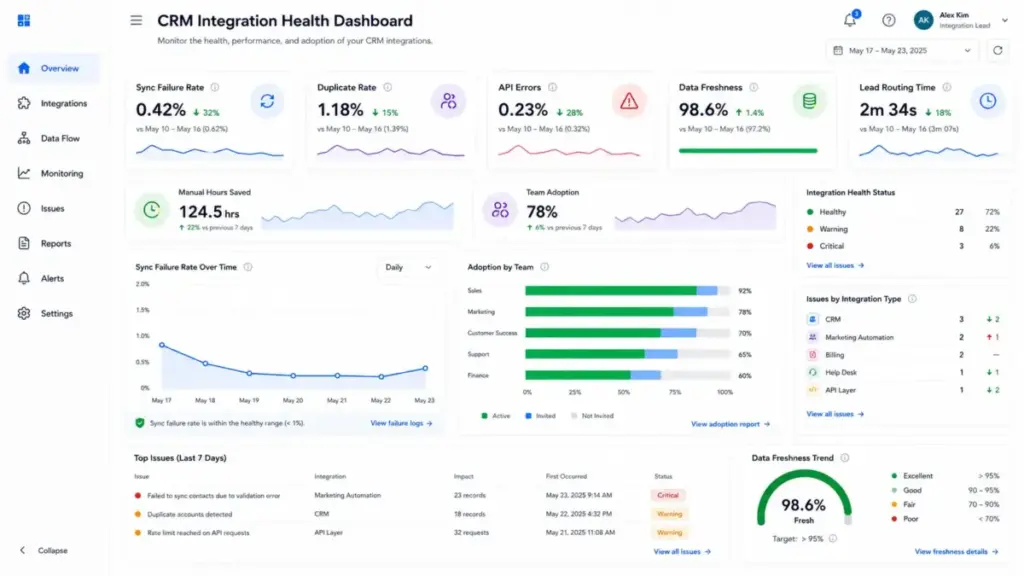
How to Measure CRM Integration Health
The gap competitors miss: defining success metrics. Benefits like “better collaboration” and “single source of truth” mean nothing without measurement. These metrics make CRM integration health visible.
| Metric | What it measures | Why it matters |
|---|---|---|
| Duplicate record rate | Percentage of contacts or companies with duplicate entries post-integration | Duplicates destroy trust in reports and waste sales time |
| Sync failure rate | Percentage of sync attempts that fail per day or week | Rising failure rates signal mapping errors or API limit hits |
| API error rate | Percentage of API calls that return errors (4xx, 5xx) | Persistent errors indicate authentication, scope, or rate-limit problems |
| Data freshness | Time between a record change and its sync to the target system | Stale data means sales or support works with outdated context |
| Time to route a lead | Minutes from lead capture to CRM assignment and rep notification | Integration should reduce this; if it does not, the workflow is misconfigured |
| Time from closed-won to invoice | Hours between deal close in CRM and invoice creation in billing | Measures CRM-to-ERP integration quality |
| Required field completion rate | Percentage of synced records with all required fields populated | Low completion means mapping or validation rules are missing |
| Manual data-entry hours removed | Hours per week saved by automated sync vs previous manual process | The most tangible ROI metric for integration |
| Integration uptime | Percentage of time the integration runs without failure | Target 99%+ for production integrations |
| User adoption of connected workflows | Percentage of team members actively using CRM data from integrated sources | High adoption validates that the integration delivers usable context |
What Good CRM Integration Looks Like: Real-World Examples
These five CRM platforms implement integration differently. Understanding each ecosystem helps you evaluate which approach fits your stack and team size.
HubSpot Smart CRM
HubSpot positions Smart CRM as automatically integrated with its marketing, sales, service, and operations tools. According to HubSpot’s product page, the free CRM tools are 100% free with no expiration, up to 2 users and 1,000 contacts. HubSpot Marketplace adds workflow integrations, app objects, app cards, Breeze Assistant apps, and Data Activation apps. HubSpot’s Product and Services Catalog lists API limits by tier and notes that third-party integrations can further limit capabilities. The out-of-box integration with HubSpot’s own tools is a strength. The caveat: API limits and association volumes vary by plan, and third-party marketplace apps introduce their own limitations.
Salesforce Agentforce Sales
Salesforce supports CRM integration through built-in product integrations, AppExchange (which has more than 7,000 apps and certified consulting organizations), integration partners, and MuleSoft for systems without direct built-in connections. Salesforce’s pricing page shows Starter Suite at $25 USD per user per month, with a free 30-day trial. The ecosystem is the largest in CRM, but the breadth creates complexity. Verify current regional pricing and add-ons on the official pricing page before purchasing.
Zoho CRM
Zoho CRM says it has 1,100+ ready-to-use integrations and API connections for legacy systems. The Zoho CRM pricing page confirms a free edition for up to 3 users. The API supports metadata, core, composite, bulk, notification, and query endpoints, with composite API combining up to 5 API calls in one request. API credit limits apply per plan, and additional credits can be purchased. Confirm current USD pricing in your region on Zoho’s pricing page.
Microsoft Dynamics 365 Sales
Dynamics 365 Sales runs on Microsoft Dataverse, integrates with Microsoft 365, and supports account, contact, lead-to-order, and service-case workflows. Microsoft’s pricing page lists Sales Professional at $65 per user per month (paid yearly), Sales Enterprise at $105, and Sales Premium at $150. Power Platform request limits apply: 40,000 requests per paid license per 24 hours according to Microsoft’s documentation. The Microsoft ecosystem advantage is strong for teams already on Microsoft 365. If integration strength is not enough to offset licensing, Dataverse, and implementation complexity, compare Dynamics 365 alternatives guide by API limits, ecosystem fit, middleware needs, and operational handoff risk.
Pipedrive CRM
Pipedrive provides free API access with every plan through a RESTful API. The Pipedrive API feature page confirms support for webhooks, API endpoints, client libraries, SDKs, and app extensions. Pipedrive Marketplace includes apps for contracts, projects, pipeline automation, analytics, and Zapier connections. Burst limits operate on a rolling 2-second window. Pipedrive has paid plans with free trial support; confirm current plan prices on Pipedrive’s pricing page before purchasing.
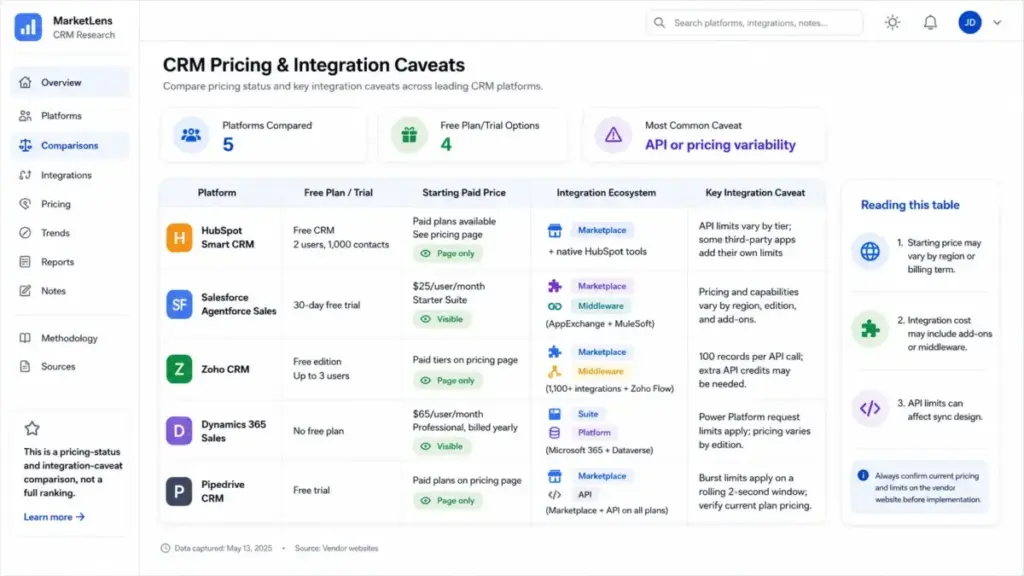
| CRM Platform | Free Plan | Starting Paid Price (as of May 2026) | Integration Ecosystem | Key API Caveat |
|---|---|---|---|---|
| HubSpot Smart CRM | Free (2 users, 1,000 contacts) | Paid plans on pricing page | Marketplace + native Hub tools | API limits vary by tier; third-party apps can further limit |
| Salesforce Agentforce Sales | 30-day free trial | $25/user/month (Starter Suite) | AppExchange (7,000+ apps) + MuleSoft | Pricing varies by region and edition |
| Zoho CRM | Free (up to 3 users) | Paid tiers on pricing page (region-sensitive) | 1,100+ integrations + Zoho Flow | 100 records per API call; credits purchasable |
| Microsoft Dynamics 365 Sales | No free plan | $65/user/month (Professional, yearly) | Microsoft 365 + Dataverse | 40,000 requests per paid license per 24 hours |
| Pipedrive CRM | Free trial | Paid plans on pricing page | Marketplace + free API on all plans | Burst limits on 2-second rolling window |
What this means: Integration cost is not just the CRM subscription price. It includes marketplace app fees, API limit increases, iPaaS subscriptions, add-ons, and implementation time. Always calculate the total integration cost, not just the per-seat CRM price.
Tools That Make CRM Integration Easier
CRM integration is not a one-product problem. The CRM provides the starting point, but the integration layer often requires additional platforms.
Native CRM tools with built-in integration: HubSpot Smart CRM, Salesforce Agentforce Sales, Zoho CRM, Microsoft Dynamics 365 Sales, Pipedrive CRM.
iPaaS and middleware: MuleSoft Anypoint Platform, Workato, Boomi, Zapier, Make, Zoho Flow.
Data pipeline tools: Segment, Fivetran, Hightouch.
Unified API platforms: Merge.
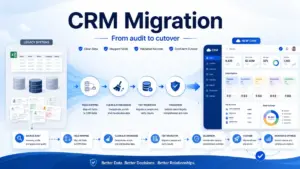
For teams evaluating CRM integration alongside a CRM migration, the integration method and the migration path should be planned together. Migrating to a new CRM while inheriting bad integration patterns recreates the same problems in a new system.
If your CRM integration touches marketing workflows, understanding how marketing automation fits helps define which objects and fields need to sync between the CRM and campaign systems. For teams connecting CRM to support tools, customer service software integration patterns determine whether support agents see deal context and whether sales reps see ticket history. Teams working on sales pipeline visibility should verify that integration preserves stage-change timestamps and owner assignments.
CRM Integration Rollout Checklist
Use this checklist before, during, and after your first CRM integration launch.
- [ ] Business outcome defined (not just “connect Tool A to Tool B”)
- [ ] All systems with customer data inventoried
- [ ] Source of truth assigned per object (contact, deal, ticket, invoice)
- [ ] Field mapping documented in a shared spreadsheet
- [ ] Sync direction decided per object (one-way, bidirectional, event-triggered)
- [ ] Existing records deduplicated and validated
- [ ] Integration method selected (native, marketplace, iPaaS, API)
- [ ] Authentication configured with minimum necessary permissions
- [ ] Sandbox or pilot test completed with edge cases
- [ ] Sync failure monitoring active with daily checks during rollout
- [ ] Ownership documented (who fixes it when it breaks)
- [ ] Quarterly data-quality review scheduled
[SCREENSHOT: CRM integration decision tree: native connector vs marketplace app vs iPaaS vs API vs wait and clean data first]
FAQ
What is CRM integration in simple terms?
CRM integration connects your CRM to other business tools so customer data moves between them automatically. Instead of copying a new lead from your website form into the CRM by hand, an integration does it instantly, including assigning the lead to a rep and logging the source.
What is an example of CRM integration?
A common example: connecting HubSpot CRM to a help desk tool like Zendesk. When a support ticket opens, the integration pulls the customer’s deal history, subscription status, and account owner from HubSpot into Zendesk so the support agent sees full context without switching tabs.
How does CRM API integration work?
CRM API integration uses the CRM’s REST API endpoints to read, create, update, or delete records programmatically. A developer writes code (or uses an iPaaS platform) that authenticates via OAuth or API tokens, sends requests to the CRM’s API, maps fields between systems, and handles responses, errors, and rate limits.
Is two-way CRM sync worth it?
Only if you define conflict rules, record ownership, and update priorities first. Bidirectional sync creates value when both systems legitimately update the same record (for example, sales updates deal stage in the CRM while marketing updates engagement score in the automation tool). Without conflict rules, two-way sync creates duplicates and overwrites good data.
Why do CRM integrations create duplicate contacts?
Duplicates occur when the integration lacks a unique identifier match between systems. If the CRM matches on email and the marketing tool matches on name, a contact with a typo in their email becomes two records. Deduplication rules and a shared unique ID (like email address or external ID) prevent this.
What metrics prove a CRM integration is working?
Sync failure rate below 1%, duplicate record rate declining after launch, API error rate under 0.5%, lead routing time reduced, required field completion rate above 90%, and measurable reduction in manual data-entry hours. If these metrics are not improving, the integration is connected but not working.
When should a company avoid CRM integration?
Avoid or delay CRM integration when the data model is undefined, source-of-truth ownership is unresolved between departments, existing records have not been cleaned, or the workflow is temporary. Integrating messy data with undefined ownership rules creates a bigger mess, faster.
What is the difference between CRM software and CRM integration?
CRM software is the application that stores and manages customer relationships (contacts, deals, pipelines, activities). CRM integration is the connection between that CRM and other tools. You can have CRM software without integration (manual data entry), but you cannot have CRM integration without a CRM.
What is the best CRM integration platform?
The best platform depends on complexity. For simple two-app workflows, native connectors or Zapier work. For multi-step workflows across 3+ systems, iPaaS tools like Workato, Make, or MuleSoft provide orchestration. For custom logic and high volume, direct API integration gives the most control. There is no single best platform.
How do I prevent bad CRM data from spreading across tools?
Clean before you connect. Deduplicate contacts, validate emails, standardize picklist values, audit required fields, and test with edge cases in a sandbox before launching. After launch, monitor sync failure queues daily and schedule quarterly data-quality reviews.
This article covers CRM integration concepts using official documentation, public API references, pricing pages, and connectivity research verified as of May 2026. No hands-on product testing was performed. Pricing, API limits, and feature availability may vary by plan, region, and vendor updates. Verify current details on each vendor’s official pages before making purchasing decisions.