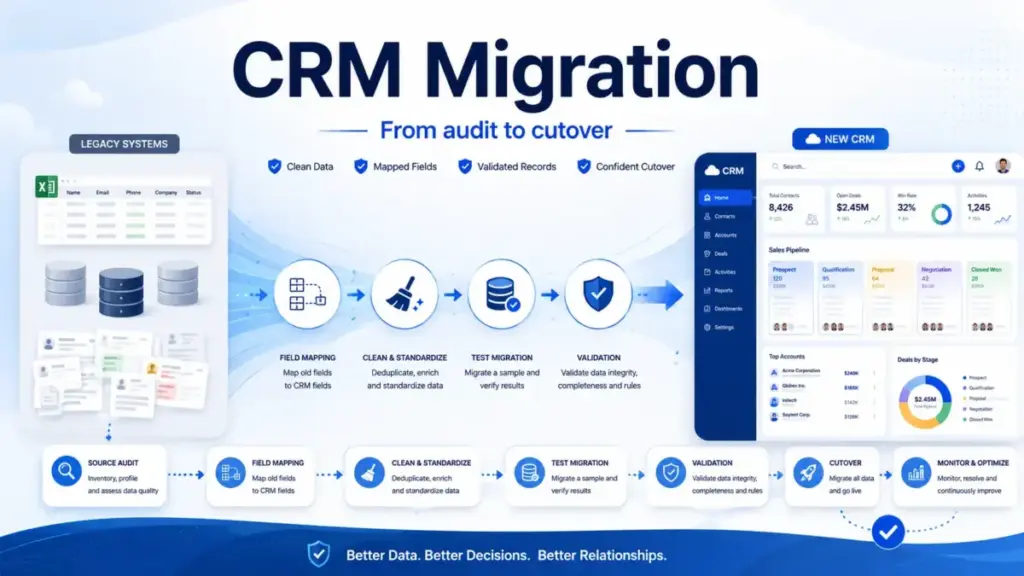
The question every operations team gets wrong is not which CRM to migrate to. It is whether they understand what they are actually moving. A CRM migration is not a CSV upload. It is a data model project, a workflow rebuild, a validation exercise, and a change management effort running in parallel. Teams that treat it like an export button discover the real scope on day three, when the automations stop firing and the sales pipeline shows deals with no owners.
This guide covers what CRM migration means, the six migration path types, a 14-step implementation process grounded in how tools like HubSpot Smart Transfer, Salesforce Data Loader, Zoho’s Data Migration Wizard, and Pipedrive’s Import2 actually behave, and the validation metrics that tell you whether the migration worked before you turn off the old system.
I evaluated this topic across official documentation from HubSpot, Salesforce, Zoho, Pipedrive, and monday, plus authoritative guidance from IBM and AWS on data migration architecture. Where tool behavior differs from marketing copy, I document the gap.
Quick Answer: What Is CRM Migration?
CRM migration is the process of moving customer records, sales history, activity data, workflows, custom fields, permissions, and pipeline configuration from a source system (spreadsheets, a legacy CRM, or another CRM platform) into a new CRM environment. IBM defines data migration as transferring data from one storage system or computing environment to another. Applied to CRM, it means moving contacts, companies, deals, activities, notes, attachments, pipelines, and automations as a coordinated project, not a one-time file transfer.
The 60-Second Explanation of CRM Migration
CRM migration moves operational customer data from where it lives now into a new system designed to support your next stage of growth. IBM defines the broader practice as data migration: transferring data from one storage system or computing environment to another. The CRM-specific version extends that to include relationships between records, not just the records themselves.
A contact is not just a row. It carries associated companies, open and closed deals, activity timelines, notes, email threads, attachments, owner assignments, lifecycle stage history, and custom field values. Every one of those relationships has to survive the transfer intact, or your sales team opens the new CRM to orphaned deals and contacts with no history.
Why it matters in 2026: Sales, marketing, support, and customer success workflows increasingly depend on unified customer data, AI enrichment, automation triggers, and cross-tool integrations. A poorly executed migration preserves bad data, breaks reports, duplicates records, misaligns lifecycle stages, and causes reps to distrust the new system. A well-planned migration becomes a chance to clean old data, simplify fields, rebuild automations intentionally, and improve adoption before the organization scales further.
| Layer | What transfers | What does NOT transfer automatically |
|---|---|---|
| Records | Contacts, companies, deals, leads | Record create dates (often reset on import) |
| Relationships | Contact-company associations | Custom object relationships (varies by tool) |
| Activities | Calls, emails, meetings, tasks | Email thread bodies (often requires OAuth re-auth) |
| Configuration | Pipelines, stages, owners | Automation logic, workflow triggers |
| Attachments | File-level notes | Inline images in note bodies |
| Permissions | Users, roles | Custom permission sets and IP restrictions |
How CRM Migration Actually Works
CRM migration follows an extract, clean, map, transform, test, load, validate, and cutover pattern. AWS defines the goal as moving data efficiently and quickly without disrupting business operations. In practice, the “quickly” part is the trap. Speed of moving records is the primary tension every migration team faces against confidence that relationships, automations, permissions, reports, and sales behavior still work after cutover.
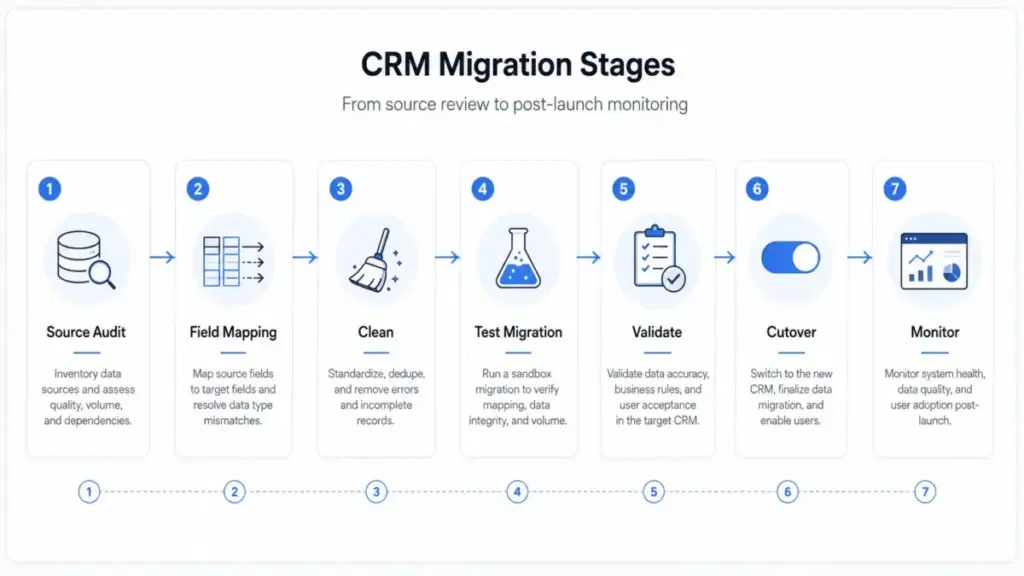
The process breaks into four phases:
Phase 1: Discovery and design. You inventory the source system, audit record counts, duplicate rates, custom fields, associations, and required fields in the destination. You decide migration scope and design the target data model before touching any data.
Phase 2: Preparation. You create a field mapping workbook, clean the source data, deduplicate contacts, normalize formats, and transform field values to match destination picklists, owner names, and stage labels.
Phase 3: Test migration. You run a representative sample (clean records plus dirty ones plus edge cases) through the chosen method. You validate row counts, associations, automations, and field values before loading the full dataset.
Phase 4: Cutover and stabilization. You freeze changes in the source, execute the final migration, run delta records if supported, train users on the migrated workflows, and monitor adoption and data quality for 30 to 90 days.
Where things break: Attachments that do not transfer cleanly; custom objects unsupported by the native importer; automation triggers that fire against migrated records at the wrong lifecycle stage; owners that do not exist in the destination yet; and record create dates that reset to the import date, breaking time-based reports.
CRM Migration vs Related Concepts
| Concept | What it is | Key difference from CRM migration |
|---|---|---|
| CRM implementation | Setting up a new CRM from scratch | No source data; migration brings existing data |
| CRM integration | Connecting CRM to another active tool | Ongoing sync; migration is a one-time project |
| Data import | Loading a file into a CRM | Import is one step inside a migration |
| Data backup | Copying source data for safety | Backup preserves; migration transforms and transfers |
| ETL pipeline | Extract-transform-load for continuous data flow | ETL is the method; migration is the project |
| CRM consolidation | Merging two active CRM instances | Subset of migration; adds deduplication across two live datasets |
Six CRM Migration Types
Not all migrations have the same complexity. The type determines which tools apply, how long the project takes, and where the risks concentrate.
Spreadsheet to CRM
Moving contacts, leads, companies, or deals from Excel, Google Sheets, CSV files, or informal tracking systems into a CRM. Technically the simplest migration path because there are no object relationships to preserve from the source. The risk is data quality: spreadsheets rarely enforce owner assignments, phone formats, or stage labels consistently.
Native CRM-to-CRM Migration
Using a built-in migration tool from the destination CRM. HubSpot Smart Transfer, Zoho CRM Data Migration Wizard, and Salesforce Data Import Wizard fall here. These reduce manual mapping work but carry object limitations, subscription requirements, and one-way transfer rules that buyers often discover after starting.
Third-Party Migration Platform
Tools like Import2 move records between supported CRMs with automated mapping, sample migration, and delta migration. Pipedrive documents Import2 as the supported method for migrations from HubSpot, Salesforce, and Zoho CRM.
API-Based Custom Migration
Using CRM APIs, ETL scripts, or middleware when the source system is homegrown, heavily customized, or too complex for a native importer. High flexibility, high technical overhead. Salesforce Trailhead recommends Salesforce Data Loader for loads of 50,000 to 150 million records and for objects unsupported by Data Import Wizard.
Phased Migration
Migrating active pipeline and active customers first, then historical records in a second pass. Reduces cutover risk for large datasets. Many teams migrate the last 12 to 24 months of activity and archive older records separately.
Full Replacement Migration
Moving all required CRM data and business workflows before the old system is deprecated. Highest confidence post-cutover, highest project risk if validation is skipped.
Step-by-Step CRM Migration Implementation
This is the operational layer that most SERP guides summarize in five bullets and move on. The detail below reflects where migrations actually fail.
Step 1: Define the Business Reason
Growth limits, poor reporting, duplicate records, disconnected tools, weak automation, acquisition, compliance, or replacing spreadsheets. The reason determines migration scope. A team moving because of reporting problems needs to fix the reporting data model in the destination before import, not after.
Step 2: Inventory Source Systems
CRM, spreadsheets, email tools, marketing platforms, support tools, call logs, billing systems, and any homegrown database. Every system that owns customer records is a migration source or a delta-sync problem post-cutover.
Step 3: Run a Data Audit
Record counts, duplicate rates, missing required fields, inactive records, field usage, owner assignments, attachments, notes, activities, stage names, picklists, currencies, and date formats. The audit output is the scope document. Skipping it is the most expensive decision a migration team can make.
Step 4: Decide Migration Scope
Active pipeline only. Active customers plus open deals. Full customer history. Or a phased approach with historical archives in a second pass. For many teams, migrating the last 12 to 24 months of activity first, then deciding on historical depth, reduces cutover risk without losing operational continuity.
Step 5: Design the Destination Data Model
Objects, fields, required fields, custom objects, associations, pipelines, lifecycle stages, user roles, permissions, and report requirements. This step belongs before field mapping, not after. If the destination model is not designed, the mapping document becomes a liability.
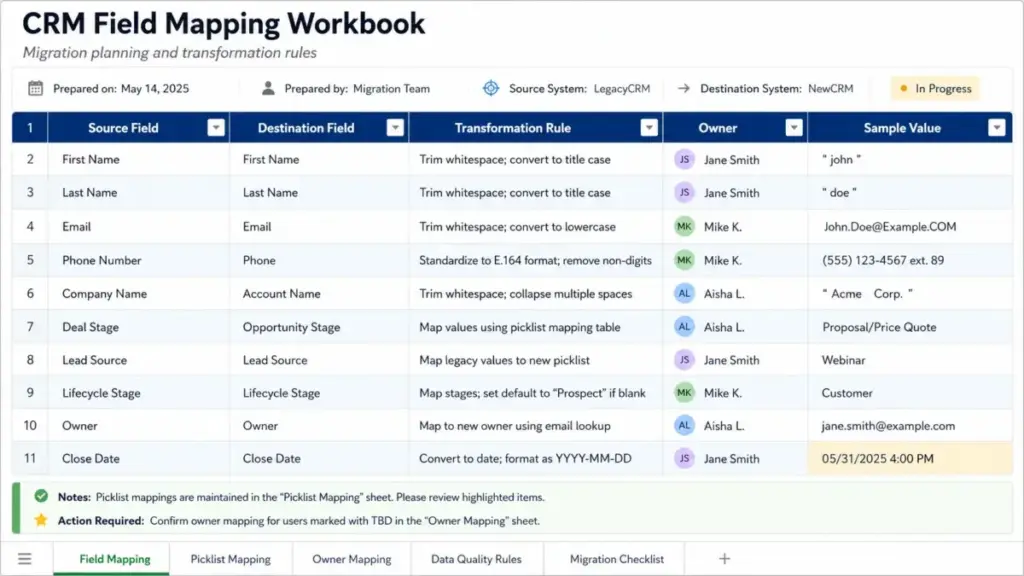
Step 6: Create a Field Mapping Workbook
Source field, target field, transformation rule, owner, sample value, required status, and validation rule. Every field in the source needs an explicit decision: map it, transform it, archive it, or drop it.
Step 7: Clean and Transform Data Before Import
Deduplicate contacts and companies, standardize phone numbers, normalize emails, align owner names with the destination user list, merge stage labels, remove unused fields, and archive stale records. Cleaning after import spreads duplicates and inconsistent fields into reports and automations the moment users start working.
Step 8: Choose the Migration Method
| Method | Best for | Known constraints |
|---|---|---|
| HubSpot Smart Transfer | Moving from Pipedrive, Zoho, Salesforce, Dynamics | One-way; custom field mapping requires Data Hub subscription |
| Salesforce Data Import Wizard | Objects under 50,000 records, supported objects | Not for custom objects, scheduled loads, or 50K+ records |
| Salesforce Data Loader | 50,000 to 150 million records, custom objects | Requires technical setup; no built-in deduplication |
| Zoho CRM Data Migration Wizard | Salesforce exports following Zoho’s CSV format | Flags unsupported files; requires specific folder structure |
| Pipedrive Import2 | Migrations from HubSpot, Salesforce, Zoho | Free up to 1,000,000 records; multiple sessions supported |
| monday CRM import | Spreadsheet-based import for contacts and leads | Plan-based automation and integration action limits apply |
| API or ETL custom | Homegrown systems, heavily customized CRMs | High flexibility, high technical overhead |
Pricing note: HubSpot’s Data Hub requirement for custom field mapping applies as of May 2026. Check the HubSpot pricing page for current plan details before scoping the project.
Step 9: Run a Test Migration
A representative sample that includes clean records, dirty records, custom fields, attachments, activities, associations, and edge cases. The sample should be large enough to surface format errors and relationship breaks, but small enough to fix quickly.
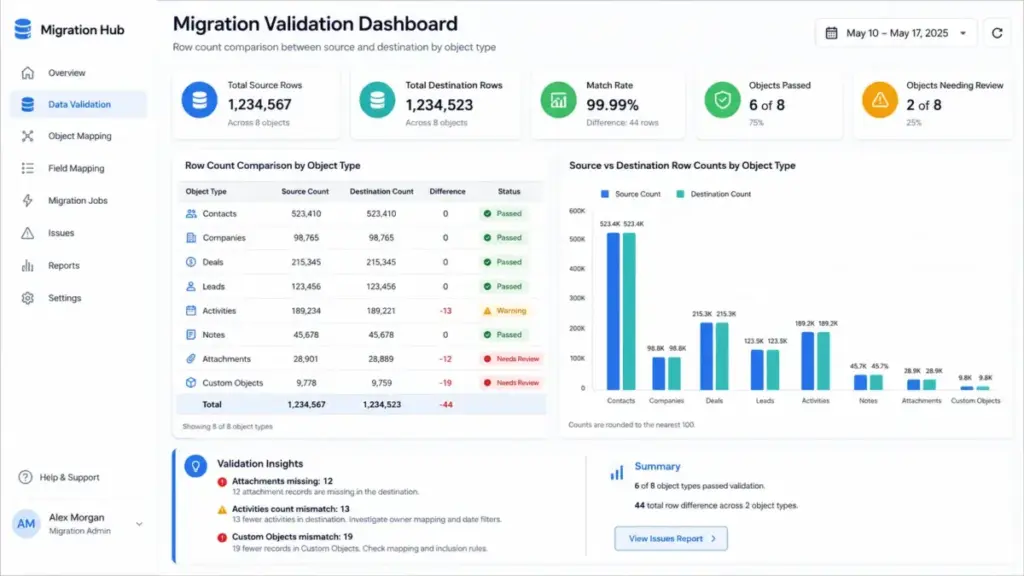
Step 10: Validate the Test Migration
Row counts, field values, owner assignment, deal stages, associations, activity timelines, attachments, dashboard metrics, and automation behavior. A test migration is only useful if someone checks the output record-by-record for a representative slice.
Step 11: Plan Cutover
Freeze changes in the source, back up source data, communicate downtime or read-only periods, assign a rollback owner, and prepare a support channel for sales and customer-facing users. The rollback criteria should be defined before the final migration runs, not invented during it.
Step 12: Execute Final Migration and Handle Errors
Export error logs, identify failed records by type (owner not found, required field missing, association target absent), fix or re-map, and rerun delta migration if the tool supports it. Most native importers produce an error log CSV. Read it.
Step 13: Train Users on Migrated Workflows
Training on the migrated system is not a feature tour. It covers where to find records in the new structure, how to update stages, how duplicate prevention works, and how reports changed. Teams that receive generic interface training and not workflow training often rebuild their own spreadsheets within two weeks.
Step 14: Monitor for 30 to 90 Days
Adoption rates, data quality metrics, automation failures, duplicate creation rate, report discrepancies, and support tickets. The first 30 days expose data problems that the test migration did not surface because they only appear at scale or over time.
The Mistakes That Waste Your First Month
Most migrations that fail do not fail at the import step. They fail in the weeks before or after.
Migrating every historical record without business value. A contact last active in 2018 with no associated revenue does not need to exist in the new CRM. It adds noise to every deduplication job and every compliance audit.
Skipping the field mapping workbook. Import errors are not random. They trace back to unresolved transformation rules between the source picklist and the destination picklist. A workbook catches them before they become 40,000 failed rows.
Not testing edge cases. The clean records import fine. The edge cases expose the real migration architecture: contacts with no email, deals with no owner, activities associated with deleted contacts, attachments over the size limit.
Ignoring custom objects and associations. Native importers handle standard objects well. Custom objects, custom associations, and non-standard relationships require a separate migration strategy. Discovering this on cutover day is expensive.
Forgetting owners, permissions, and teams. Owner fields map by name or email. If the destination user list does not match the source owner field values, records arrive unassigned. Permissions and team structures do not migrate automatically in any of the five tools covered here.
No rollback plan. The rollback criteria define when to declare the migration failed and revert to the source system. Without them, teams improvise during a crisis with sales leadership watching.
Judging success by import completion instead of sales usability. The import finishing without errors is a technical milestone. The migration succeeds when sales managers trust the pipeline report and reps are logging activities in the new system.
Common Misconceptions
Misconception: CRM migration is just exporting from the old system and importing into the new one. Reality: The transfer is one step. The harder work is data audit, field mapping, relationship preservation, cleanup, validation, user training, and post-cutover monitoring.
Misconception: A native migration tool guarantees a clean migration. Reality: Native tools reduce manual work but still require checking supported objects, custom fields, mappings, filters, subscription requirements, and error logs. HubSpot Smart Transfer documents specific object limitations and requires Data Hub for custom field mapping. Zoho’s Migration Wizard flags unsupported files and requires a specific CSV and folder structure for Salesforce exports.
Misconception: All historical data should be migrated on day one. Reality: For many teams, a phased approach that prioritizes active pipeline, active customers, and compliance-critical history reduces cutover risk significantly.
Misconception: Data cleaning can happen after the new CRM is live. Reality: Cleaning after go-live spreads duplicates and inconsistent fields into reports, automations, and sales workflows before anyone notices.
Misconception: User training is separate from migration. Reality: Training is part of migration because the new data model, stages, views, and workflows determine whether users trust the migrated CRM or abandon it for their own spreadsheets.
When to Use and When to Avoid CRM Migration
Use a structured CRM migration when:
- The current system no longer supports growth, data quality, automation, reporting, or integrations.
- The team has outgrown spreadsheets and needs pipeline structure, owner assignment, and activity tracking.
- The business acquired a company with a different CRM and needs to consolidate records.
- Compliance requirements demand a more auditable, permission-controlled system.
- The current CRM costs more per user per month than the operational value it delivers at scale.
Avoid a full migration when:
- The business has not agreed on the target process. Moving data into a new system without fixing the broken process that created the data problem just moves the problem.
- The destination CRM data model is not designed. Fields, pipelines, stages, and owner structures should be finalized before the first record is imported.
- Source data is too dirty to map reliably. If fewer than 60% of contacts have a valid email, a cleanup project should precede the migration decision.
- The team only wants a new interface, not a data-driven sales process. Tool changes without workflow changes produce expensive rip-and-replace cycles every 18 to 24 months.
How to Measure CRM Migration Success
| Metric | What to measure | Why it matters |
|---|---|---|
| Record count parity | Source records vs destination records by object | Confirms no records lost in transfer |
| Field completion rate | Percentage of migrated records with required fields populated | Identifies mapping gaps at scale |
| Duplicate rate | Post-migration duplicates vs pre-migration baseline | Measures deduplication effectiveness |
| Association integrity | Contacts linked to correct companies and deals | Validates relationship transfer |
| Automation error rate | Workflow failures in first 30 days | Surfaces trigger mismatches with migrated data |
| Rep login rate | Percentage of active reps logging in weekly | Adoption signal |
| Pipeline update rate | Percentage of active deals updated in first week | Operational trust signal |
| Support ticket volume | Migration-related tickets in first 30 days | User confusion and data quality proxy |
| Dashboard reconciliation | Key reports match source CRM final snapshot | Business continuity confirmation |
What Good CRM Migration Looks Like
Before: A 15-person sales team running on an aging CRM and three Google Sheets supplements. Contacts are duplicated across the CRM and the sheets. Deal owners are inconsistent. There is no structured pipeline for the new product line. Reports require manual reconciliation every week.
After a well-executed migration: Active contacts deduplicated from 12,000 to 8,400 verified records. Two pipelines configured in the new CRM: one for the core product, one for the new line. All deal owners verified against the current team list. Historical activity for the last 18 months preserved with correct timestamps. Automations rebuilt from scratch around the new data model. In week two, the sales manager runs a pipeline forecast report and does not open a spreadsheet to cross-check it.
The difference is not the import. It is the month of preparation before the import and the two weeks of monitoring after it.
Tools That Make CRM Migration Easier
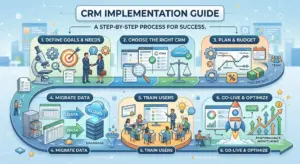
The CRM implementation guide on SaaSZap covers platform selection in depth. For migration specifically, five tools account for the majority of CRM-to-CRM projects in 2026:
HubSpot Smart Transfer handles migrations from Pipedrive, Zoho CRM, Dynamics 365, Salesforce, Monday.com, Zendesk, and others. The transfer is one-way. Custom field mapping requires a Data Hub subscription. It audits source data, maps objects and properties, supports cleanup, and can revert a transfer. Review the HubSpot CRM review for platform architecture context.
Salesforce Data Import Wizard covers supported objects under 50,000 records. For loads of 50,000 to 150 million records, unsupported objects, or scheduled regular loads, Salesforce Trailhead directs teams to Data Loader. The Salesforce CRM review documents the ecosystem around both tools.
Zoho CRM Data Migration Wizard automatically maps import files to CRM modules and flags unmapped and unsupported files. Salesforce-to-Zoho migrations require the export package to follow Zoho’s expected CSV and attachment folder structure. See the Zoho CRM review for feature and plan context.
Pipedrive Import2 is available for trialing and paying Pipedrive accounts. It offers free migration up to 1,000,000 records, supports multiple import sessions, and handles migrations from HubSpot, Salesforce, and Zoho. The Pipedrive CRM review covers when Pipedrive is the right migration destination.
monday CRM supports spreadsheet-based import for contacts and leads, with many integrations and marketplace apps for more complex moves. Buyers should check plan-based automation and integration action limits before scoping large migrations. Compare platforms in the best CRM software review to confirm the right destination before committing to a migration path.
For organizations needing cross-functional project coordination during cutover, workflow automation tools can manage the task checklist, communication triggers, and rollback decision trees outside the CRM itself.
CRM Migration Checklist (Copy-Ready)
Pre-Migration
- Define business reason for migration
- Inventory all source systems (CRM, spreadsheets, email, support)
- Run data audit: record counts, duplicates, missing fields, owner list
- Decide migration scope: active pipeline, full history, or phased
- Design destination CRM data model before mapping begins
- Create field mapping workbook with transformation rules
- Clean source data: deduplicate, normalize, archive stale records
- Choose migration method: native, third-party, API, or hybrid
- Verify owner list in destination matches source owner field values
- Rebuild automations for destination data model (do not copy triggers)
Migration Execution
- Run test migration with representative sample including edge cases
- Validate test: row counts, associations, field values, automations
- Document rollback criteria before executing final migration
- Freeze changes in source system
- Back up source data
- Execute final migration and export error logs
- Fix failed records: owner not found, required field missing, association absent
- Run delta migration for records created during downtime (if supported)
Post-Migration
- Train users on migrated workflows, not just interface basics
- Verify dashboard reconciliation against source CRM final snapshot
- Monitor adoption, automation errors, and duplicate creation for 30 days
- Define and track post-migration data quality metrics for 90 days
- Archive or deprecate the source system after 90-day stabilization period
FAQ
What is CRM migration?
CRM migration is the process of moving customer records, sales history, activity data, workflows, field structures, permissions, and related configuration from a source system into a new CRM. IBM defines data migration broadly as transferring data from one storage system to another; CRM migration applies that to contacts, companies, deals, activities, pipelines, and automations as a structured project.
How long does a CRM migration take?
A spreadsheet-to-CRM migration for a small team takes one to two weeks with a clean data set. A CRM-to-CRM migration for a 50-person sales team with custom objects, automations, and multi-year history typically runs six to twelve weeks: two to three weeks of audit and design, two to four weeks of preparation and testing, and two to four weeks of stabilization after cutover.
Should I migrate all historical CRM data?
Not necessarily. Migrating only active pipeline, active customers, and the last 12 to 24 months of activity reduces cutover risk for most teams. Historical records can be migrated in a second pass or archived in a read-only system. The decision should be based on compliance requirements, report dependencies, and the cost of cleaning old data versus the business value of having it in the new system.
What breaks most often during CRM migration?
Owner field mapping, custom object relationships, automation triggers firing against migrated data at the wrong lifecycle stage, record create dates resetting to the import date, and attachments that do not transfer cleanly. Each of these is addressable in the test migration phase if the validation checklist covers them explicitly.
What is the difference between HubSpot Smart Transfer and a CSV import?
Smart Transfer is a structured migration flow that audits source data, maps objects and properties, syncs records, and can revert a transfer. It supports transfer from multiple named CRMs and preserves some relationship data. A CSV import requires manual field mapping, handles one object at a time, and does not preserve associations automatically. Smart Transfer requires a HubSpot subscription; custom field mapping requires Data Hub.
Can I migrate CRM data without losing notes and activities?
Yes, but it depends on the tool and method. Native importers vary significantly in activity and note support. Salesforce Data Loader handles most standard objects including activities. HubSpot Smart Transfer includes activities in its transfer scope. For notes with attachments or inline content, the test migration should validate preservation explicitly before the final load.
How do I prevent duplicate contacts during CRM migration?
The primary method is using an external ID field as the deduplication key during import. Most CRM importers accept an ID column that maps to a unique identifier in the source. Combined with email deduplication rules in the destination CRM, this prevents the same contact from being created twice. Deduplication should run on the source data before import, not as a post-import cleanup.
When should I use a third-party migration service instead of a native tool?
Use a third-party service like Import2 when the native tool does not support your source CRM, when your data model is heavily customized, when record volume exceeds native tool limits, or when the project requires delta migration support between the test run and the final cutover. For Pipedrive migrations from HubSpot, Salesforce, or Zoho, Import2 is the vendor-documented path.