A messy customer database is not harmless. It creates missed follow-ups, duplicate accounts, broken forecasts, and awkward handoffs between sales, marketing, and support. So what is a CRM database, and why does it matter more than most teams realize?
A CRM database is the structured data layer that stores every customer record, interaction, deal, and task your team needs to sell, support, and retain accounts. It is not a spreadsheet with a better skin. It is the operational memory behind every CRM software platform your team will ever evaluate. In this guide, I will explain how a CRM database works, what data belongs in it, when a spreadsheet stops being enough, and how to build one that your team will actually use.
What Is a CRM Database?
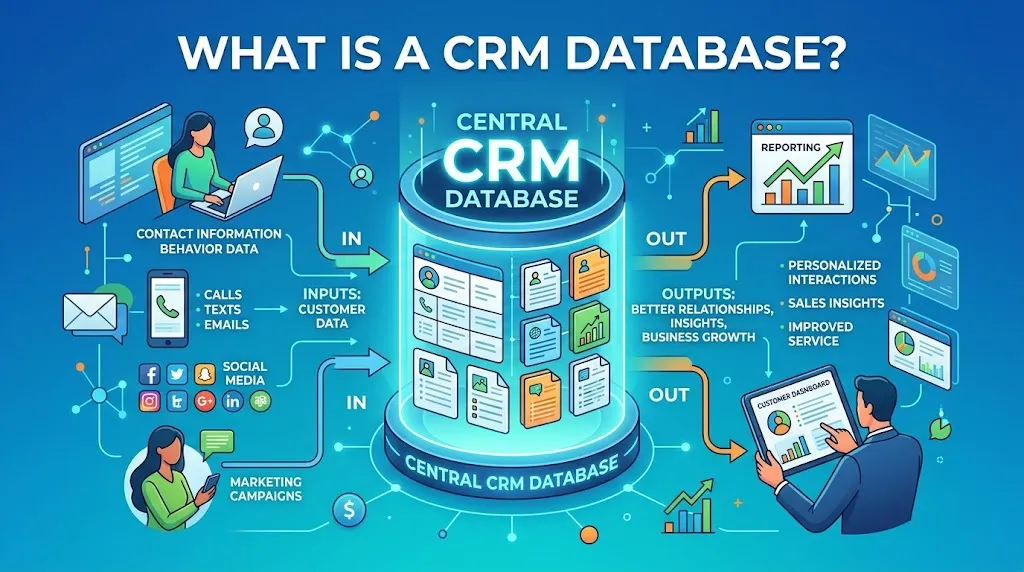
A CRM database is a structured system that stores customer, prospect, deal, activity, support, and relationship data in connected records. It acts as both the data layer and the operational memory for every customer-facing team in your business. Think of it as shared memory: sales, marketing, support, and success all read from and write to the same set of records.
A customer relationship management database is not the same thing as CRM software. The database is the structured information underneath. The software is the interface, workflows, reports, and automations built on top of that data. Salesforce, HubSpot, and Pipedrive are CRM software products. Each one runs on a CRM database that organizes contacts, companies, deals, activities, and tickets into a queryable, reportable structure.
A simple analogy: if CRM software is the cockpit, the CRM database is the flight data recorder. Every interaction, every deal stage change, every support ticket, and every email gets logged into structured records. Without the database, the software has nothing to display, automate, or report on.
How Does a CRM Database Work?
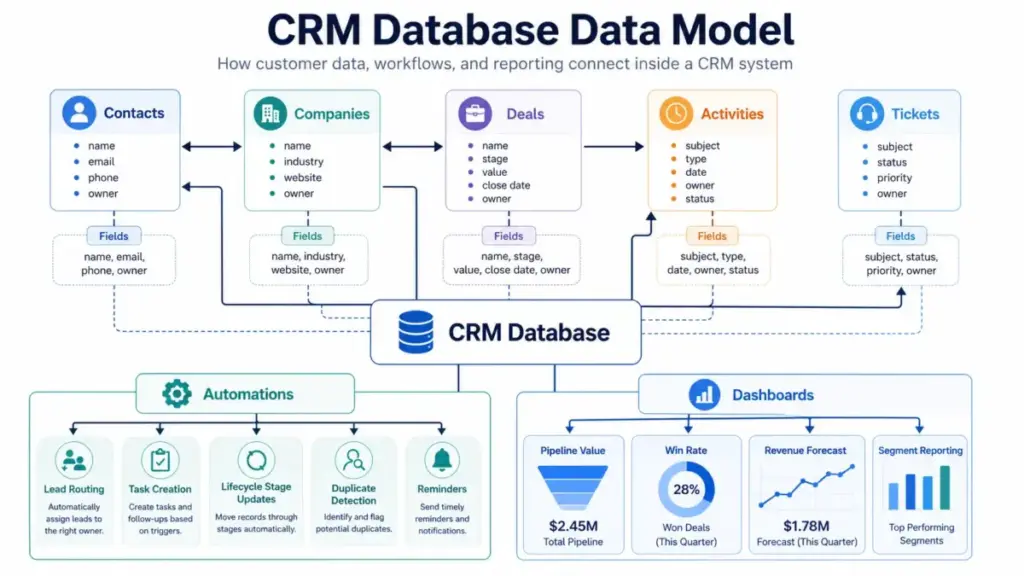
A CRM database works by organizing customer information into structured objects, records, and fields that connect to each other. This structure is what separates a CRM database from a flat spreadsheet or a folder of notes. Most competitors skip this explanation, so I will break it down.
Records, Fields, and Objects
Every CRM database is built on three core building blocks:
- Record: One entry in the database. A single contact, one company, one deal, one support ticket, or one logged activity. Each record has a unique identifier.
- Field: One attribute inside a record. Examples: email address, lifecycle stage, deal value, lead source, account owner, last contacted date. Fields define what information each record holds.
- Object: A category of records. Standard objects include Contacts, Companies, Deals, Tickets, and Activities. Some CRM platforms allow custom objects for things like Subscriptions, Products, or Locations.
- Relationship: The connection between records across objects. One contact belongs to one company. That company has three open deals. Each deal has five logged activities. One contact also has two support tickets. These relationships are what make a CRM database more than a contact list.
In practice, a sales rep opens a contact record and sees the person’s name, email, title, company, every email exchanged, every call logged, every deal in progress, and every support ticket filed. That single view exists because the database links records across objects through defined relationships.
Activity Timeline and Customer History
The activity timeline is where a CRM database proves its value over a spreadsheet. Every interaction with a customer or prospect gets logged as an activity record tied to the relevant contact, company, or deal.
Activity types include:
- Emails sent and received
- Phone calls (logged manually or recorded)
- Meetings scheduled and completed
- Notes added by any team member
- Form submissions from the website
- Website page views (if tracking is enabled)
- Support tickets opened, updated, and resolved
- Purchases, renewals, and cancellations
This timeline creates a full customer history that any team member can review before a call, handoff, or escalation. When a support agent picks up a ticket, they see every prior sales conversation. When a sales manager reviews a stalled deal, they see every touchpoint and gap.
Automation and Data Updates
A CRM database does not just store data. It acts on data through automations and workflow triggers.
Common automation examples:
- Lead routing: A new form submission creates a contact record and assigns it to a rep based on territory, deal size, or round-robin rules.
- Task creation: When a deal moves to “Proposal Sent,” the database triggers a follow-up task for three days later.
- Lifecycle stage updates: When a contact replies to a sales email, their stage moves from “Lead” to “Engaged” automatically.
- Duplicate detection: The database flags records with matching email addresses or phone numbers before import or creation.
- Reminders: Overdue tasks and stale deals trigger notifications to the assigned owner.
These automations depend on clean, structured data. If fields are empty or inconsistent, automations misfire or skip records entirely.
Reports and Forecasting
Structured data supports structured reporting. A CRM database powers live dashboards and forecasts that spreadsheets cannot replicate without manual effort.
Key reports a CRM database enables:
- Pipeline value by stage: Total deal value at each sales stage, updated in real time.
- Win-rate analysis: Percentage of deals closed-won versus closed-lost, filtered by rep, source, or time period.
- Revenue forecasts: Projected revenue based on deal probability and expected close dates.
- Churn signals: Contacts or accounts with declining engagement, overdue renewals, or open support issues.
- Segment reporting: Performance by lead source, industry, company size, or geographic region.
These reports exist because the database enforces structure. Every deal has a stage. Every contact has an owner. Every activity has a timestamp. Without that structure, reporting requires manual data assembly, which most teams abandon within weeks.
What Data Belongs in a CRM Database?
Not all customer data belongs in a CRM database, and not every field you can create should exist. The right data set depends on your sales process, team size, and reporting needs. Here is a breakdown of the seven core data types.
| CRM Data Type | Examples | Who Uses It | Why It Matters |
|---|---|---|---|
| Contact data | Name, email, phone, title | Sales, support | Identifies the person |
| Company data | Industry, size, location, account owner | Sales, marketing | Groups contacts by account |
| Deal data | Stage, value, close date, probability | Sales managers | Powers pipeline forecasting |
| Activity data | Emails, calls, meetings, notes | Reps, managers | Shows relationship history |
| Support data | Tickets, issues, SLA status | Support, success | Prevents context loss |
| Marketing data | Source, campaign, form submission | Marketing ops | Shows acquisition path |
| Custom data | Product usage, renewal date, plan type | RevOps, success | Fits the CRM to the business |
Required Fields vs. Optional Fields
Every CRM database needs a core set of required fields. For a small team, I recommend 8 to 12 required fields per object, maximum. Beyond that, adoption drops because reps resist filling in data they do not see the purpose of.
Good required fields for a Contact object: first name, last name, email, company, lifecycle stage, owner, and lead source. Good required fields for a Deal object: deal name, stage, value, close date, and associated contact.
Why Too Many Fields Hurt Adoption
Every field you add is a data entry task for your team. If a rep needs to fill in 25 fields to create a deal, they will either skip fields, enter junk data, or avoid the CRM entirely. The result: incomplete records that break reports and automations.
A practical rule: if a field is not used in a report, automation, or handoff, remove it or make it optional.
Why Every Field Needs an Owner and Purpose
Every field in a CRM database should have a documented owner (the person or team responsible for data quality) and a clear purpose (which report, automation, or workflow depends on it). Fields without owners accumulate stale data. Fields without purpose create clutter.
CRM Database vs Spreadsheet
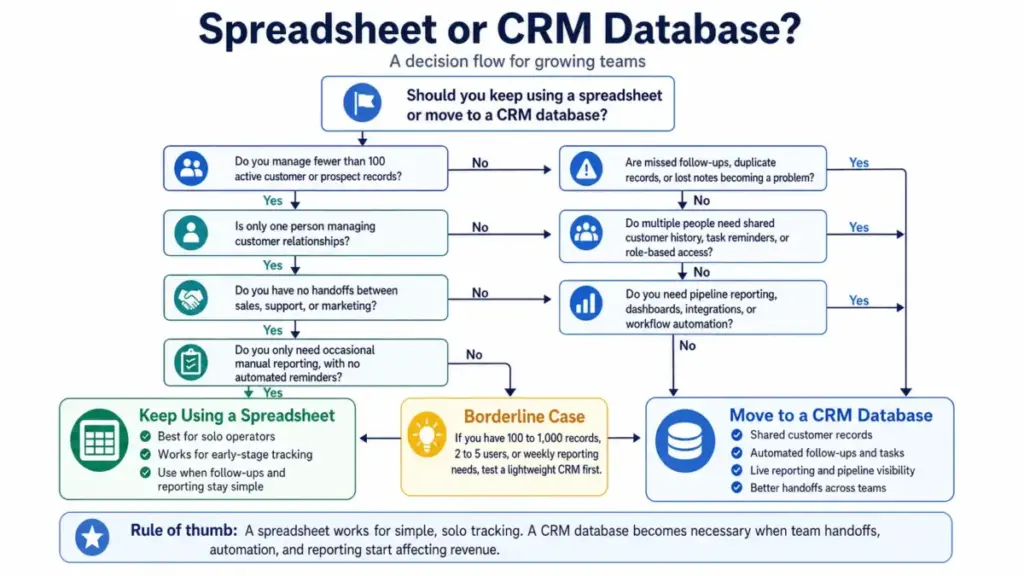
A spreadsheet works for early-stage tracking, but it breaks when your sales process requires shared access, automation, or reliable reporting. This is not a generic anti-spreadsheet argument. There are legitimate cases where a spreadsheet is the right tool.
When a Spreadsheet Is Enough
A spreadsheet is acceptable when:
- You have fewer than 100 active customer or prospect relationships
- Only one person manages all customer interactions
- There are no handoffs between sales, support, or marketing
- You do not need automated follow-up reminders
- Monthly reporting is manual and occasional
For an early-stage founder tracking 30 prospects, a well-organized Google Sheet is fine.
When a Spreadsheet Breaks
A spreadsheet stops working when:
- Two or more people edit the same customer list and create version conflicts
- Follow-ups slip because there is no reminder system
- Duplicate entries appear and no one catches them for weeks
- A sales rep leaves and their notes disappear
- Reporting requires 30 minutes of formula building every week
- Handoffs between sales and support lose context
The trigger is not a specific number of contacts. It is the moment when missed follow-ups, duplicates, or lost context start costing revenue.
| Decision Factor | Spreadsheet | CRM Database |
|---|---|---|
| Customer history | Manual notes | Timeline by contact or account |
| Multi-user access | Version conflicts possible | Real-time shared records |
| Follow-up reminders | Manual | Automated tasks and alerts |
| Reporting | Manual formulas | Live dashboards |
| Permissions | Limited | Role-based controls |
| Integrations | Fragile or manual | Native apps, APIs, webhooks |
| Scale point | Works for early lists | Better for repeatable sales process |
If your team is evaluating when to move from a spreadsheet to a CRM, the best CRM for small business options start with free or low-cost plans that reduce the switching risk.
Types of CRM Databases
CRM databases serve different operational purposes depending on the team, industry, and data model. Most buyers encounter five types, though many CRM platforms blend two or three into a single product.
Operational CRM Database
An operational CRM database supports day-to-day customer-facing work: sales pipeline management, task assignment, follow-up tracking, service ticket routing, and contact management. This is the most common type. Tools like Pipedrive, Close, and Capsule focus heavily on operational data.
The core objects are Contacts, Companies, Deals, Activities, and Tickets. The value is in task discipline and pipeline visibility, not in deep analytics.
Analytical CRM Database
An analytical CRM database is optimized for reporting, segmentation, forecasting, and cohort analysis. It aggregates data from operational records to answer questions like: which lead source has the highest win rate? Which segment churns fastest? What is the average deal cycle by rep?
Salesforce and HubSpot include analytical layers with custom report builders, dashboards, and forecast tools. Smaller CRMs often rely on third-party BI tools for deeper analysis.
Collaborative CRM Database
A collaborative CRM database focuses on shared context across departments. Sales sees support tickets. Support sees deal history. Marketing sees which contacts engaged with campaigns. Success sees renewal dates and usage data.
This type matters most when handoffs between teams are frequent. If a customer contacts support after a sales conversation, the support agent needs context without asking the customer to repeat their story.
Industry-Specific CRM Database
Some CRM databases are built for specific industries: healthcare (patient records, HIPAA compliance), real estate (listings, showings, buyer preferences), education (student enrollment, alumni relations), financial services (compliance, portfolio tracking), and field service (job scheduling, equipment records).
These databases include custom objects and fields that general-purpose CRMs do not offer by default.
Custom CRM Database
A custom CRM database uses custom objects, custom fields, API connections, and product usage data to fit a specific business model. SaaS companies often add custom objects for Subscriptions, Usage Events, or Feature Adoption. Agencies might add Projects, Deliverables, or Retainer objects.
Building a custom database layer requires planning. Over-customization makes future migration harder and increases admin overhead.
Benefits of a CRM Database
The core benefit of a CRM database is replacing scattered customer information with one structured, shared record. Every other benefit flows from that single change. But each benefit comes with a condition: the database only works if the team maintains data quality.
1. One Customer Record Instead of Scattered Notes
Every team member sees the same contact, company, and deal data. Sales does not keep a private spreadsheet. Support does not rely on email threads. Marketing does not maintain a separate list. The CRM database becomes the single record.
Practical example: A support agent receives a call from a customer who spoke with a sales rep yesterday. The agent opens the contact record and sees the sales conversation, the deal stage, and the rep’s notes. No back-channel Slack messages needed.
Limitation: This only works if reps log their activities. If the team skips data entry, the single record is incomplete.
2. Better Follow-Up Discipline
A CRM database automates task creation and deadline reminders. When a deal moves to “Demo Scheduled,” a follow-up task appears for two days after the demo. When a task goes overdue, the rep and manager get notified.
Practical example: A sales manager checks the overdue tasks dashboard on Monday morning. Three reps have follow-ups that slipped over the weekend. The manager addresses them in the team standup.
Limitation: Automation does not fix a missing sales process. If deal stages are undefined, automated tasks fire at the wrong moments.
3. Cleaner Pipeline Reporting
Pipeline reports require every deal to have a stage, value, close date, and owner. A CRM database enforces those fields. A spreadsheet does not. The result: pipeline reviews based on real data instead of best guesses.
Practical example: A VP of Sales opens the weekly pipeline report and sees $420,000 in “Proposal Sent” and $180,000 in “Negotiation.” The report updates in real time as reps move deals.
Limitation: If reps inflate deal values or leave close dates unchanged, the pipeline report looks healthy but the forecast is wrong.
4. Faster Handoffs Between Teams
When a deal closes, the customer moves from sales to onboarding or success. A CRM database preserves every conversation, requirement, and expectation in the contact and deal records. The onboarding team reads the history instead of starting from zero.
Practical example: A customer success manager opens a newly closed deal and reviews the sales notes, the proposal, and the support tickets filed during the trial. The kickoff call starts with context, not repeated questions.
Limitation: Handoffs only work if the originating team documented the relationship. Empty records mean empty handoffs.
5. More Useful Segmentation
A CRM database enables segmentation by lifecycle stage, industry, deal size, lead source, geography, product interest, or any custom field. Marketing can send targeted campaigns. Sales can prioritize high-value segments. Support can route tickets by account tier.
Practical example: Marketing wants to send a product update email to customers in the SaaS industry with annual contracts above $10,000. The CRM database filters that segment in seconds.
Limitation: Segmentation requires consistent data entry. If 40% of company records have no industry field, the segment is incomplete.
6. Better Automation and AI Readiness
AI features in CRM platforms (lead scoring, next-best-action recommendations, email drafting, churn prediction) all depend on structured, clean data. A CRM database with consistent fields, complete records, and accurate history gives AI models something to work with.
Practical example: A CRM platform’s lead scoring model analyzes email engagement, form submissions, deal stage velocity, and company size. The score only works if those fields are populated.
Limitation: AI on bad data produces bad predictions. Clean the data before enabling AI features.
CRM Database Challenges
A CRM database can make things worse if the data going in is dirty, the process is undefined, or the team resists using it. This section is intentionally skeptical. I have seen more CRM databases fail from poor adoption than from poor technology.
Bad Data Makes a CRM Database Worse Than a Spreadsheet
If you import 5,000 contacts with missing emails, outdated titles, and duplicate entries, your CRM database starts broken. Reports show inflated numbers. Automations send emails to dead addresses. Reps lose trust in the data and revert to their own spreadsheets.
Too Many Required Fields Reduce Adoption
Every required field is a friction point. If creating a new contact takes two minutes of data entry, reps will avoid it. Start with 8 to 12 required fields and add more only when the team demonstrates consistent data entry habits.
Duplicate Records Distort Reporting
Two records for the same company (one spelled “Acme Corp” and one “Acme Corporation”) create double-counted pipeline, split activity history, and confused ownership. Duplicate management needs rules and regular audits.
API Limits Affect Large Syncs
Teams that sync CRM data with marketing platforms, support tools, billing systems, and product analytics often hit API rate limits. For reference, Salesforce paid org editions such as Enterprise start at 100,000 API requests per 24-hour period and increase based on licenses. HubSpot custom events include limits such as 500 unique event definitions per account and 30 million event completions per month. High-volume integrations need API planning before launch, not after rate limits start blocking syncs.
Permission Mistakes Expose Sensitive Data
If every user can see every deal, every salary field, and every support ticket, you have a permissions problem. Role-based access controls matter for teams larger than five people, especially when deal values, compensation data, or customer health scores are in the database.
Over-Customization Makes Future Migration Harder
Custom objects, custom fields, and custom automations make your CRM database fit your business today. They also make migration to a different platform harder later. Every custom element needs to be mapped, exported, and rebuilt. Plan customization with future portability in mind.
CRM Database Readiness Scorecard
Not every business needs a CRM database today. This scorecard helps you evaluate whether your team is ready to adopt one or whether a spreadsheet still works. Score each criterion honestly.
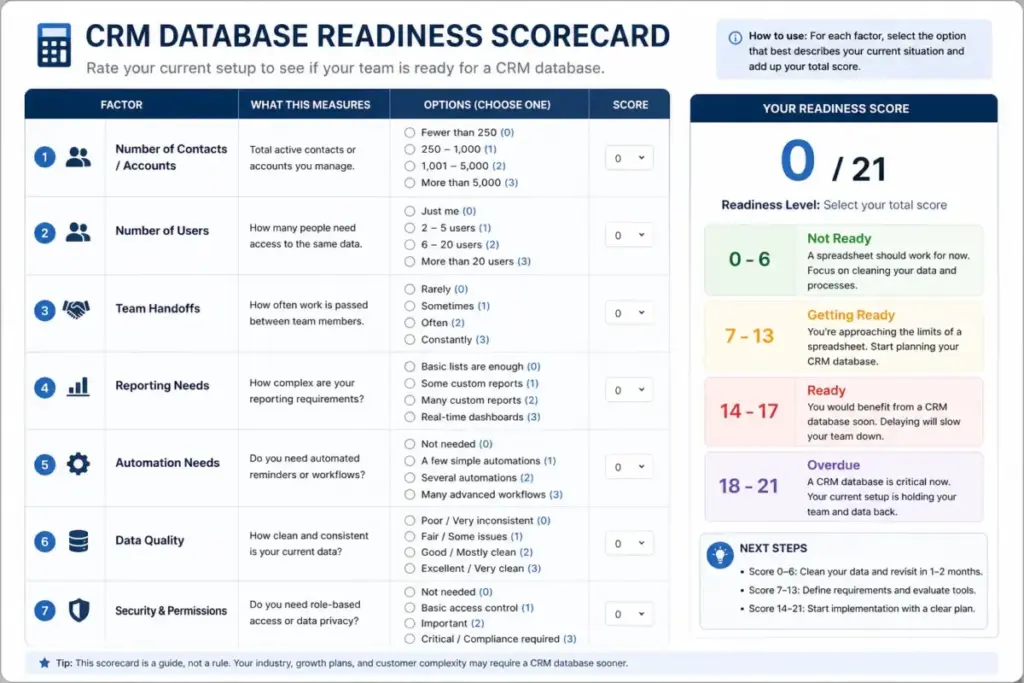
| Criterion | 0 Points | 1 Point | 2 Points |
|---|---|---|---|
| Active customer records | Under 100 | 100 to 1,000 | 1,000+ |
| Number of users | 1 | 2 to 5 | 6+ |
| Sales process | Informal | Partly documented | Clear stages |
| Follow-up system | Memory-based | Calendar reminders | Task workflow |
| Reporting need | None | Monthly | Weekly or live |
| Data sources | One spreadsheet | 2 to 3 tools | 4+ systems |
| Handoff complexity | None | Sales to support | Sales, support, success |
Scoring:
- 0 to 4 points: A spreadsheet can still work. Invest in organizing it well.
- 5 to 8 points: A lightweight CRM database is worth testing. Start with a free plan.
- 9 to 14 points: A CRM database is operationally necessary. Delaying costs more than adopting.
Alex Morrison’s Quick Take: A CRM database does not fix a messy process. It exposes it. That is useful only if the team is ready to clean the process. I have watched teams buy CRM software, import everything from their spreadsheet, and end up with a more expensive version of the same mess. Start with process clarity. Then add the tool. For a practical rollout plan that addresses process design before tool configuration, see the CRM implementation guide.
How to Build a CRM Database
Building a CRM database is not about picking software first. It starts with defining your data model, cleaning your existing records, and setting rules for ongoing data quality. Here is the sequence I recommend.
Step 1: Define Your Core Objects
Start with the standard objects your CRM platform provides: Contacts, Companies, Deals, Activities, and Tickets. Add custom objects only when standard ones cannot represent a critical part of your business (for example, Subscriptions for a SaaS company or Properties for a real estate firm).
For most small teams, five to seven objects are enough.
Step 2: Choose Required Fields
For each object, define 8 to 12 required fields. Every required field must serve a specific report, automation, or handoff.
Contact example: first name, last name, email, phone, company, lifecycle stage, owner, lead source.
Deal example: deal name, associated contact, stage, value, close date, owner.
Write the purpose of each field in a shared document so the team understands why they are filling it in.
Step 3: Clean the Existing Data
Before importing anything, clean your current data:
- Remove duplicate entries by matching on email address or phone number.
- Normalize company names (pick one spelling and stick with it).
- Validate email addresses using a verification tool.
- Assign an owner to every record.
- Remove records with no activity in the last 12 months (archive, do not delete).
Step 4: Map Spreadsheet Columns to CRM Fields
Your spreadsheet columns will not map perfectly to CRM fields. Plan the translation:
- Spreadsheet “Status” becomes CRM “Lifecycle Stage” or “Deal Stage” (these are different objects).
- Spreadsheet “Notes” becomes timeline notes, logged activities, or qualification fields (do not dump all notes into one text field).
- Spreadsheet “Last Contact” becomes a calculated field based on the most recent activity timestamp.
- Spreadsheet “Priority” becomes a deal property or a lead score.
Step 5: Import in Batches
Do not import your entire spreadsheet on the first try. Start with a test import of 25 to 50 records. Check that fields mapped correctly, relationships linked properly, and no duplicates were created. Then import the rest in batches of 500 to 1,000.
Step 6: Set Permissions
Define roles and access levels before the team starts using the database:
- Owner/Admin: Full access to all records, settings, and integrations.
- Sales Manager: Access to team deals, reports, and pipeline dashboards.
- Sales Rep: Access to own contacts, deals, and tasks.
- Support: Access to tickets and contact history; read-only on deals.
- Marketing: Access to contact lists, campaigns, and source data; no deal editing.
Step 7: Create Dashboards
Build three to five dashboards for launch:
- Pipeline overview: Total deal value by stage.
- Overdue follow-ups: Tasks past due, grouped by owner.
- New leads this week: Contacts created in the last 7 days, by source.
- Win rate: Closed-won versus closed-lost deals, by rep and by period.
- Source performance: Lead source by volume and conversion rate.
Step 8: Review Data Weekly
Data hygiene is not a one-time project. Set a weekly 15-minute review:
- Check for duplicate records created in the past week.
- Review records with missing required fields.
- Audit overdue tasks and stale deals.
- Verify that automations fired correctly.
Make one person responsible for this review. In small teams, that is usually the sales manager or founder.
CRM Database Best Practices
The difference between a CRM database that works and one that gets abandoned is maintenance discipline. These seven practices keep the database useful over time.
1. Fewer Required Fields
Start with 8 to 12 required fields per object. Add a new required field only when you can name the report or automation that depends on it. Review required fields quarterly and demote any that the team consistently leaves blank.
2. Clear Field Definitions
Document what each field means, what format it expects, and who is responsible for keeping it accurate. “Industry” means SIC code or free-text description? “Deal value” means one-time or annual recurring? Ambiguity creates inconsistent data.
3. Standardized Lifecycle Stages
Define lifecycle stages before launch: Lead, Engaged, Qualified, Opportunity, Customer, Former Customer. Every contact should sit in exactly one stage. Automations can move contacts between stages based on triggers.
4. Duplicate Management
Set up deduplication rules that match on email address, phone number, or company name. Run a duplicate check weekly. Merge duplicates promptly to keep activity history intact.
5. Weekly Hygiene Review
Assign a 15-minute weekly task to one person: check for duplicates, missing fields, stale deals, and broken automations. This small habit prevents data decay that compounds over months.
6. Integration Ownership
Every integration that writes data to the CRM database needs an owner. That person is responsible for monitoring sync errors, checking data format, and managing API usage. Without ownership, integrations break silently.
7. Permission Audits
Review role-based access quarterly. As the team grows, permissions need updating. New hires need access. Former employees need removal. Sensitive fields (deal value, customer health score) need restricted visibility.
CRM Database vs Related Concepts
Several terms overlap with “CRM database,” and the differences matter when choosing tools. Here is how they compare.
| Concept | What It Means | How It Differs |
|---|---|---|
| CRM database | Structured customer relationship records | Used by sales, service, marketing |
| CRM software | Application that uses the database | Includes UI, workflows, reports |
| Contact manager | Basic address book | Lacks pipeline and history depth |
| Spreadsheet CRM | Manual customer list | Weak automation and permissions |
| CDP | Customer data platform | Often deeper behavioral data, less sales workflow |
| ERP | Internal operations system | Finance, inventory, procurement focus |
The U.S. Chamber of Commerce notes that CRM focuses on customer relationships while ERP focuses on internal business processes. A CRM database and an ERP system often coexist in mid-size and enterprise companies, with data flowing between them through integrations.
A CDP (customer data platform) collects behavioral data from websites, apps, and marketing channels to build unified customer profiles. A CRM database focuses on sales interactions, deal management, and service records. Some overlap exists, but the primary users differ: CDPs serve marketing and data teams, while CRM databases serve sales, support, and RevOps.
Best CRM Database Tools
The best CRM database tool depends on your team size, sales process, and data complexity, not on a generic ranking. Each platform below has a different database strength and a different limitation. I have grouped them by best-fit use case instead of overall score. For details on how SaaSZap evaluates CRM platforms, see our review methodology.
| CRM Tool | Best Fit | Database Strength | Watch-Out |
|---|---|---|---|
| HubSpot | SMBs wanting a free CRM start | Contacts, companies, deals, marketing context | Upgrade path can get expensive |
| Salesforce | Complex sales orgs | Custom objects, permissions, enterprise data model | Admin complexity |
| Pipedrive | Sales pipeline teams | Visual deal database and activity tracking | Less broad than all-in-one CRM suites |
| Zoho CRM | Budget-conscious teams needing customization | Custom modules and broad ecosystem | Setup can feel dense |
| Freshsales | Small teams wanting built-in phone and chat | Contact database plus sales engagement | Advanced features gated by plan |
| Close | Inside sales teams | Leads, calling, SMS, email in one database | Not ideal for non-sales-heavy teams |
| Capsule | Simple relationship management | Clean contacts, opportunities, projects | Less automation depth |
HubSpot offers a free CRM tier that includes contacts, companies, deals, and a basic activity timeline. It is a strong starting point for small teams that want to test CRM database workflows before committing budget. Read the full HubSpot CRM review for details on free versus paid tier differences.
Salesforce provides the deepest data model among CRM platforms, with custom objects, complex permission structures, and an enterprise-grade reporting engine. It is built for teams that need the database to mirror a complex sales process. The Salesforce CRM review covers setup complexity and pricing tiers.
Pipedrive centers its database around deal stages and activity tracking. It is the best fit for sales-focused teams that prioritize pipeline visibility over marketing or support features. See the Pipedrive CRM review for pipeline management details.
Zoho CRM offers custom modules that let teams build their own database objects without developer resources. It fits budget-conscious teams that need flexibility. The Zoho CRM review breaks down module customization options.
Freshsales bundles a contact database with built-in calling, chat, and email engagement tools. It works for small teams that want sales engagement and CRM data in one system. The Freshsales review covers plan-level feature access.
Close combines leads, calling, SMS, and email into a single database interface designed for inside sales teams. Salesforce and HubSpot offer broader databases, but Close is tighter for high-volume outbound workflows. Read the Close CRM review for calling and SMS integration details.
Capsule provides a clean, simple contact and opportunity database for teams that need relationship management without heavy automation or complex data models. It fits consultants, agencies, and service businesses managing fewer than 1,000 active relationships.
For a broader comparison of CRM platforms by use case and team size, see the best CRM software roundup on SaaSZap.
Common CRM Database Mistakes
Most CRM database failures happen before the team logs in for the first time. The mistakes below are preventable with planning and discipline.
- Importing dirty data: Dumping a messy spreadsheet into a CRM database multiplies the mess. Clean before you import.
- Copying spreadsheet columns without redesigning fields: A spreadsheet “Notes” column is not a CRM field. Map columns to proper objects and field types.
- Making every field required: More required fields means more resistance. Start minimal and expand based on actual usage.
- Ignoring ownership: Every record and every field needs a responsible person. Unowned data decays fastest.
- Letting every integration write data: If five tools push data into the CRM database without rules, you get duplicates, conflicts, and field overwrites. Define which system is the source of truth for each data type.
- Not documenting lifecycle stages: If “Qualified” means different things to sales and marketing, reporting breaks. Write definitions and share them.
- Measuring too many dashboards before adoption: Build three to five dashboards at launch. Add more only after the team uses the first set consistently for 30 days.
FAQ
What is a CRM database in simple terms?
A CRM database is a structured system that stores all your customer and prospect information in connected records. Instead of scattered spreadsheets and email threads, it keeps contacts, companies, deals, activities, and support tickets in one shared place that any authorized team member can access.
What is stored in a CRM database?
A CRM database stores contact details, company information, deal stages and values, activity history (emails, calls, meetings, notes), support tickets, marketing source data, and custom fields specific to your business. Each record connects to related records across objects.
Is a CRM database the same as CRM software?
No. A CRM database is the structured data layer that stores customer information. CRM software is the application built on top of that database, including the user interface, workflows, automations, and reports. Every CRM software product runs on a CRM database, but the database can exist independently.
Can Excel be used as a CRM database?
Excel can function as a basic customer list for very small operations. It lacks automated follow-ups, activity timelines, role-based permissions, duplicate detection, and live reporting. Once you have more than one person managing customer relationships or more than 100 active contacts, Excel becomes a liability.
When should a small business switch to a CRM database?
Switch when you experience missed follow-ups, duplicate records, lost customer context during handoffs, or weekly manual reporting that takes more than 15 minutes. A team of two or more salespeople sharing customer relationships is a strong signal. Free CRM tiers from platforms like HubSpot and Freshsales (up to 3 users) reduce the switching cost.
What is the difference between a CRM database and a customer database?
A customer database stores basic customer information: names, emails, purchase history. A CRM database adds relationship context: deal stages, activity timelines, tasks, ownership, lifecycle stages, support tickets, and automation workflows. A CRM database is a customer database with operational structure.
How do you clean a CRM database?
Start by removing or archiving records with no activity in the past 12 months. Merge duplicate records by matching on email or phone number. Normalize company names. Validate email addresses. Fill in missing required fields. Set a weekly 15-minute hygiene review to prevent future decay.
What are common CRM database fields?
Common contact fields: first name, last name, email, phone, title, company, lifecycle stage, owner, lead source. Common deal fields: deal name, stage, value, close date, probability, associated contact, owner. Common activity fields: type, date, subject, notes, associated contact or deal.
Is HubSpot a CRM database?
HubSpot is CRM software that includes a CRM database. The database stores contacts, companies, deals, tickets, and activities. The software provides the interface, workflows, reports, and automations. HubSpot’s free CRM tier includes the core database with contacts, companies, and deals.
Is Salesforce a CRM database?
Salesforce is CRM software built on a CRM database. Salesforce’s database layer supports standard objects (Leads, Accounts, Contacts, Opportunities, Cases) and custom objects that teams can define for their specific needs. Salesforce Sales Cloud starts at $25 per user per month for the Starter Suite.
How much does a CRM database cost?
CRM database costs range from free to hundreds of dollars per user per month. HubSpot offers a free tier. Freshsales offers a free plan for up to 3 users. Salesforce Starter Suite begins at $25 per user per month. Close Essentials starts at $35 per seat per month billed annually. Costs increase with users, storage, and advanced features.
What is the best CRM database for small business?
There is no single best CRM database for every small business. HubSpot and Freshsales offer free tiers for testing. Pipedrive fits sales-focused teams. Zoho CRM fits budget-conscious teams that need customization. Close fits inside sales teams with high call volume. Start by matching the tool to your sales process and team size.
Key Takeaways
- A CRM database is the structured data layer that stores customer records, deal stages, activities, support tickets, and relationship history in connected objects; it is not just a contact list or a better spreadsheet.
- The data model (objects, records, fields, and relationships) is what separates a CRM database from a spreadsheet; without that structure, reporting, automation, and handoffs break.
- A spreadsheet works for founders with fewer than 100 active relationships and no team handoffs; beyond that threshold, missed follow-ups and duplicate records start costing revenue.
- Field design matters more than tool choice at the start; 8 to 12 required fields per object is enough for most small teams, and every field needs an owner and a documented purpose.
- Data hygiene is ongoing, not one-time; a 15-minute weekly review of duplicates, missing fields, and stale records prevents the decay that makes teams abandon their CRM.
- API limits and integration planning are real constraints; teams syncing four or more tools should check rate limits before launch, not after syncs start failing.
- AI features, lead scoring, and predictive analytics in CRM platforms depend on clean, structured data; enabling them on a dirty database produces unreliable results.