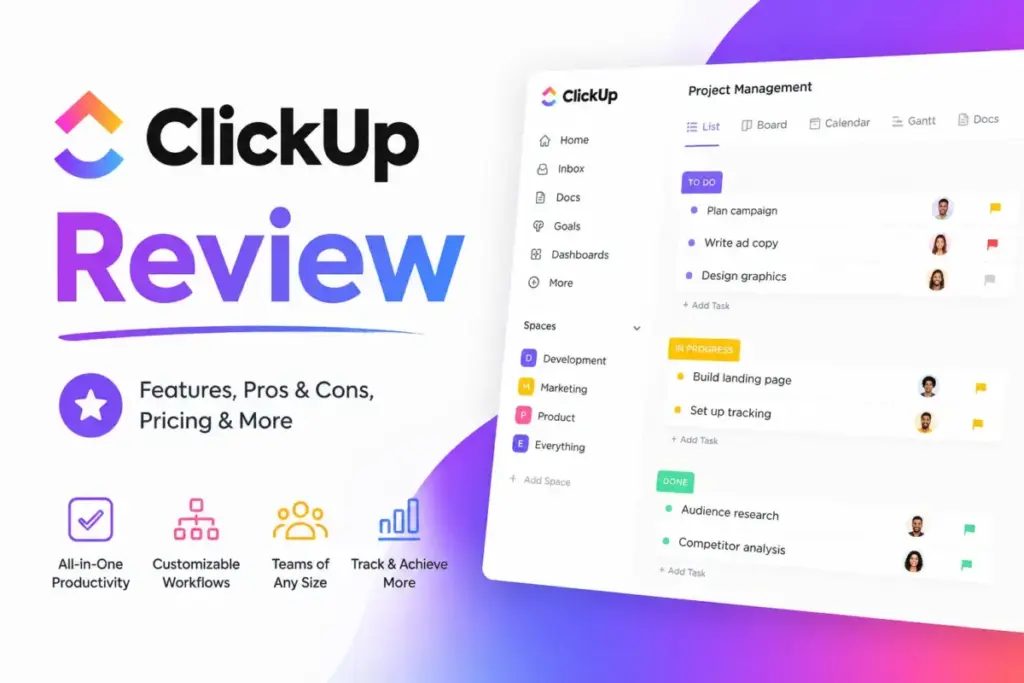
Every team that evaluates ClickUp faces the same fork in the road: the platform can genuinely replace four or five separate tools, or it can become the most overbuilt to-do list your company has ever abandoned. This ClickUp review breaks down which outcome you get, and the answer depends less on the product and more on how your team governs it.
I evaluated ClickUp across official documentation, pricing verification, third-party review analysis on G2, Capterra, and TrustRadius, and competitive testing scenarios against leading project management software to determine where ClickUp earns its reputation and where buyers get burned.
ClickUp positions itself as the everything app for work: project management, docs, dashboards, chat, goals, whiteboards, automations, time tracking, and AI in one connected workspace. That pitch is accurate on paper. The real buying question is whether your team has the process maturity to prevent workspace sprawl, notification noise, and custom-field chaos from turning a strong platform into an expensive liability.
TL;DR: Quick Verdict
| Category | Detail |
|---|---|
| Overall Score | 7.8/10 |
| Best For | Operations-led teams, agencies, product teams, and PMOs that need customizable workflows, multiple views, dashboards, docs, and automations in one workspace |
| Not Best For | Solo founders wanting a simple task list, mobile-first field teams, or groups without a dedicated process owner |
| Starting Price | $0 (Free Forever) to $12/user/month (Business, billed yearly) |
| Enterprise | Custom pricing (contact sales) |
| AI Add-On | Brain AI at$9/user/month, Everything AI at $28/user/month |
| Recommendation | Try for teams with 5+ members and workflow complexity; Skip if you need fast, no-admin onboarding |
Explore ClickUp’s current plans to see which tier fits your team before committing.
The 60-Second Version
ClickUp costs $0 to $12/user/month for its core project management plans (as of May 2026), with Enterprise on custom pricing. The platform delivers genuine depth: tasks, docs, Kanban, Gantt, dashboards, sprint management, time tracking, chat, whiteboards, automations, and AI. That depth creates value when a process owner defines hierarchy, statuses, custom fields, and permissions before the team scales. It creates friction when teams treat ClickUp like a simple task app and let workspace sprawl take hold.
Automation actions cap at 100/month on Free and 5,000/month on Business, and they pause when exceeded. Guest seats can trigger paid member charges. The mobile app handles task updates and chat but cannot create dashboards, use Gantt, manage goals, or approve timesheets. Choose ClickUp if your team needs a converged workspace and has the discipline to maintain it. Skip it if setup complexity is a deal-breaker.
The 3 Problems ClickUp Solves
Problem 1: Tool Sprawl Across Tasks, Docs, and Communication
Most teams patch together a task manager, a doc tool, a chat app, and a dashboard product. ClickUp consolidates tasks, Docs, Chat, Dashboards, Goals, Whiteboards, and time tracking into a single workspace. According to ClickUp’s official product page, the platform functions as an AI-enhanced workspace combining projects, tasks, docs, goals, dashboards, chat, whiteboards, CRM-style relationship tracking, and AI.
That consolidation pays off when a team actually migrates their workflows into ClickUp rather than running it alongside three other tools. I noticed that G2 reviewers frequently praise ClickUp for centralizing tasks, docs, workflow tracking, files, comments, and Google Drive integration into one place. The sentiment is consistent: when teams commit, operations visibility improves.
But here is the catch. Consolidation only works if your workspace hierarchy is clean. Spaces, Folders, and Lists need naming conventions. Custom statuses need a defined schema. Without that discipline, ClickUp becomes the cluttered junk drawer teams originally tried to escape.
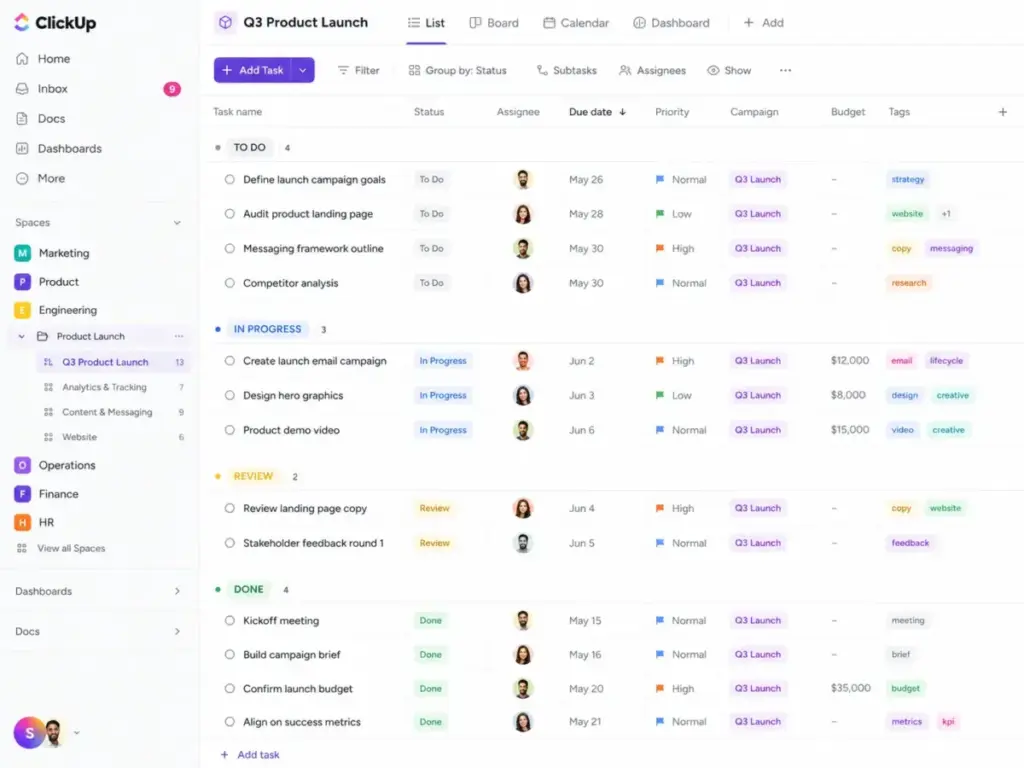
Problem 2: Limited Workflow Visibility Without Custom Views
Basic project management tools give you a list view and maybe a board. ClickUp provides List, Board, Calendar, Gantt, Timeline, Table, and Workload views on paid plans. Business adds unlimited timeline views, activity views, and advanced dashboard cards.
That view flexibility matters for cross-functional teams. A marketing manager tracks content calendars while an engineering lead monitors sprints in the same workspace using different views of the same data. Portfolio management and resource management become available on Unlimited and above.
The scale question: does this work the same way at 50 users as it does at 5? Based on review patterns across Capterra and TrustRadius, larger workspaces report occasional lag and a steeper learning curve. Tasks can feel harder to track as project complexity grows. That is not a flaw in the product architecture; it is a governance problem. Teams that define hierarchy, permissions, and notification rules early report fewer scaling issues.
Problem 3: Scattered Automation and Reporting Across Multiple Tools
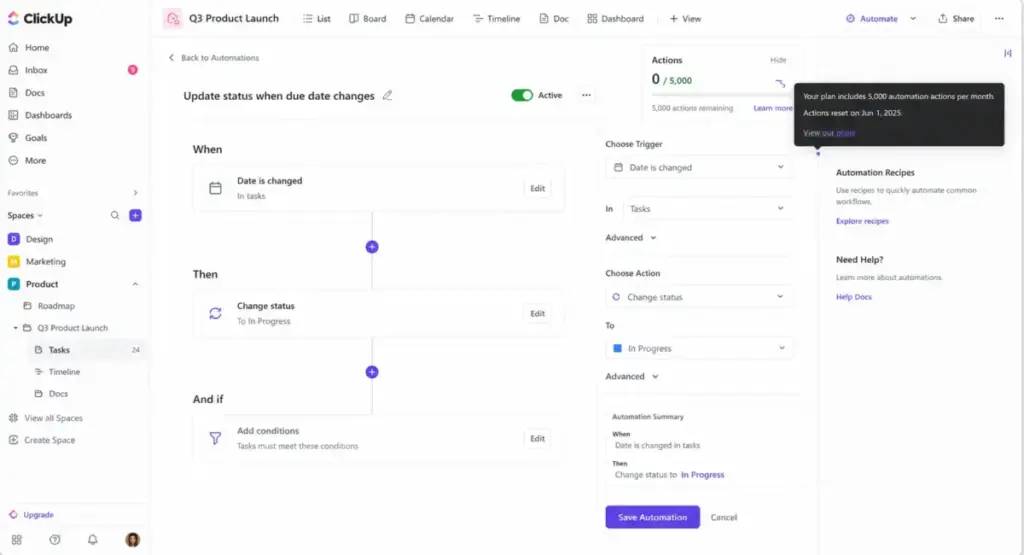
ClickUp’s automation builder lets teams trigger actions based on status changes, assignee updates, due dates, and custom field modifications. The ClickUp pricing page confirms automation action limits by plan (as of May 2026):
| Plan | Active Automations | Monthly Actions |
|---|---|---|
| Free Forever | 5 | 100 |
| Unlimited | 500 | 1,000 |
| Business | Unlimited | 5,000 |
| Business Plus | Unlimited | 25,000 |
| Enterprise | Unlimited | 250,000 |
One thing I learned: review your automation rules quarterly. Teams pile them up and forget, which burns through action limits faster than expected. When a workspace exceeds its monthly automation action limit, automations pause for the remainder of that month. That pause can break time-sensitive workflows without warning.
Dashboards provide the reporting layer. Free plan users get basic views. Business unlocks advanced dashboard cards, sprint points and reporting, and portfolio workload management. Is 5,000 automation actions enough for a 20-person operations team? For most, yes. For automation-heavy agencies running client workflows, Business Plus or Enterprise becomes the real entry point.
The 2 Problems ClickUp Creates
The Setup Discipline Tax
ClickUp’s flexibility is real, but it comes with a cost that has nothing to do with pricing. Every review platform I analyzed, from G2 to Capterra to TrustRadius, flags the same pattern: teams that skip workspace governance end up with duplicated statuses, orphaned custom fields, inconsistent naming, and notification overload.
A common misconception about ClickUp is that feature depth equals operational simplicity. It does not. Morgen’s ClickUp review recommends the platform only if buyers enforce naming conventions, status schemas, and automation audits. I agree. ClickUp succeeds when you govern it like a system, not when you treat it like a to-do app.
Here is a quick maturity test before you buy:
- Does your team have a designated admin or process owner? If no, pause.
- Can you define your workspace hierarchy (Spaces, Folders, Lists) before your first task? If no, schedule setup time.
- Do you have naming conventions for custom fields? If no, expect sprawl within 30 days.
- Will someone audit automations quarterly? If no, expect paused workflows.
- Do you need more than 3 project views? If yes, ClickUp is built for you. If no, a simpler tool works.
That matters. Teams that skip this checklist represent the majority of negative reviews across all three platforms.
The Mobile Gap
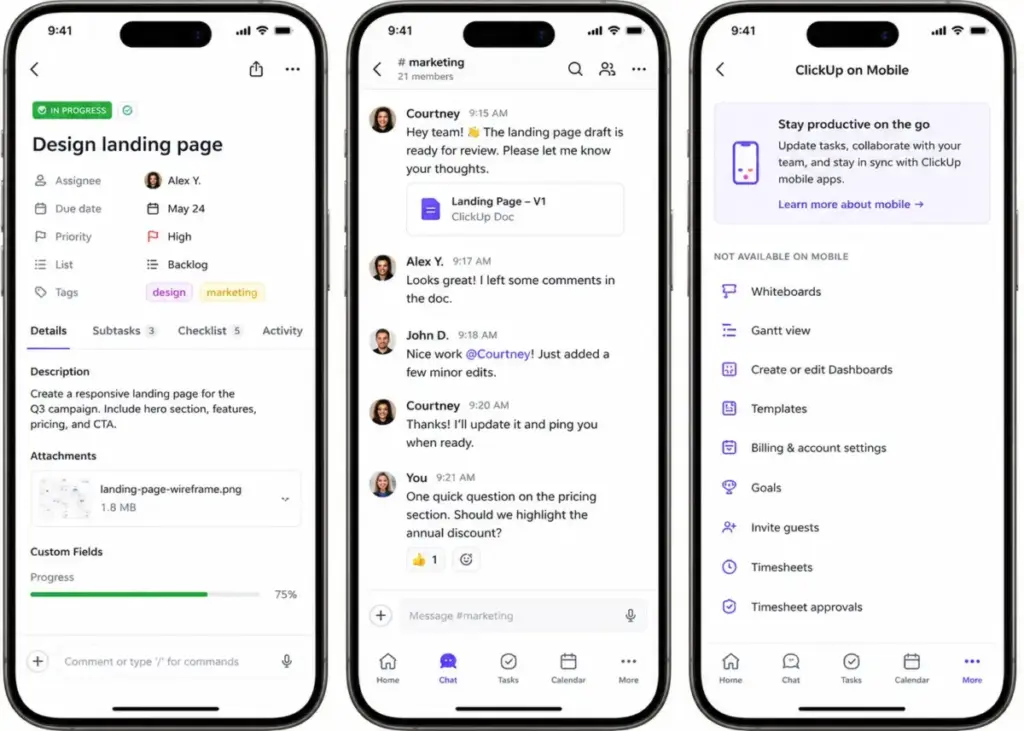
ClickUp has iOS and Android apps available on every plan. According to ClickUp’s official mobile documentation, the mobile app supports task updates, comments, chat, dashboard viewing, ClickUp AI, search, and hierarchy navigation.
The gap: features not available on mobile include Whiteboards, Gantt view, dashboard creation and editing, templates, billing and account settings, Goals, guest invites, timesheets, and timesheet approvals.
Do not buy ClickUp as a mobile-first admin tool. The app is useful for on-the-go task updates and quick replies. It is not a replacement for the desktop experience when you need to build dashboards, manage timesheets, configure goals, or invite guest collaborators.
Three clicks to find a basic setting on desktop becomes impossible on mobile. For field teams, construction managers, or mobile-first operations, this is a deal-breaker.
ClickUp Pricing Reality in 2026
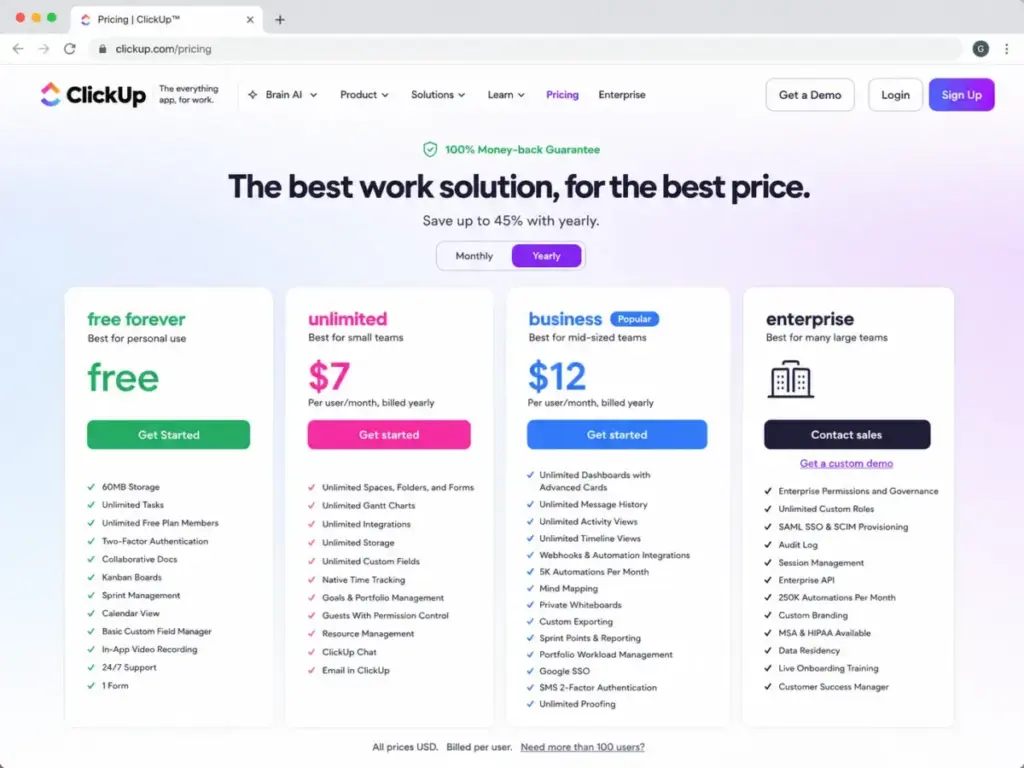
ClickUp’s official pricing page displays four public plans (as of May 2026). The pricing table below reflects verified data:
| Plan | Price (Annual) | Storage | Key Additions | Best For |
|---|---|---|---|---|
| Free Forever | $0 | 60 MB | Unlimited tasks, unlimited members, Kanban, sprint management, calendar, 1 form, 24/7 support | Solo users testing the platform |
| Unlimited | $7/user/month | Unlimited | Unlimited spaces, folders, forms, Gantt, integrations, custom fields, time tracking, goals, guests, Chat, Email in ClickUp | Small teams consolidating tools |
| Business | $12/user/month | Unlimited | Advanced dashboards, unlimited message history, timeline, webhooks, 5,000 automations/month, mind maps, private whiteboards, Google SSO, sprint reporting | Growing teams needing dashboards and automations |
| Enterprise | Custom pricing | Unlimited | SAML SSO, SCIM, audit log, 250,000 automations/month, HIPAA availability, data residency, CSM, custom branding | Organizations with compliance and governance needs |
Business Plus note: ClickUp’s official help and automation documentation still reference a Business Plus plan with custom role permissions, priority support, and 25,000 automation actions per month. The public pricing page retrieved on May 14, 2026 did not display a Business Plus price. Verify availability and pricing in your workspace or with ClickUp sales.
Where Pricing Starts to Pinch
The base plan prices look competitive. A 10-person team on Unlimited pays $70/month billed annually. The same team on Business pays $120/month. Those numbers are straightforward.
The pinch points hide in three places:
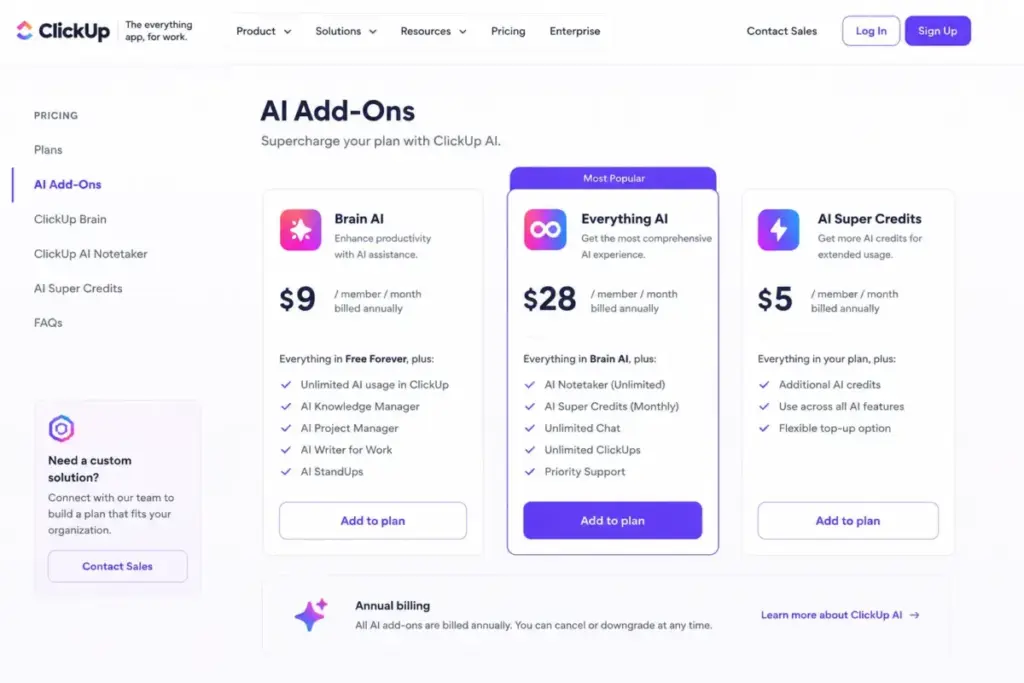
1. AI is not included in base plans. ClickUp Brain costs $9/user/month as an add-on. Everything AI costs $28/user/month. AI Super Credits run $10 per 10,000 credits (or $0.001 per credit). A 10-person team adding Brain AI pays an extra $90/month on top of their base plan. That is a 75% cost increase for an Unlimited team or a 29% increase for a Business team. Budget AI separately from project management.
2. Guest seats can trigger paid charges. According to ClickUp’s help documentation on pricing per user role, owners, admins, members, limited members, and permission-controlled guests count toward billing. If your workspace exceeds its included permission-controlled guest seat allowance, ClickUp adds a paid member seat. Agencies inviting multiple clients should model this cost before committing.
3. Feature limits can force upgrades. ClickUp’s pricing introduction docs state that certain feature usage limits do not reset. Reaching a limit means upgrading to continue using that feature. Existing data stays intact, but new additions require a higher plan.
So does the $7/user entry price hold up? For teams that stay within Unlimited’s feature gates, yes. The moment you need advanced dashboards, webhooks, Google SSO, or more than 1,000 automation actions per month, Business at $12/user becomes the real floor.
The AI Cost Stack
ClickUp Brain and AI agents add a second pricing layer on top of base project management plans. Here is what each tier includes:
| AI Tier | Price | What It Covers |
|---|---|---|
| Brain AI | $9/user/month | AI-assisted summaries, writing, search, and task suggestions |
| Everything AI | $28/user/month | Full AI suite including advanced agents and capabilities |
| AI Super Credits | $0.001/credit ($10 per 10,000) | Credits fuel Super Agents, AI fields, automations, image generation |
Most teams evaluating ClickUp for project management do not need Everything AI on day one. Brain AI at $9/user/month adds useful AI summaries and writing assistance. The question to ask: does the AI add enough daily value to justify nearly doubling your per-seat cost on Unlimited? For most 5-person teams, I suspect not. For 20-person operations teams running AI-powered automations and summaries across hundreds of tasks weekly, the math changes.
ClickUp Pros and Cons
ClickUp earns praise and criticism in predictable patterns across G2, Capterra, and TrustRadius. The difference between this list and what other reviews publish: every pro and con below includes the plan gate, team-size context, or specific limitation that makes it actionable.
What ClickUp Gets Right
1. Genuine all-in-one consolidation at a competitive entry price. Unlimited at $7/user/month includes tasks, docs, Gantt, time tracking, goals, chat, email, and integrations. Competitors like Asana charge $10.99/user/month for Starter and gate timeline and workflow builder behind higher tiers. ClickUp packs more into its entry paid plan than most alternatives.
2. View flexibility that adapts to different team roles. List, Board, Calendar, Gantt, Timeline, Table, and Workload views let different team members interact with the same data differently. A project manager uses Gantt while a designer uses Board. That flexibility is not cosmetic; it reduces the need for separate tools per function.
3. Free plan that actually works for small teams. Free Forever includes unlimited tasks, unlimited members, Kanban, sprint management, calendar view, and 24/7 support. The 60 MB storage cap limits file-heavy teams, but for task management alone, it is one of the strongest free PM tiers available.
4. Native time tracking on Unlimited and above. Most competitors gate time tracking behind higher tiers or require third-party integrations like Toggl or Harvest. ClickUp includes it on Unlimited, saving teams $8-15/user/month on a separate time-tracking subscription.
5. Strong integration ecosystem. ClickUp’s integrations page lists native connections to Slack, GitHub, GitLab, Zapier, HubSpot, Google Drive, OneDrive, Dropbox, Outlook, Google Calendar, Figma, Zoom, Microsoft Teams, Salesforce, Airtable, and more. The developer portal supports public API, webhooks, OAuth, and MCP tools.
6. Sprint management included on all plans, including Free. Teams running agile workflows get sprint management without paying for a specialized tool like Jira.
What ClickUp Gets Wrong
1. Setup complexity is the real cost, not the subscription price. Capterra reviewers repeatedly flag the steep learning curve, cluttered interface, and difficulty organizing tasks in large workspaces. The product does not fail; adoption fails when teams skip governance.
2. Automation limits create invisible upgrade pressure. Free gets 100 actions/month. Unlimited gets 1,000. When limits are hit, automations pause for the month. No warning email. No grace period. Paused automations break workflows silently. That is a problem for growing teams. If automation ceilings are the switching trigger, evaluate ClickUp replacement options by monthly action caps, plan gates, workflow reliability, and whether automations pause or degrade gracefully when limits are reached.
3. AI pricing sits on top of base plans. Brain AI at $9/user/month is not bundled into any project management plan. For a 10-person team on Unlimited ($70/month), adding Brain AI increases the monthly bill to $160. The ClickUp pricing page separates AI from PM pricing, but many buyers do not budget for both.
4. Mobile app is update-only, not admin-capable. No Gantt, no dashboard creation, no goals management, no timesheet approvals, no guest invites, no templates. For teams that need mobile admin capabilities, this is a gap competitors like monday.com partially close.
5. Guest seat billing can surprise agencies. Permission-controlled guests sound free until the included allowance runs out. At that point, ClickUp adds paid member seats automatically. Agencies with 10+ client guests should calculate this before choosing a plan.
6. Notification noise at scale. TrustRadius reviewers note that workspace disjointedness and notification overload grow with team size. Without tuning notification preferences early, the signal-to-noise ratio degrades fast.
7. No phone support on any plan. ClickUp provides 24/7 chatbot and email-ticket support for all plans. Paid plans can escalate to live human chat. Priority support is available on Business Plus and Enterprise only. Phone support does not exist.
Security and Compliance by Buyer Type
ClickUp’s security page lists SOC 1 Type 2, SOC 2 Type 2, SOC 3, ISO 27001:2022, ISO 27017:2015, ISO 27018:2019, ISO 27701:2019, and ISO 42001 certifications. The platform runs on AWS with encryption in transit and at rest.
For most small and mid-market teams, those certifications clear standard procurement checks. Enterprise buyers need more.
Enterprise-only security features include SAML SSO, SCIM provisioning, audit log, session management, custom roles, data residency, Enterprise API, and HIPAA availability with a BAA. According to ClickUp’s compliance documentation, HIPAA support requires an Enterprise plan and a signed Business Associate Agreement.
If your organization requires SAML SSO or SCIM provisioning, ClickUp gates those behind Enterprise. That means custom pricing and a sales conversation, not a self-serve upgrade. Budget accordingly.
Who Wins and Who Loses with ClickUp
The Buyer Scenario Matrix
| Buyer Scenario | Verdict | Why |
|---|---|---|
| 10-person agency replacing tasks, docs, time tracking, and client dashboards | ClickUp wins (Unlimited or Business) | Consolidates tools at $7-12/user/month; budget for setup time and guest seat costs |
| Solo founder wanting a simple personal task manager | ClickUp only if you want a free expandable workspace | Free Forever works for tasks, but the platform is overkill for simple planning; consider Todoist or Trello instead |
| 50-person operations team with cross-functional workflows | ClickUp Business or Enterprise | Business unlocks dashboards, timeline, webhooks, and 5,000 automations; Enterprise for SAML, SCIM, audit log, and 250,000 automations |
| Mobile-first field team needing Gantt, dashboards, and timesheets on phone | Not ClickUp | Official mobile docs confirm Gantt, dashboard editing, goals, timesheets, and timesheet approvals are not available on mobile |
Who Should Use ClickUp
Choose ClickUp if:
- Your team has 5+ members and needs tasks, docs, dashboards, and automations in one workspace.
- You have a process owner (PM, ops lead, or admin) willing to define hierarchy, naming conventions, and permissions before rollout.
- You want native time tracking without paying for a third-party integration.
- Your workflow requires multiple project views (Gantt, Board, Timeline, Calendar) across different team roles.
- You need a free plan that supports unlimited tasks and members for initial evaluation.
Who Should NOT Use ClickUp
Avoid ClickUp if:
- You need the simplest possible task list with zero configuration. Use Trello or Todoist.
- Your team operates mobile-first and needs Gantt, dashboard editing, goals, or timesheet management on phone. ClickUp’s mobile app does not support these.
- Nobody on your team will own workspace governance. Without an admin enforcing structure, ClickUp’s flexibility becomes chaos within weeks.
- You hate custom fields and status management. ClickUp thrives on customization. If that feels like overhead, it is the wrong tool.
- You need advanced time billing as a core feature. ClickUp tracks time, but agencies needing invoicing and billing directly from timesheets should evaluate dedicated tools.
- Your organization cannot tolerate workspace experimentation. ClickUp rewards iteration. Rigid rollout expectations and ClickUp do not mix well.
Better Alternatives When ClickUp Is Not the Right Fit
No single tool fits every team. Here is where competitors win by specific failure mode:
| If ClickUp Fails Because Of… | Try Instead | Why |
|---|---|---|
| Too complex for a small team | Trello | Kanban-first simplicity, minimal setup, generous free plan |
| Not enough enterprise governance | Asana | Cleaner permission structure, strong portfolio view, less configuration overhead |
| Need a dev-first issue tracker | Jira | Purpose-built for software teams, deeper sprint analytics, Atlassian ecosystem |
| Need spreadsheet-database hybrid | Smartsheet | Spreadsheet interface for PMOs, resource management, stronger for waterfall |
| Need better mobile admin | monday.com | Broader mobile functionality for field teams |
| Want less feature noise | Basecamp | Flat-rate pricing, opinionated simplicity, no customization overhead |
For a broader view of options, see our best project management software ranking and ClickUp pricing breakdown for detailed cost modeling.
FAQ
Is ClickUp worth it in 2026?
ClickUp is worth it for teams with 5+ members that need tasks, docs, dashboards, and automations in one workspace, provided someone owns the setup. It is not worth it for solo users or teams that want plug-and-play simplicity with zero configuration.
How much does ClickUp cost per user?
ClickUp costs $0 (Free Forever), $7/user/month (Unlimited), or $12/user/month (Business), all billed annually (as of May 2026). Enterprise requires custom pricing. AI add-ons cost extra: Brain AI at $9/user/month, Everything AI at $28/user/month.
What are the main disadvantages of ClickUp?
The steepest disadvantages are setup complexity without a process owner, automation actions that pause when monthly limits are exceeded, AI pricing layered on top of base plans, mobile app limitations for admin tasks, and guest seat billing that can surprise agencies with unexpected paid member charges.
Is ClickUp really free forever?
Yes. Free Forever includes unlimited tasks, unlimited members, Kanban, sprint management, calendar view, and 24/7 support. The limits: 60 MB storage, 1 form, 5 active automations, 100 automation actions per month, and no Gantt, timeline, or advanced dashboards. Existing data is not impacted by limits, but adding new items to capped features requires upgrading.
Is ClickUp better than Asana?
ClickUp offers more features at a lower entry price than Asana and includes native time tracking and docs. Asana provides a cleaner onboarding experience and less configuration overhead. Choose ClickUp for feature depth with setup discipline. Choose Asana for faster team adoption with less admin friction.
See our Asana vs monday.com comparison for additional context on PM tool tradeoffs. Teams leaving Asana for feature depth should compare Asana alternatives by setup burden, native time tracking, docs, automation limits, and whether lower pricing offsets the extra governance work.
Is ClickUp good for small teams?
ClickUp works well for small teams (5-15 people) on Unlimited or Business if someone manages workspace structure. For teams under 5 that want minimal setup, simpler tools like Trello or Todoist deliver faster results with less overhead.
Does ClickUp have AI?
Yes. ClickUp Brain provides AI summaries, writing assistance, search, and task suggestions as an add-on at $9/user/month. Everything AI at $28/user/month includes advanced AI agents. AI Super Credits at $0.001/credit fuel additional AI features. AI is not included in base PM plans.
Does ClickUp work well on mobile?
ClickUp’s mobile app supports task updates, comments, chat, dashboard viewing, AI, and search. It does not support Whiteboards, Gantt view, dashboard creation or editing, templates, billing settings, Goals, guest invites, timesheets, or timesheet approvals. It is a companion app, not a full admin experience.
Is ClickUp secure for enterprise use?
ClickUp holds SOC 1 Type 2, SOC 2 Type 2, SOC 3, and multiple ISO certifications. Enterprise plan adds SAML SSO, SCIM provisioning, audit log, session management, data residency, and HIPAA availability with a BAA. Standard security covers most SMB needs. Enterprise procurement requires the Enterprise plan and custom pricing.
Can ClickUp replace Notion, Slack, and Google Docs?
ClickUp includes Docs (wiki-style), Chat, and task management. It can reduce reliance on separate doc and chat tools. It does not fully replace Notion’s database flexibility or Slack’s real-time messaging depth. Evaluate whether ClickUp’s built-in versions match your team’s specific usage patterns before migrating.
Final Verdict: 7.8/10
ClickUp earns 7.8/10. It remains one of the strongest value plays in project management for teams willing to invest in setup discipline and workspace governance.
Choose ClickUp if your team needs tasks, docs, dashboards, chat, time tracking, automations, and multiple project views in one workspace, and you have a process owner who will enforce structure from day one. The Unlimited plan at $7/user/month delivers more built-in functionality than most competitors charge $15-25/user/month to match.
Avoid ClickUp if your team needs the simplest possible onboarding, a mobile-first admin experience, or a lightweight calendar planner. In those scenarios, Trello, Todoist, or Basecamp will get your team productive faster with less friction. For that lighter workflow, Basecamp alternatives are also worth checking.
The biggest mistake most teams make with ClickUp: they buy it for the features and abandon it because of the setup. If you plan the workspace hierarchy, naming conventions, and permission structure before inviting your team, ClickUp delivers. If you skip that step, you will join the reviews complaining about clutter, noise, and sprawl.
One last note on pricing: budget base PM cost and AI cost separately. The $7/user/month headline is real for project management. The moment you add Brain AI, the per-seat cost jumps to $16/user. That is still competitive, but plan for it.
This review reflects pricing and features verified on May 14, 2026. ClickUp updates its platform frequently. Check the ClickUp pricing page for the latest rates, and visit our review methodology for details on how we evaluate software.