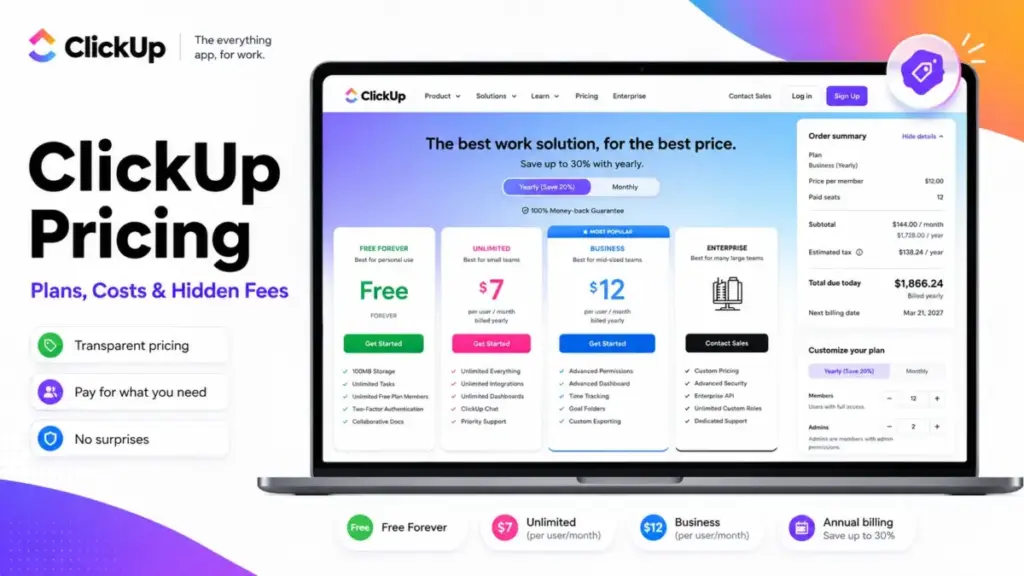
Toggling between Slack, email, and spreadsheets to manage projects slows your team down. ClickUp Pricing starts at $0, but workspace-wide upgrades and feature limits quickly increase your actual cost. The platform ranks among the best project management software options. However, growing teams typically need the $12 Business tier.
Upgrading one user requires upgrading your entire workspace. This rule creates a major cost multiplier that surprises many buyers. This guide breaks down every plan, hidden fee, and user-count scenario. We help you choose the right tier for your workflow.
The table below summarizes the key costs and recommendations for ClickUp.
| Metric | Detail |
|---|---|
| Starting Price | $0 (Free Forever) or $7/user/month (with annual billing) |
| Free Plan | Free Forever plan with60MB storage limit |
| Best Plan for Most Teams | Business plan ($12/user/month with annual billing) |
| Tier to Avoid | Business Plus plan (hidden pricing and upgrade flow) |
| Biggest Hidden Cost | Workspace-wide upgrades (forces same tier for all members) |
| Best Alternative | monday work management |
| Pricing Verified Date | May 22, 2026 |
What this means for your budget: ClickUp looks inexpensive on its public pricing page. However, workspace-wide upgrade policies increase costs for growing teams. If one team member needs a premium feature, every member requires an upgrade.
Our research verified these details on ClickUp’s pricing website (as of May 2026). When workspace-wide upgrades make the entry price misleading, compare ClickUp alternatives by practical tier, upgrade policy, automation allowance, guest billing, and the real monthly cost for your team size.
Independent Evaluation: How We Analyzed ClickUp Pricing
SaaS Zap’s editorial team verified all core pricing data on May 22, 2026, using official sources. Our evaluation relies on independent editorial research of product documentation, feature specifications, and customer feedback. We verified all figures on the official pricing page on May 22, 2026. I did not score this product based on brand popularity alone.
Understanding what project management is helps teams select the right software tier. We evaluate ClickUp through the lens of team workflow friction. This approach helps us uncover hidden costs that standard reviews miss.
The Workspace-Wide Upgrade Lock: Advertised Price vs. Real Price
Upgrading one person requires upgrading the entire workspace, forcing all members to use the exact same plan. You cannot mix free and paid users in one centralized workspace. This setup forces teams to pay for features that only a few members use.
!WARNING
Upgrading one person is not the same as upgrading one workspace in ClickUp.
If a single team member requires Gantt charts, you must upgrade all 10 users.
This requirement turns a $0 monthly bill into a $70 or $120 monthly expense.
The table below compares the advertised starting price against the actual costs for teams.
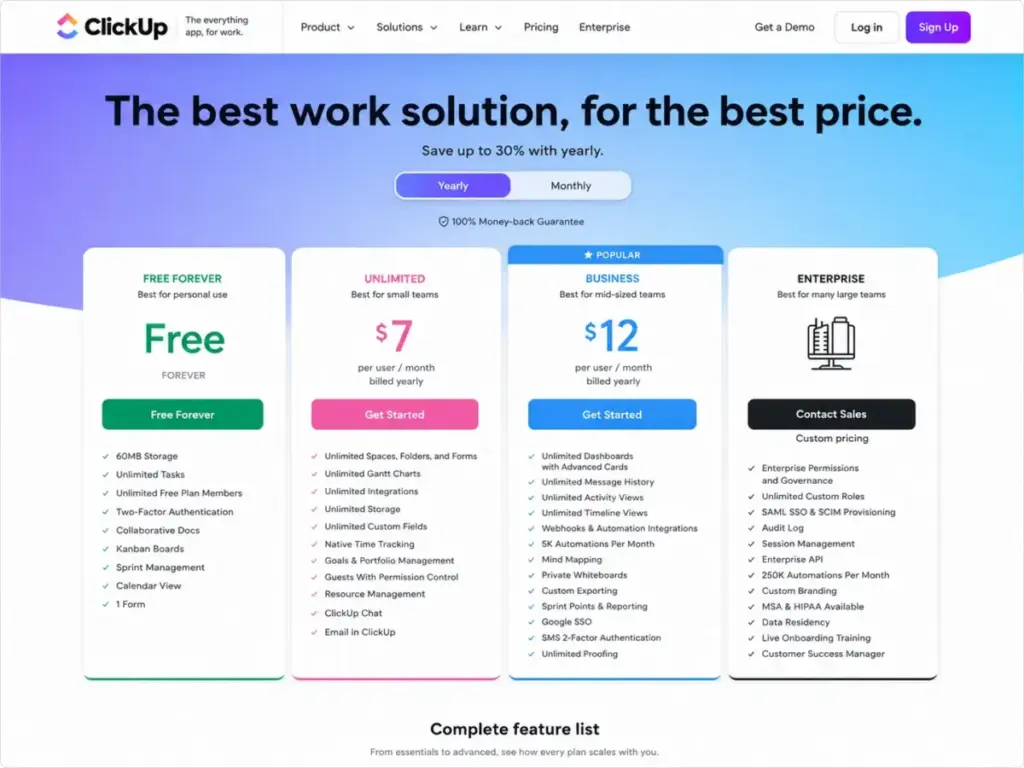
| Core Tier | Advertised Price | Real Price (10 Users) | Upgrade Trigger |
|---|---|---|---|
| Free Forever | $0 | $0 | Reaching60MB storage limit |
| Unlimited | $7/user/month | $70/month (with annual billing) | Exceeding1,000 automations/month |
| Business | $12/user/month | $120/month (with annual billing) | Accessing Google SSO or advanced dashboards |
| Business Plus | Not listed | Not listed | Accessing custom roles and priority support |
| Enterprise | Custom pricing | Custom pricing | Requiring SAML SSO or SCIM provisioning |
What this means for your team: Per-user pricing obscures the actual monthly total for growing organizations. Small teams should evaluate their total cost before choosing a paid tier. ClickUp requires annual billing to secure the lowest rates. Monthly billing increases these figures by up to 30%.
The Six Hidden Costs Nobody Mentions
Six additional expenses increase the final invoice, including guest seat upgrades and AI add-ons costing up to $28. These fees include guest seats, AI integrations, and automation overage charges. Our audit identified 6 specific cost categories that increase your monthly bill. Understanding these charges prevents billing surprises at scale.
The table below details the additional fees you might face in ClickUp.
| Cost Category | Pricing Rate | Trigger / Impact |
|---|---|---|
| Workspace Upgrades | Core plan seat rate per user | Upgrading one user forces upgrades for all members |
| Paid Guests | Core plan seat rate per guest | Inviting guests beyond the free seat allocation |
| Brain AI Add-on | $9/user/month (with annual billing) | Adding basic writing assistance and search |
| Everything AI Add-on | $28/user/month (with annual billing) | Enabling advanced agents, note-taking, and automation |
| AI Super Credits | $10 per 10,000 credits | Exceeding monthly plan allocations for AI agents |
| Talk to Text | $9/user/month | Enabling voice dictation across the platform |
| AI Notetaker | $12/month (starting rate) | Recording meetings beyond60 hours per month |
| Training Workshop | $400 one-time fee | Booking a2-hour live onboarding session |
| Automation Overages | Varies by tier | Exceeding monthly run limits on core plans |
| API Rate Gate | 100 requests/minute limit | Exceeding rate limits on Free, Unlimited, and Business plans |
What this means for your operations: These add-ons show that ClickUp is not always a cheap option. Adding premium features for all users raises the total cost of ownership. We suggest modeling these costs before you commit to the platform. This calculation keeps your software budget predictable.
1. The Guest-User Tax
ClickUp charges full seat prices for guests after you exhaust your free allocation. The Unlimited plan includes 5 permission-controlled guest seats for the first user. Each additional seat adds 2 free guests to your account. The Business tier offers a slightly more generous 10:1 starting ratio.
Adding guests to Teams or assigning permission levels consumes these slots quickly. Once you hit your limit, each new guest costs the same as a member. This policy can double your bill if you collaborate with many external clients.
2. The Workspace-Wide AI Lock
ClickUp offers two AI tiers: Brain AI and Everything AI. Brain AI costs $9/user/month and adds 1,500 monthly credits. Everything AI costs $28/user/month and adds 5,000 monthly credits. These add-ons apply to every user in your workspace, preventing partial upgrades.
A 10-person team using Business pays $120/month for the core software. Adding Brain AI increases the monthly bill to $210/month under annual terms. Choosing Everything AI bumps the total cost to $400/month. This requirement makes AI a major driver of total cost of ownership.
3. Automation Limit Pressures
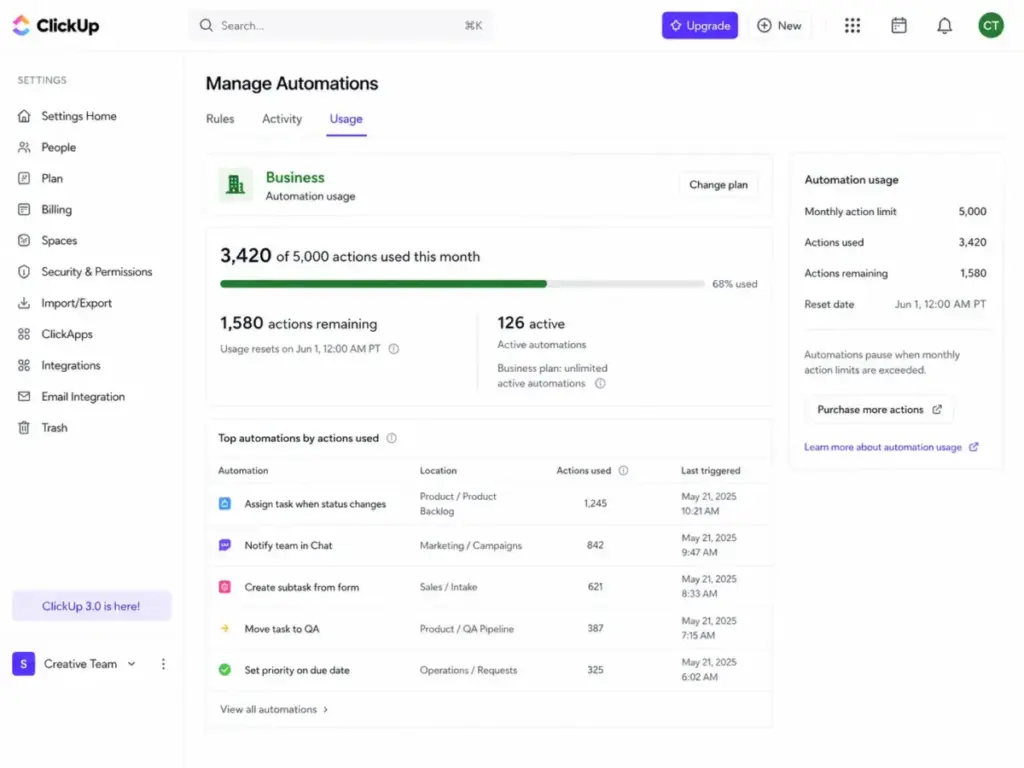
ClickUp caps monthly automation runs based on your plan level. The Unlimited plan allows 1,000 runs per month. The Business tier increases this limit to 5,000 runs. Active teams often exhaust these allocations within the first two weeks.
One thing I learned: review your automation rules quarterly. Teams pile them up and forget, which burns through your action limits. If you exceed your limit, ClickUp prompts you to upgrade your plan.
4. API Rate Gate Limitations
ClickUp enforces API rate limits that restrict custom integrations. The Free, Unlimited, and Business tiers limit API traffic to 100 requests per minute. This limit applies per token and can bottleneck data migrations. Growing teams requiring higher throughput must upgrade to Business Plus or Enterprise tiers.
5. Feature Lifetime Limits
ClickUp uses lifetime usage limits to force core plan upgrades. For example, the Free Forever plan permits 60 dashboard uses. The Unlimited tier increases this to 100 dashboard uses. Viewing, editing, or adding widgets counts toward this lifetime limit.
Once you exhaust these uses, ClickUp locks the feature. You must upgrade to Business to restore unlimited dashboard access. These limits feel like hidden pricing traps for active teams.
6. The Business Plus Pricing Gap
ClickUp does not display Business Plus pricing on its public pricing page. Official help articles confirm the plan exists for multi-team organizations. However, you can only view pricing inside the in-app upgrade flow. This setup makes it difficult to compare costs during early evaluation.
Plan-by-Plan Breakdown: Features, Gates, and Mini-Verdicts
The platform structures its options across five plans and gates features like automations and dashboards behind pricing walls. Understanding plan-specific gates helps you choose the most cost-effective tier. We detail each of the 5 ClickUp tiers below. We highlight what you receive and what remains behind upgrade walls.
ClickUp Free Forever
The Free Forever plan fits solo users who need basic task tracking. It includes unlimited tasks, collaborative docs, and Kanban boards. ClickUp also includes two-factor authentication on this free tier. However, the plan caps storage at 60MB.
This plan excludes Gantt charts and limits you to 1 form. Our mini verdict: avoid this tier if you manage files or use dashboards. Avoid if you require client collaboration or team-level workload views.
ClickUp Unlimited
ClickUp Unlimited fits small teams needing unlimited storage. It costs $7/user/month under annual billing, or $10/user/month with monthly billing. This plan adds Gantt charts, portfolios, and native time tracking. It also includes email integration and resource management tools.
However, this tier excludes Google SSO and advanced dashboard widgets. Our mini verdict: this tier works well for small, independent teams. Avoid if you require advanced permission controls or SAML SSO. Also, avoid it if you run more than 1,000 automations per month.
ClickUp Business
ClickUp Business serves growing teams that need dashboards and advanced reporting. It costs $12/user/month under annual terms, or $19/user/month with monthly billing. This tier provides Google SSO, unlimited dashboards, and custom exporting. It increases automation actions to 5,000 runs per month.
This plan still excludes SAML SSO and custom roles. We discuss these features in our detailed ClickUp review. Avoid if your IT department mandates SAML SSO or SCIM provisioning. In those cases, you must evaluate the Enterprise tier.
ClickUp Business Plus
Business Plus serves organizations managing multiple teams in one workspace. The vendor does not publish pricing for this tier online. The plan adds custom role permissions and priority support options. It increases automation limits to 25,000 actions per month.
However, the tier lacks enterprise security controls like SAML SSO. Our mini verdict: verify the in-app price before selecting this tier. Avoid if you can meet your needs using the Business plan.
ClickUp Enterprise
Enterprise serves large businesses requiring strict data governance and compliance. ClickUp requires a custom sales quote for this tier. The plan adds SAML SSO, SCIM provisioning, and audit logs. It includes 250,000 automation actions per month and a dedicated manager.
The plan locks onboarding services behind additional fees. Our mini verdict: choose this tier only for corporate security requirements. Avoid if you have fewer than 50 active team members.
The table below compares the key feature gates across the core tiers.
| Feature | Free Forever | Unlimited | Business | Business Plus | Enterprise |
|---|---|---|---|---|---|
| Storage Limit | 60MB | Unlimited | Unlimited | Unlimited | Unlimited |
| Forms Included | 1 Form | Unlimited | Unlimited | Unlimited | Unlimited |
| Dashboard Limits | 60 uses | 100 uses | Unlimited | Unlimited | Unlimited |
| Scheduled Reports | 40 uses | 40 uses | 40 uses | Unlimited | Unlimited |
| Tasks in Multiple Lists | No access | 30 uses | Unlimited | Unlimited | Unlimited |
| Subtasks in Multiple Lists | No access | 30 uses | 1,000 uses | Unlimited | Unlimited |
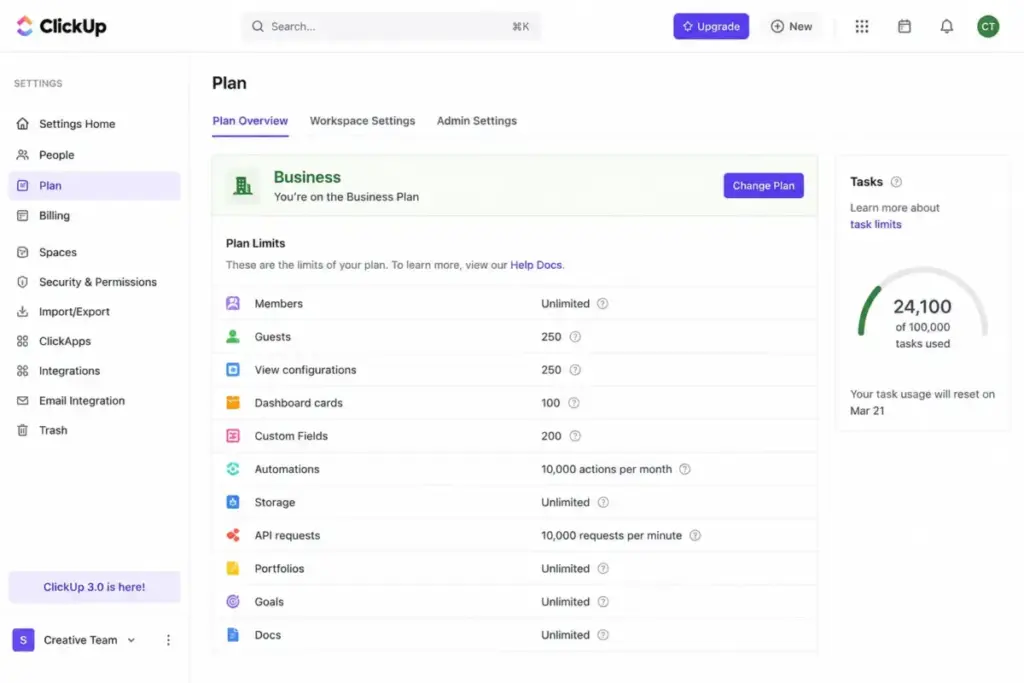
| Monthly Automations | 100 | 1,000 | 5,000 | 25,000 | 250,000 |
| Google SSO | No | No | Yes | Yes | Yes |
| SAML SSO and SCIM | No | No | No | No public confirmation | Yes |
| API Rate Limit | 100/min | 100/min | 100/min | 1,000/min | 10,000/min |
| Custom Roles | No | No | No | Yes | Yes |
What this means for your workflow: Key feature gates apply to dashboard views and project lists. Teams using sprints with subtasks quickly hit the Unlimited tier caps. These gates push users toward the more expensive Business plan. Reviewing these limits helps you avoid sudden workflow interruptions.
When the Free Forever Plan Stops Working
The entry tier stops working when your workspace uploads exceed 60MB of total storage. This small limit blocks teams from uploading project files and media. Once you reach this limit, the system locks editing access. You must upgrade to a paid tier to upload more files.
Dashboards also act as upgrade triggers on the free plan. ClickUp limits free accounts to 60 lifetime dashboard uses. Every view, edit, or widget addition counts toward this total. These uses do not reset at the start of the month.
Agile teams running sprint rotations hit other limits. The Unlimited plan allows 30 uses of subtasks in multiple lists. The Business plan restricts this feature to 1,000 lifetime uses. Sprints that require these connections will trigger upgrades very quickly.
In comparison, other project management tools handle limits differently. For instance, the Asana pricing guide explains that the vendor bases tiers on user seats. Wrike limits features but provides more storage on entry plans. Evaluate these alternatives if you cannot tolerate lifetime usage caps.
Real Cost Scenarios: ClickUp Bills by Team Size
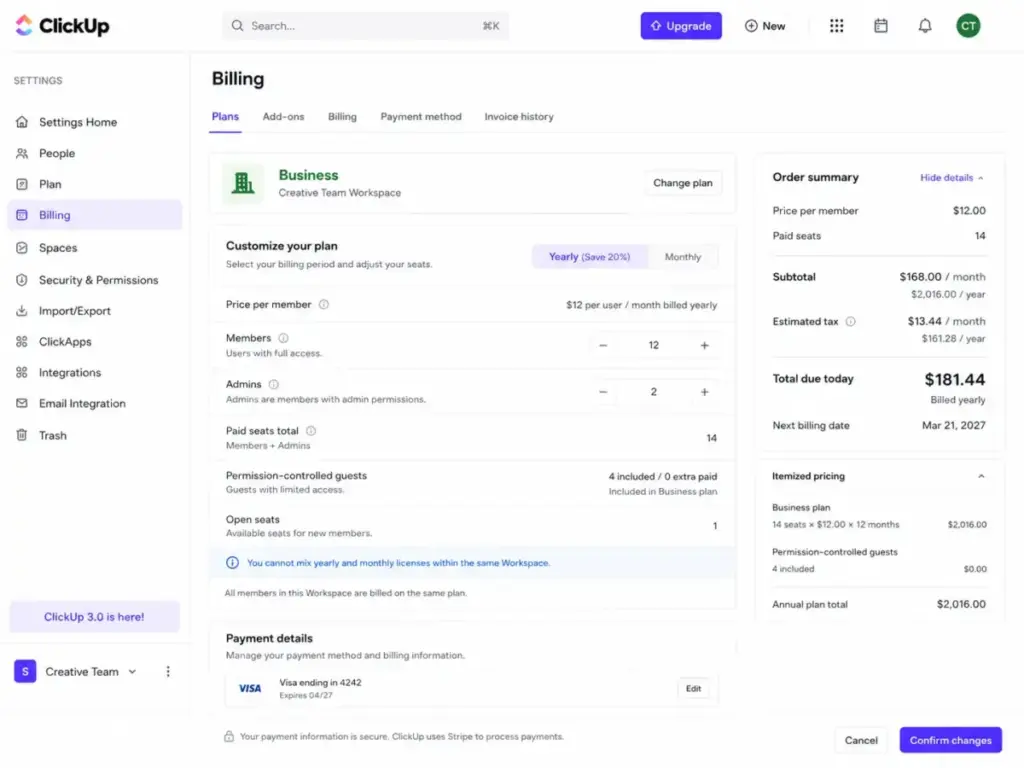
Real team costs scale from $70 monthly for 10 users and reach $1,200 monthly for 100 users. However, adding team members and optional features increases your monthly bill. The table below models the exact costs for different team sizes. These figures assume teams purchase the recommended tiers for their size.
| User Count | Recommended Plan | Monthly Price (Monthly Billing) | Monthly Price (Annual Billing) | Annual Cost (Annual Billing) |
|---|---|---|---|---|
| 5 users | Unlimited | $50/month | $35/month | $420/year |
| 10 users | Unlimited | $100/month | $70/month | $840/year |
| 25 users | Business | $475/month | $300/month | $3,600/year |
| 50 users | Business | $950/month | $600/month | $7,200/year |
| 100 users | Business | $1,900/month | $1,200/month | $14,400/year |
What this means for your scaling plan: These scenarios exclude optional add-ons like Brain AI or Everything AI. Adding Brain AI increases a 50-user Business bill by $450/month. Everything AI adds $1,400/month to that same account. Teams must evaluate these add-on costs before deploying AI features.
Which Plan Should You Choose and Which Should You Avoid?
Most teams should select the core $12 tier and bypass the hidden tier that is not publicly priced. We recommend matching features to your daily process to avoid overpaying. The sections below outline the best choices and tiers to bypass. These recommendations help you balance software costs and team efficiency.
Best Plan Choices by Team Size
For solo users, the Free Forever plan provides sufficient task management. For small teams, the Unlimited plan offers excellent storage capacity. This plan provides Gantt charts and simple timelines for $7/user/month. It fits teams that do not require SSO or complex reporting.
Growing teams should select the Business plan for its dashboard features. This tier opens access to Google SSO and removes lifetime feature limits. It costs $12/user/month and supports complex project reporting. Agile operations benefit from sprint points and private whiteboards.
Corporate teams requiring SAML SSO and SCIM must choose Enterprise. This plan provides advanced security controls and custom roles. It also includes custom API limits of 10,000 requests per minute. Contact sales to obtain a custom quote for this tier.
Why You Should Avoid the Business Plus Plan
We recommend bypassing the Business Plus plan during your evaluation. ClickUp hides this plan’s pricing and features from its main pricing page. This lack of transparency makes cost projection difficult. Most teams can meet their needs using the Business tier.
The only exception applies to teams requiring custom roles without Enterprise pricing. If you require custom roles, verify the in-app price first. For everyone else, choose the Business plan instead.
ClickUp Pricing vs Competitors
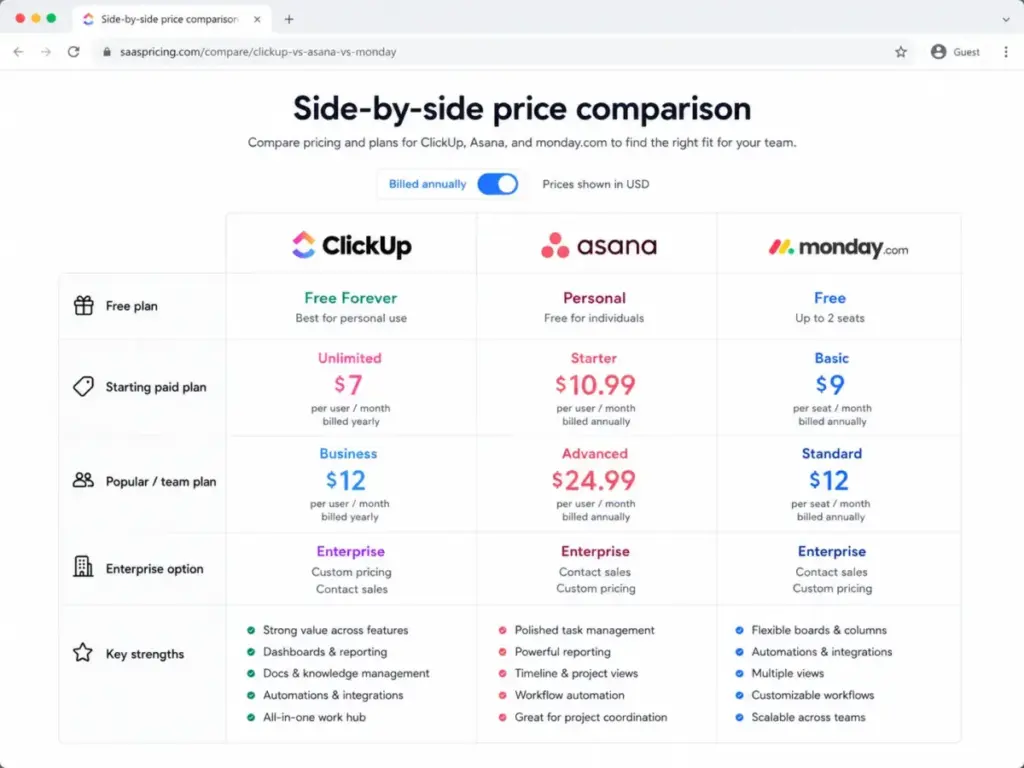
The core $12 tier matches competitor Standard rates but beats alternative $25 entry prices. However, the value gap narrows once you add premium feature requirements. The table below compares ClickUp pricing against four industry alternatives.
| Platform | Starting Price | Practical Tier | 10-User Monthly Cost | Best For |
|---|---|---|---|---|
| ClickUp | $7/user/month | Business ($12/user/month) | $120/month | Consolidated workflows |
| Asana | $10.99/user/month | Starter ($10.99/user/month) | $109.90/month | Project timelines |
| monday.com | $9/seat/month | Standard ($12/seat/month) | $120/month | Custom project boards |
| Wrike | $25/user/month | Business ($25/user/month) | $250/month | Complex project portfolios |
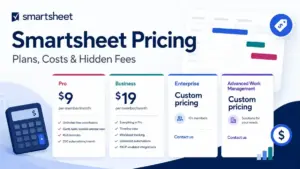
| Smartsheet | $9/member/month | Business ($19/member/month) | $190/month | Spreadsheet-based management |
What this means for your tool choice: ClickUp matches monday.com Standard on pricing for growing teams. However, Asana Starter provides a lower total cost for small teams. You can read our Asana review to evaluate its task tracking capabilities. Our team also published a detailed Wrike review for complex corporate users. If monday.com Standard is the pricing benchmark, compare monday.com alternatives by feature depth at $12 per user, small-team checkout cost, automation limits, dashboard access, and whether ClickUp’s complexity is worth the extra functionality.
For spreadsheet users, we recommend reading our Smartsheet review before choosing. Smartsheet offers powerful data grid features for $19/member/month. ClickUp remains the best fit if you need an all-in-one hub. Evaluate your team’s workflow requirements before selecting a tool.
Is ClickUp Worth the Price?
This tool is worth the price for teams consolidating multiple programs but wastes money for simple checklists. ClickUp delivers excellent value for teams that actively use its custom features. However, solo users and simple teams often waste money on higher tiers. Otherwise, simpler project tools provide better returns on your investment.
ClickUp is worth the price if:
- You manage complex projects requiring custom dashboards.
- Your team runs extensive workflow automations within task lists.
- You plan to consolidate task managers, docs, and chat tools.
ClickUp is not worth the price if:
- You only need simple task checklists and kanban boards.
- Your team cannot tolerate steep software learning curves.
- You require cheap, unlimited guest collaboration with permissions.
How to Avoid Overpaying for ClickUp
Teams can reduce their monthly expenditure by auditing guest seats, tracking automation limits, and choosing annual billing. We outline five ways to reduce your monthly bill below. These tactics target user seats, automation limits, and billing structures. Implementing these rules prevents budget creep as your team grows.
Here are the rules to follow:
- Verify guest seat limits before inviting clients to your workspace.
- Review automation rules quarterly to save your monthly run allocations.
- Select annual billing to secure a 30% discount on core plans.
- Audit user accounts monthly to remove inactive team members.
- Bypass the hidden plan tier to avoid hidden pricing flows.
If ClickUp costs too much, consider adjacent tool categories. For instance, sales teams often benefit from evaluating best CRM software options. Dedicated CRM platforms handle pipelines more effectively than general project managers. This separation can reduce the number of paid seats you need.
ClickUp Pricing FAQ
How much does ClickUp cost per month?
ClickUp costs $10/user/month on the Unlimited plan and $19/user/month on the Business plan with monthly billing. Annual billing reduces these rates to $7 and $12 respectively.
Is ClickUp really free forever?
Yes, the Free Forever plan costs $0 and provides basic task tracking features. However, the plan limits storage to 60MB and restricts advanced widgets.
What Features Does ClickUp Free Forever Include?
The free plan includes unlimited tasks, collaborative docs, Kanban boards, and two-factor authentication. It restricts storage to 60MB and dashboard widgets to 60 uses.
What is the difference between ClickUp Unlimited and Business?
Unlimited costs $7/user/month and Business costs $12/user/month under annual terms. Business adds Google SSO, custom exporting, and unlimited dashboards. It also increases automation actions from 1,000 to 5,000 runs.
Does ClickUp charge for guests?
ClickUp provides free guests based on your paid seat count. Once you exhaust this allocation, each new guest costs full seat rates.
Does ClickUp charge for AI?
Yes, AI features require paid add-ons for your workspace. Brain AI costs $9/user/month and Everything AI costs $28/user/month.
Is ClickUp Enterprise pricing public?
No, ClickUp does not publish Enterprise pricing online. Large organizations must contact sales to obtain a custom quote.
Does ClickUp have a free trial?
ClickUp does not publicly confirm a general trial duration. However, users can test paid features using the Free Forever tier.