Most small teams do not need another generative AI toy. They need a tool that turns a prompt into a finished, on-brand social post, flyer, or pitch deck without hiring a designer. This Canva AI review examines whether Canva’s AI layer, now called Canva AI 2.0, actually delivers that promise in 2026 or just adds noise to an already crowded list of AI image generators.
Canva reports its AI products have been used more than 27 billion times, with usage tripling over the past year. Those numbers sound impressive, but raw usage counts do not answer the question buyers care about: is the output good enough, fast enough, and predictable enough to trust under a real deadline? Here is what I found after breaking down the features, pricing, limits, and alternatives that matter right now.
Quick Verdict: Canva AI Review 2026
Canva AI earns an 8.2 out of 10 for non-designers and small marketing teams, but drops to 6.8 out of 10 for professional designers, developer workflows, or brand-critical AI image generation. The gap between those two scores tells you almost everything about where this tool fits. If you produce 10 to 30 social graphics per month and want editable AI output inside one workspace, Canva AI is the strongest option available today. If you need pixel-level control, API-first generation, or guaranteed output consistency for regulated brands, you will hit walls quickly.
| Category | Detail |
|---|---|
| Score | 8.2/10 (non-designers) / 6.8/10 (pro designers) |
| Best for | Solo creators, social media managers, small marketing teams, educators |
| Not for | Professional illustrators, API-first teams, regulated brand studios |
| Pricing snapshot | Free ($0), Pro (~$15/mo), Business ($20/person/mo), Enterprise (custom) |
| Strongest feature | Post-generation editing: AI output becomes editable layers, not a flat file |
| Biggest limitation | Inconsistent AI output quality and opaque usage allowances |
| Verified pricing date | May 4, 2026 |
How I Scored Canva AI
I scored Canva AI using a weighted rubric aligned with SaaS review methodology standards. Each criterion carries a specific weight based on its impact on a buyer’s daily workflow.
| Criterion | Weight | Score (out of 10) | Weighted |
|---|---|---|---|
| AI output usefulness | 20% | 7.5 | 1.50 |
| Workflow integration | 20% | 9.0 | 1.80 |
| Editing control | 15% | 7.0 | 1.05 |
| Pricing and limits | 15% | 7.5 | 1.13 |
| Brand/team controls | 10% | 8.0 | 0.80 |
| Alternatives fit | 10% | 8.5 | 0.85 |
| Reliability and governance | 10% | 7.0 | 0.70 |
| Total | 100% | 7.83 |
The 8.2 score for non-designers reflects a +0.4 bonus for the unmatched ease of going from prompt to finished, branded asset in one tool. The 6.8 score for professionals reflects a -1.0 penalty for the editing ceiling and output unpredictability that pro workflows cannot absorb.
What Is Canva AI?
Canva AI is not a standalone product. It is the AI layer built into Canva’s Visual Suite, a browser-based design platform used by over 220 million monthly active users. Understanding what “Canva AI” actually means requires separating three things that Canva’s marketing often blends together.
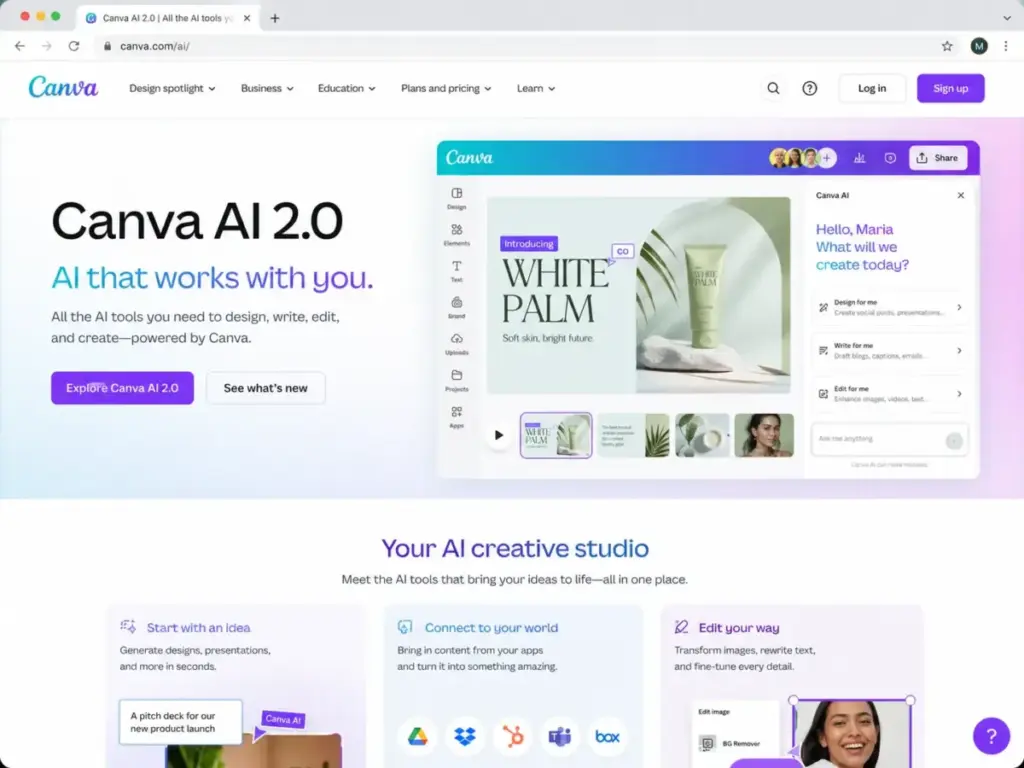
Canva is the parent platform: the editor, templates, Brand Kit, collaboration tools, export options, and the broader Visual Suite that now includes documents, presentations, websites, whiteboards, sheets, and video.
Magic Studio is the AI feature suite inside Canva. It contains individual tools like Magic Write, Magic Eraser, Magic Expand, Background Remover, Dream Lab (image generation), and AI video generation. Think of Magic Studio as the toolbox.
Canva AI 2.0, announced in April 2026, is the latest evolution. It wraps Magic Studio tools into a conversational creative workspace. Instead of clicking individual AI buttons, you describe what you want and Canva AI 2.0 orchestrates the right tools. It also introduced Brand Intelligence (automatic brand-style application), web research capabilities, Canva Code 2.0 (interactive experiences from prompts), and Sheets AI.
The key distinction: Canva AI is not trying to be the best image generator or the best writing assistant. It is trying to be the best place where AI output becomes an editable, publishable design. That positioning matters when you compare it against tools like Midjourney or Adobe Firefly, which generate images but leave you to handle layout, branding, resizing, and export somewhere else.
Canva AI Features That Matter
Not every AI feature in Canva deserves equal attention. Some change how you work daily. Others are demos that look good in a keynote but rarely survive contact with a real deadline. Here are the features that actually affect buying decisions, ranked by practical impact.
Canva AI Magic Studio
Magic Studio is the umbrella for 25+ AI-powered design features included in Canva Pro and above. The tools that matter most for daily production are Background Remover, Magic Eraser (object removal), Magic Expand (canvas extension), and the resize/reformat tools that adapt one design to dozens of platform sizes.
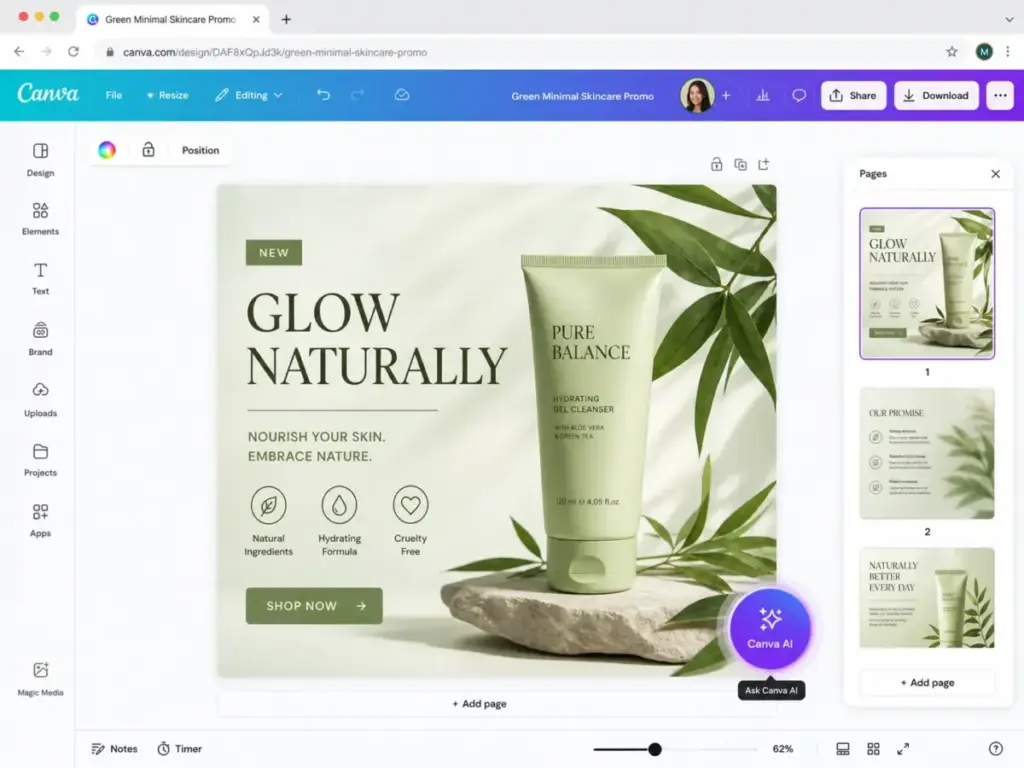
These are not flashy. They are practical. A social media manager resizing one Instagram post into LinkedIn, Twitter, Pinterest, and Story formats in under a minute gets more value from Magic Studio than from any image generator. The AI photo editors category has plenty of alternatives for one-off edits, but few match Canva’s speed when you need batch output across formats.
As one verified G2 user noted: “Finally, the AI features, like text-to-image, background removal, and content suggestions, are a great addition. They speed up the creative process and help generate ideas quickly.”
Canva AI Magic Layers
Magic Layers, introduced as a public beta in March 2026 across the US, UK, Canada, and Australia, converts flat or static images (including AI-generated outputs) into editable, multi-layered Canva designs. Upload a PNG of a flyer, and Magic Layers separates the text, background, shapes, and images into individual layers you can edit.
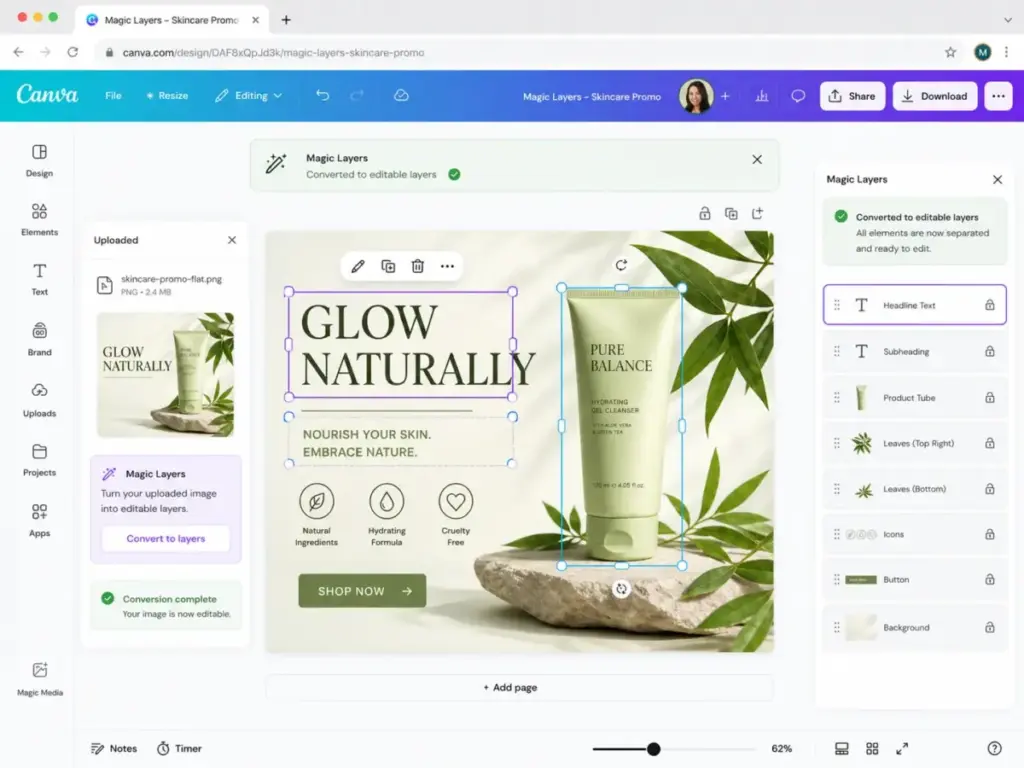
Canva reported Magic Layers was used more than nine million times in just over a month after launch. That adoption speed suggests it solves a real pain point: teams receiving flat files from freelancers or AI tools and needing to make quick edits without rebuilding the design from scratch.
The limitation, and it is significant, is reliability. Magic Layers is still in beta. Layer separation is not always accurate. Complex designs with overlapping elements or unusual typography can produce messy results. And as I cover in the limitations section below, one high-profile incident raised questions about content integrity during the conversion process.
Canva AI Dream Lab
Dream Lab is Canva’s AI image generation experience. You enter a text prompt, choose a style, and Dream Lab generates images you can drop directly into your design.
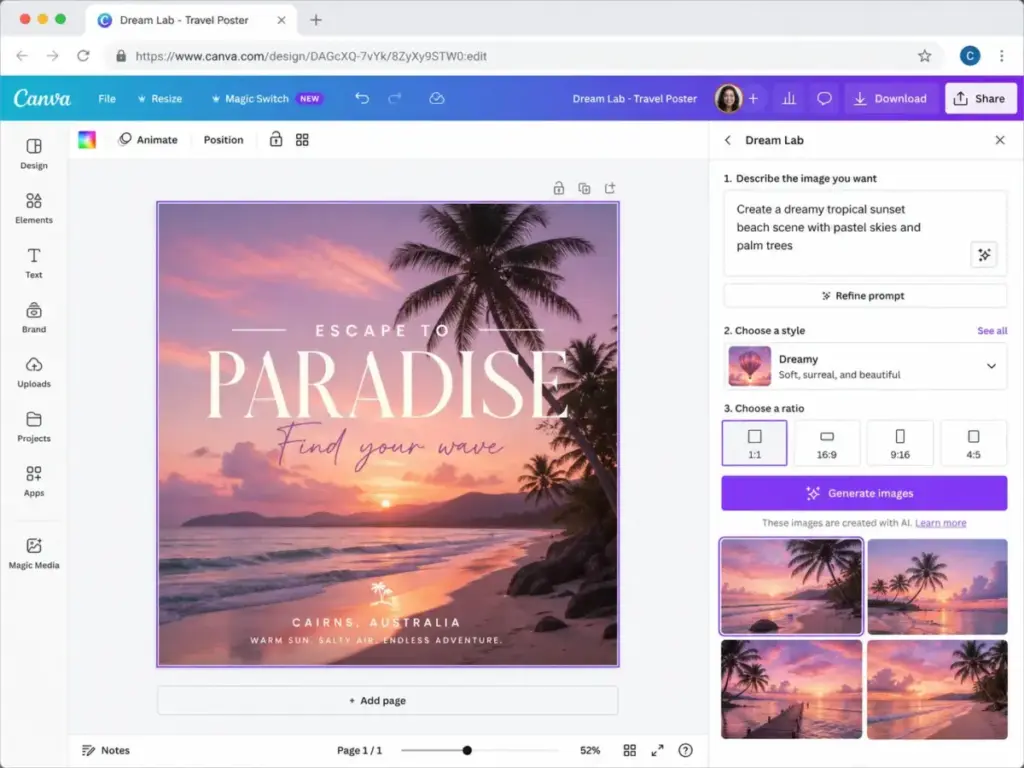
For social media graphics, blog headers, and presentation visuals, Dream Lab output is usable. For photorealistic images, detailed illustrations, or anything requiring consistent character rendering across multiple generations, it falls short of what Midjourney and DALL-E produce.
The advantage Dream Lab has is context. Generated images land inside Canva’s editor, where you can immediately resize them, apply brand colors, add text overlays, remove backgrounds, and export. With Midjourney, you generate an image in Discord (or their web app), download it, upload it to your design tool, then edit. That workflow gap matters when you are producing 20 social posts per week.
Community feedback on Dream Lab is mixed. One Reddit user in r/canva put it bluntly: “I’ve tried a few but the results are horrible. It’s always quicker to create what I need myself.” That matches my observation that Dream Lab works best as a starting point for further editing, not as a final-output generator.
Canva AI Magic Write
Magic Write is Canva’s AI writing assistant. It generates copy for social captions, presentation bullets, document drafts, and marketing text directly inside the design editor. You do not need to switch to a separate writing tool, paste text back, and reformat.
For short-form copy (social posts, ad headlines, email subject lines), Magic Write is functional. For long-form content, it produces generic output that requires heavy editing. It is a convenience feature, not a replacement for a dedicated AI writing tool or a human copywriter.
Canva AI Brand Intelligence
Brand Intelligence, part of the Canva AI 2.0 release, automatically applies your brand fonts, colors, and style guidelines to AI-generated outputs. If you have set up a Brand Kit in Canva, Brand Intelligence attempts to keep every AI generation on-brand without manual adjustments.
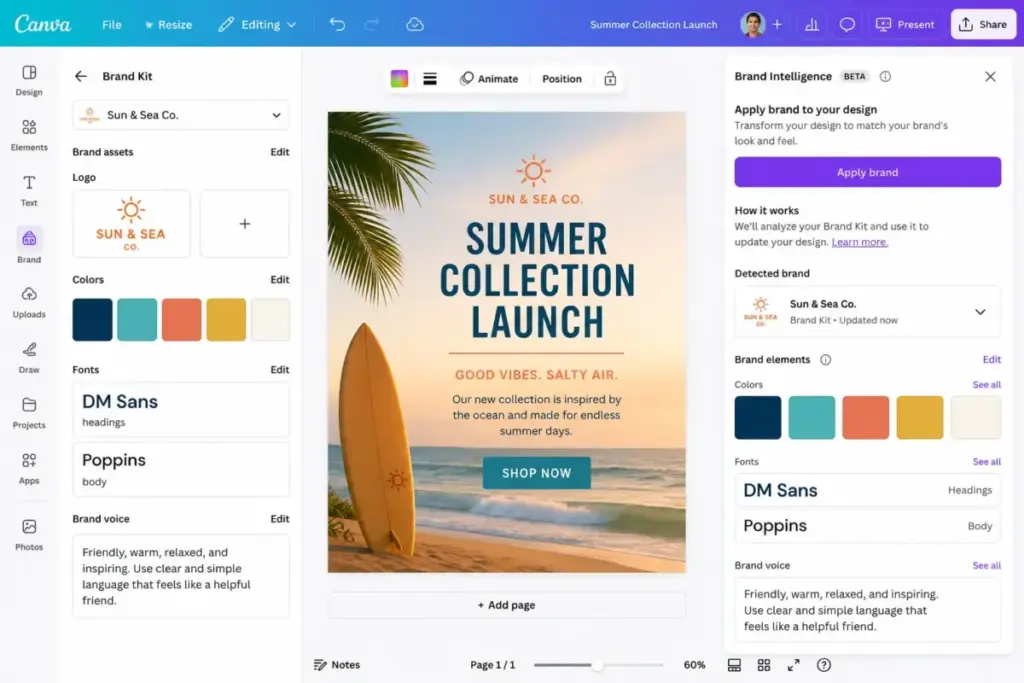
This is one of the most underrated features for teams. A five-person marketing team producing content across campaigns can set brand rules once and trust that AI suggestions will at least start in the right visual neighborhood. It does not guarantee perfect brand compliance, but it reduces the number of manual corrections per design.
Canva AI Code 2.0
Canva Code 2.0, also part of the April 2026 release, builds responsive interactive experiences from conversational prompts and supports HTML import. You can describe an interactive quiz, calculator, or landing page component, and Canva Code 2.0 generates it as an embeddable experience.
This feature targets a specific use case: marketers and educators who need lightweight interactive content without involving a developer. It is not a website builder competitor. It is closer to a no-code widget creator with AI assistance. For teams that need simple interactive elements for presentations, social campaigns, or classroom activities, it fills a gap. For anything requiring custom logic, database connections, or complex interactivity, you still need a developer.
Canva AI Pricing and Limits
Canva’s pricing structure shifted in late 2025, and most competitor reviews have not caught up. The biggest change: Canva Business replaced Canva Teams for all new team sign-ups and upgrades, at a higher per-person price point. Here is the current pricing reality, verified May 4, 2026.
| Plan | Status | Price | AI Access | Best For | Watch Out |
|---|---|---|---|---|---|
| Free | Available | $0 | Limited Standard and Premium AI | Students, casual use, testing | Very limited premium assets and AI |
| Pro | Available | ~$15/month or $120/year | More AI access, premium tools | Solo creators, frequent designers | Single-user plan only |
| Business | New team sign-ups | US$20/person/month, no seat minimum | Higher premium AI usage | Small teams, marketers | More expensive than legacy Teams |
| Teams | Legacy only | Existing terms | Existing team access | Current Teams subscribers | Closed to new sign-ups |
| Enterprise | Via sales | Custom | Advanced AI controls, Canva Shield | Large organizations (100+ seats) | Sales process required |
| AI Pass | Add-on | Varies | Expanded AI allowance | Heavy daily AI users | Extra recurring cost |
What the Pricing Page Does Not Make Obvious
The Teams-to-Business transition creates real confusion for buyers comparing Canva against 2025 pricing. Canva previously listed Teams at US$10/month per person with a three-person minimum. That plan no longer exists for new customers. If you are a new team signing up today, you pay US$20/person/month for Canva Business, which includes everything in Pro plus team collaboration, Canva Grow Insights, higher premium AI tool usage, Leonardo AI Essential plan access, and Flourish Presenter plan access.
Existing Teams subscribers keep their current pricing and features. This means two teams sitting next to each other at a co-working space could be paying very different rates for similar functionality. If you read a competitor review quoting “$10/person/month for teams,” that information is outdated for any new buyer.
AI allowances are the second area of pricing opacity. Canva groups AI usage into three categories: Standard AI, Premium AI, and Ultra AI. Free plans include a shared allowance across Standard and Premium AI only. Paid plans include shared allowances across all three categories. But Canva does not publish a simple, static credit count that applies universally. Allowances vary by plan, region, and specific tool.
My recommendation: if you rely on AI features daily, check Canva’s AI usage page before committing to a plan. Do not assume you will get unlimited AI generations on any paid tier. The AI Pass add-on exists specifically because some users burn through their base allowance.
Canva AI Cost Reality by User Type
| User Type | Likely Plan | Monthly Cost | AI Concern |
|---|---|---|---|
| Solo creator, 15 posts/month | Pro | ~$15/month | Base AI allowance likely sufficient |
| Solo creator, 50+ AI generations/month | Pro + AI Pass | $15 + AI Pass cost | Monitor allowance closely |
| 5-person marketing team (new signup) | Business | $100/month ($20 x 5) | Higher AI access included |
| 5-person team (legacy Teams) | Teams (legacy) | Existing rate | Keep current plan if rate is lower |
| 10-person org with compliance needs | Enterprise | Custom | SSO, SCIM, Canva Shield, indemnification |
Credit Burn: How Repeated Prompts Consume Allowances
One pattern that catches new users off guard: AI generation is not one-prompt, one-result. Dream Lab, Magic Write, and other generation tools often require three to five prompt attempts before producing usable output. Each attempt consumes part of your AI allowance. A social media manager generating 20 images per week might actually submit 60 to 100 prompts to get 20 usable results. That burn rate matters when your allowance is not unlimited, and Canva does not show you a simple “credits remaining” counter in every context.
Canva AI User Experience
The strongest part of Canva AI is not any single generation tool. It is the fact that every AI output lands inside an editable design workspace. This is the difference that separates Canva from standalone generators like Midjourney or DALL-E, and it shapes the entire user experience from signup to daily production.
The First 30 Minutes with Canva AI
Signing up for Canva takes under two minutes with Google or email authentication. The editor loads quickly, and new users see template suggestions based on their stated use case (social media, presentations, marketing, education).
Your first AI interaction typically happens within five minutes: clicking the AI assistant button, typing a prompt like “Instagram post for a coffee shop spring sale,” and watching Canva generate a starting design. The output is not a flat image. It arrives as an editable design with separate text layers, background, and graphic elements.
Brand Kit setup takes longer. Uploading logos, selecting brand fonts, and defining color palettes requires 10 to 15 minutes of intentional configuration. But this upfront investment pays off: once configured, Brand Intelligence applies these settings to future AI generations automatically.
Daily Workflow Strengths
For recurring content production, Canva AI excels in three areas:
- Prompt to editable design in one step. No downloading, no re-uploading, no reformatting.
- Multi-format resize. One design becomes 10+ platform-specific versions in seconds.
- Template plus AI hybrid. Start from a proven template, then use AI to swap images, rewrite copy, or adjust styling.
This workflow serves social media managers, educators creating classroom materials, and marketing teams producing campaign assets on tight timelines. The tools inside Magic Studio (Background Remover, Magic Eraser, Magic Expand) handle the production tasks that would otherwise require Photoshop or a freelancer.
Where the Experience Breaks Down
The editing ceiling is real. Canva’s editor does not offer the layer blending modes, advanced typography controls, pen tool precision, or vector editing depth that Adobe Illustrator, Photoshop, or Figma provide. If your workflow requires precise kerning adjustments, custom vector paths, or complex image compositing, you will feel the constraints within your first hour.
Mobile experience is functional but limited. The Canva mobile app handles viewing, light editing, and approvals well. Complex design work, AI generation, and Brand Kit management work better on desktop.
Export options cover most needs (PNG, JPG, PDF, MP4, GIF, SVG on paid plans), but print-ready PDF output lacks the color profile controls that professional print workflows demand.
Enterprise and Security Experience
For organizations with compliance requirements, Canva offers a credible security posture. The Canva Business security page lists commitment to ISO 27001 and SOC 2 Type II certification. Enterprise plans include SSO, SCIM provisioning, role-based access management, audit logs, and activity reporting.
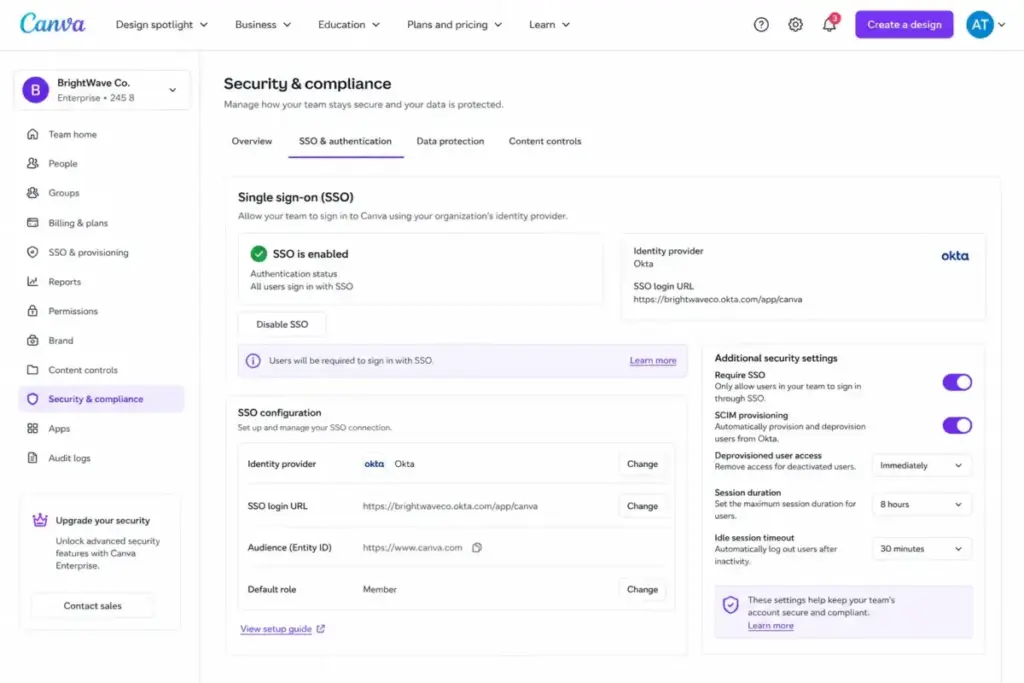
Canva Shield provides AI-specific controls: privacy preferences, team access controls for Magic Studio, and admin-level governance over which AI features are available to team members. Enterprise customers with over 100 seats receive additional Canva Shield protection with indemnification, according to Canva’s security page.
This matters for mid-market and enterprise buyers who need to pass procurement security reviews. Canva’s security posture is not at the level of enterprise-native tools like Figma’s Organization tier, but it clears the bar for most small and mid-sized business compliance requirements.
Canva AI Pros and Cons
Canva AI’s advantages center on workflow speed and accessibility. Its weaknesses center on output quality ceilings and transparency gaps. Here is the specific breakdown.
- Editable AI output, not flat files. Every AI generation produces layers you can modify, rebrand, and resize. No competitor matches this workflow integration at Canva’s price point.
- Fastest path from idea to published asset. For social posts, presentations, and marketing collateral, Canva AI reduces production time from hours to minutes for non-designers.
- Magic Layers bridges the freelancer gap. Converting flat PNGs and PDFs into editable designs saves teams from rebuilding assets from scratch. Nine million uses in the first month confirms real demand.
- Brand Intelligence reduces manual brand policing. Automatic font, color, and style application across AI outputs keeps team production closer to brand guidelines without per-design oversight.
- Massive template and asset library. Pro and Business plans include premium templates, images, videos, graphics, audio tracks, and fonts that provide strong starting points.
- Accessible to non-designers immediately. The learning curve from signup to first usable design is measured in minutes, not days or weeks.
- Team collaboration built in. Real-time editing, commenting, and approval workflows keep small teams inside one tool instead of juggling Slack, Google Drive, and a design app.
- AI output quality is inconsistent. Dream Lab and Magic Write produce results that range from “good enough to post” to “unusable” across consecutive prompts. You cannot predict which you will get.
- AI allowance math is opaque. Standard, Premium, and Ultra AI categories without clear, static credit counts make it difficult to budget usage before committing to a plan.
- Professional editing ceiling is firm. No advanced typography, no pen tool, no layer blending, no CMYK export control. Designers who need these will not find workarounds.
- Business plan price increase stings. New teams pay US$20/person/month versus the legacy US$10/person/month Teams rate, a 100% increase for functionally similar team features.
- Photorealistic AI generation trails competitors. Dream Lab cannot match the image quality of Midjourney, DALL-E, or Adobe Firefly for photorealistic or highly detailed outputs.
- Template sameness risk. High adoption means your Canva designs may look identical to competitors using the same templates. AI styling helps, but the underlying layouts repeat.
- Social scheduler is basic. Canva’s content planner and scheduling feature lacks the analytics depth of dedicated tools like Buffer, Hootsuite, or Sprout Social.
What Canva AI Gets Wrong
No AI design tool is reliable enough in 2026 to use without human review, and Canva AI is no exception. This section covers the non-obvious failure modes that marketing teams, educators, and brand managers should understand before relying on Canva AI for production work.
AI Output Inconsistency
The core problem with any AI generation tool is prompt sensitivity. Small changes in wording produce dramatically different outputs. Dream Lab might generate a polished social graphic on one attempt and an unusable image on the next, using nearly identical prompts. This is not unique to Canva (Midjourney and DALL-E have the same issue), but Canva’s positioning as a “just works” tool for non-designers makes the inconsistency more jarring when it appears.
Understanding prompt engineering helps, but it should not be a prerequisite for a tool marketed to people without design or technical backgrounds.
Content Alteration Risk: The Magic Layers Incident
In April 2026, The Verge reported that Canva apologized after Magic Layers changed the word “Palestine” to “Ukraine” in a user’s design during the layer conversion process. Canva acknowledged the issue and said it was fixed.
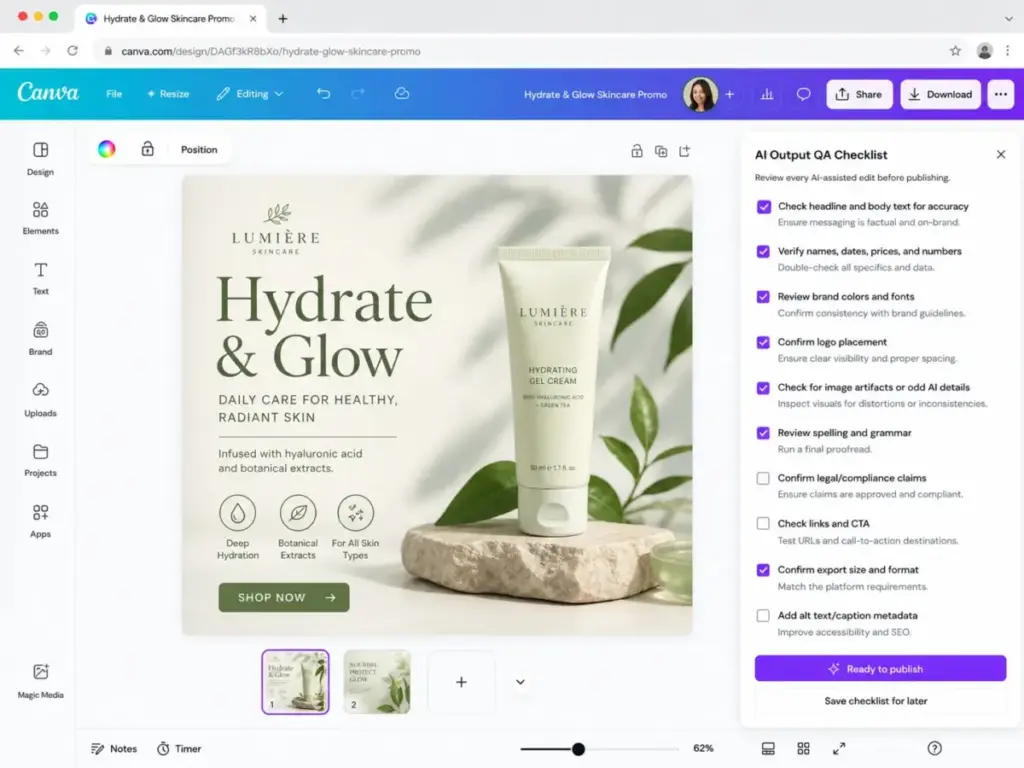
This is not a claim that Canva routinely alters user content. It is a specific, documented example of AI processing producing an unexpected content change. For any team using Magic Layers to convert client files, campaign assets, or sensitive materials, this incident underscores the need for a QA step after every AI-assisted conversion. Check text, check names, check numbers, check geography references. Do not assume the output matches the input.
Photorealism and Character Consistency Limits
Dream Lab handles stylized, illustrative, and abstract visuals reasonably well. It struggles with photorealistic human faces, consistent character rendering across multiple generations, and fine detail in architectural or product photography contexts. Community feedback in Reddit’s r/canva repeatedly surfaces complaints about “Magic Media resolution” quality and character inconsistency.
If your workflow requires generating the same character across a series of images (for a brand mascot, training materials, or a visual story), Canva AI will frustrate you. Midjourney and dedicated character-consistency tools handle this better.
Advanced Design Control Gap
Canva AI cannot overcome the fundamental limitations of Canva’s editor. You cannot create custom vector shapes with a pen tool. You cannot apply complex layer masks or blending modes. You cannot fine-tune typography with per-character kerning and leading controls. These are not AI limitations; they are platform limitations that AI cannot paper over.
Professional designers who use Canva typically treat it as a production and handoff layer: build the creative concept in Adobe or Figma, then create simplified Canva templates for clients or team members to customize. That is a valid use case. It is not a replacement workflow.
Canva AI vs Alternatives
Canva AI’s real competition is not other AI generators. It is the question of where in your workflow AI generation should happen. Standalone generators produce better raw images. Canva produces better finished assets. The right choice depends on which outcome you value more.
Canva AI vs Adobe Express
Adobe Express Premium (around US$9.99/month) connects to the Adobe ecosystem, including Adobe Firefly for AI generation and Creative Cloud asset libraries. For teams already paying for Adobe subscriptions, Express is a natural extension.
Choose Canva AI when you want the fastest template-to-post workflow and your team has no Adobe experience. Choose Adobe Express when Adobe ecosystem compatibility, Firefly’s image quality, and Creative Cloud integration matter more than template breadth. See also: Adobe Firefly pricing.
Canva AI vs Figma
Figma is built for product design, UI components, prototyping, and developer handoff. It is not a marketing content tool. Comparing Canva AI to Figma is like comparing a content kitchen to an architecture studio.
Choose Canva AI for social graphics, presentations, flyers, and marketing collateral. Choose Figma for app design, web design, design systems, and product team workflows. Some teams use both: Figma for product, Canva for marketing. See Figma pricing for current plan details.
Canva AI vs Visme
Visme targets data-heavy presentations, infographics, reports, and sales enablement content. Its charting and data visualization tools are stronger than Canva’s for business intelligence storytelling.
Choose Canva AI for general marketing content and social media production. Choose Visme when your primary output is data reports, investor decks, and infographic-led content marketing.
Canva AI vs VistaCreate
VistaCreate (formerly Crello) offers a similar template-first design experience at a lower price point. Its AI feature set and ecosystem depth are much smaller than Canva’s.
Choose Canva AI when AI generation, brand controls, team collaboration, and ecosystem breadth matter. Choose VistaCreate when budget is the primary constraint and you need basic template design without Canva’s AI stack.
Canva AI vs Midjourney and DALL-E
Midjourney and DALL-E produce higher-quality raw images than Dream Lab, particularly for photorealistic, artistic, and conceptual visuals. Neither is a design workflow tool. You generate an image, then bring it into a separate tool for layout, branding, text, resizing, and export.
Choose Canva AI when you need the complete workflow from prompt to published, branded asset. Choose Midjourney or DALL-E when image generation quality is the priority and you have a separate design workflow for post-production.
Comparison Table
| Tool | Best For | AI Image Quality | Full Design Workflow | Price Range | Winner When… |
|---|---|---|---|---|---|
| Canva AI | Non-designers, marketing teams | Good | Yes | $0-$20/person/mo | You need finished assets fast |
| Adobe Express | Adobe ecosystem users | Better (Firefly) | Partial | ~$9.99/mo | You already use Creative Cloud |
| Figma | Product/UI design teams | N/A (different purpose) | Yes (for product) | Varies by tier | You design apps and interfaces |
| Visme | Data presentations, reports | Basic | Yes (for reports) | Varies by tier | Your output is data-driven |
| VistaCreate | Budget template design | Basic | Yes (limited) | Lower than Canva | Budget is the deciding factor |
| Midjourney | Art direction, conceptual images | Best in class | No | $10-$60/mo | Image quality is everything |
| DALL-E | Prompt-based generation | Very good | No | Via ChatGPT/API | You need API access or ChatGPT integration |
Who Should Use Canva AI?
Canva AI fits best when your team needs volume, speed, and brand consistency more than pixel-perfect creative control. The AI tools for content creation market has dozens of options, but Canva AI occupies a specific sweet spot.
Decision Matrix by User Type
| User Profile | Team Size | Weekly Output | Design Skill | Recommended Tool | Why |
|---|---|---|---|---|---|
| Solo social media creator | 1 | 10-30 posts | Beginner | Canva AI Pro | Fastest prompt-to-post workflow |
| Small business marketing team | 2-10 | Ads, flyers, decks, videos | Mixed | Canva AI Business | Brand controls and team collaboration |
| In-house brand marketer | 1-3 | Campaign templates, social | Intermediate | Canva AI Pro or Business | Brand Intelligence keeps output on-brand |
| Educator or trainer | 1 | Worksheets, slides, visuals | Beginner | Canva AI Free or Pro | Templates and AI generation speed |
| Nonprofit communications | 1-5 | Newsletters, social, flyers | Beginner | Canva AI Business (nonprofit pricing may apply) | Accessible design without a designer |
Three Specific Use Cases Where Canva AI Excels
- A solo content creator publishing 20 Instagram posts per month. Generate background images in Dream Lab, apply brand fonts and colors via Brand Intelligence, resize for Stories and Reels, schedule, and export. Total design time per post: under 10 minutes.
- A five-person marketing team producing weekly ad creatives and monthly sales decks. One team member creates a master template, Brand Kit enforces consistency, and other team members customize versions using AI-assisted editing. Collaboration features keep everyone in one workspace.
- An educator building a semester of presentation slides and worksheets. Magic Write drafts slide text, Dream Lab generates illustrative visuals, and templates provide professional layouts without design training.
Who Should Avoid Canva AI?
If your workflow depends on precision, consistency, or API access, Canva AI will create more friction than it removes. These are the specific scenarios where other tools serve you better.
- Professional illustrators and vector artists. Canva’s editor lacks pen tool precision, advanced path editing, and the vector control that Adobe Illustrator provides. No AI feature compensates for this.
- Brand studios needing Photoshop-level compositing. Layer blending, advanced masking, non-destructive editing depth, and CMYK print workflow controls are absent. Use Adobe Creative Cloud.
- Development teams needing API-first image generation. Canva’s developer tools (Connect APIs, Apps SDK) are designed for integrating Canva into apps, not for programmatic image generation at scale. For API-driven workflows, consider DALL-E’s API, Stability AI, or RunwayML for video.
- Marketing teams needing advanced social scheduling and analytics. Canva’s content planner is basic. If social analytics, optimal timing, and cross-platform reporting drive your decisions, use a dedicated scheduler and Canva only for asset creation.
- Regulated brands needing guaranteed AI output consistency. If your compliance team needs to approve every piece of creative and AI output variations create audit risk, Canva AI’s inconsistency is a liability, not a feature. Consider template-only workflows with AI generation disabled via Canva Shield admin controls.
Daniel Rivera’s Quick Take
Here is where I land after spending real time with Canva AI in 2026.
Canva AI is not the best AI image generator. It is not the best AI writing tool. It is not the best design editor. It is the best place where all three of those capabilities intersect inside one workflow that a non-designer can actually finish. That “finish” part is what most competitor reviews miss.
Midjourney generates better images. ChatGPT writes better copy. Figma offers better design control. But none of them let a solo marketer go from “I need an Instagram post for tomorrow’s product launch” to a finished, branded, correctly-sized asset in eight minutes without touching any other tool.
For small teams and solo creators, that integration advantage outweighs the individual quality gaps. For professional designers, it does not. Know which category you fall into before you subscribe.
The pricing shift to US$20/person/month for Business is notable. It signals Canva’s intent to move upmarket. Teams that locked in legacy pricing should hold onto it. New teams should calculate whether the Business plan’s extras (higher AI access, Leonardo.Ai Essential, Flourish Presenter) justify the premium over Pro for individual seats.
My biggest concern is not price or features. It is trust. The Magic Layers content alteration incident is a warning sign, not because Canva is careless, but because AI processing layers are inherently unpredictable. Any team using Canva AI for brand-critical work needs a human review step before publishing. That will remain true for every AI design tool in 2026, not just Canva.
Canva AI FAQ
Common questions about Canva AI, answered directly.
Is Canva AI free?
Yes, partially. Canva Free includes limited access to Standard and Premium AI features. You can try Magic Write, Background Remover, and basic AI generation on the Free plan, but usage is capped. Full access to 25+ AI-powered design features, premium templates, and higher AI allowances requires Canva Pro ($15/month) or Canva Business ($20/person/month).
Is Canva AI worth it in 2026?
For non-designers and small marketing teams producing regular visual content, yes. The combination of AI generation, editable output, brand controls, and multi-format export in one tool justifies the Pro or Business subscription. For professional designers or teams needing high-fidelity AI image generation, the value proposition is weaker.
What is the difference between Canva AI and Magic Studio?
Magic Studio is the AI feature suite inside Canva, containing individual tools like Magic Write, Dream Lab, Magic Eraser, and Background Remover. Canva AI (and specifically Canva AI 2.0, launched April 2026) is the broader conversational AI layer that orchestrates Magic Studio tools, adds Brand Intelligence, web research, Canva Code 2.0, and Sheets AI.
How much does Canva AI cost?
Canva AI features are included in every plan at different access levels. Free costs $0 with limited AI. Canva Pro costs about $15/month or $120/year. Canva Business costs US$20/person/month with no seat minimum. Enterprise is custom-priced. Heavy AI users can add the AI Pass for additional allowance.
Does Canva AI have usage limits?
Yes. Canva groups AI features into Standard, Premium, and Ultra AI categories, each with shared allowances that vary by plan. Free plans have the most restricted access. Paid plans include higher shared allowances, but they are not unlimited. Check Canva’s AI usage page for current limits before committing.
Can I use Canva AI images commercially?
Yes. Canva’s content license permits commercial use of designs created on the platform, including AI-generated content, subject to their terms of use. Review Canva’s content license agreement for specific restrictions, particularly around standalone sale of AI-generated assets and use in trademark applications.
Is Canva AI better than Adobe Express?
It depends on your ecosystem. Canva AI offers a broader template library, faster non-designer workflows, and stronger team collaboration at the Business tier. Adobe Express offers better Adobe ecosystem integration and access to Adobe Firefly’s AI generation. If you already pay for Creative Cloud, Adobe Express may be the more cost-effective choice.
Does Canva AI replace a graphic designer?
No. Canva AI replaces the need for a graphic designer for routine production work: social posts, simple flyers, presentation slides, and template-based marketing materials. For original brand identity, complex illustrations, custom typography, packaging design, and high-end creative direction, you still need a professional designer.
What is Canva Magic Layers?
Magic Layers is a feature (currently in public beta) that converts flat, static images into editable, multi-layered Canva designs. It separates text, backgrounds, shapes, and images into individual layers you can modify. Canva reported it was used over nine million times in its first month. It is available in the US, UK, Canada, and Australia as of March 2026.
What are the best Canva AI alternatives?
The best alternative depends on your priority. For higher-quality AI image generation: Midjourney or DALL-E. For Adobe ecosystem integration: Adobe Express with Adobe Firefly. For product and UI design: Figma. For data-heavy presentations: Visme. For budget template design: VistaCreate. For AI video: RunwayML.