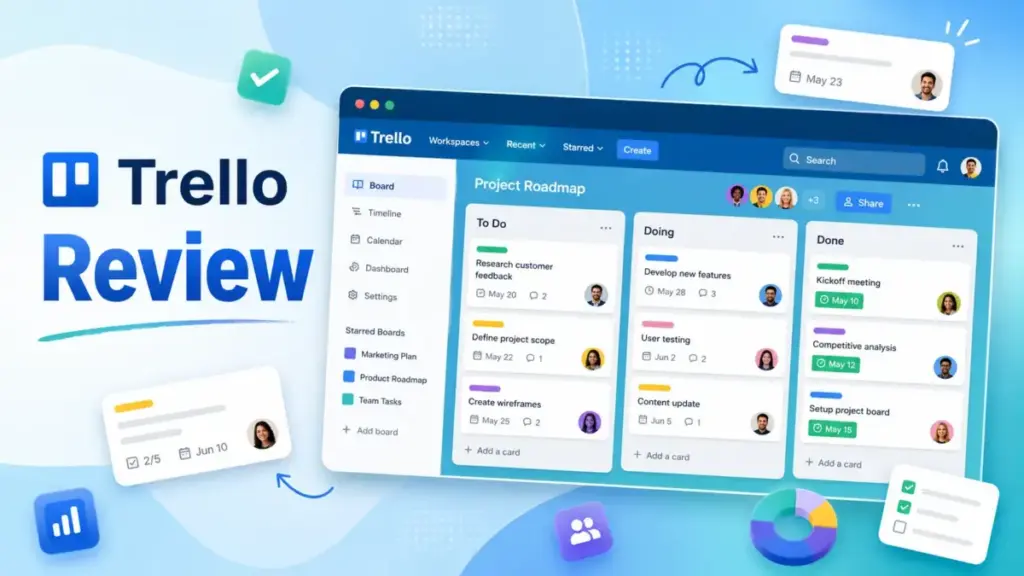
Trello has been the default Kanban board for over a decade, but does it still hold up? This Trello review breaks down exactly what the platform does well, where it falls short, and whether it deserves a spot in your workflow in 2026.
If you are comparing best project management software options and wondering whether Trello’s simplicity is an advantage or a ceiling, this is the guide. Often, teams adopting their first board tool benefit from understanding what project management is before fully committing to a platform.
I scored Trello against pricing transparency, feature depth, daily usability, and honest competitive fit. Trello is not trying to be everything. The question is whether “not everything” is enough for your team. As a SaaS tools reviewer, I have seen teams thrive on Trello and others outgrow it within months. Here is where the line sits.
Quick Verdict
| Score | 8.2 / 10 |
| Best for | Small teams, content calendars, Kanban workflows, lightweight client work, solo operators |
| Not for | Teams needing native time tracking, deep dependencies, workload planning, or complex reporting |
| Starting price | $5/user/month (Standard, billed annually) |
| Free plan | Yes, up to 10 collaborators and 10 boards per Workspace |
| Biggest strength | Fastest adoption curve of any project management tool |
| Biggest weakness | Reporting and cross-board visibility require Premium ($10/user/month) |
| Best alternative: reporting | monday.com |
| Best alternative: all-in-one | ClickUp |
| Best alternative: dev teams | Jira |
| Best alternative: docs + tasks | Notion |
My Trello Verdict for 2026
Trello earns an 8.2 out of 10 in my evaluation. It remains one of the fastest ways to get a team organizing work visually, and it has added meaningful capture tools (Inbox, Planner, AI-assisted task creation) since 2025. But the gap between Free and Premium is where most friction lives. If your team needs views beyond the board, automation beyond 1,000 runs per month, or any reporting at all, you are paying $10/user/month. That is fair pricing, but it is a jump that changes the value equation.
I scored Trello using the SaaSZap review methodology, which weights daily usability, pricing transparency, feature completeness, and competitive positioning equally.
Score Breakdown
| Category | Score (out of 10) | Notes |
|---|---|---|
| Ease of setup | 9.5 | Board-to-card workflow takes under 5 minutes |
| Daily usability | 8.5 | Fast for small teams; clutter risk above 8-10 boards |
| Feature depth | 7.0 | Kanban-first; views, AI, and export gated behind Premium |
| Pricing value | 8.0 | Free plan is generous; Standard is affordable; Premium is the real product |
| Automation | 7.5 | Butler is solid but command-run caps on Free and Standard |
| Reporting | 5.5 | Dashboard view exists on Premium; no portfolio-level analytics |
| Mobile experience | 7.5 | Functional but formatting gaps between web and mobile |
| Integrations | 8.5 | Strong Power-Up ecosystem; some add-ons carry extra costs |
| Competitive positioning | 8.0 | Best for speed and simplicity; loses on depth to Asana, ClickUp, Jira |
| Overall | 8.2 |
James Carter’s Quick Take
Trello is not dying. It is narrowing. Atlassian has pushed Trello back toward what it always did best: capturing tasks, organizing them visually, and staying out of your way. The 2025-2026 additions (Inbox, Planner, AI quick capture from Slack, email, and Teams) confirm this direction. If you want a board your entire team will actually update, Trello is still hard to beat. If you want Gantt charts, time tracking, resource allocation, or cross-project dashboards, look at Asana or ClickUp first.
What Is Trello?
Trello is a Kanban-based task and project management platform owned by Atlassian. It organizes work into boards, lists, and cards. If you are new to this visual workflow method, understanding what Kanban is, including WIP limits and continuous flow, will help you structure your first board effectively.
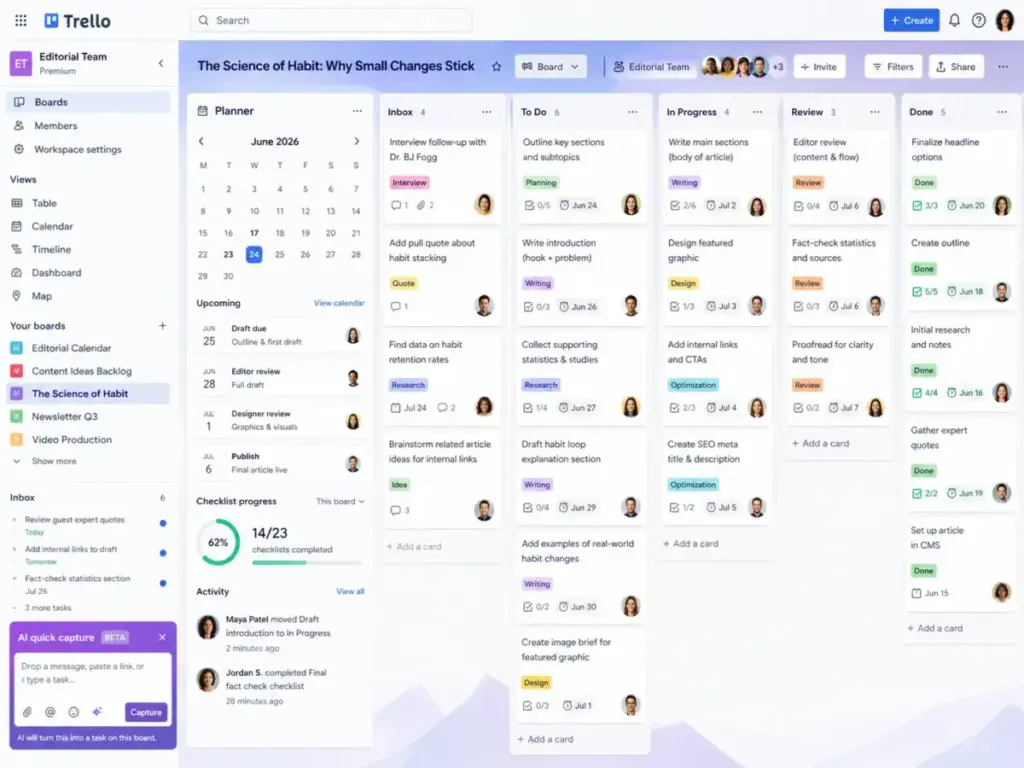
Each card can hold checklists, labels, due dates, attachments, comments, and custom fields. Trello supports templates, Power-Up integrations, and Butler automation rules. It is designed for visual workflow management, where tasks move left to right through stages like “To Do,” “In Progress,” and “Done.”
Trello sits in the project management category but functions more as a visual execution tool than a full project system. It works best when workflows are linear, teams are small, and adoption speed matters more than reporting depth.
Trello Features That Matter
Trello’s feature set is intentionally focused. It does not try to be an all-in-one workspace. Instead, it gives you a Kanban board and layers optional tools on top. Here is what matters most in 2026.
Trello Boards, Lists, and Cards
The board is Trello’s core unit. Each board holds lists (columns), and each list holds cards (tasks). You drag cards between lists to track progress. Cards support:
- Checklists with assignable items and due dates (advanced checklists on Standard and above)
- Labels for color-coded categorization
- Due dates with calendar reminders
- Attachments (10MB per file on Free, 250MB on Standard and above)
- Custom Fields (Standard and above)
- Card covers for visual distinction
- Card mirroring (Standard and above) to show one card on multiple boards
The Free plan limits you to 10 boards per Workspace. That is enough for a solo user or a 2-3 person team with focused projects. Once you hit 10 boards, you either archive old ones or upgrade to Standard ($5/user/month billed annually) for unlimited boards.
Trello Inbox and Planner
Trello added Inbox and Planner in late 2025. These are personal productivity layers on top of the board structure.
Inbox collects tasks from multiple sources: email forwarding, Slack messages, Microsoft Teams messages, and Siri voice capture. The idea is that you dump everything into Inbox first, then sort items into boards later. On Standard and above, AI-powered quick capture helps parse incoming items.
Planner gives you a personal daily and weekly view of cards assigned to you across all boards. It is not a replacement for calendar view (which requires Premium), but it is a useful “what do I need to do today” screen.
These two features show Trello’s 2026 direction: universal task capture first, structured project management second.
Trello Automation and Butler
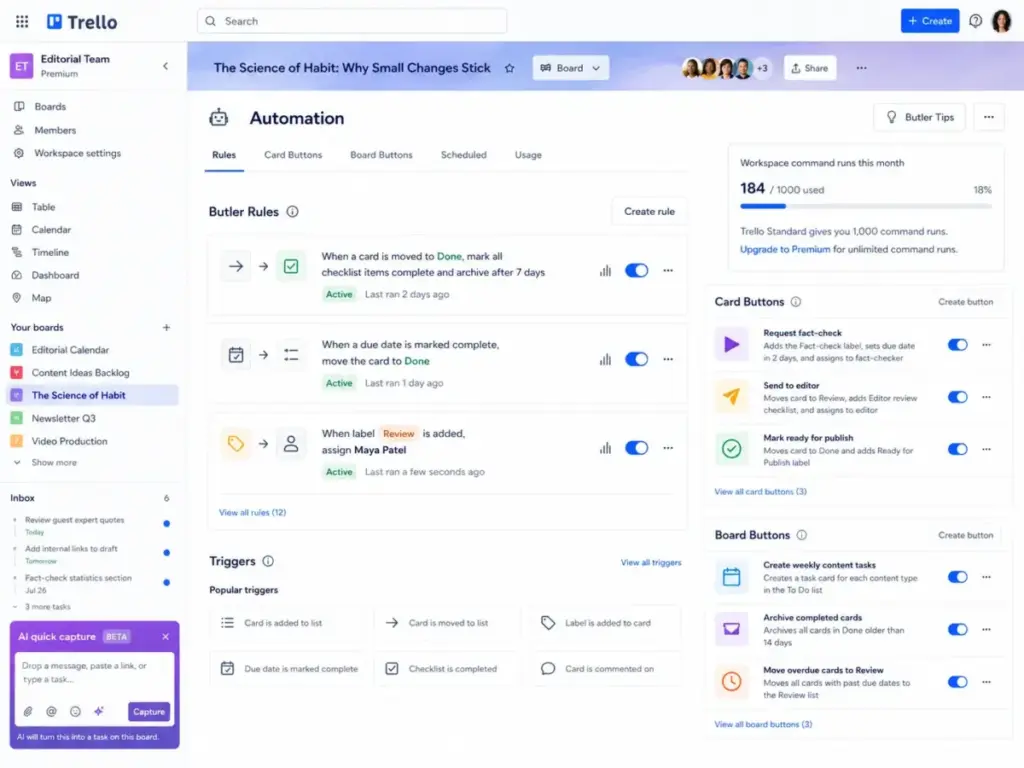
Butler is Trello’s built-in automation engine. It lets you create rules, card buttons, board buttons, and scheduled commands without code. Examples:
- When a card is moved to “Done,” mark all checklist items complete and set a due date for review.
- Every Monday at 9am, create a new card in the “Weekly Tasks” list.
- When a label is added, assign a specific member automatically.
The catch is command-run quotas:
| Plan | Workspace Command Runs per Month |
|---|---|
| Free | 250 |
| Standard | 1,000 |
| Premium | Unlimited |
| Enterprise | Unlimited |
For a 5-person team running 10-15 automations per day, 250 runs will last roughly one work week. Standard’s 1,000 runs gives you about a month of moderate automation. Teams that rely heavily on automation need Premium.
Technical note for ops teams: Trello’s API rate limits are 300 requests per 10 seconds per API key and 100 requests per 10 seconds per token. If you build custom integrations or sync Trello with external systems, these limits matter. Check Trello’s API rate limit documentation before scoping integration work.
Trello Power-Ups and Integrations
Power-Ups are Trello’s integration layer. Every plan (including Free) supports unlimited Power-Ups per board. Native integrations include Slack, Google Drive, Microsoft Teams, Google Calendar, Outlook Calendar, GitHub, Salesforce, and dozens more via the Trello Power-Ups directory.
Hidden cost warning: Some partner Power-Ups require separate paid subscriptions. For example, time tracking Power-Ups from third parties often cost $5-$10/user/month on top of your Trello subscription. If you need time tracking, calendar sync with advanced features, or CRM integration, factor in these add-on costs. Trello itself does not include native time tracking on any plan.
For teams that automate across multiple apps, pairing Trello with tools from Zapier alternatives can fill gaps, but each connection adds complexity and potential cost.
Trello AI Features
Trello’s AI features (powered by Atlassian Intelligence) are available on Premium and Enterprise plans only. Current capabilities include:
- AI-assisted card descriptions and comment summaries
- Smart suggestions for card fields
- AI-powered quick capture parsing (identifying tasks from pasted text)
Atlassian has announced that AI features will be automatically activated on eligible plans, with admin opt-out available. If your organization has data residency or AI governance concerns, check the Atlassian Intelligence documentation and discuss opt-out with your admin before upgrading.
AI in Trello is early-stage compared to ClickUp Brain or Notion AI. It assists with text generation and parsing but does not handle workload analysis, project risk detection, or automated reporting.
Trello Views and Reporting
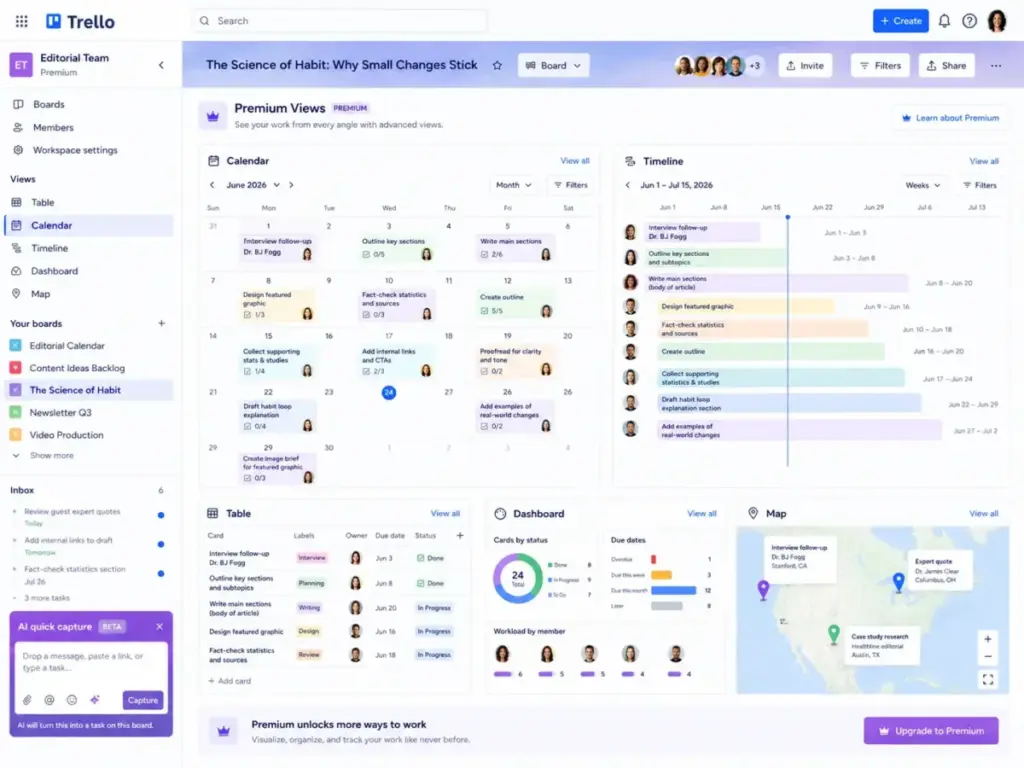
This is where plan-gating matters most. The board view is available on all plans. Everything else requires Premium ($10/user/month billed annually):
| View | Plan Required |
|---|---|
| Board | Free |
| Calendar | Premium |
| Timeline | Premium |
| Table | Premium |
| Dashboard | Premium |
| Map | Premium |
| Workspace Table | Premium |
| Workspace Calendar | Premium |
Does Trello have Gantt charts? Not exactly. The Timeline view on Premium shows cards on a horizontal timeline with start and due dates. It functions like a basic Gantt view, but it lacks the dependency mapping and critical path analysis you would find in Asana or monday.com.
Reporting reality: The Dashboard view on Premium shows card counts by list, label, member, and due date. It is useful for quick status checks. It is not a reporting engine. You cannot build custom reports, track velocity, measure cycle time, or create portfolio-level dashboards. As Shawn N., a CEO in Marketing and Advertising, noted on Capterra (December 2025): “reporting and progress tracking are weak.”
Trello User Experience
Trello’s user experience is its strongest selling point and its most common reason for long-term loyalty. The question is how long that experience stays clean as your workload grows.
Trello Setup in the First 30 Minutes
The First 30 Minutes in Trello
Here is what a new user can accomplish in the first half hour:
- Minutes 1-3: Create a Workspace, name your first board, add 3-5 lists (e.g., Backlog, To Do, In Progress, Review, Done).
- Minutes 3-10: Add 10-15 cards with titles, due dates, and labels. Drag a few between lists.
- Minutes 10-15: Invite 2-3 team members. They see the board instantly with zero training needed.
- Minutes 15-20: Add a checklist to a card. Attach a file from Google Drive. Set a due date reminder.
- Minutes 20-30: Create your first Butler automation rule (e.g., “when card moves to Done, remove all members”).
No other project management tool matches this setup speed. Asana takes longer because of its project/task/subtask hierarchy. ClickUp requires decisions about views, statuses, and custom fields upfront. Jira needs a project admin who understands Scrum or Kanban configurations.
Trello lets you skip all of that. You build as you go.
Trello Daily Workflow
A typical Trello day for a 4-person content team looks like this:
- Check Planner for today’s assigned cards.
- Open the editorial calendar board. Drag “Draft: SEO Guide” from “Writing” to “Review.”
- Add a comment tagging the editor. Attach the Google Doc.
- Butler automation moves the card to “Published” when the editor checks the final item on the review checklist.
- Check Inbox for any tasks captured from Slack overnight. Drag relevant ones to the right board.
This workflow works because it is visual, fast, and requires no status meetings to understand who is doing what. The board is the status meeting.
Trello Mobile App Experience
The Trello mobile app (iOS and Android) covers core functionality: viewing boards, moving cards, adding comments, checking off checklists, and receiving notifications. The app has over 10 million downloads on Google Play with a 4.1-star rating.
The main complaint is formatting parity. As one Google Play reviewer (Lt_Lefty15, February 2025) noted: “formatting the descriptions of cards on the mobile version is different.” Markdown rendering, card cover display, and attachment previews do not always match the web experience. For quick updates and card moves, the app works well. For detailed card editing, the web version is better.
Where Trello Starts Feeling Crowded
Trello’s simplicity becomes a liability at scale. Common pain points:
- 8-12+ boards per Workspace make navigation slower. The sidebar gets cluttered.
- Cards without clear ownership pile up in lists. Without strict archiving discipline, lists grow past 30-40 cards and become walls of text.
- Cross-board visibility is limited unless you upgrade to Premium for Workspace Table and Calendar views.
- No subtask hierarchy. Cards can have checklists, but checklist items are not full cards. You cannot assign effort, add attachments to checklist items, or track them independently.
The tipping point for most teams is around 6-10 active boards with 3-8 collaborators. Below that, Trello is clean. Above that, you start compensating with naming conventions, color codes, and manual processes that a more structured tool would handle natively.
Trello Pricing and Plans
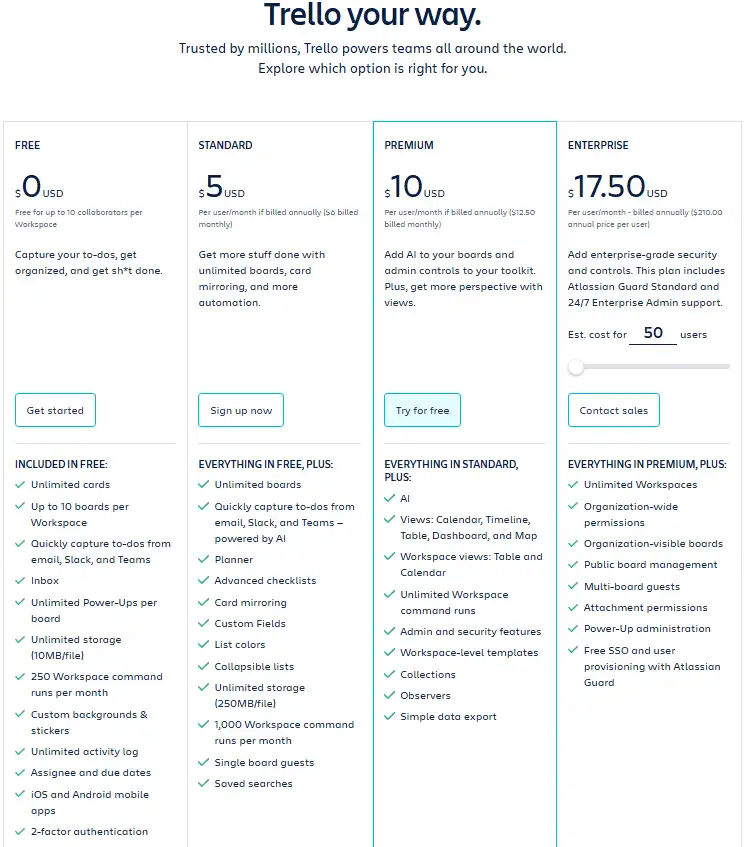
Trello offers four plans. All pricing below was verified on Trello’s pricing page on April 28, 2026. For a deeper breakdown, see our Trello pricing guide.
| Plan | Annual Price | Monthly Price | Best For | Key Limits | Verified |
|---|---|---|---|---|---|
| Free | $0 | $0 | Solo users, personal boards, trying Trello | 10 boards, 10 collaborators, 10MB/file, 250 command runs/month | April 28, 2026 |
| Standard | $5/user/month | $6/user/month | Small teams needing unlimited boards and custom fields | 250MB/file, 1,000 command runs/month, no Premium views | April 28, 2026 |
| Premium | $10/user/month | $12.50/user/month | Teams needing views, AI, unlimited automation, and export | All views, AI, unlimited command runs, CSV/JSON export | April 28, 2026 |
| Enterprise | $17.50/user/month | N/A (annual only, $210/user/year) | Organizations needing SSO, governance, multi-workspace control | Everything in Premium + Atlassian Guard SSO, 24/7 support | April 28, 2026 |
When Trello Starts Charging You More
This table shows the real-world triggers that push you from one plan to the next.
| Trigger | You Hit This When… | Plan You Need | Cost Impact |
|---|---|---|---|
| 11th board | Your team creates an 11th board in one Workspace | Standard ($5/user/month) | First paid jump |
| 11th collaborator | Your Workspace exceeds 10 people | Standard ($5/user/month) | Per-user billing starts |
| Need Calendar or Timeline view | You want to see cards on a calendar or timeline | Premium ($10/user/month) | 2x Standard price |
| Automation exceeds 1,000 runs | Team automations hit the Standard cap | Premium ($10/user/month) | 2x Standard price |
| Need Dashboard reporting | You want card-count dashboards by label, member, or list | Premium ($10/user/month) | 2x Standard price |
| Need AI features | You want AI card summaries or smart capture | Premium ($10/user/month) | AI included in Premium |
| Need data export | You want CSV or JSON Workspace export | Premium ($10/user/month) | Export gated to Premium |
| Need SSO | Your org requires SAML 2.0 SSO | Enterprise ($17.50/user/month) | Requires Atlassian Guard |
| Need org-wide governance | Multiple Workspaces with centralized admin | Enterprise ($17.50/user/month) | Annual billing only |
Trello Free vs Standard vs Premium
Is Trello Free enough for small teams? Yes, if your team is 2-5 people working on 3-7 boards with light automation needs. The 250 command-run cap is the first wall you will hit if you automate frequently.
Is Trello Standard worth it? At $5/user/month (annual), Standard is good value for teams that outgrow the board limit but do not need views beyond the board. Custom fields and card mirroring are the main unlocks.
Should I upgrade to Trello Premium? Premium ($10/user/month annual) is where Trello becomes a real project management tool. Calendar, Timeline, Table, Dashboard, and Map views transform how you see your work. Unlimited automation removes the command-run ceiling. AI features and data export round it out. For teams of 5-15 people managing 10+ boards, Premium is the plan that justifies staying on Trello instead of switching to a competitor.
As one Reddit user (u/No_Track831, r/ProductivityHQ, April 2026) put it: “for a tiny team trello still makes way more sense.”
Data Portability Reality
Trello Premium and Enterprise support Workspace-level export in CSV and JSON formats. The CSV export is usable in spreadsheets. The JSON export contains full board data but is machine-readable; most non-technical users will not find it useful without a developer to parse it. Check Trello’s export documentation for format details.
Free and Standard users can export individual boards as JSON only, not entire Workspaces. If you are evaluating Trello and data portability matters to your organization, factor Premium into your budget from day one.
Trello Pros and Cons
- Fastest onboarding in the category. A new team member can understand the board layout and start moving cards in under 5 minutes. No training sessions required.
- Generous free plan. 10 boards, unlimited cards, unlimited Power-Ups per board, and 250 automation runs per month at $0. Few competitors match this.
- Visual clarity for linear workflows. Kanban boards with labels, covers, and due dates make it obvious what is happening at a glance.
- Butler automation without code. Rule-based automation covers 80% of what small teams need: auto-assign, auto-move, scheduled card creation, and checklist triggers.
- Strong integration ecosystem. Slack, Google Drive, Microsoft Teams, GitHub, Salesforce, and hundreds of Power-Ups extend Trello without leaving the board.
- Inbox and Planner reduce context switching. Capturing tasks from email, Slack, and Teams into one inbox, then planning your day from one screen, is a 2026 workflow improvement.
- Atlassian ecosystem compatibility. Teams already on Jira or Confluence can bridge non-technical work to Trello boards with minimal friction.
- Reporting is surface-level even on Premium. Dashboard view shows card counts, not cycle time, velocity, or custom metrics. Teams that report to stakeholders need a workaround.
- Premium views gate basic functionality. Calendar and Timeline views are table-stakes features in Asana and monday.com at lower price points. Trello locks them behind $10/user/month.
- No native time tracking. Every time-tracking option is a third-party Power-Up with its own subscription. This adds $5-$10/user/month to your stack cost.
- Automation caps on lower plans. 250 command runs on Free and 1,000 on Standard are real limits for teams that automate card movement, assignments, and notifications.
- Cross-board visibility requires Premium. Without Workspace Table and Calendar views, you manage each board in isolation. This creates blind spots for managers overseeing multiple projects.
- No real subtask hierarchy. Checklist items cannot have assignees (unless using advanced checklists), attachments, or independent tracking. This limits Trello for complex projects.
- Mobile formatting inconsistencies. Card descriptions, markdown rendering, and attachment previews differ between the mobile app and web interface.
Trello Limitations
Trello’s limitations are not hidden, but they are often underestimated by teams that start on the Free plan and expect the product to scale with them. Here are the five walls I see teams hit most often. Teams hitting those walls should compare Trello alternatives by reporting depth, dependency handling, native time tracking, portfolio visibility, and the cost of moving beyond a simple board.
Trello Reporting Is Still Light
The Dashboard view on Premium gives you card-count widgets: cards per list, per member, per label, and cards due. That is it. There is no burndown chart, no velocity tracker, no custom report builder, and no portfolio view that spans multiple boards in a single analytics dashboard.
For teams that need to report project health to executives or clients, this gap is significant. You will either need to export data and build reports in a spreadsheet, or switch to a tool with native reporting. As Shawn N., a CEO in Marketing and Advertising, stated in his Capterra review (December 2025): “reporting and progress tracking are weak.”
If reporting is a primary need, monday.com and Asana both offer stronger dashboards at comparable price points.
Trello Dependencies Are Not Deep Enough
Trello supports basic card dependencies through Butler automation rules and some Power-Ups. But there is no native dependency mapping, no critical path calculation, and no automatic schedule adjustment when a predecessor task slips.
For teams managing projects with sequential task chains (software releases, product launches, construction schedules), this is a hard limit. Asana and Jira handle dependencies natively with visual dependency lines on timeline views.
Trello Time Tracking Needs Add-Ons
Trello does not include time tracking on any plan. If your team bills by the hour, tracks time for capacity planning, or needs timesheet reporting, you must add a third-party Power-Up. Popular options (Toggl, Clockify, Everhour) work well but add $5-$10/user/month and introduce a second interface.
ClickUp includes native time tracking on all paid plans. If time tracking is non-negotiable, ClickUp is the better choice at a similar price point.
Trello Export Is Better on Premium
Free and Standard users can only export individual boards as JSON files. Workspace-wide CSV and JSON export requires Premium. The JSON format includes full board data but is not spreadsheet-friendly without technical parsing.
This matters for teams that need to migrate data, create compliance snapshots, or feed project data into external BI tools. If you expect to export data regularly, budget for Premium from the start.
Trello Can Become Cluttered at Scale
Trello boards are designed for 3-7 lists with 10-30 active cards each. When teams push past this, boards become scrolling marathons. Cards without owners collect at the bottom of lists. Labels lose meaning when there are 15+ colors in use.
As Priyanshu J., a Social Media Lead in Computer Software, noted on G2 (April 2026): “Complex projects may get limiting in Trello.”
The fix is disciplined archiving and strict board hygiene, but that requires process overhead that Trello was supposed to eliminate.
Trello vs Alternatives
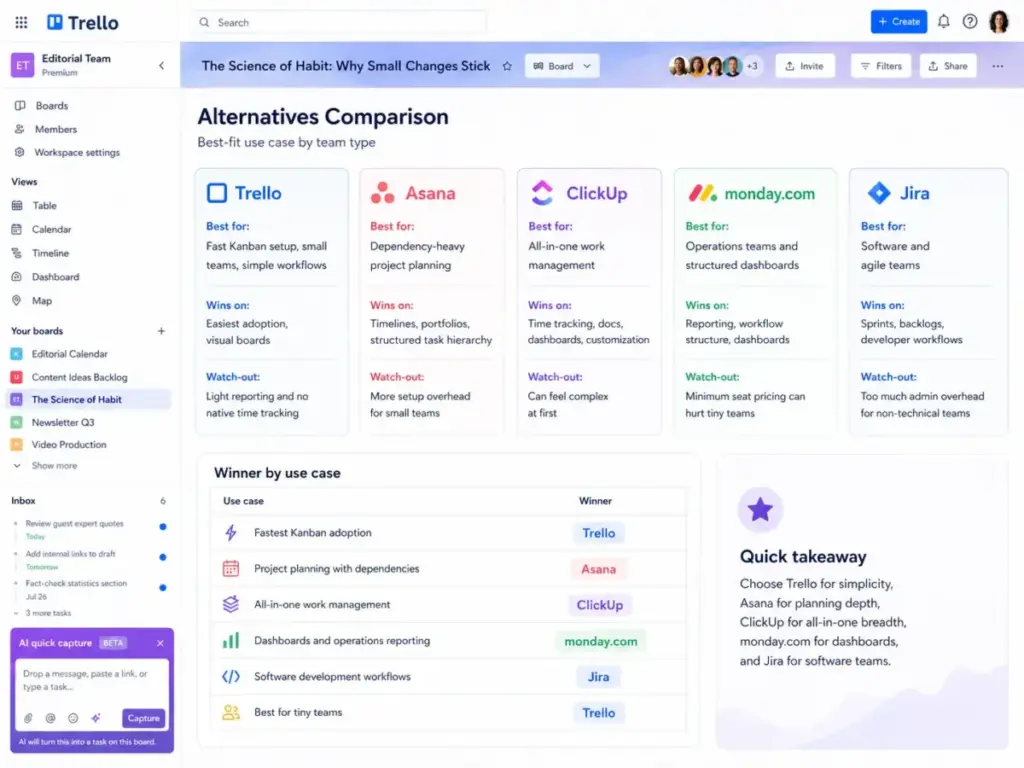
Trello competes in a crowded category. Here is how it stacks up against the five tools teams most often compare it to. I am declaring clear winners by use case, not hedging.
Trello vs Asana
Asana wins for teams that need task dependencies, timeline views, portfolio tracking, goals, approvals, and structured work management. Asana’s hierarchy (projects, sections, tasks, subtasks) gives managers more control over complex workflows.
Trello wins for teams that want the fastest possible setup, a board-first workflow, and zero process overhead. Trello also wins on simplicity for non-technical teams that find Asana’s project structure intimidating.
Winner by use case: Asana for dependency-heavy project planning. Trello for fastest Kanban adoption.
Trello vs ClickUp
ClickUp wins for teams that want time tracking, docs, goals, dashboards, and deep customization in one platform. ClickUp’s Unlimited plan ($7/user/month yearly) includes more native features than Trello Premium ($10/user/month yearly).
Trello wins on setup speed and learning curve. ClickUp’s flexibility comes with configuration complexity. Teams that just want a board running in 10 minutes will find ClickUp’s onboarding slower.
Winner by use case: ClickUp for all-in-one work management with native time tracking. Trello for teams that value speed of adoption over feature count.
Trello vs monday.com
monday.com wins for visual dashboards, structured workflows, formula columns, automation templates, and team reporting. Its dashboard and widget system is significantly deeper than Trello’s Dashboard view.
Trello wins on per-user economics for tiny teams. monday.com requires a 3-seat minimum on paid plans, which hurts solo users and 2-person teams. Trello’s Free plan is more accessible.
Winner by use case: monday.com for operations teams needing structured dashboards. Trello for teams under 5 people who want a simpler board.
Trello vs Jira
Jira wins for software development, Scrum, sprint planning, backlog management, issue tracking, and developer workflows. Jira’s integration with Bitbucket, Confluence, and the Atlassian developer ecosystem is unmatched for engineering teams. Teams that need those developer workflows but want less Atlassian complexity should compare Jira alternatives by backlog structure, sprint reporting, repository integration, documentation coupling, and day-to-day admin load.
Trello wins for non-technical teams that need a visual board without the overhead of Scrum configurations, issue types, and workflow schemes. Trello is also friendlier for cross-functional collaboration where not everyone is a developer.
Winner by use case: Jira for software and agile teams. Trello for non-technical teams or mixed teams that need a lightweight board alongside Jira.
Trello vs Notion
Notion wins for teams that need docs, wikis, databases, and task management in one workspace. Notion’s database views (including Kanban) are more flexible than Trello’s boards when combined with relational data.
Trello wins for pure Kanban execution. Notion’s Kanban boards require more setup, and maintaining board discipline takes more effort because Notion’s flexibility means there is no enforced card-to-list structure.
Winner by use case: Notion for docs-first teams that also track tasks. Trello for teams that want a dedicated Kanban tool with zero database setup.
Trello vs Alternatives Decision Table
| Alternative | Choose It Over Trello If… | Stay With Trello If… | Winner By Use Case |
|---|---|---|---|
| Asana | You need dependencies, portfolios, goals, or approvals | You want fastest adoption and simplest board workflow | Asana for project planning; Trello for Kanban speed |
| ClickUp | You need time tracking, docs, dashboards, or all-in-one | You want minimal setup and a focused board tool | ClickUp for feature depth; Trello for simplicity |
| monday.com | You need structured dashboards, automations, or operations reporting | You are a team of 1-4 and want free or low-cost boards | monday.com for dashboards; Trello for tiny teams |
| Jira | You run Scrum, sprints, or software development workflows | Your team is non-technical or mixed-function | Jira for dev teams; Trello for non-technical teams |
| Notion | You need combined docs, wikis, and task databases | You want a dedicated Kanban board without database configuration | Notion for docs + tasks; Trello for pure Kanban |
Who Should Use Trello?
Trello is better as a visual execution tool than a project system. It works best for specific types of users and teams. Here are the micro-cohorts that get the most value.
Fit Score by User Type
| User Type | Fit Score | Best Plan | Why It Works |
|---|---|---|---|
| Solo consultants managing 20-80 active tasks | 9/10 | Free | 10 boards and personal Planner cover most solo workflows |
| 2-7 person content teams publishing 4-20 assets/month | 9/10 | Standard or Premium | Editorial calendar boards, card mirroring, label-based status tracking |
| 3-10 person agencies tracking client deliverables | 8/10 | Premium | Workspace views give cross-board visibility; one board per client |
| Teachers or program coordinators with recurring tasks | 8/10 | Free or Standard | Templates, checklists, and Butler scheduling handle semester patterns |
| Non-technical ops teams moving work through 3-6 stages | 8.5/10 | Standard | Board-per-process fits ops workflows without admin overhead |
| Marketing teams managing campaigns and requests | 8/10 | Premium | Calendar and Timeline views help with campaign scheduling |
| Freelancers tracking personal projects and invoicing | 7.5/10 | Free | Works for task tracking; no native invoicing or time tracking |
Who Should Not Use Trello?
Trello is not the right fit for every team. Here are specific disqualification triggers.
Do not choose Trello if you need:
- Native time tracking. Trello has none. Use ClickUp ($7/user/month billed yearly with time tracking included) instead.
- Deep dependency management. If your projects have 10+ sequential task chains with deadline dependencies, use Asana or Jira.
- Portfolio-level reporting. If you report project health across 5+ projects to stakeholders weekly, monday.com or Asana give you better dashboards.
- Workload planning. Trello does not show team capacity, allocation, or utilization. Asana Advanced and monday.com include workload views.
- Enterprise governance without Premium. SSO requires Enterprise ($17.50/user/month). Org-wide permissions and board management need Enterprise. If governance is a requirement, budget accordingly.
- All-in-one docs + tasks + goals. If your team wants docs, wikis, and task management in one tool, Notion or ClickUp are better fits.
The Trello Ceiling Test
Answer these five questions. If you answer “yes” to three or more, Trello is likely not enough for your team.
- Do you need to see task dependencies across multiple boards?
- Do you track billable hours or need native time tracking?
- Do you report project metrics (velocity, cycle time, utilization) to stakeholders?
- Do you manage more than 15 active boards with 10+ team members?
- Do you need custom workflow states beyond simple list columns?
0-1 “yes” answers: Trello is a strong fit. Start with Free or Standard. 2 “yes” answers: Trello Premium may work, but test the specific gaps. 3+ “yes” answers: Evaluate Asana, ClickUp, or monday.com first. You will outgrow Trello.
Final Verdict
Trello scores 8.2 out of 10 in my 2026 review. It is still worth using for simple visual project management, Kanban workflows, content calendars, lightweight client work, and small teams that value adoption speed over advanced reporting.
Here is my direct recommendation:
- Use Trello Free if you are a solo operator or a team of 2-5 working on fewer than 10 boards.
- Use Trello Standard ($5/user/month annual) if you need unlimited boards, custom fields, and card mirroring but can live without Premium views.
- Use Trello Premium ($10/user/month annual) if your team needs calendar, timeline, or dashboard views, unlimited automation, AI features, or data export.
- Use Trello Enterprise ($17.50/user/month annual) if your organization requires SSO, centralized governance, and multi-workspace administration.
- Do not use Trello if you need native time tracking, deep dependencies, workload planning, or portfolio-level reporting. Choose ClickUp, Asana, or monday.com instead.
Trello’s biggest flaw in 2026 is not a lack of features. It is that every extra feature pushes the product away from why people liked it in the first place: a clean board that everyone actually uses. If that is what you need, Trello is still the best at it.
Is Trello worth using in 2026? For the right team, yes. For teams that have outgrown visual task tracking, the answer is clearly no, and there is no shame in graduating to a more structured tool.
FAQ
Is Trello worth it in 2026?
Yes, for teams that need fast, visual task management with minimal setup. Trello’s Free plan supports 10 boards and 10 collaborators. Standard ($5/user/month annual) and Premium ($10/user/month annual) add useful features. It is not worth it for teams that need native time tracking, dependency management, or deep reporting.
What is Trello best used for?
Trello is best for Kanban-style workflows: content calendars, editorial pipelines, client deliverable tracking, sprint boards for small teams, and personal task management. It works when tasks move through 3-6 linear stages and the team values visual clarity over structured reporting.
How much does Trello cost in 2026?
Trello Free costs $0 for up to 10 collaborators. Standard costs $5/user/month billed annually ($6 monthly). Premium costs $10/user/month billed annually ($12.50 monthly). Enterprise costs $17.50/user/month billed annually. Pricing verified April 28, 2026.
What are the main limitations of Trello?
Trello’s main limitations are: weak native reporting (even on Premium), no native time tracking, limited dependency management, export gated to Premium, automation command-run caps on Free (250) and Standard (1,000), and scaling challenges above 10+ active boards. Cross-board visibility also requires Premium.
Is Trello free enough for small teams?
Yes, for teams of 2-5 people working on 3-7 boards. The Free plan includes unlimited cards, unlimited Power-Ups per board, and 250 automation runs per month. The 10-board and 10-collaborator limits are the main constraints. Most small teams can operate on Free for months before needing Standard. For a side-by-side comparison with other zero-cost options, see our best free project management software ranking.
Does Trello have Gantt charts?
Not traditional Gantt charts. Trello Premium ($10/user/month annual) includes a Timeline view that displays cards on a horizontal timeline with start and due dates. It lacks native dependency lines and critical path calculations. For full Gantt chart functionality, consider Asana or monday.com.
Does Trello have time tracking?
No. Trello does not include native time tracking on any plan. You need a third-party Power-Up like Toggl, Clockify, or Everhour, which typically cost $5-$10/user/month extra. ClickUp includes native time tracking on all paid plans starting at $7/user/month billed yearly.
Is Trello better than Asana?
Trello is better than Asana for teams that want the fastest Kanban setup with the lowest learning curve. Asana is better than Trello for teams that need task dependencies, timeline views, portfolio tracking, goals, approvals, and structured project hierarchy. The right choice depends on your workflow complexity. See our full comparison in the Asana vs monday.com article for more context on Asana’s strengths.
Is Trello better than ClickUp?
Trello is better than ClickUp for teams that prioritize simplicity and adoption speed. ClickUp is better than Trello for teams that want time tracking, docs, dashboards, goals, and heavier customization in one platform. ClickUp’s Unlimited plan ($7/user/month yearly) includes more features than Trello Premium ($10/user/month yearly). Teams tempted by that feature density should compare ClickUp alternatives by adoption speed, time tracking, docs, dashboard depth, and whether the extra configuration is worth the lower per-seat price.
What is the best Trello alternative?
The best Trello alternative depends on your gap. For reporting and dashboards: monday.com. For all-in-one work management with time tracking: ClickUp. For structured project planning with dependencies: Asana. For software development: Jira. For docs and knowledge bases combined with tasks: Notion. Each wins in a specific scenario where Trello falls short.
Is Trello good for large teams?
Trello is not ideal for large teams (20+ people). Boards become cluttered, cross-board visibility requires Premium, and reporting does not scale to portfolio-level needs. Large teams benefit from Asana, ClickUp, or monday.com, which offer better hierarchy, workload planning, and executive-level dashboards.