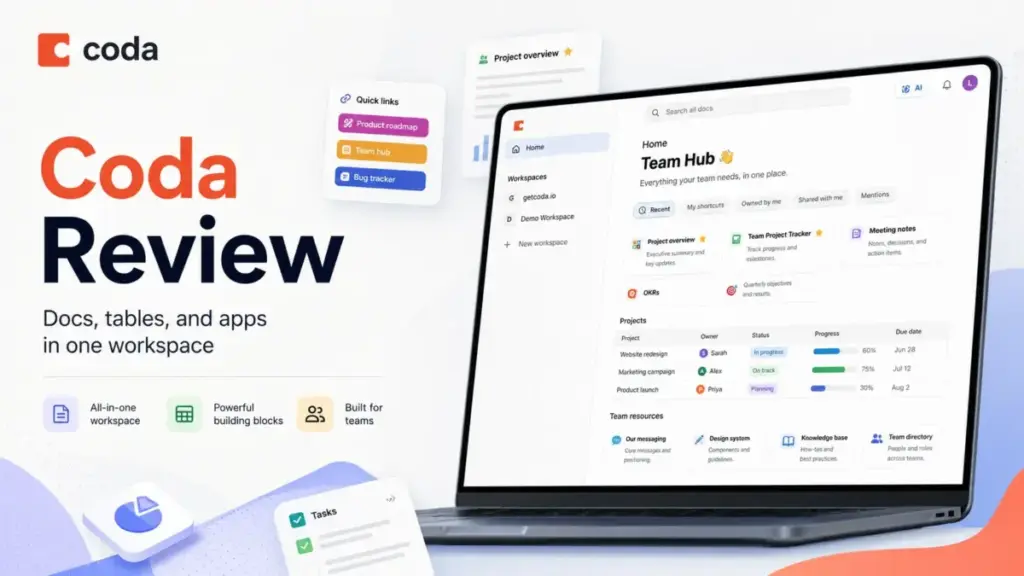
Coda is one of the most ambitious tools in the knowledge base software category, and this Coda review breaks down whether it delivers on that ambition. After testing Coda across five real workflow scenarios, I found a platform that rewards builders who want docs, tables, automations, and lightweight apps in one place, but punishes teams that just need a simple wiki or a quick database.
This review is based on extensive hands-on evaluation using official documentation, real user workflows, and competitive testing scenarios.
Coda is not a Notion clone. It is not a simplified Airtable. It is a doc-first app builder with a billing model that charges creators and lets everyone else use it free. That distinction matters more than any feature list.
Coda Review Verdict
| Category | Details |
|---|---|
| Score | 8.4 / 10 |
| Best For | Teams with a few builders and many collaborators who need docs, tables, and automations in one workspace |
| Not For | Teams that only need a clean wiki, a pure note-taking app, or a large-scale relational database |
| Pricing From | Free; Pro starts at $10 per Doc Maker/month (billed annually) |
| Verified | May 9, 2026 |
Coda earns its score by doing something few competitors attempt: letting a small group of builders create doc-powered apps for an entire organization. The Doc Maker billing model means a 50-person company might only pay for 5 seats. That math is hard to beat. But Coda’s complexity is real. Non-technical users will struggle with formulas. Large docs slow down. And if all you need is a place to store team knowledge, simpler tools exist. Coda is worth it when your team needs to build workflows, not just write them down.
How I Tested Coda
I evaluated Coda by simulating five workflows that represent how real teams use it. These were not surface-level walkthroughs. Each test was designed to stress a specific part of the platform.
My testing methodology included:
- Product roadmap: Built a multi-view table with status columns, priority fields, timeline views, and filtered views for engineering vs. product stakeholders.
- Team wiki: Created a structured knowledge base with nested pages, a sidebar hierarchy, and cross-linked reference docs.
- Approval tracker: Used buttons and automations to route approval requests, change row statuses, and send Slack notifications via Packs.
- CRM-lite pipeline: Set up a deal tracker with stages, contact tables, related tables, and conditional formatting.
- AI summary workflow: Tested Coda AI columns to auto-summarize meeting notes, generate action items, and estimate credit consumption.
I also reviewed Coda’s Packs documentation for integration depth, tested template onboarding, and compared the builder experience against the editor and viewer experience.
For more on how I evaluate tools, see the SaaSZap review methodology.
What Is Coda?
Coda is a doc-based workspace that lets teams build interactive applications without writing code. Unlike a traditional wiki or what a knowledge base is in the classic sense, Coda treats every document as a potential app.
A Coda doc can contain pages, tables, buttons, formulas, automations, and embedded views. A single doc can serve as a product roadmap, a meeting tracker, an OKR dashboard, and a CRM pipeline. The doc is the app.
This makes Coda a hybrid. It sits between Notion (doc-first knowledge base), Airtable (database-first workspace), and lightweight internal tool builders. Coda’s value shows up when you need all three in one place, and when you have builders on your team who enjoy designing workflows.
The platform uses a role-based model:
- Doc Makers create and structure docs. They are the builders. They are the paid seats.
- Editors can modify content inside docs but cannot create new docs from scratch. They are free.
- Viewers can read and interact with published docs. They are free.
This architecture shapes everything about Coda, from pricing to team adoption to who benefits most.
Coda Features That Matter
Coda’s feature set is wide, but not every feature carries equal weight for buyers. Here are the ones that actually change how teams work.
Coda Tables and Views
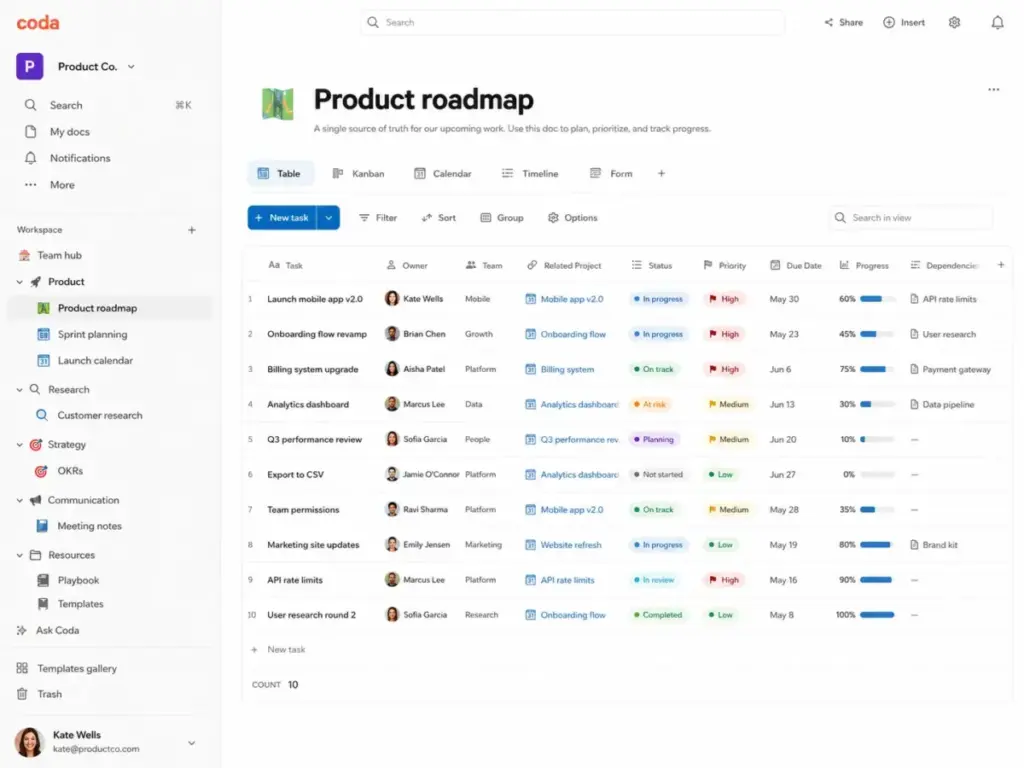
Tables in Coda function like structured databases inside a document. Each table supports multiple views: grid, kanban, calendar, timeline, card, and form. You can filter, sort, group, and conditionally format rows without leaving the doc.
Relation columns let you connect tables. A project table can link to a people table, which links to a tasks table. This creates a lightweight relational system inside a single doc.
In my testing, the table experience felt closer to Airtable than Notion. Coda tables support more view types and more formula logic than Notion tables. But they lack Airtable’s depth in field types, record-level permissions, and external data syncing at scale.
Coda Buttons and Automations
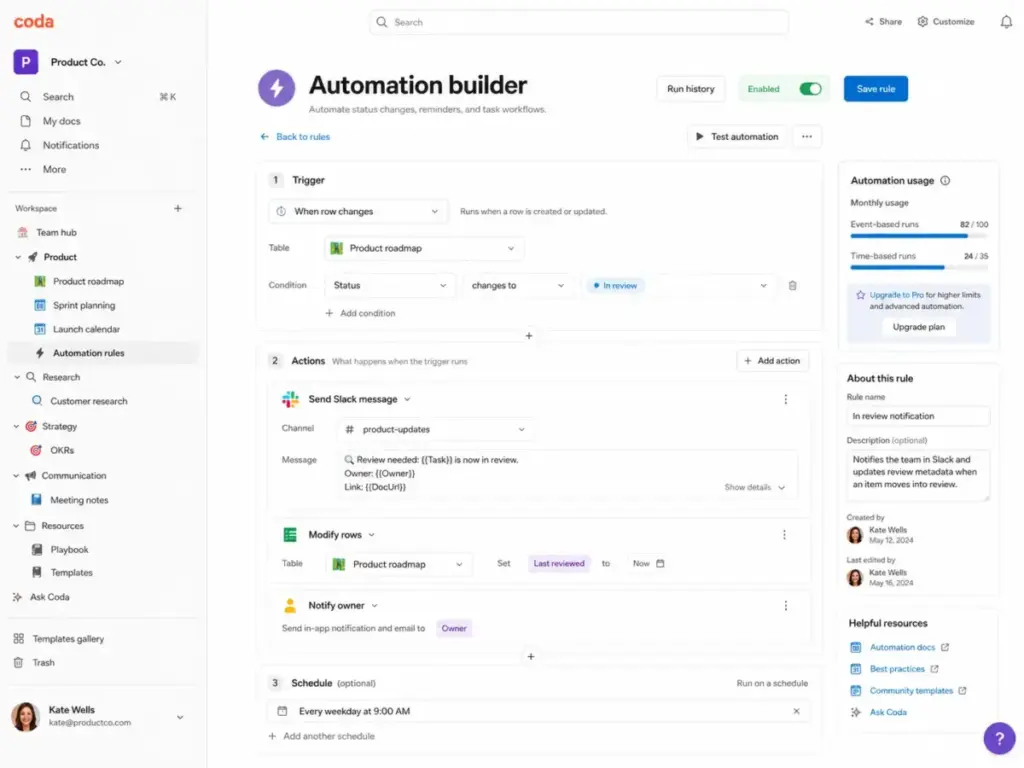
Buttons turn docs into interactive tools. A button can push a row to another table, change a column value, send a notification, open a URL, or trigger an automation chain.
Automations run on schedules or in response to row changes. Time-based automations fire on intervals (hourly, daily, weekly). Event-based automations fire when a row is added, modified, or matches a condition.
Automation limits matter:
- Free: 35 time-based and 100 event-based automations per doc/month
- Pro: 100 time-based and 500 event-based automations per doc/month
- Team and Enterprise: unlimited automations per doc/month
For teams building approval workflows, status-change notifications, or scheduled report refreshes, the Team plan’s unlimited automations are a clear upgrade trigger.
Coda Packs and Integrations
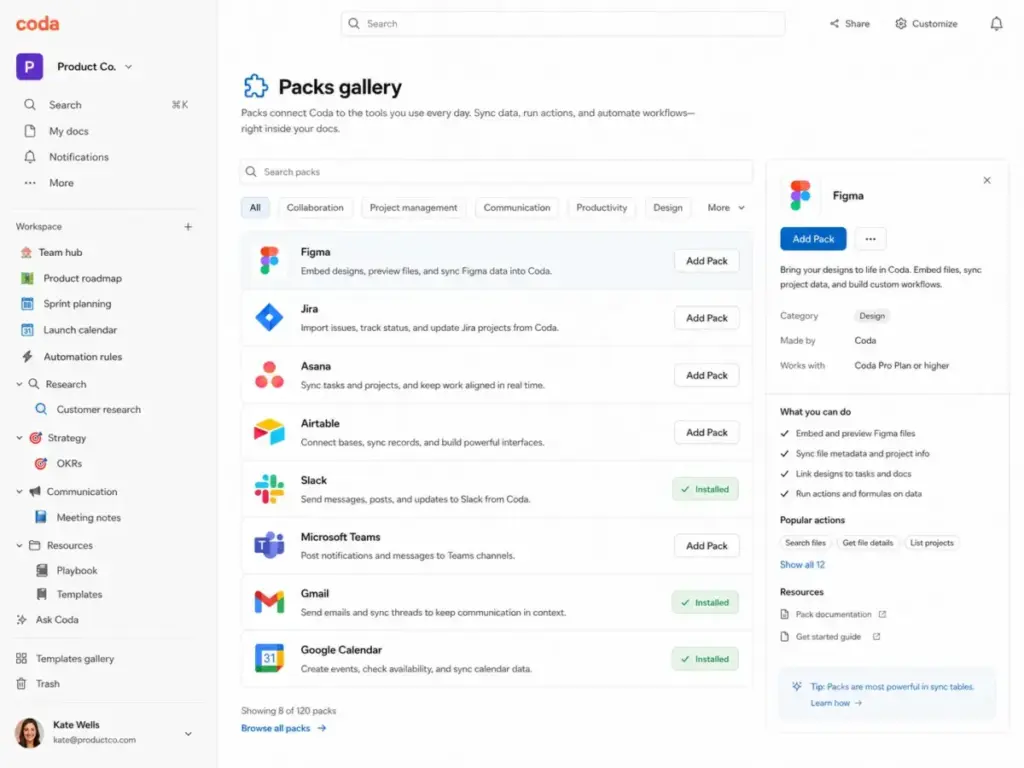
Packs are Coda’s integration system. They connect external tools like Slack, Jira, Figma, Gmail, Google Calendar, Asana, GitHub, Salesforce, and HubSpot directly into docs.
Packs do three things:
- Sync tables pull live data from external tools into Coda tables.
- Actions let buttons and automations push data to external services.
- Formulas let you reference external data inside Coda formulas.
The Packs gallery includes both official and community-built Packs. Enterprise admins can restrict which Packs are allowed, which matters for security-conscious teams.
Pack Studio lets developers build custom Packs using TypeScript. This opens Coda to teams with specific API needs, but it requires developer resources.
Coda AI
Coda AI operates in three modes:
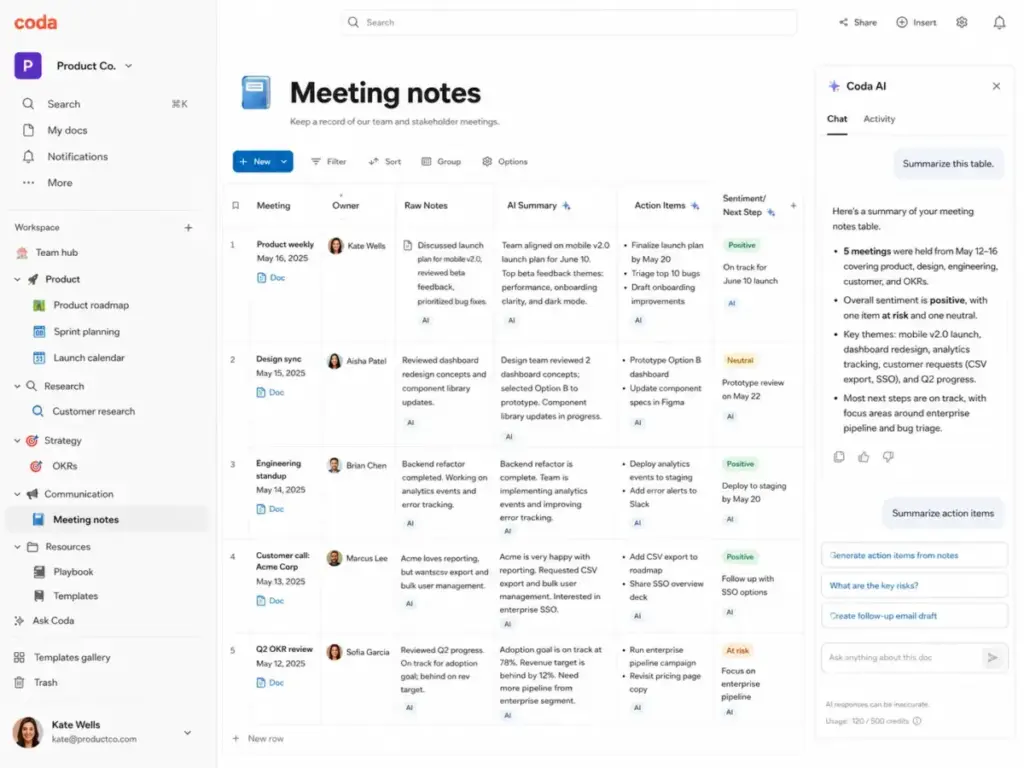
- AI assistant: Chat-based help inside any doc. Ask questions, generate drafts, summarize content.
- AI column: A table column that runs AI prompts on every row. Useful for generating summaries, extracting categories, or scoring entries.
- AI chat: Conversational AI scoped to a specific doc’s content.
AI credits are consumed per interaction. One credit equals approximately 40 English characters or 7.5 words. Credit usage depends on prompt length and response length.
I tested the AI column by auto-summarizing 25 meeting notes. The summaries were accurate and consistent. Credit consumption was predictable once I understood the character-to-credit ratio.
Coda Team Hubs
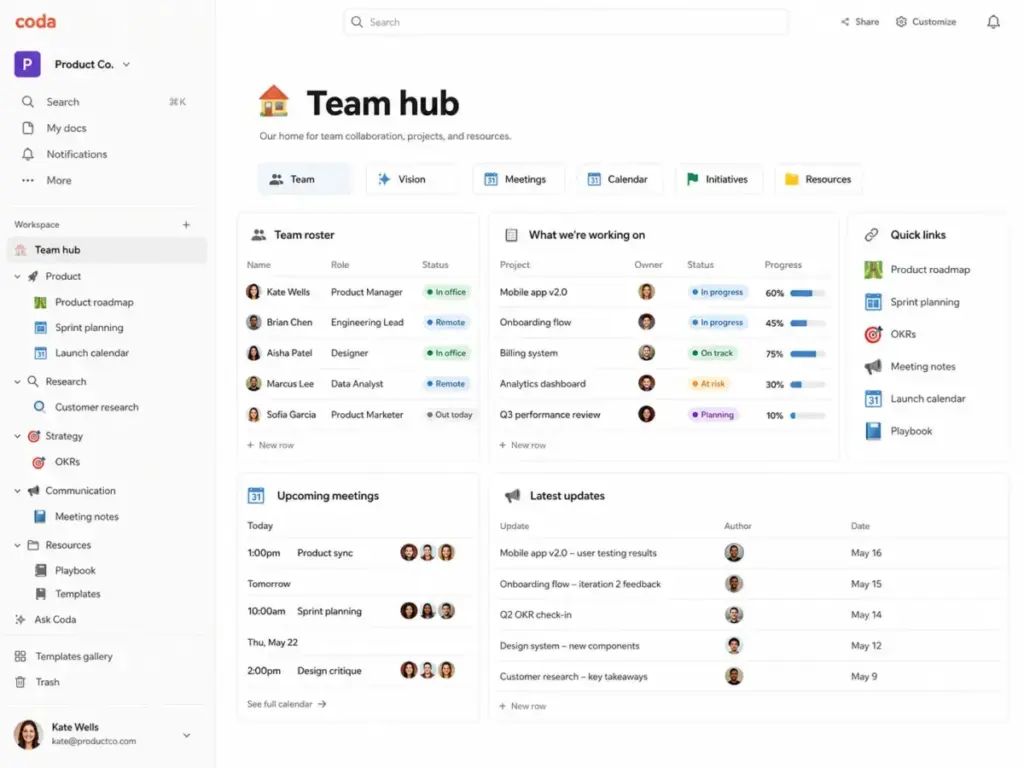
Team hubs are top-level landing pages that organize docs, folders, and pinned items for a team or department. They serve as a navigation layer above individual docs.
For larger organizations, hubs provide structure. A product team hub might contain a roadmap doc, a specs folder, a launch checklist, and a meeting notes archive. Hubs reduce the “where is that doc?” problem.
Coda Forms and Lightweight Apps
Coda forms collect input directly into tables. Any table can become a form with drag-and-drop field selection, conditional logic, and custom confirmation messages.
Combined with buttons, automations, and conditional views, forms let teams build lightweight internal apps: request intake systems, feedback collectors, onboarding checklists, and bug report forms.
This is where Coda’s app-like ambition shows. A single doc can serve as both the form, the database, the dashboard, and the notification system.
Coda User Experience
Coda’s first 30 minutes are both impressive and overwhelming. The blank doc gives you a page, a slash command menu, and infinite possibilities. That freedom is the product’s strength and its biggest adoption risk.
Setup: Creating a workspace and a first doc takes under two minutes. Coda’s onboarding prompts suggest templates, which help new users see what is possible.
Templates: The template gallery is strong. Templates for OKRs, product roadmaps, meeting hubs, hiring trackers, and project management cover common use cases. Starting from a template is the fastest path to value.
Learning curve: The learning curve is real. Formulas use a proprietary syntax. Building a useful automation chain requires understanding triggers, conditions, and actions. One verified G2 reviewer noted that Coda’s flexibility makes “the learning curve steeper for new users.” A Capterra reviewer was more direct: “If you’re not an IT person can get complicated.”
Builder vs. reader experience: Builders see the full editing interface with formulas, automations, and Pack configurations. Editors and viewers see a cleaner, app-like interface. This split is intentional and works well for teams where a few people build and many people use.
Where beginners get stuck: Formula errors, automation debugging, and doc structure decisions. Unlike Notion, where a page is just a page, a Coda doc can become an interconnected system. That power requires planning.
Navigation: The sidebar hierarchy works for docs with 10 to 30 pages. Beyond that, navigation becomes harder. Coda does not have a global search experience as strong as Notion’s or Confluence’s.
Coda Pricing and Plans
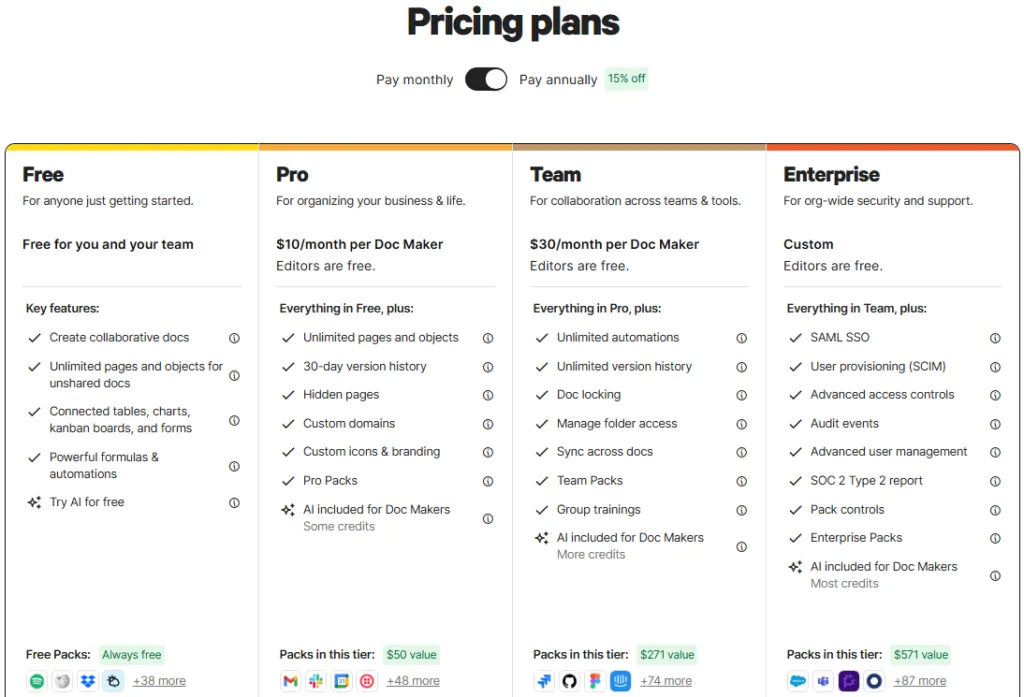
Coda’s pricing model is unusual: it charges for Doc Makers, not for every user. This makes it cheaper than per-seat tools for teams with many editors and viewers, but more expensive per builder than most competitors.
| Plan | Price | Best For | Key Limits / Notes | Verified |
|---|---|---|---|---|
| Free | $0 | Individuals and early testing | Shared docs have limits, limited automation and AI trial | May 9, 2026 |
| Pro | $10/Doc Maker/mo (annual) | Solo builders and small teams | Unlimited doc size, 30-day history, 2,000 AI credits/Doc Maker/mo | May 9, 2026 |
| Team | $30/Doc Maker/mo (annual) | Collaborative teams | Unlimited automations, unlimited history, 6,000 AI credits/Doc Maker/mo | May 9, 2026 |
| Enterprise | Custom | Multi-team organizations | SSO, SCIM, audit APIs, Pack controls, advanced admin policies | May 9, 2026 |
Pricing source: Coda pricing page. For details on roles, see Coda roles documentation.
What Is a Doc Maker?
A Doc Maker is any user who creates docs from scratch or is a workspace admin. Editors who only modify existing docs are free. Viewers who only read docs are free. This distinction is central to Coda’s pricing advantage.
Workspace admins are automatically Doc Makers, so every admin is a paid seat. Mid-cycle Doc Maker changes are prorated.
For billing details, see Coda billing and pricing basics.
Team Cost Scenarios
The Doc Maker model creates different economics depending on your builder-to-user ratio.
| Scenario | Doc Makers | Free Editors/Viewers | Plan | Monthly Cost (Annual Billing) |
|---|---|---|---|---|
| 5-person startup, 1 builder | 1 | 4 | Pro | $10/mo |
| 20-person team, 4 builders | 4 | 16 | Team | $120/mo |
| 100-person org, 20 builders | 20 | 80 | Team | $600/mo |
Compare this to per-seat tools charging $10 to $20 per user. A 100-person team on a $15/user tool pays $1,500/month. Coda’s Doc Maker model costs $600/month if only 20 people build docs. That is a 60% cost difference.
The math breaks down when most users need to create docs. If 80 of 100 people are Doc Makers, the Team plan costs $2,400/month, which is more expensive than most per-seat alternatives.
Bottom line: Coda pricing rewards teams with a clear builder-consumer split. It penalizes teams where everyone builds.
Coda AI and Automation
Coda AI is useful, but credit limits require planning. AI is not unlimited on any standard plan. Every AI interaction consumes credits, and those credits run out faster than most teams expect.
AI Credit Economics
| Plan | AI Credits per Doc Maker/Month | Approximate Words |
|---|---|---|
| Pro | 2,000 | ~15,000 words |
| Team | 6,000 | ~45,000 words |
| Enterprise | 12,000 | ~90,000 words |
One Coda AI credit equals approximately 40 English characters or 7.5 words. Credits are pooled across the workspace, meaning all Doc Makers’ credits combine into a shared pool.
For details on credit calculations, see Coda AI credits.
The AI Credit Catch
A team of 4 Doc Makers on the Team plan gets 24,000 pooled credits per month. That sounds generous until you run an AI column on a 500-row table. If each AI call consumes 50 credits (a moderate prompt and response), one table sweep costs 25,000 credits, which exceeds the monthly pool.
Add-on options:
| Add-On | Cost per Doc Maker/Month |
|---|---|
| 2,000 extra credits | $2 |
| 6,000 extra credits | $6 |
| Unlimited AI | $12 |
Extra credits apply to every Doc Maker, not selected users. A team of 4 Doc Makers adding unlimited AI pays $48/month on top of base plan costs.
For teams that rely heavily on AI columns or AI-assisted workflows, the unlimited add-on at $12 per Doc Maker/month is the predictable choice. For teams that use AI occasionally, the base credits are sufficient.
Automation Upgrade Triggers
The Free plan’s 35 time-based automations per doc/month is enough for light use. Once a team builds multiple automated workflows in a single doc, the Pro plan’s 100 time-based automations becomes necessary.
The jump to Team plan ($30 vs. $10 per Doc Maker/month) is justified when automation volume exceeds Pro limits or when the team needs unlimited version history.
Coda Security and Admin Controls
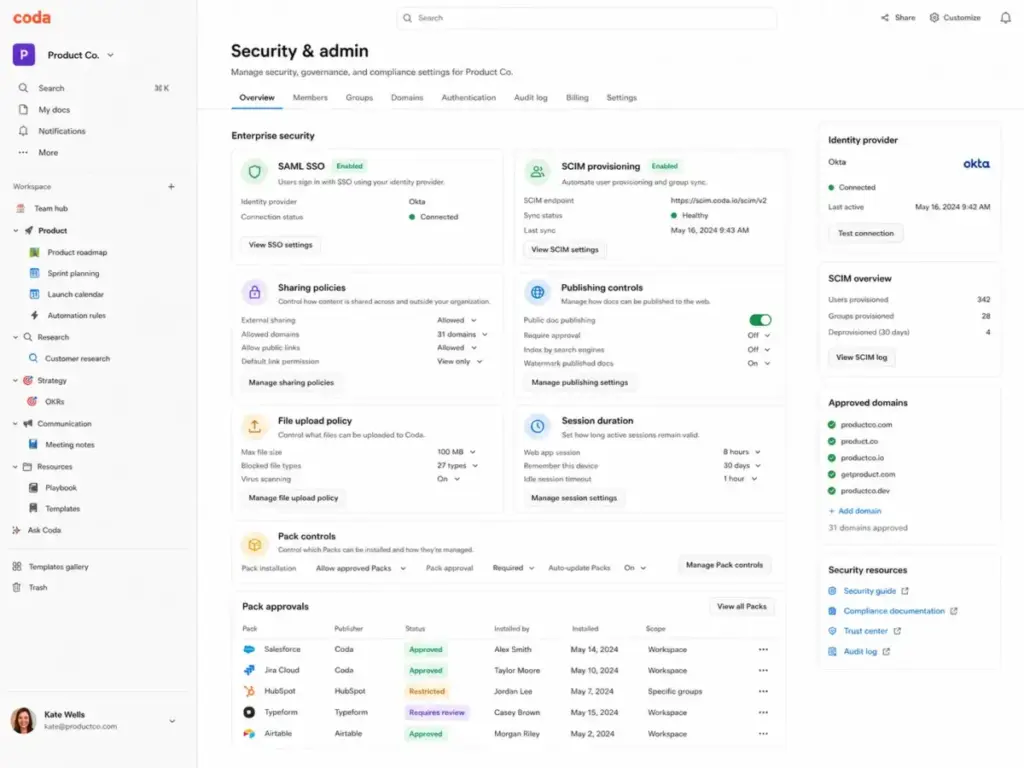
Coda’s security stack meets enterprise requirements, but most controls are locked to the Enterprise plan. Teams evaluating Coda for regulated industries or large deployments should plan for Enterprise pricing.
Security capabilities include:
- SSO: SAML 2.0 for Enterprise
- SCIM: Automated user provisioning and deprovisioning for Enterprise
- Encryption: TLS 1.2 in transit, AES-256 at rest
- Audit APIs: Enterprise plan, with past 12 months of audit logs
- Enterprise policies: Controls for authentication, sharing, publishing, data export, file uploads, and session duration
- Pack controls: Enterprise admins can approve or restrict Packs
Compliance certifications:
- SOC 2 Type 2
- GDPR
- CCPA
- ISO 27001
- ISO 27017
- ISO 27018
- HIPAA
For full details, see Coda security documentation.
Who cares about this section: IT leaders, compliance officers, and procurement teams evaluating Coda for organizations with 100 or more users. If your team is under 50 people and not in a regulated industry, the Team plan’s baseline security is likely sufficient. For teams running a formal procurement process, the knowledge base RFP template and knowledge base software requirements template can help structure your evaluation.
Coda Limitations
Every tool has limits. Coda’s limits are specific and worth understanding before you commit. Here are the ones that affect real buying decisions.
1. Learning Curve Is Real
Coda’s formula language, automation builder, and doc architecture require time to learn. A verified G2 reviewer noted the platform makes “the learning curve steeper for new users.” Teams without a dedicated builder will struggle to get value from Coda beyond basic docs.
2. Not Ideal for Simple Wikis
If your team only needs a clean, searchable knowledge base with minimal setup, Coda is overbuilt. Tools like Slite or Nuclino deliver a wiki experience with less configuration.
3. Performance Risk in Large Docs
Docs that grow beyond 125 MB may not be able to access the Coda API for cross-doc operations or exports. Formula calculations pause at 325 MB across all plans.
For official limits, see Coda doc limits.
4. API and Sync Table Limits
Sync tables are capped at 10,000 rows per Pack sync table on Pro, Team, and Enterprise. Free plan sync tables are limited to 100 rows. Teams syncing large datasets from Salesforce, HubSpot, or Jira will hit this ceiling.
5. AI Credits Require Planning
As covered in the AI section, credits are finite. Teams that deploy AI columns across multiple large tables will exhaust credits quickly without the unlimited add-on.
6. Advanced Admin Controls Are Enterprise-Gated
SSO, SCIM, audit APIs, and Pack controls require the Enterprise plan with custom pricing. There is no mid-tier option for teams that need SSO but not full Enterprise.
7. Formula-Heavy Docs Require Technical Comfort
Coda formulas use a proprietary syntax. They are more expressive than Notion formulas but less familiar than Excel or Google Sheets formulas. Non-technical team members will need training or documentation.
8. Pure Database Teams May Prefer Airtable
Coda’s tables are capable, but Airtable offers deeper field types, record-level permissions, interface designer, and a more mature database experience. Teams whose primary need is a relational database should compare both.
| Limitation | Impact | Plan Affected |
|---|---|---|
| Learning curve | Slows adoption for non-technical users | All |
| Large doc performance | API access lost above 125 MB | All |
| Formula calculation cap | Calculations pause at 325 MB | All |
| Sync table row limit | 10,000 rows per Pack sync table | Pro, Team, Enterprise |
| Free sync table limit | 100 rows per sync table | Free |
| Attachment limits | 1 GB/doc (Free), 5 GB/doc (Pro) | Free, Pro |
| AI credit caps | Finite monthly pool | Pro, Team |
| SSO, SCIM, audit APIs | Enterprise plan only | Free, Pro, Team |
Coda Pros and Cons
- Doc Maker billing saves money for teams with few builders and many editors or viewers
- Tables, automations, and buttons in one doc eliminate the need for separate database and workflow tools
- AI columns automate repetitive analysis across table rows without manual prompting
- Packs connect 600+ tools directly into docs, reducing context switching
- Template gallery accelerates onboarding for common use cases like OKRs, roadmaps, and meeting hubs
- Team and Enterprise plans include unlimited automations, removing workflow volume concerns
- Learning curve is steep for non-technical users, especially around formulas and automations
- Large docs degrade performance and lose API access above 125 MB
- Simple wiki use cases are overserved; Slite or Nuclino are simpler choices
- AI credits run out fast with heavy AI column usage; unlimited add-on costs $12 per Doc Maker/month
- SSO and SCIM require Enterprise pricing, with no mid-tier security option
- Sync tables cap at 10,000 rows, limiting large-scale data imports
- Formula syntax is proprietary, not standard spreadsheet formulas
- Navigation weakens in docs with more than 30 pages
Coda After Superhuman
Coda was acquired by Grammarly, which rebranded as Superhuman in late 2025. Coda is now part of the Superhuman suite alongside Grammarly, Superhuman Mail, and Superhuman Go.
What changed:
- The parent company name changed from Grammarly to Superhuman
- Coda is listed as part of the Superhuman product family
What did not change:
- Coda’s product experience remains the same, according to Coda’s own help center
- Pricing, features, and billing have not changed as of May 2026
- Coda’s roadmap and team continue operating
For the full rebrand context, Superhuman positions itself as a unified productivity suite.
Buyer note: Acquisitions create uncertainty. Coda says nothing has changed today. But buyers making multi-year commitments should monitor product updates and roadmap announcements. The Superhuman brand consolidation could bring deeper AI integrations, or it could shift investment priorities. Neither outcome is guaranteed.
Coda Alternatives
Coda is not the only option, and it is not the best option for every use case. Here is how it compares to the main alternatives by job-to-be-done.
Coda vs Notion
Notion is the closest competitor. Both offer docs, tables, and workspace features. The key differences:
- Notion has a stronger wiki and knowledge base experience with better search and navigation
- Coda has stronger tables, formulas, buttons, and automations
- Notion charges per seat. Coda charges per Doc Maker.
- Notion’s learning curve is lower for non-technical users
Choose Notion if your primary need is a team wiki or a clean knowledge base. Choose Coda if you need doc-based workflows with automations and formulas.
For a deeper look, see our Notion review. Teams exploring Notion competitors can also check our Notion alternatives guide.
Coda vs Airtable
Airtable is the stronger choice for database-first teams.
- Airtable offers deeper field types, record-level permissions, and a more mature interface designer
- Coda offers stronger doc integration, buttons, and in-doc automation chains
- Airtable charges per seat. Coda charges per Doc Maker.
Choose Airtable if your primary need is a relational database with views and automations. Choose Coda if you need docs and tables in one workspace.
For details, see our Airtable review.
Coda vs Confluence
Confluence is built for documentation at scale, especially for engineering and product teams already using Jira.
- Confluence has deeper Jira integration and a stronger long-form documentation experience
- Coda has stronger tables, formulas, and interactive doc features
- Confluence’s learning curve for basic documentation is lower
Choose Confluence if your team lives in the Atlassian ecosystem and needs structured documentation. Choose Coda if you need docs that act as apps.
For a comparison of documentation tools, see our Confluence review and Notion vs Confluence analysis.
Coda vs Slite
Slite focuses on internal knowledge management with AI-powered search and clean organization.
- Slite is simpler to set up and easier for non-technical teams
- Coda is far more capable for workflows, automations, and structured data
- Slite’s AI search helps teams find information faster in large knowledge bases
Choose Slite if your primary need is a clean, searchable internal wiki. Choose Coda if you need a wiki that also does project tracking and automations.
See our Slite review for a full evaluation.
Coda vs Nuclino
Nuclino is the lightest option in this comparison. It prioritizes speed and simplicity.
- Nuclino loads fast and has almost no learning curve
- Coda offers dramatically more features but requires more setup
- Nuclino works well for small teams that need quick collaborative docs
Choose Nuclino if you want the simplest possible team wiki. Choose Coda if simplicity is less important than capability.
See our Nuclino review for details.
Coda vs ClickUp
ClickUp is a project management platform that also offers docs and whiteboards.
- ClickUp has stronger native project management features (tasks, sprints, goals, time tracking)
- Coda has stronger doc-based workflows and table formulas
- ClickUp charges per seat
Choose ClickUp if your primary need is project management with docs as a secondary feature. Choose Coda if your primary need is interactive docs with project tracking as a secondary feature.
Alternatives Summary
| Alternative | Best For | Weakness vs Coda |
|---|---|---|
| Notion | Team wiki, knowledge base, clean docs | Weaker tables, formulas, automations |
| Airtable | Relational databases, structured data | Weaker doc experience, no in-doc apps |
| Confluence | Engineering docs, Jira-integrated teams | No tables, no automations, no app-like docs |
| Slite | Simple internal wiki, AI search | No tables, no automations, no forms |
| Nuclino | Fast, simple team docs | Minimal features beyond docs |
| ClickUp | Full project management | Weaker doc-as-app experience |
Who Should Use Coda?
| Persona | Why Coda Fits |
|---|---|
| Product managers | Roadmaps, OKRs, and specs in one doc with automations |
| Operations teams | Workflow builders who need approval chains, trackers, and dashboards |
| Startup teams (under 50 people) | Doc Maker billing keeps costs low when 2 to 5 people build for everyone |
| RevOps and sales ops | CRM-lite pipelines, deal trackers, and reporting docs |
| Technical founders | Comfortable with formulas, enjoy building internal tools |
| Team leads who build for others | Create once, share with editors and viewers at no extra cost |
Who Should Not Use Coda?
Be honest about whether Coda fits your team. These scenarios point toward other tools:
- You only need a wiki. Slite or Notion will serve you better with less setup.
- You need a full project management suite. ClickUp or Asana offer native tasks, sprints, and resource management.
- Your team is non-technical. Coda’s formula system and automation builder require comfort with logic.
- You need offline-first editing. Coda does not have a strong offline mode.
- You need a large-scale database. Airtable or a dedicated database tool will handle 50,000+ records better than Coda’s 10,000-row sync table cap.
- Everyone on your team needs to create docs. Doc Maker billing becomes expensive when most users are builders.
- You need SSO but cannot afford Enterprise. There is no mid-tier SSO option.
Final Verdict
Coda earns an 8.4/10. It is a genuinely different product in the collaborative workspace category. The doc-as-app concept works. The Doc Maker billing model creates real cost advantages for the right team structure. The combination of tables, automations, buttons, Packs, and AI in a single doc is something no competitor fully replicates.
But Coda is not for everyone. The learning curve filters out non-technical teams. Large docs hit performance walls. The AI credit system adds hidden costs for heavy users. And if your team just needs a clean place to store and find knowledge, you are paying for complexity you will not use.
This Coda review comes down to one question: does your team need to build workflows, or just write them down? If the answer is build, Coda belongs on your shortlist.
FAQ
What is Coda used for?
Coda is used to build interactive documents that combine text, tables, automations, and apps. Common use cases include product roadmaps, team wikis, OKR trackers, CRM-lite pipelines, approval workflows, and internal tool replacements.
Is Coda worth it in 2026?
Yes, for teams with a small number of builders and many collaborators. The Doc Maker billing model means editors and viewers are free, which reduces total cost. It is less worth it for teams that only need a simple wiki or where most users need to create docs.
How much does Coda cost?
Coda’s Free plan costs $0. Pro costs $10 per Doc Maker/month billed annually. Team costs $30 per Doc Maker/month billed annually. Enterprise pricing is custom. Editors and viewers are free on all plans.
Is Coda better than Notion?
Coda has stronger tables, formulas, buttons, and automations. Notion has a better wiki experience, lower learning curve, and stronger search. Coda charges per Doc Maker; Notion charges per seat. The better choice depends on whether you need a knowledge base (Notion) or an interactive workflow builder (Coda).
Is Coda better than Airtable?
Airtable is stronger for pure database use cases with deeper field types and record-level permissions. Coda is stronger for teams that need docs, tables, and automations in one workspace. Airtable charges per seat; Coda charges per Doc Maker.
What are the limitations of Coda?
Key limitations include: docs larger than 125 MB may lose API access, formula calculations pause at 325 MB, sync tables cap at 10,000 rows, AI credits are finite, SSO and SCIM require Enterprise pricing, and the learning curve is steep for non-technical users.
Does Coda have a free plan?
Yes. The Free plan includes basic docs, tables, and limited automations (35 time-based and 100 event-based per doc/month). Sync tables are limited to 100 rows. Version history covers 7 days. Attachments are limited to 1 GB per doc and 10 MB per file.
What is a Doc Maker in Coda?
A Doc Maker is a user who creates docs from scratch or serves as a workspace admin. Doc Makers are the only paid role in Coda. Editors (who modify existing docs) and viewers (who read docs) are free.
Does Coda charge for editors?
No. Editors and viewers are free on all Coda plans. Only Doc Makers, who create new docs or serve as workspace admins, are charged.
Is Coda good for project management?
Coda works well for lightweight project tracking using tables, views, and automations. It is not a full project management suite. Teams that need native sprints, resource management, or Gantt charts may prefer ClickUp or Asana.